Sign in, manage your account and send feedback
Passwords go missing like ball markers — usually just when you need one. Treád can sign you in with a link in your email instead, and gets you back in quickly when a password goes astray. Here's how to get in, keep your Account in order, and tell us when something's not right.
1. Create your account
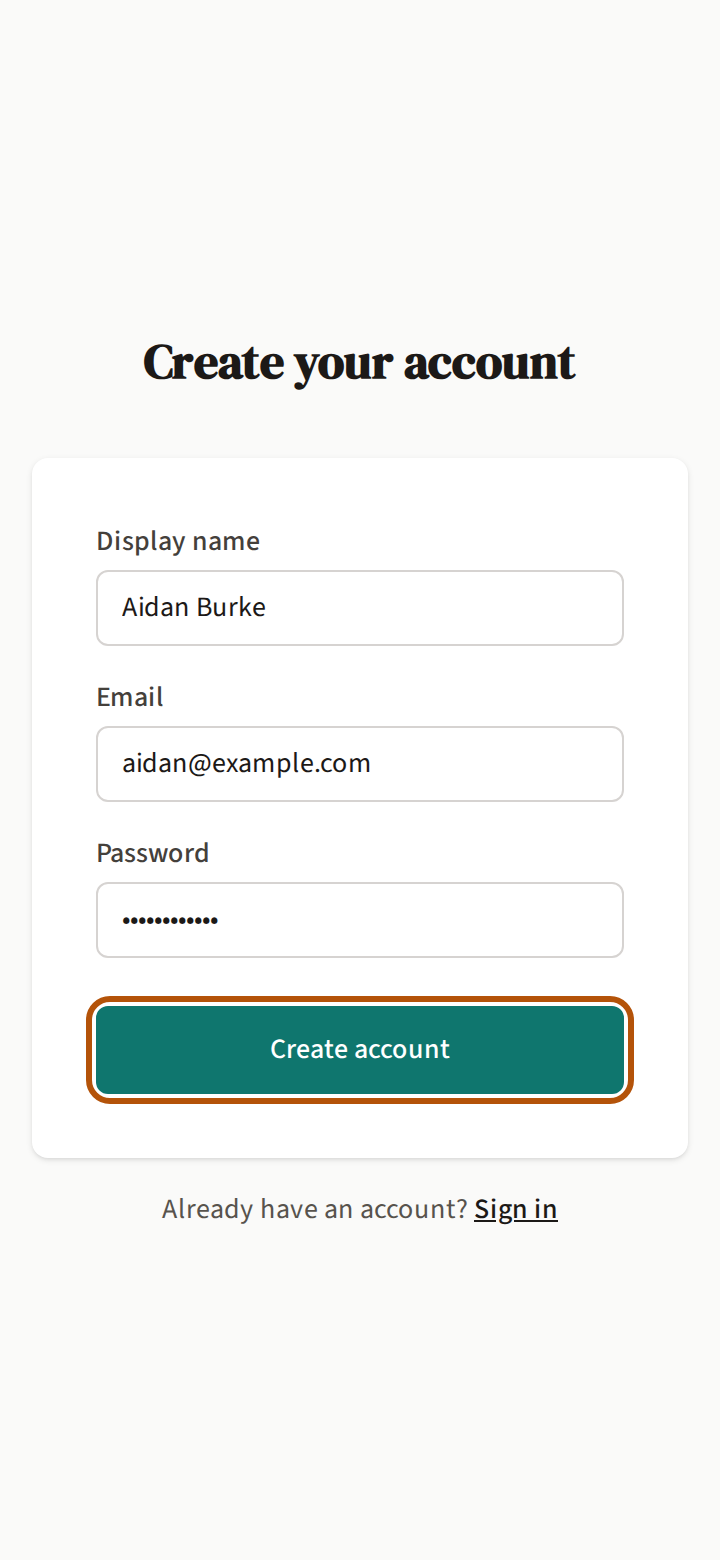
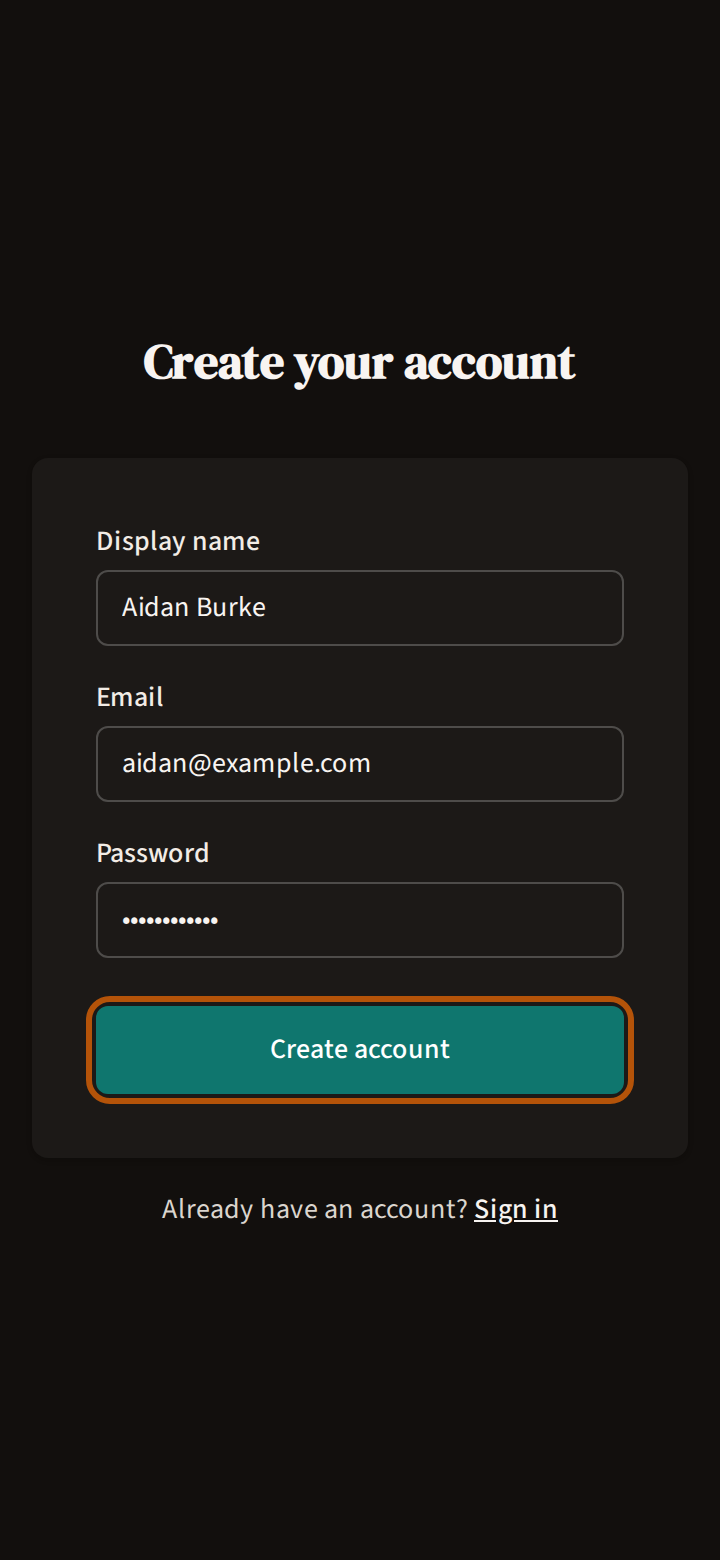
Got an invite link from your flock (your group)? Start from it — Join a flock shows how, and you come back to the flock once you're signed up. Otherwise press Sign up on the sign-in page.
Type your Display name — the name your flock will see on leaderboards and cards — your Email and a Password of at least six characters, then press Create account. When Treád says Check your email, open the email it sent and press its link. That confirms your account and signs you in.
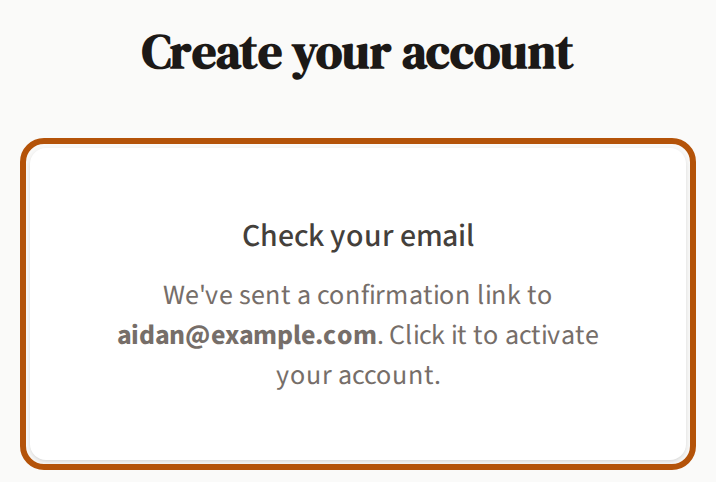
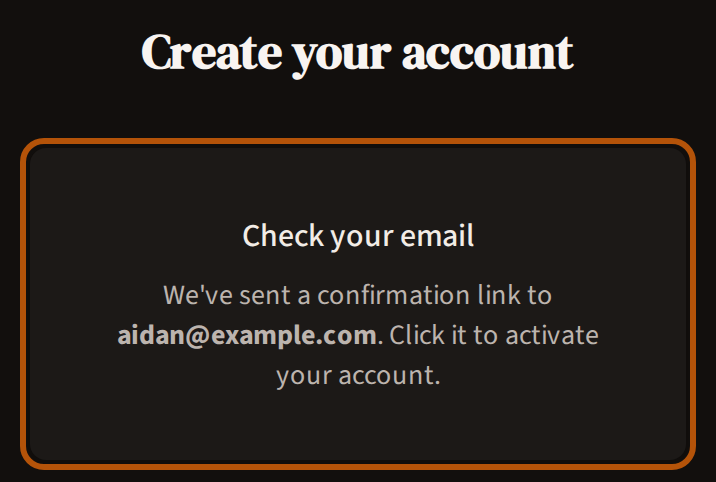
2. Sign in
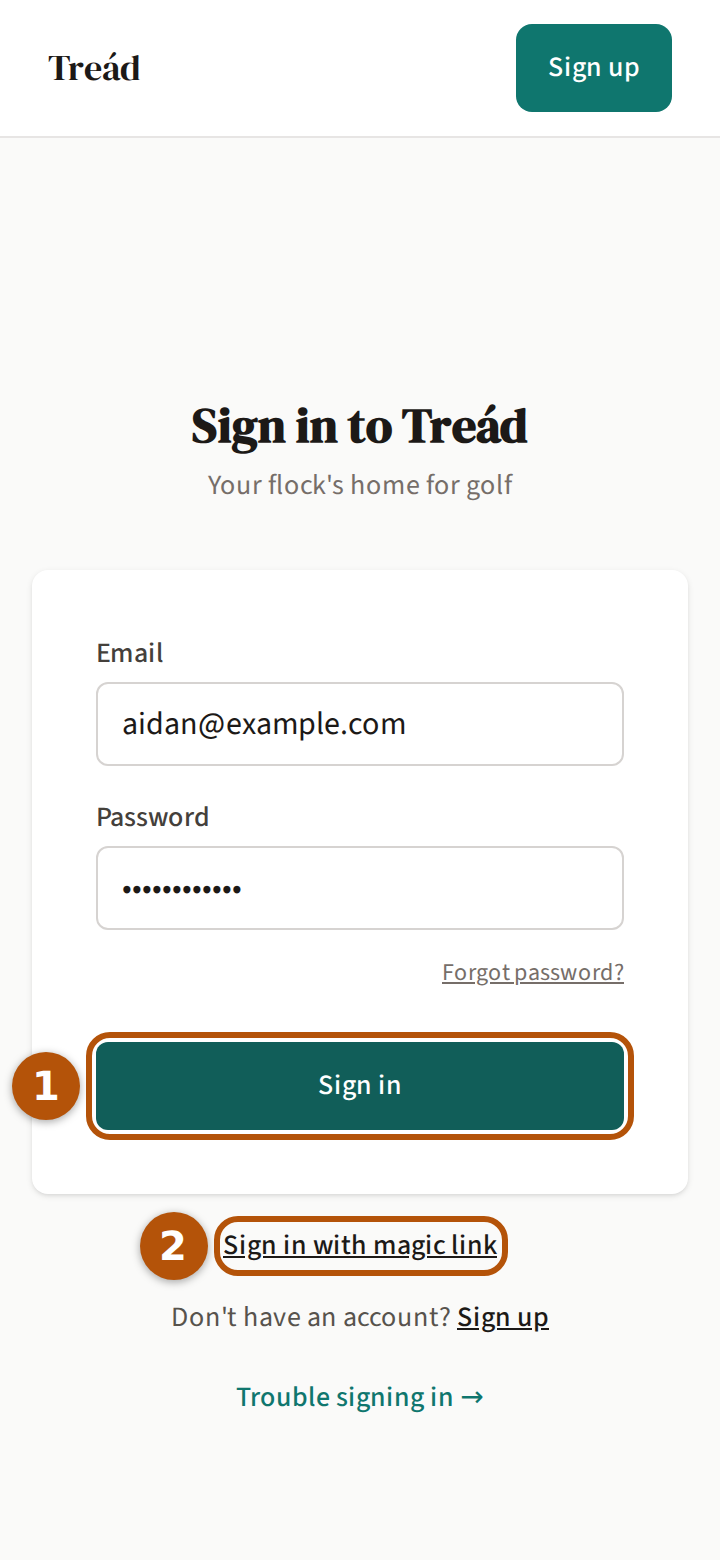
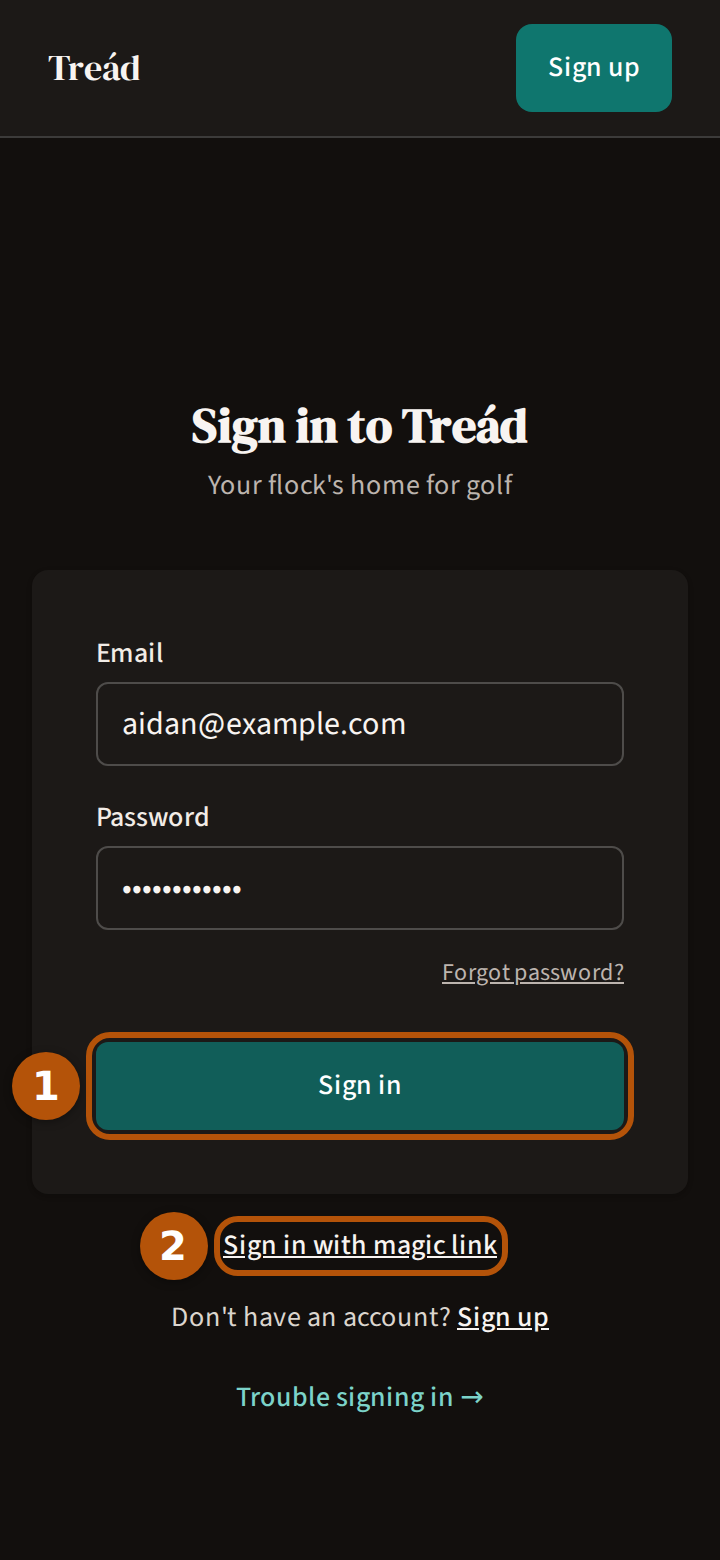
On Sign in to Treád, type your email and password and press Sign in ①. Treád opens Events, or the page you were going to.
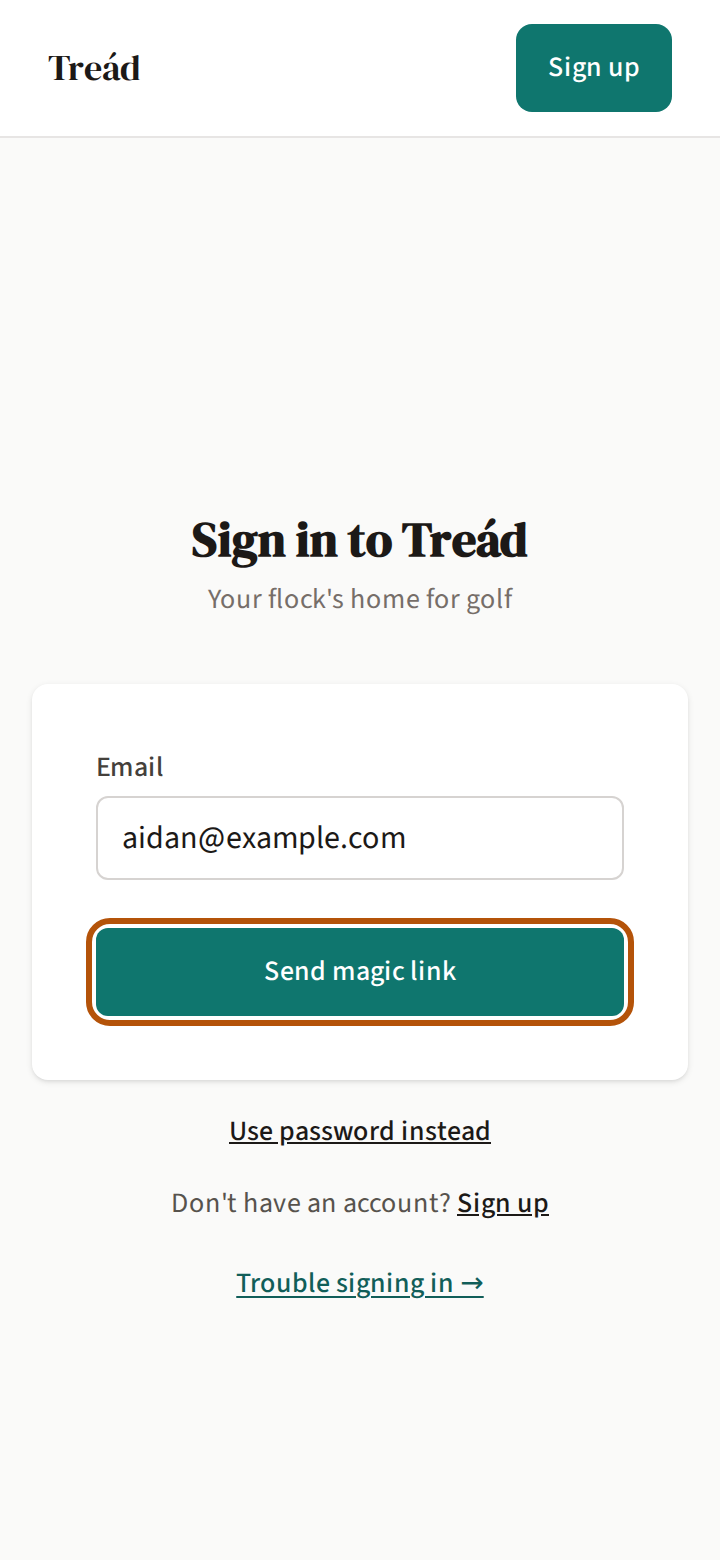
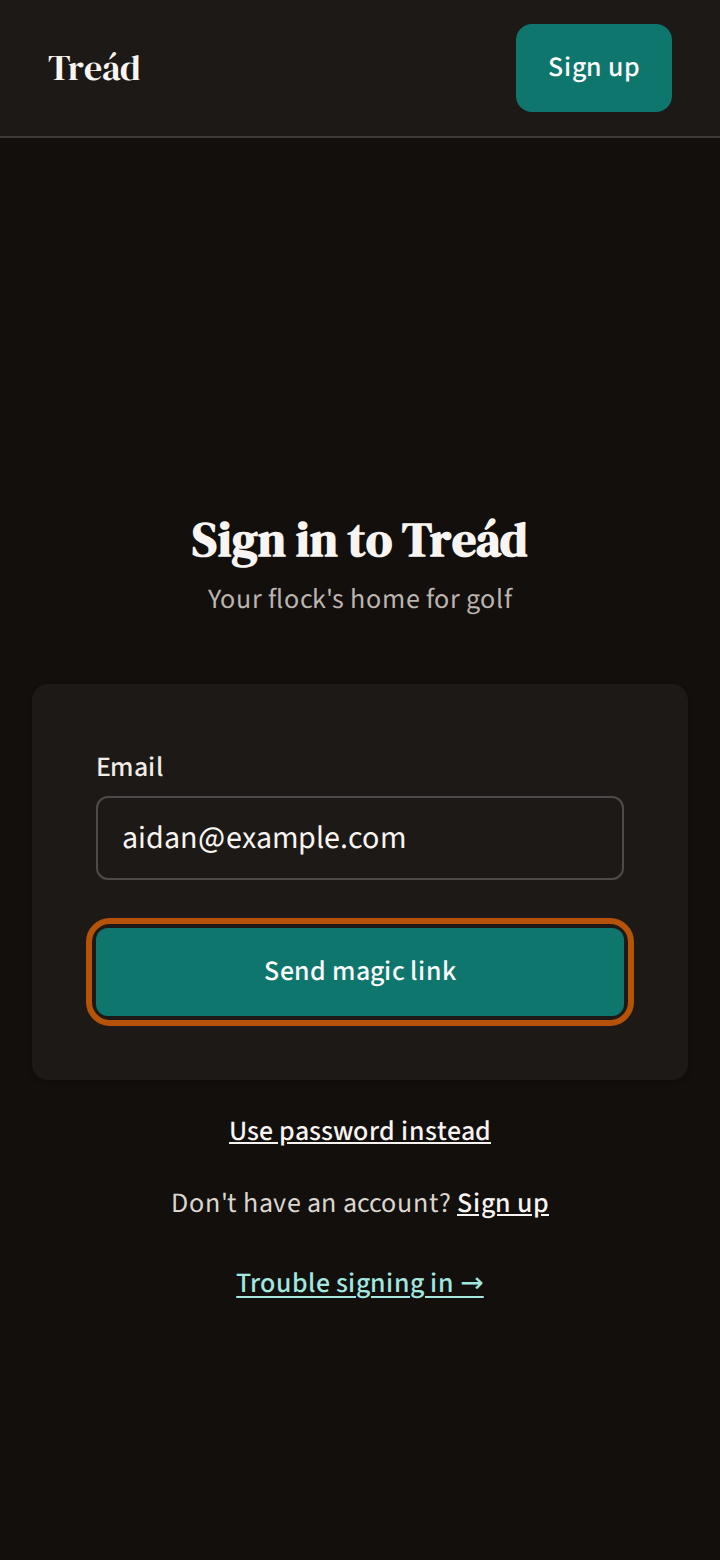
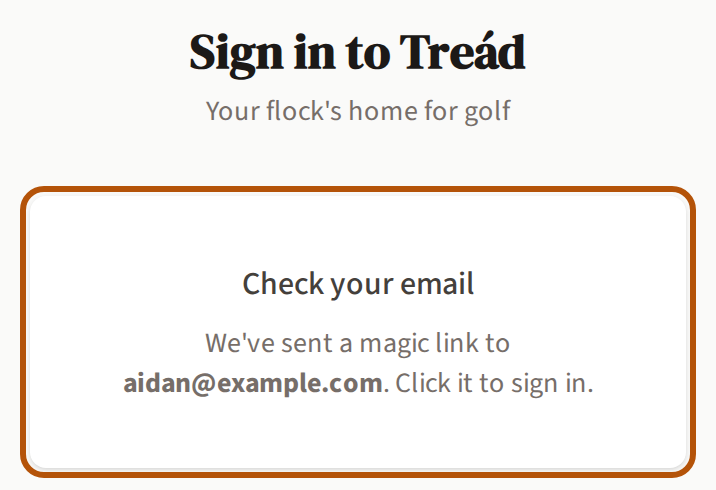
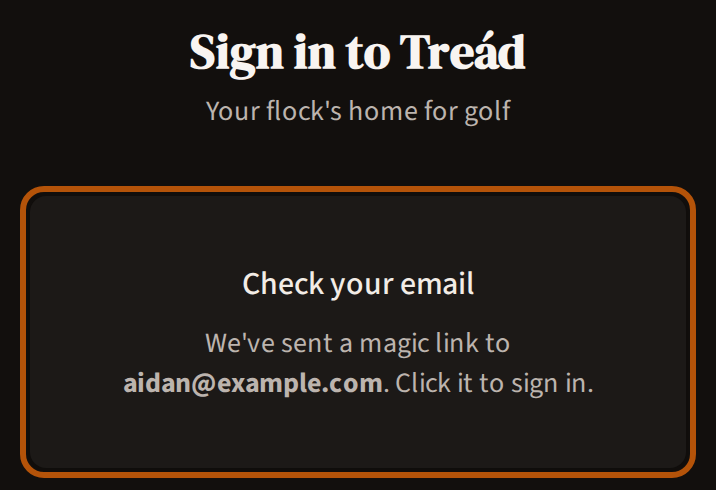
Rather not bother with a password? Press Sign in with magic link ②, type your email and press Send magic link. Treád says Check your email; press the link in the email and you're signed in. Use password instead takes you back.
3. Forgot your password
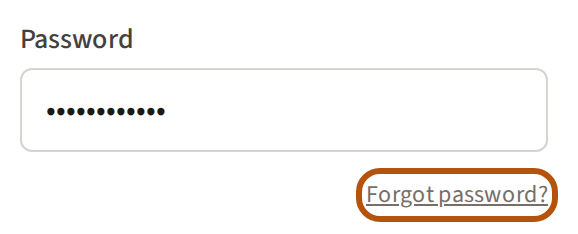
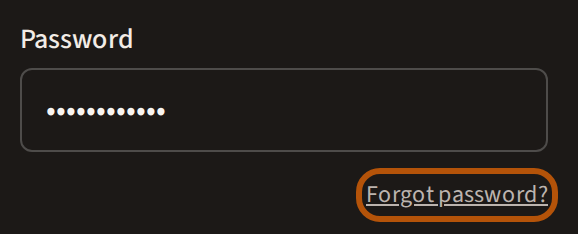
On the sign-in page, press Forgot password? under the password. On Reset your password, type your email and press Send reset link.
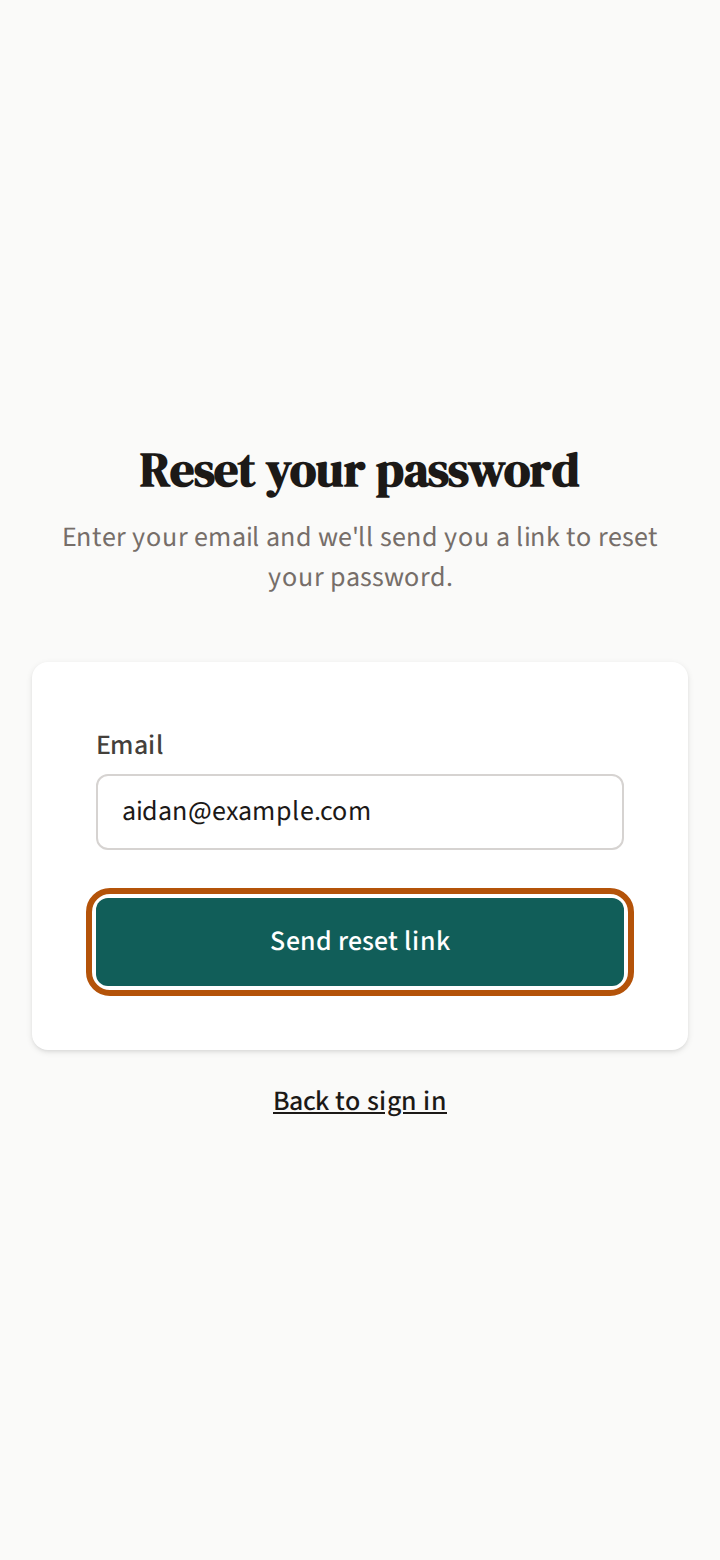
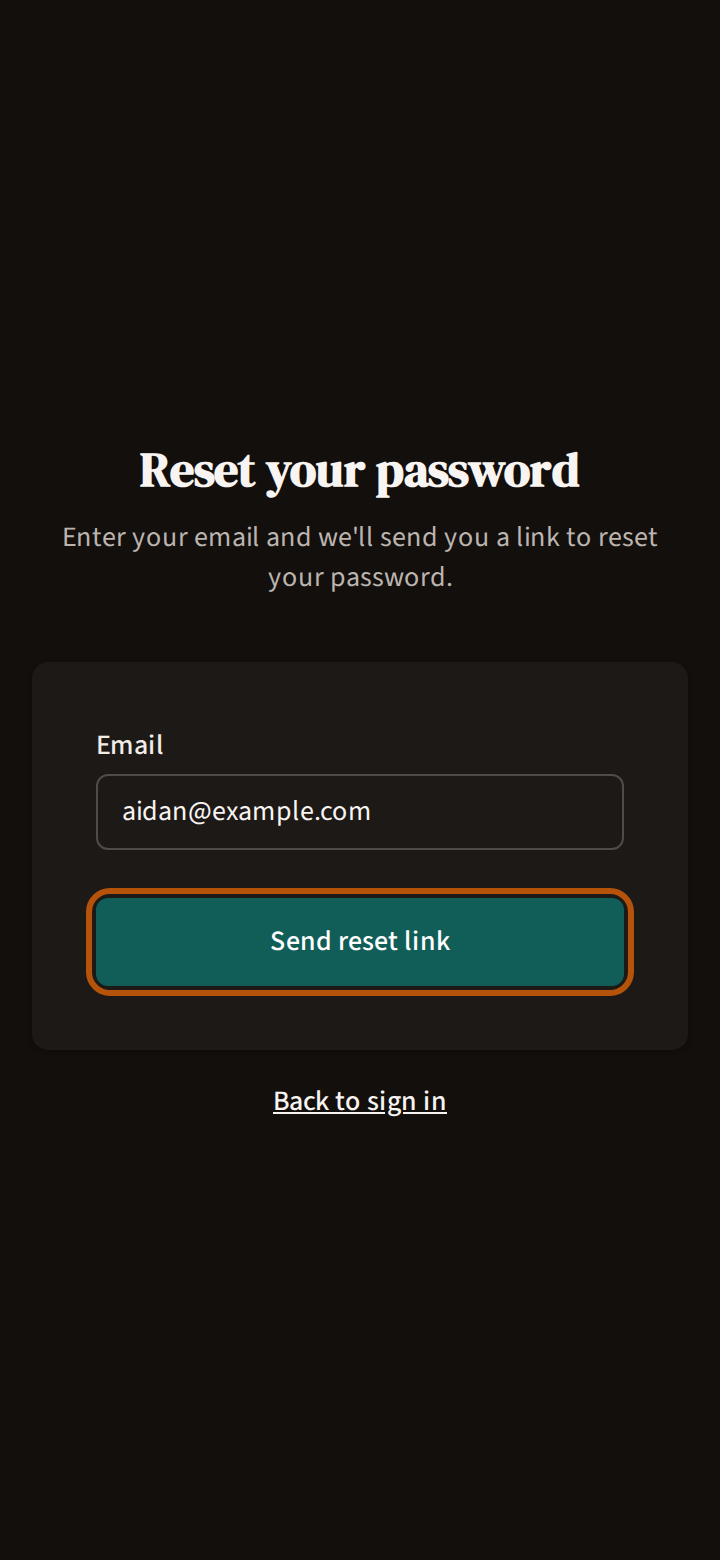
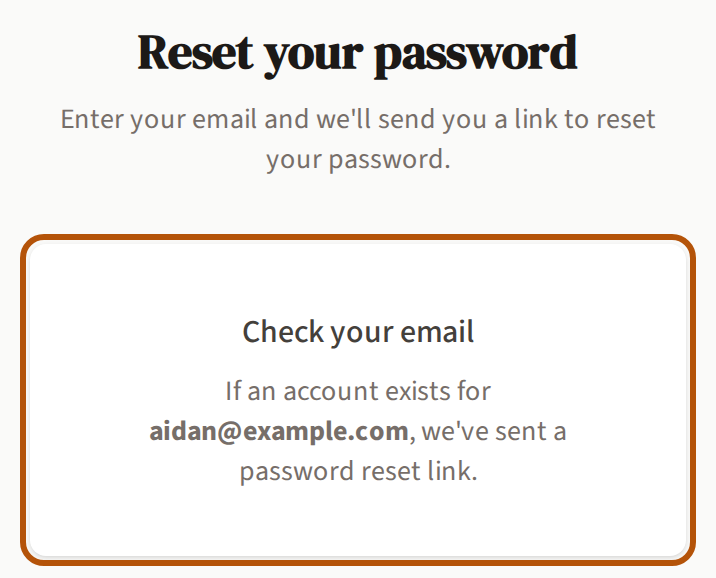
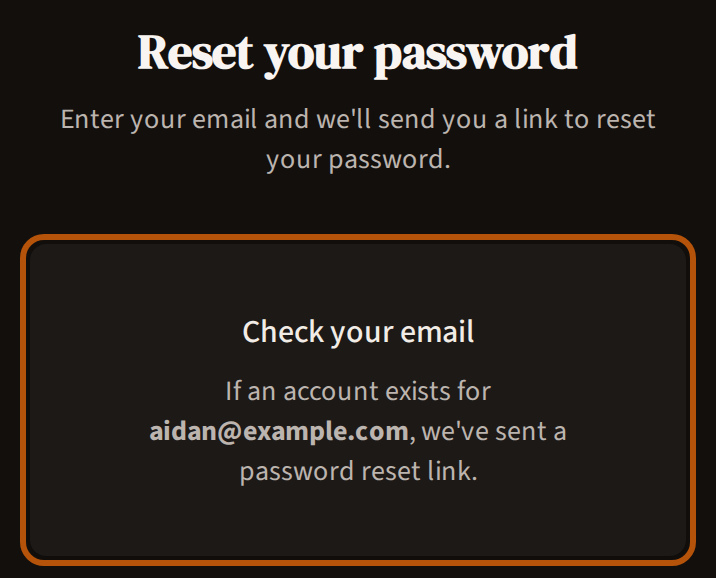
Treád says Check your email. The email's link opens Set new password: type a New password of six characters or more, the same again under Confirm password, and press Set new password.
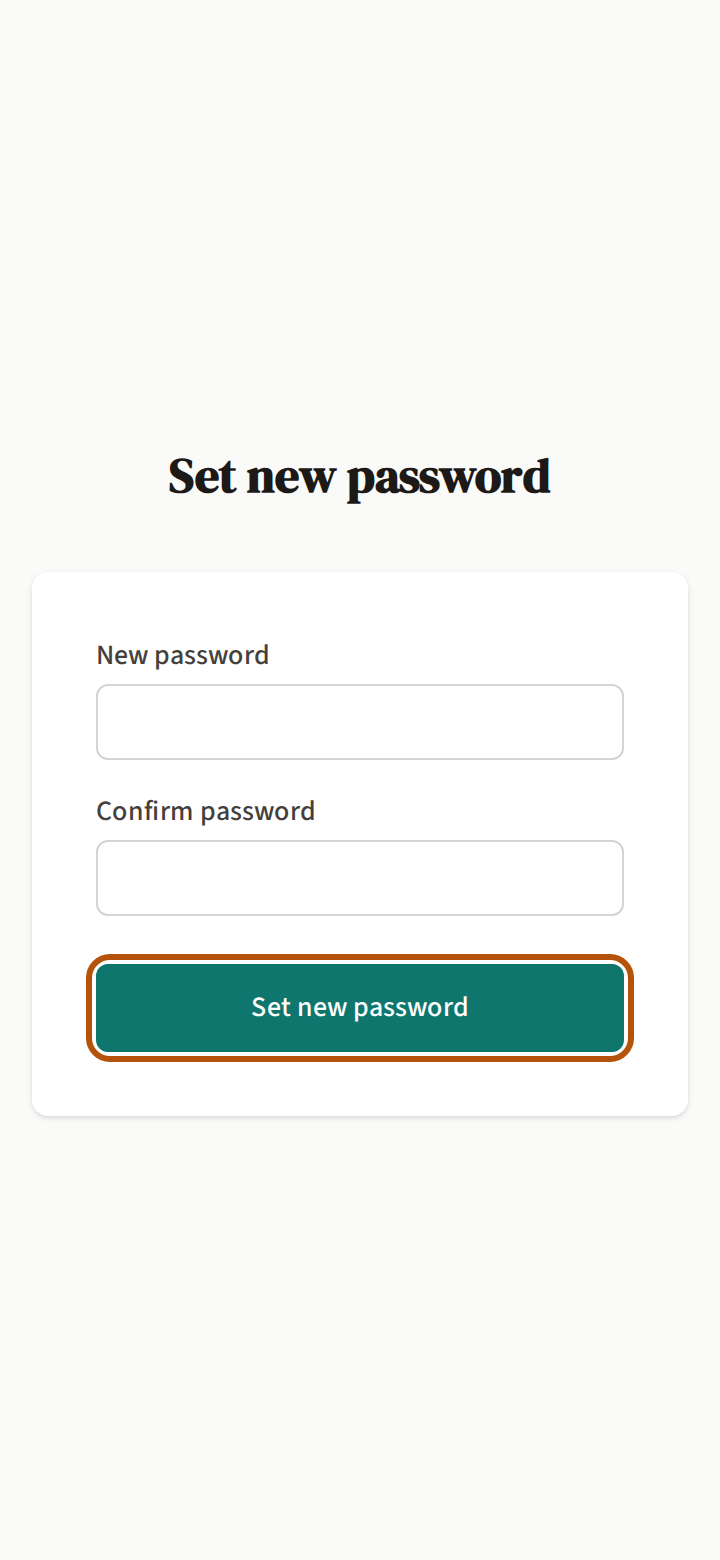
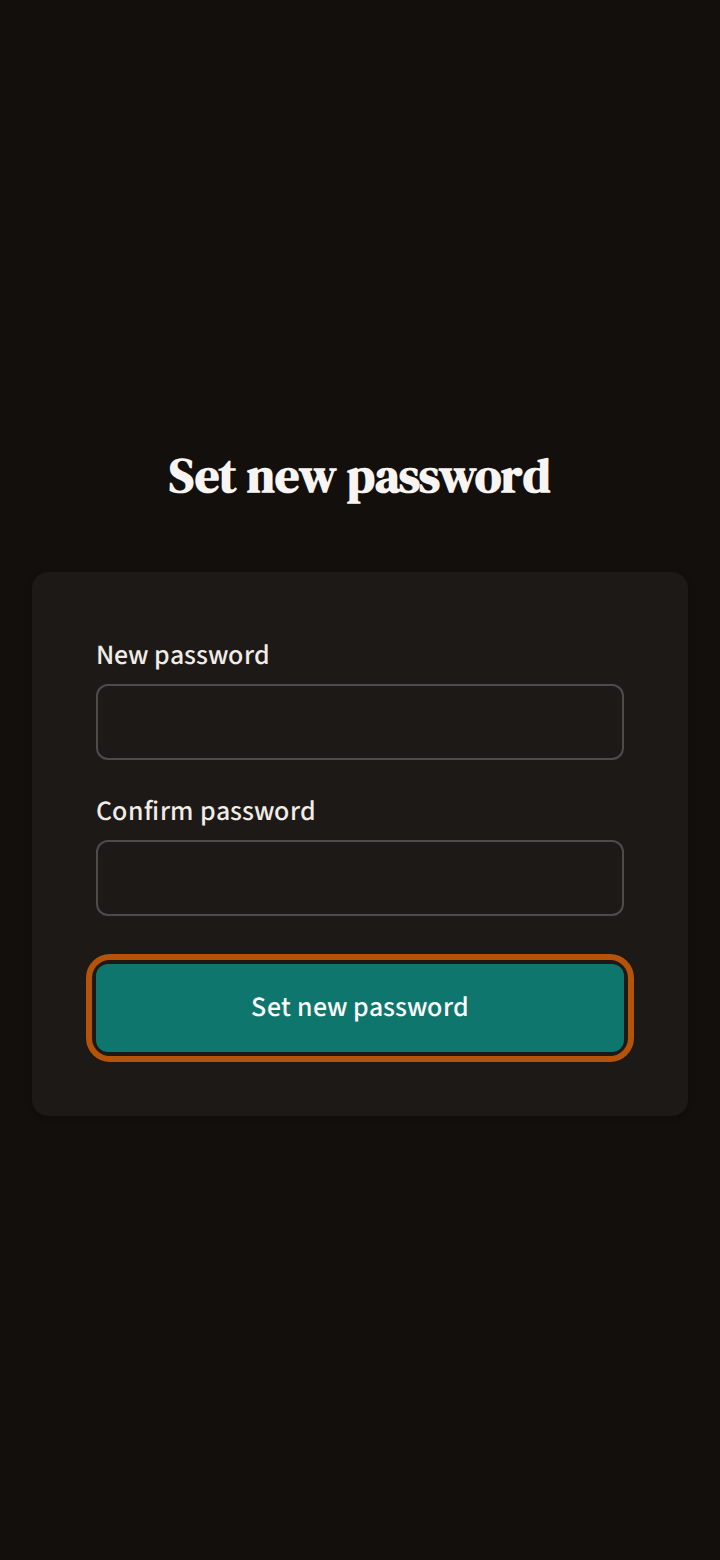
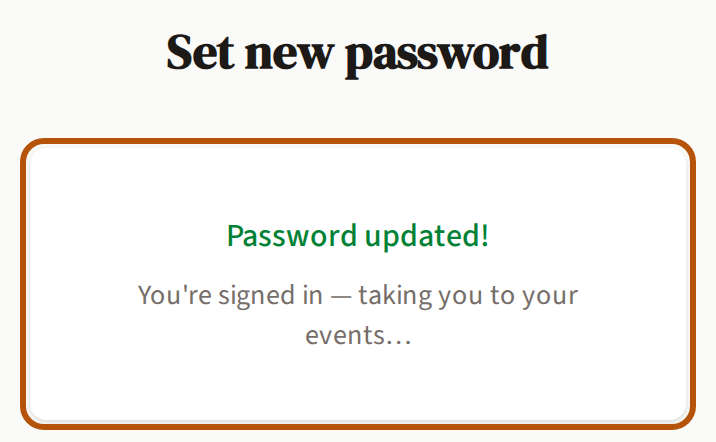
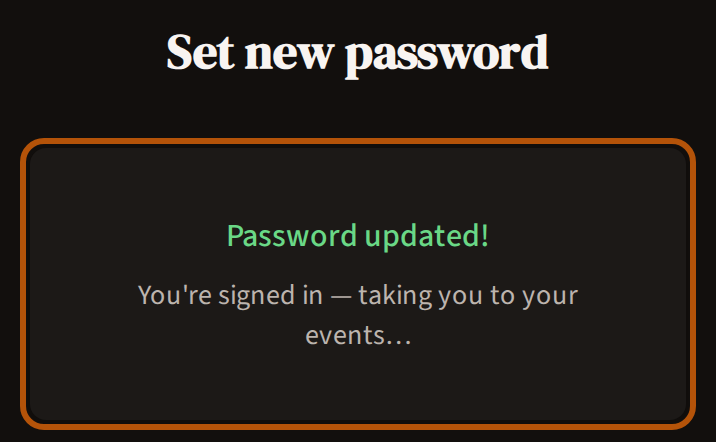
The email's link has already signed you in, so when Treád says Password updated! it takes you straight to Events. Next time you sign in, use your new password.
A reset link works once. If yours has expired or you have used it already, Treád says so — press Send a new reset link and use the link in the newest email. No email? Look in your spam folder, and check the address you typed is the one you signed up with.
4. Open your Account
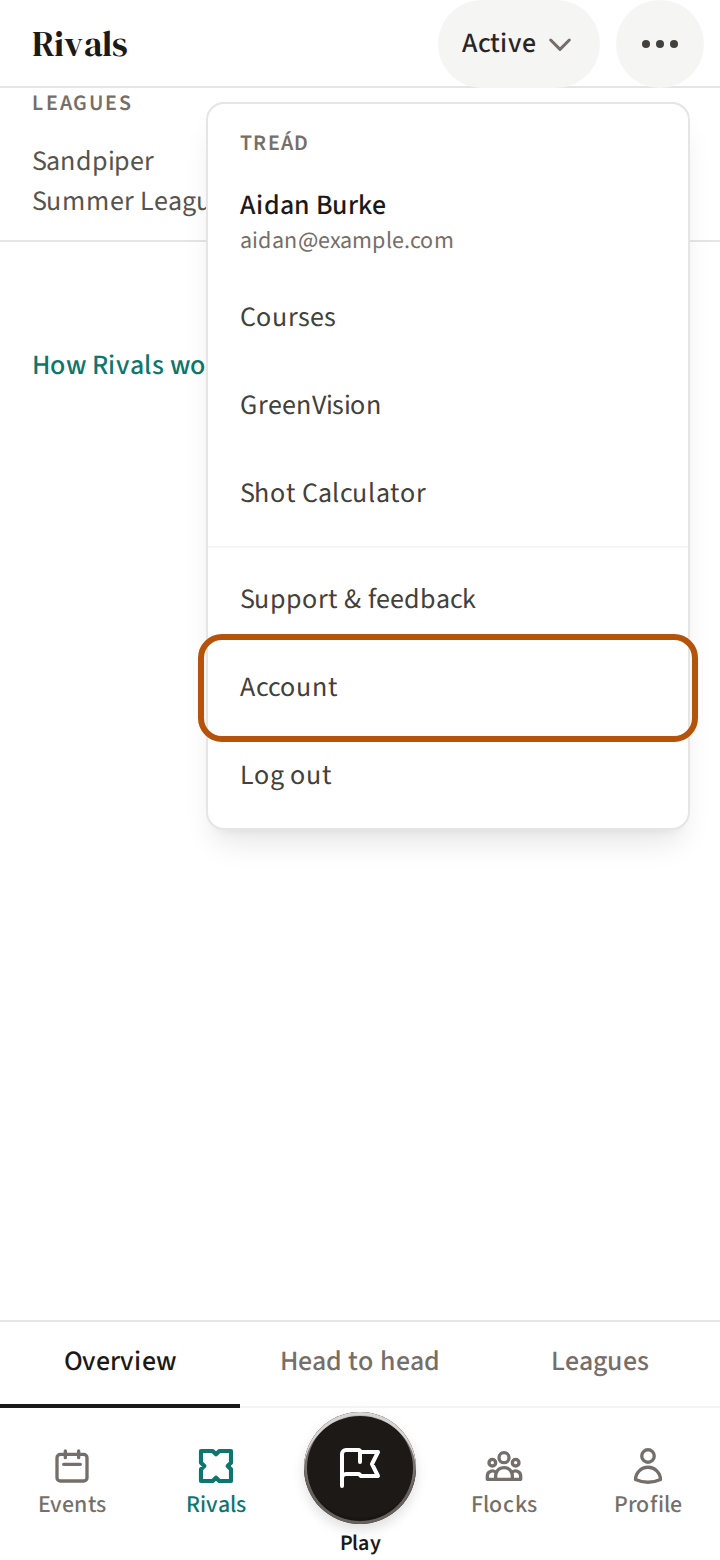
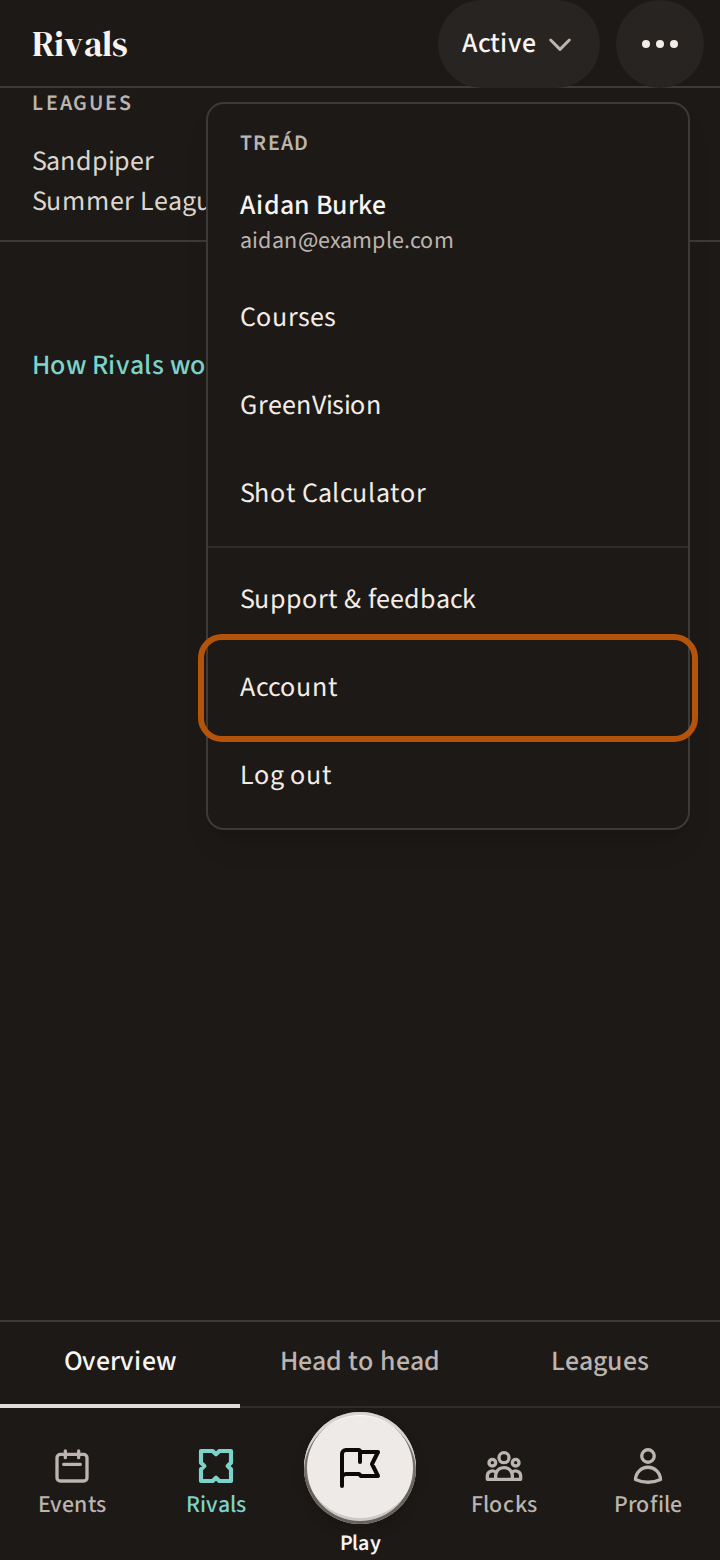
Press ⋯ in the header for the More menu. Under Treád it shows your name and email; press Account. Where the More menu sits, and the rest of it, is in Find your way around.
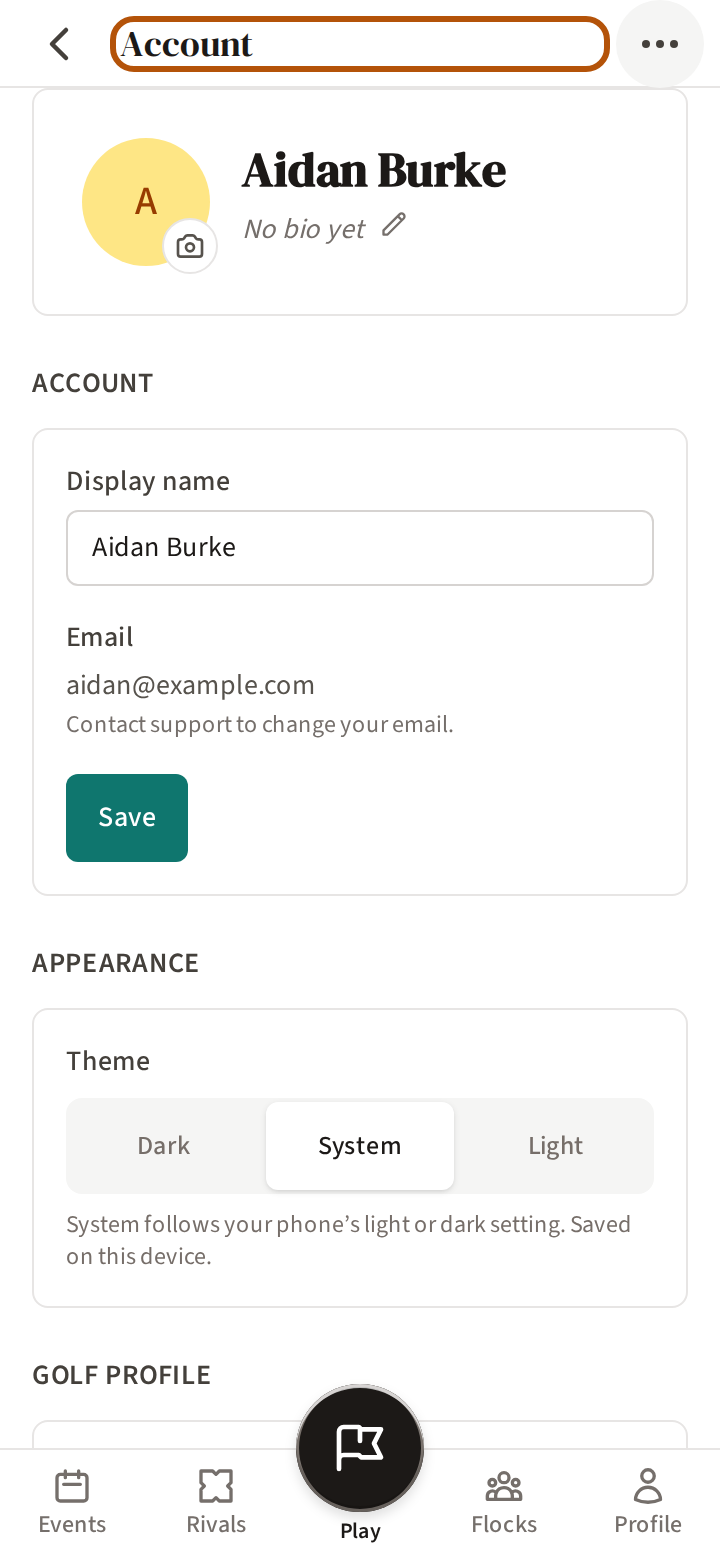
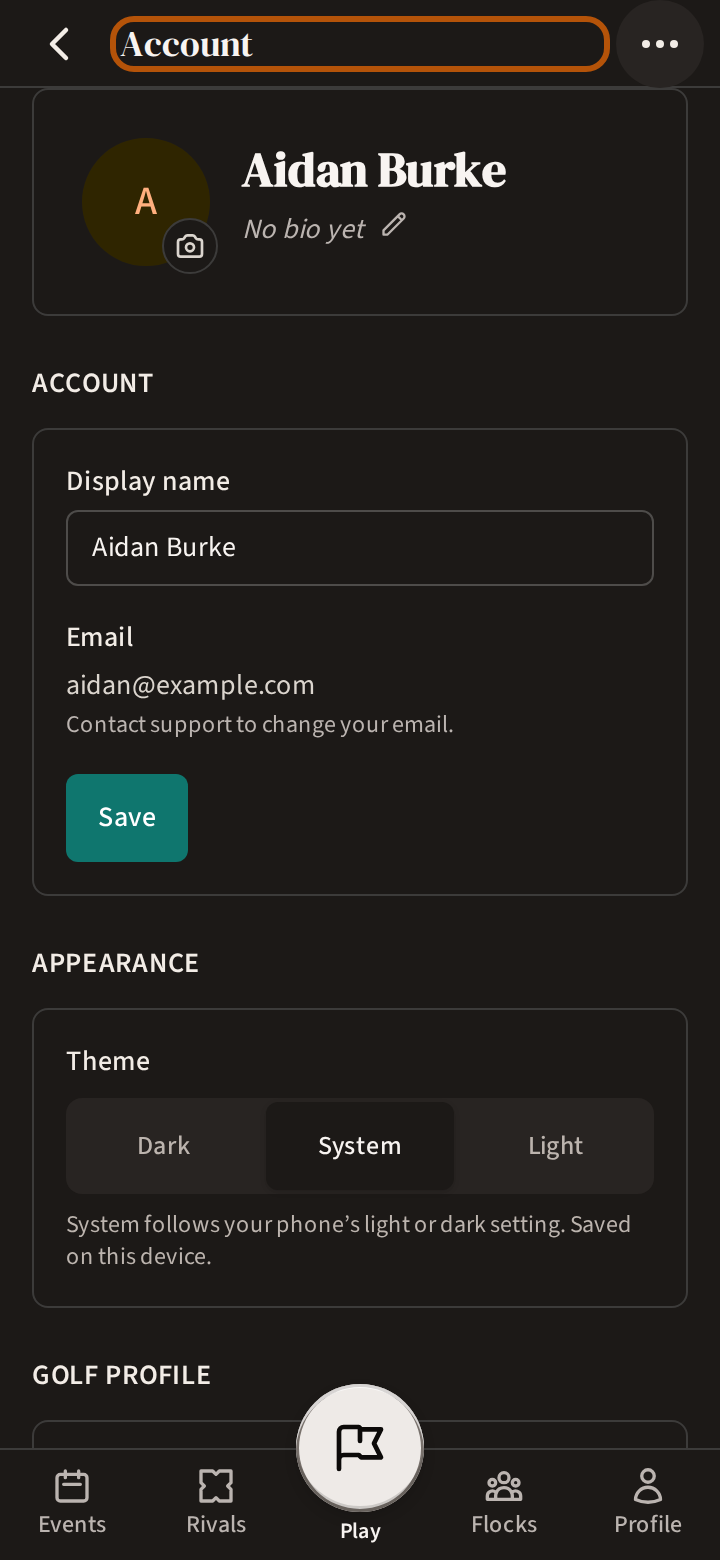
The Account page holds your photo and bio, your name and email, how Treád looks, the hand you play with, your password, and your flocks. Under Theme, choose Dark, Light, or System to follow your phone's own setting; the choice is kept on that phone. Your handicap and your record live on your Profile instead — see See your handicap and record.
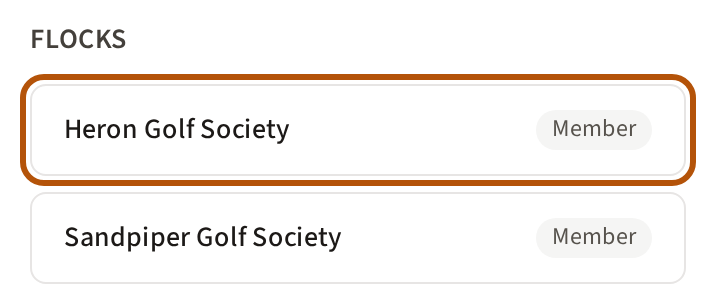
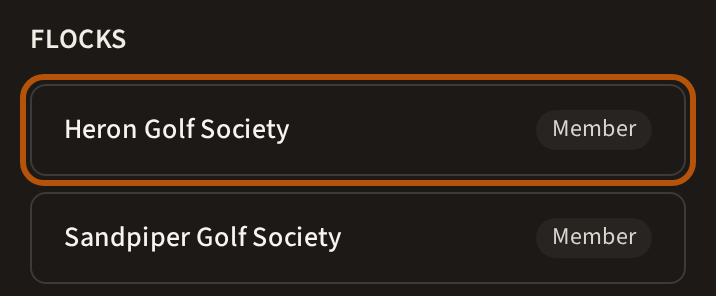
At the foot, Flocks lists every flock you're in, with Admin or Member beside each. Press one to open it. To leave a flock, ask one of its admins to remove you.
5. Your photo, name and bio
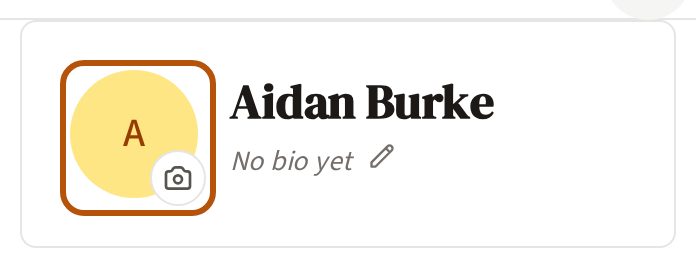
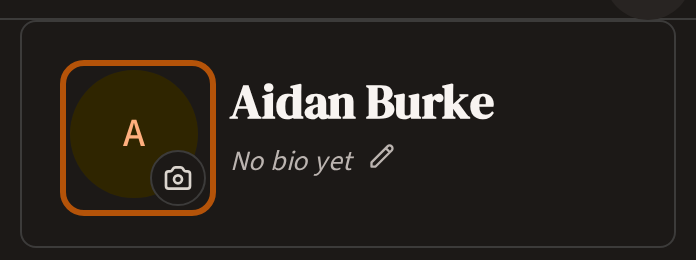
Press your photo — the one with the little camera on it — and choose a picture from your phone. Once you have a photo, the small ✕ beside it removes it.
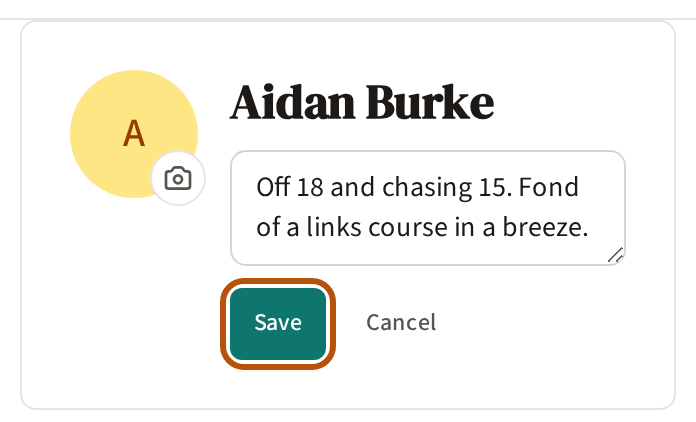
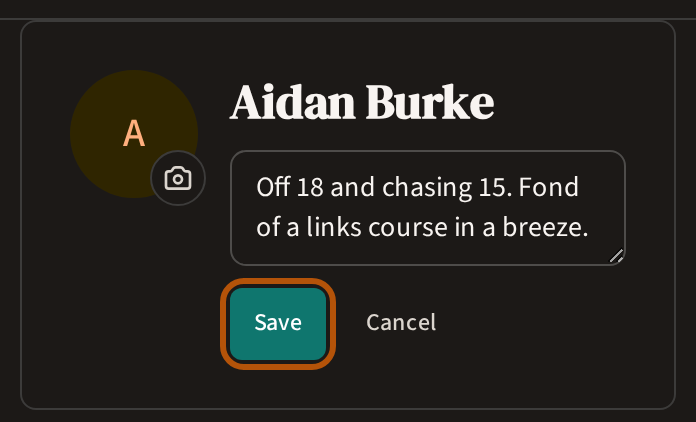
Under your name it says No bio yet until you write one: press the pencil beside it, write a line about yourself (up to 200 characters) and press Save. Cancel leaves it as it was.
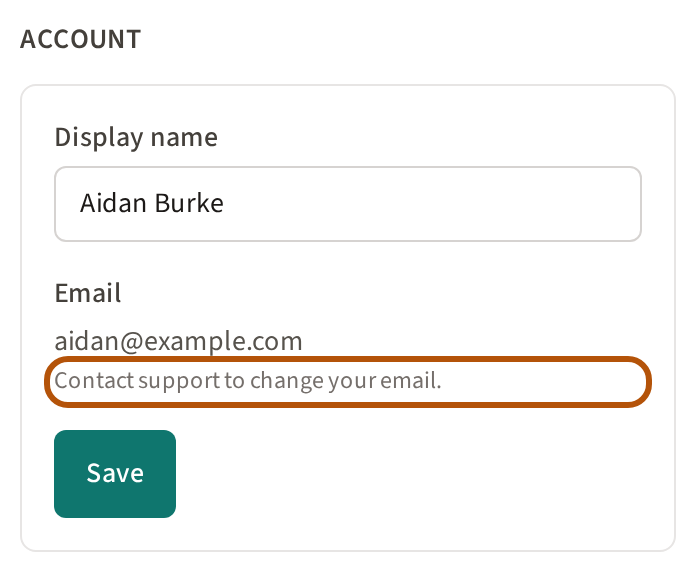
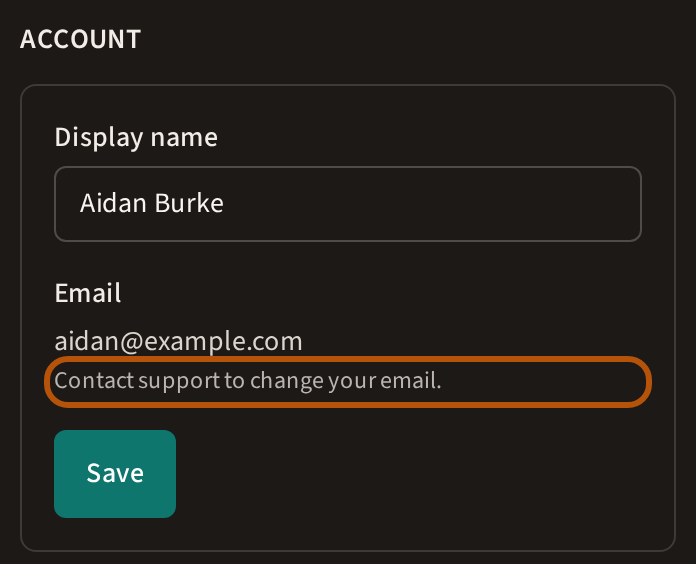
Under Account you'll see your Display name and your email. To change your name, type the new one under Display name and press Save; Treád says Display name updated. and your flock sees the new name. Beneath the email it says Contact support to change your email.
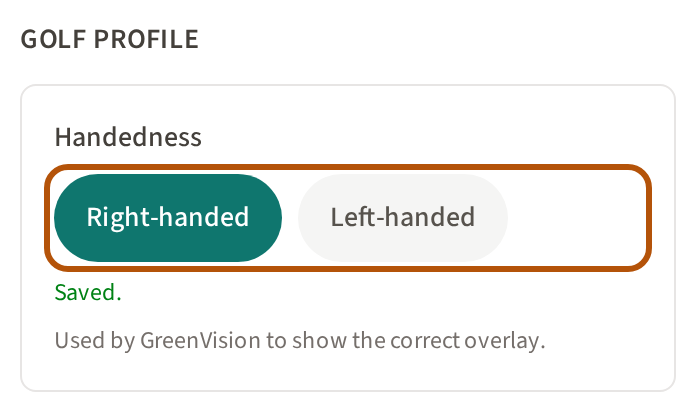
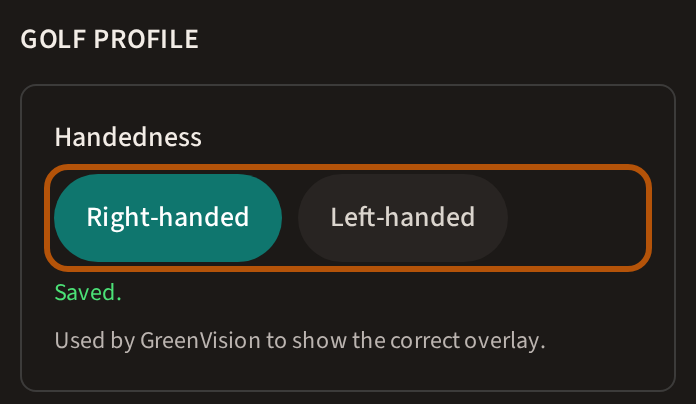
Under Golf Profile, press Right-handed or Left-handed. It saves as soon as you press it — the hand you chose fills in and Treád says Saved. — and GreenVision uses it.
6. Change your password
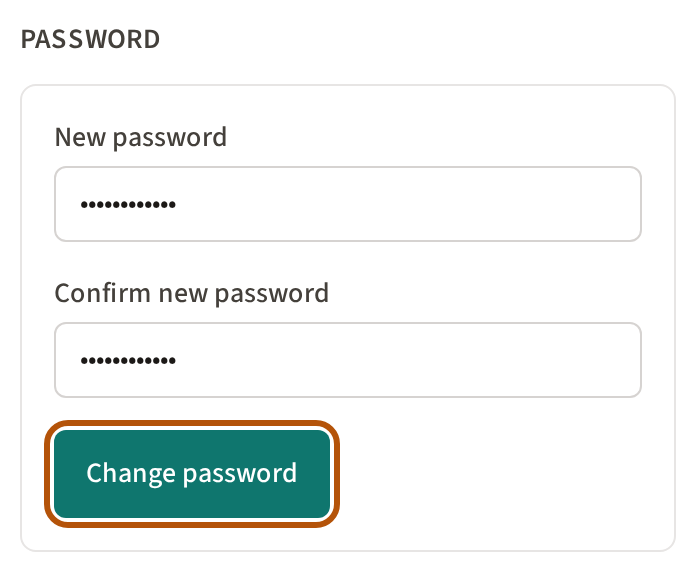
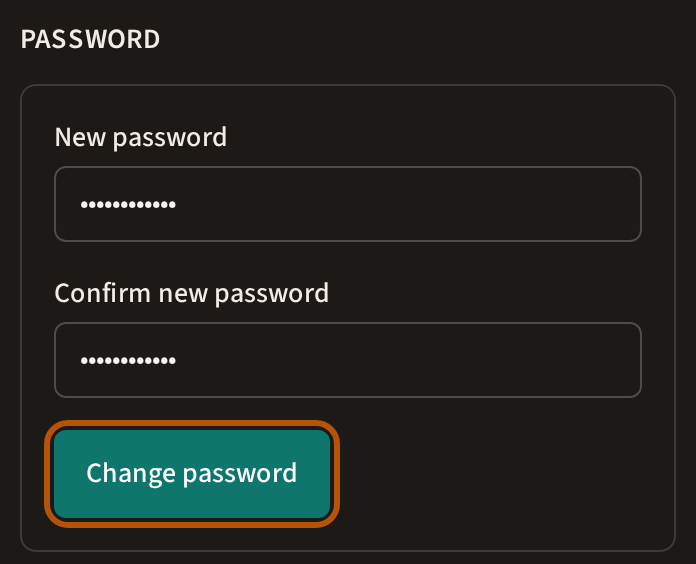
Under Password, type your New password — six characters or more — and the same again under Confirm new password, then press Change password.
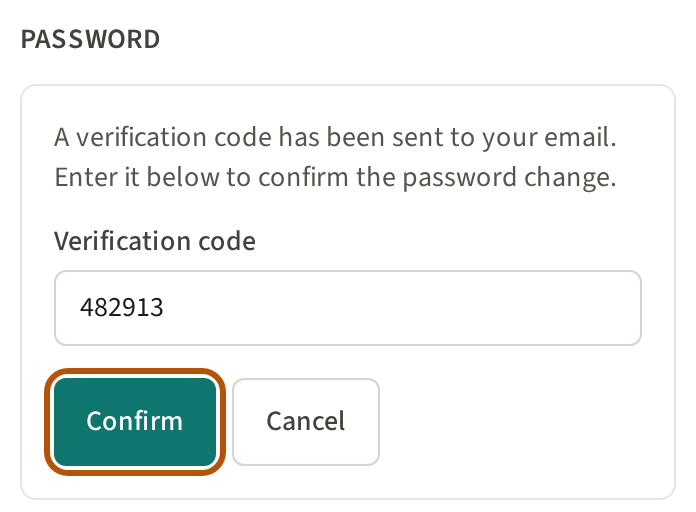
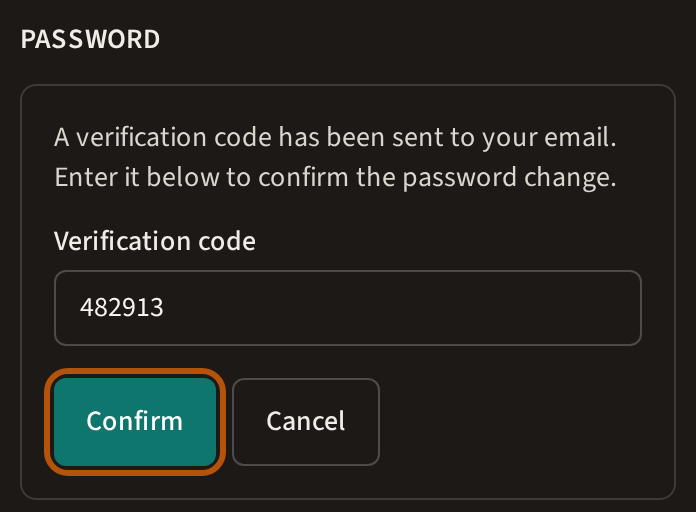
Treád emails you a code. Type it under Verification code and press Confirm. Cancel leaves your old password as it was.
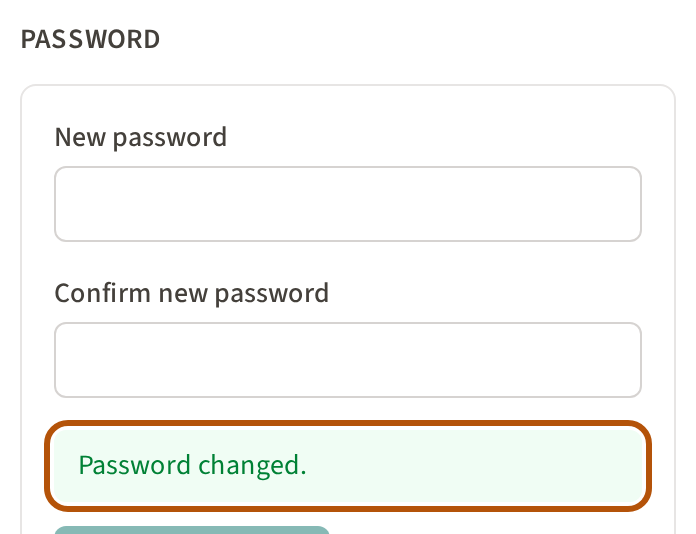
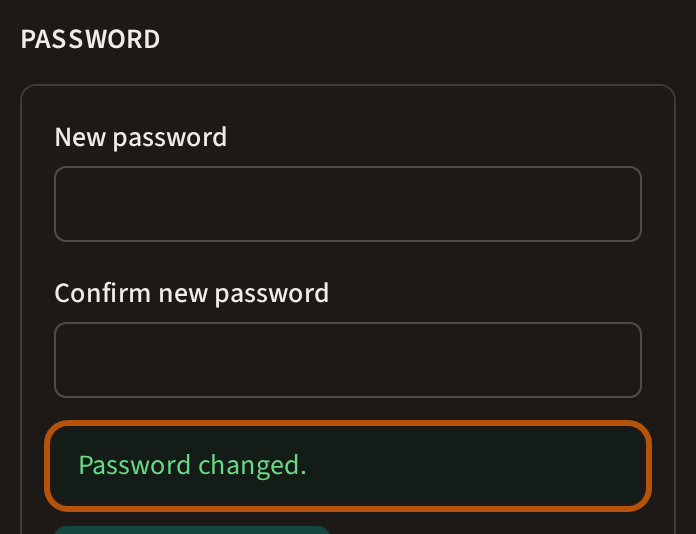
Treád confirms with Password changed.
7. Log out
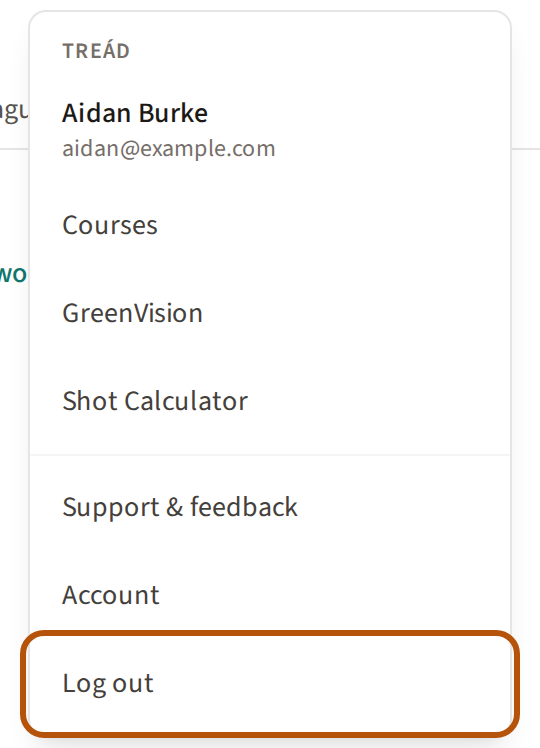
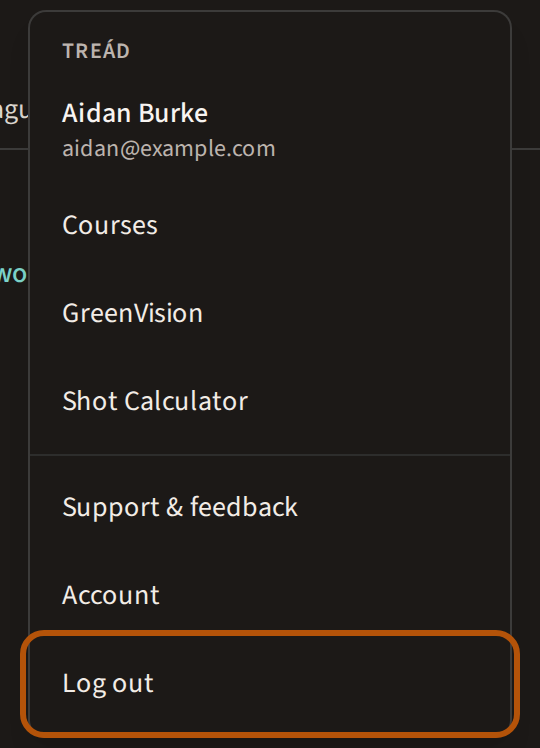
Press ⋯ in the header, then Log out at the foot of the More menu. Treád signs you out and opens the sign-in page.
8. Send us feedback
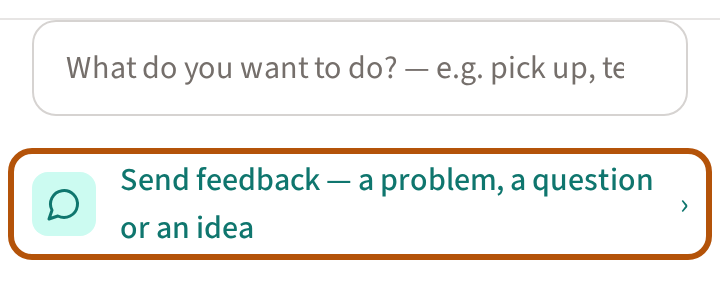
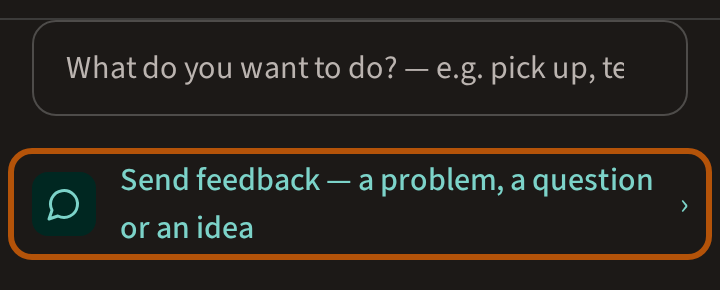
Something not working, a question, an idea — or an email to change? Press ⋯, then Support & feedback. Under the search, press Send feedback — a problem, a question or an idea. Every Support page also ends with Tell us.
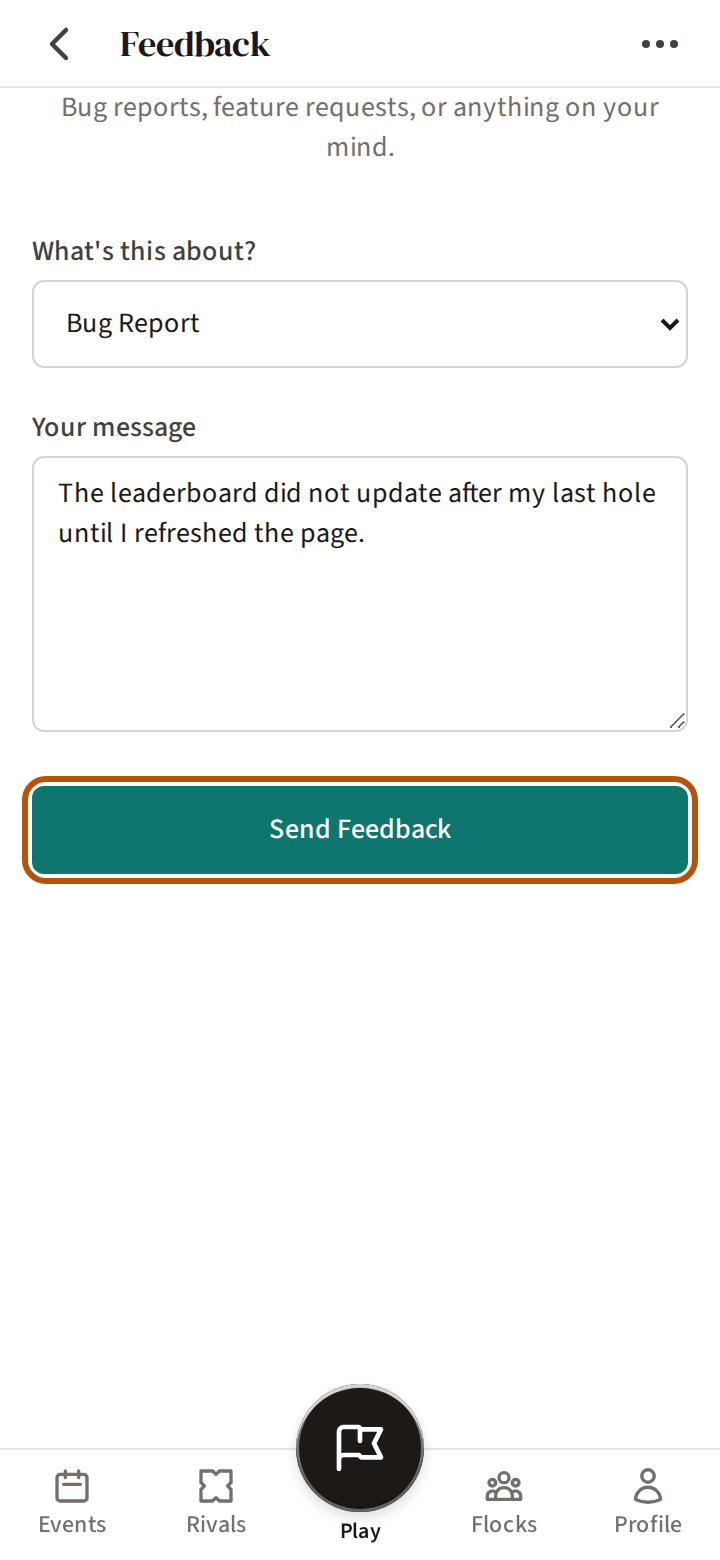
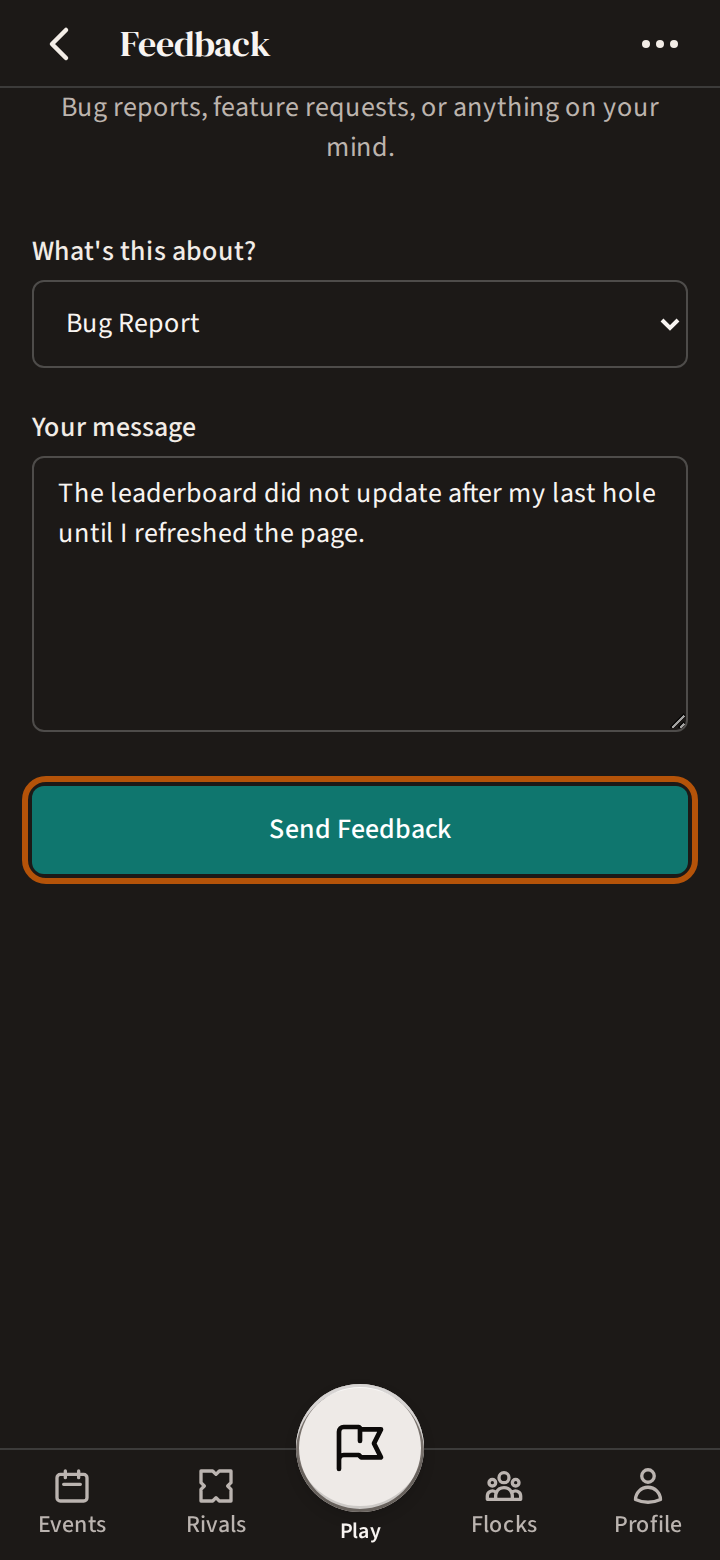
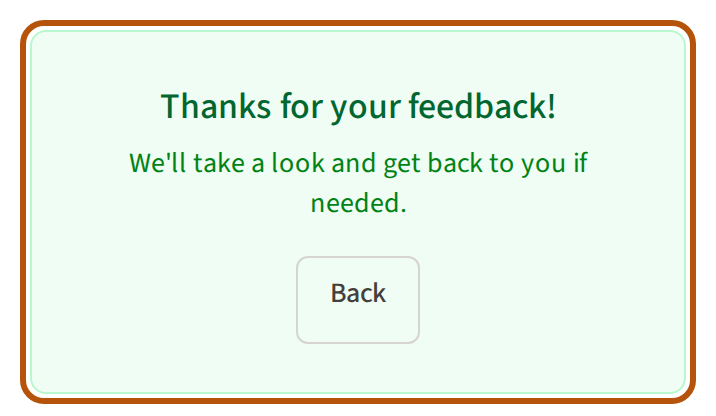
Under What's this about? choose Bug Report, Feature Request or General Feedback. Write it under Your message and press Send Feedback, and Treád says Thanks for your feedback! It knows which page you came from, so there's no need to explain where you were.
Still stuck? Tell us and we will help.