Find your way around
Golf's hard enough without hunting for buttons while your partner's already teeing up. Treád is built from a handful of parts you'll meet on every page, so learn their names once and you'll always know where you are. Meet each one below: where it sits, and what it does.
Treád has six parts you will meet everywhere: the bar along the bottom, the sections just above it, the header along the top with its picker and More menu, and — while you play — the hole bar. In the pictures, an orange ring marks the part being described.
The bar
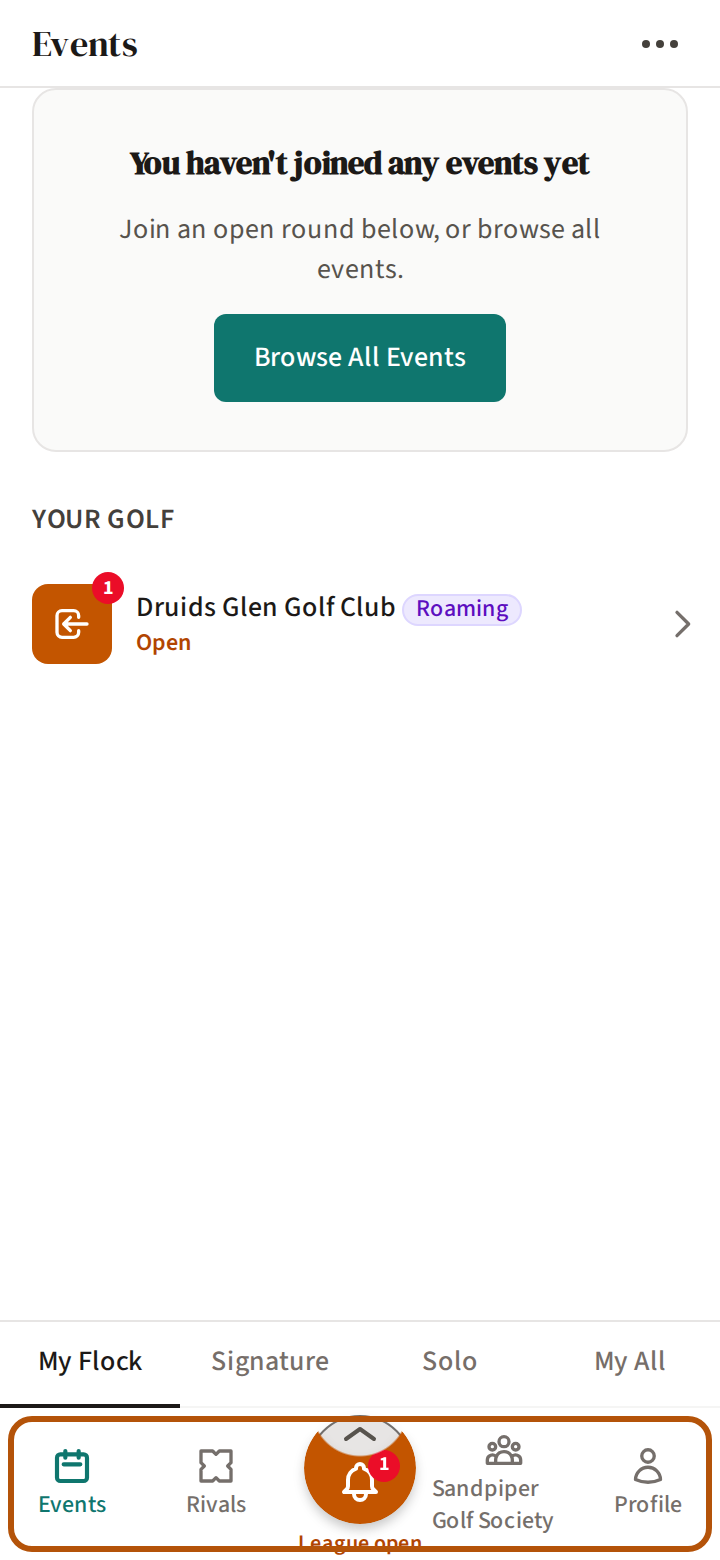
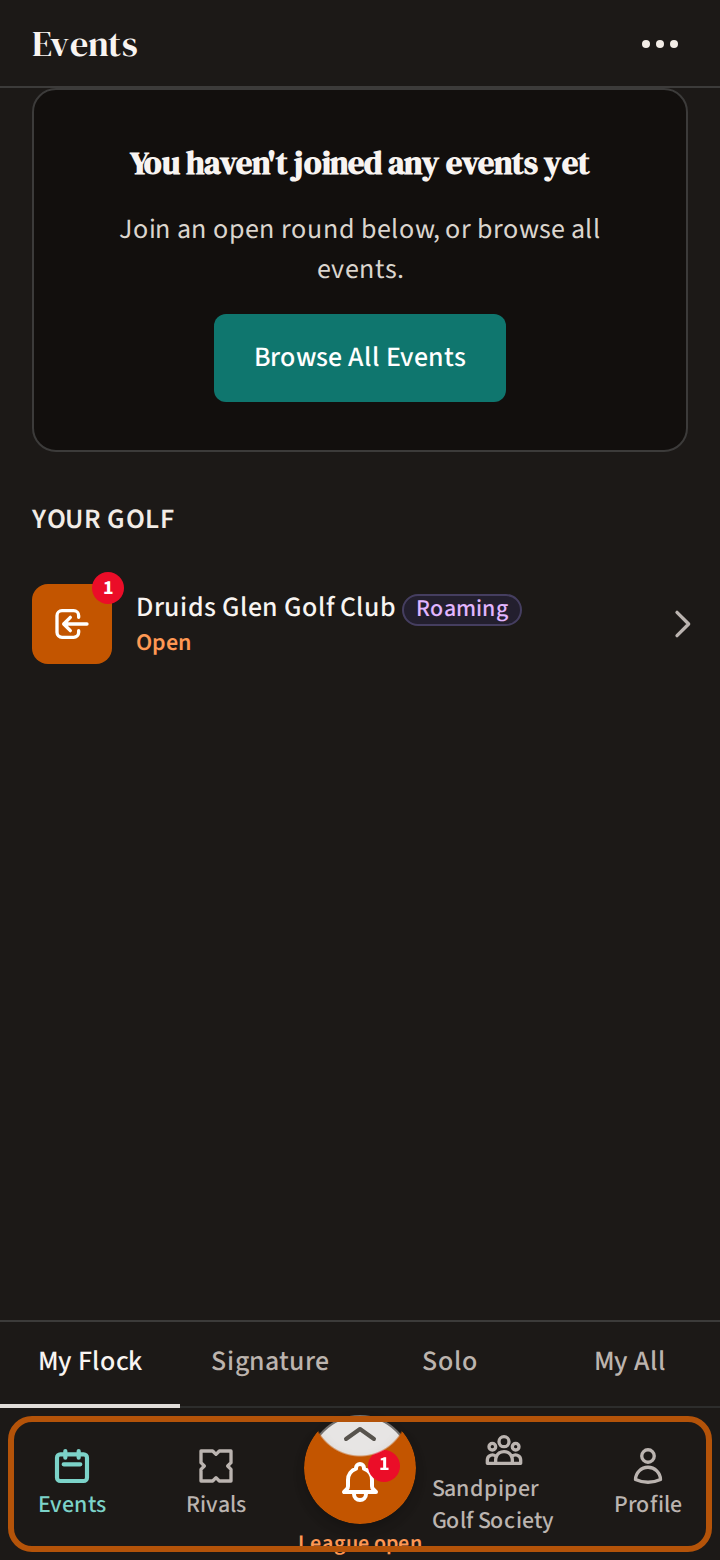
The bar runs along the bottom of every screen. Press a button to go there.
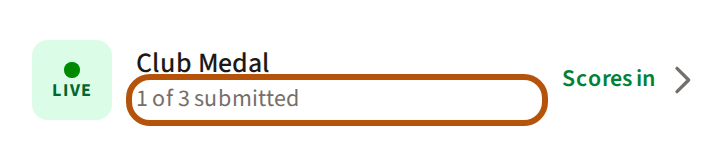
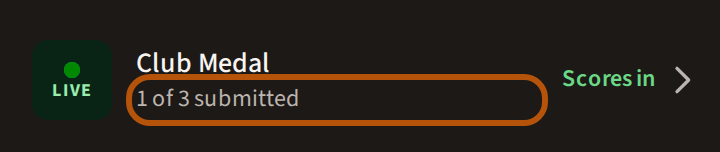
- Events — your golf, past and coming, in every flock (your group) you belong to. While an event you're in is live, its card there says how many cards are in so far, such as 2 of 4 submitted.
- Rivals — your head-to-head records and your leagues.
- Your flock — it carries your flock's name. If you belong to more than one, it says Flocks and lists them.
- Profile — your handicap, your stats, your honours and your courses.
The round button in the middle is the Play button. It has its own page: Read the Play button.
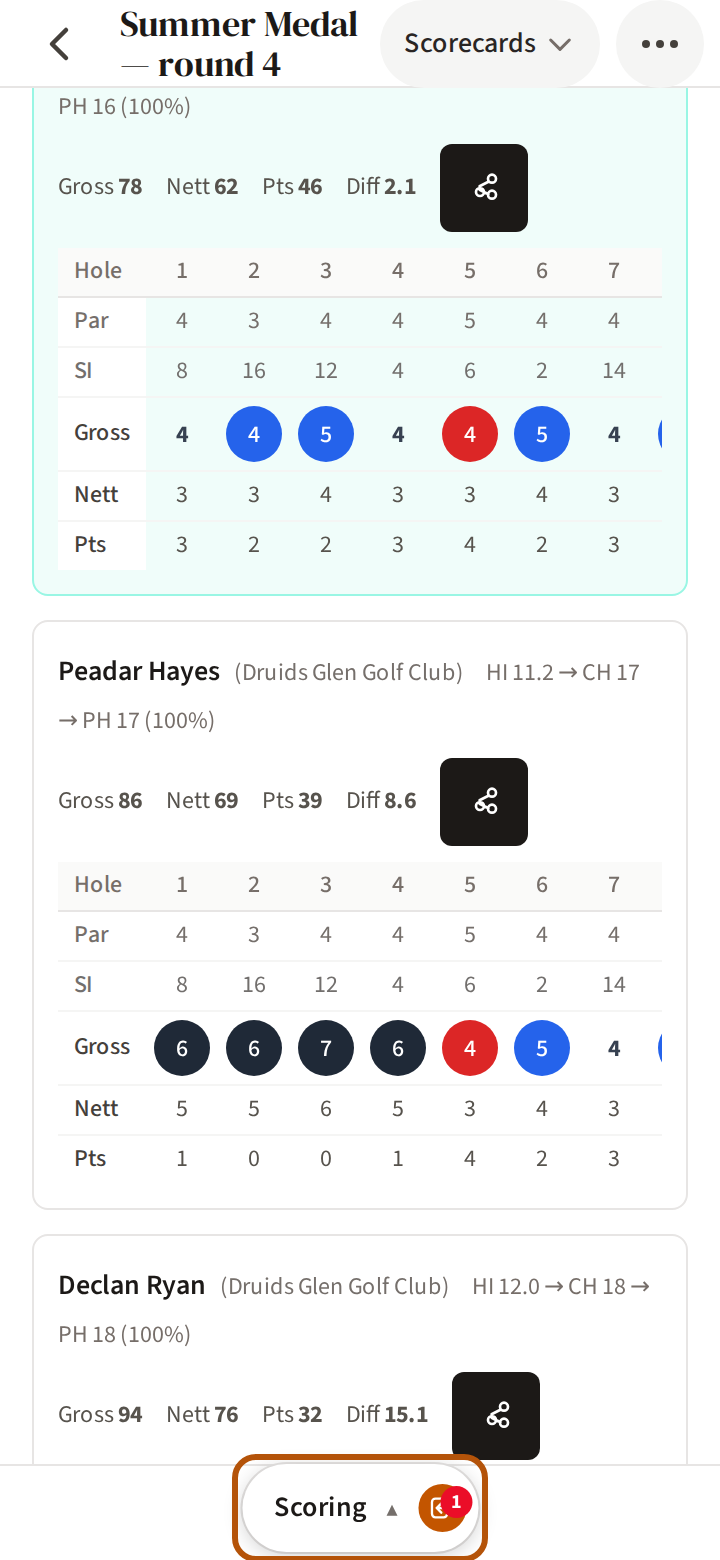
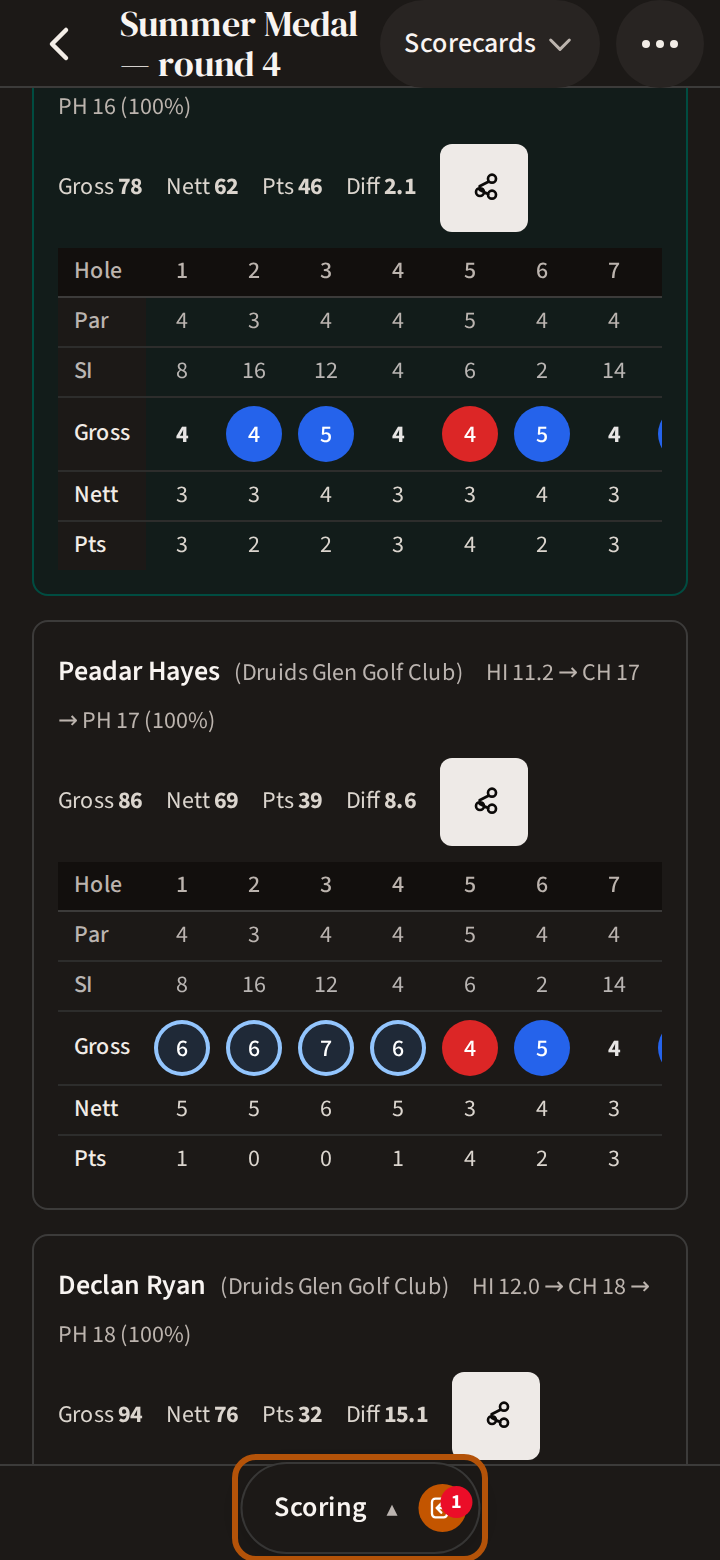
As you scroll down to read, the bar tucks away into one small button that names the section you are on. Press it, or scroll back up, and the bar comes back.
Sections
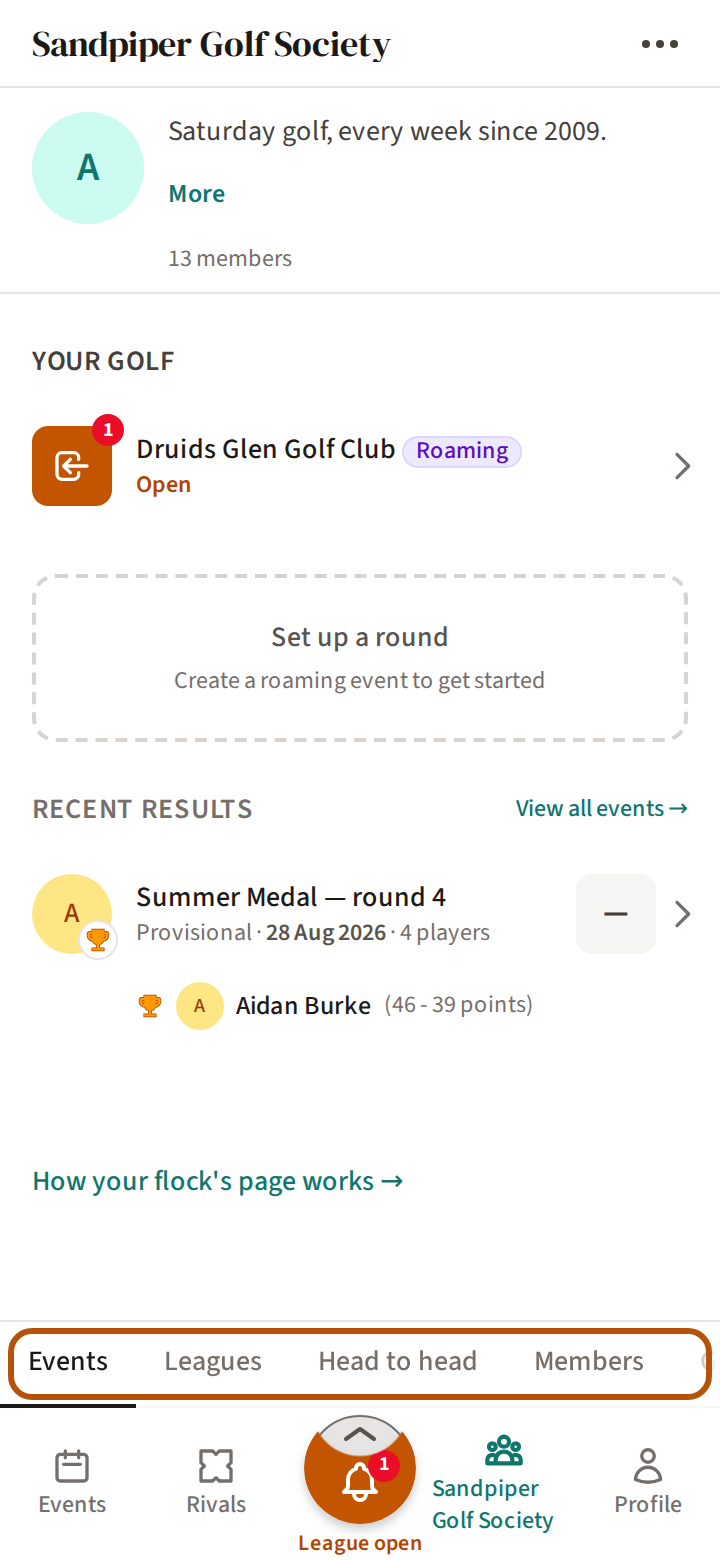
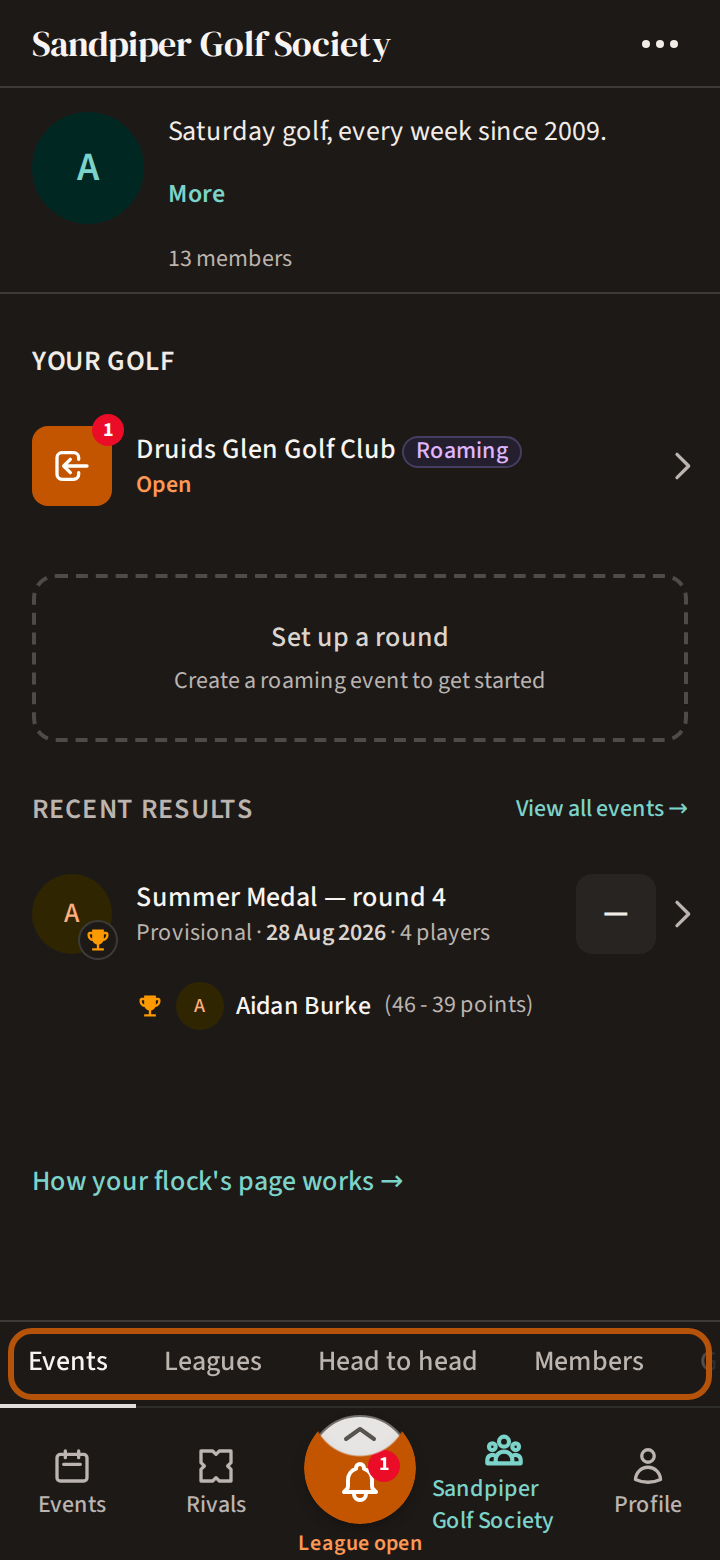
Most pages are split into sections, named in a row just above the bar. The section you are on is underlined. Press a name to go to that section. If a name is cut off at the edge there are more: slide the row sideways.
An event has up to five sections. Before it starts there are only two, Clubhouse and Gallery. Once it is under way there are five (a solo round, with no field to rank, has three — Clubhouse, Scoring and Gallery):
- Clubhouse — who is playing, the tee times, and the story of the day.
- Leaderboard — the standings.
- Scoring — your card while the round is on; the replay and everyone's scorecards after it.
- Honours — the awards.
- Gallery — the photos.
The header


The header runs along the top: the page's name, and three things you can press, from the left:
- ‹ takes you back to where you were.
- The picker, with a small arrow, changes what the page shows: here, an event's Replay or its Scorecards; elsewhere, which competition or which round.
- ⋯ opens the More menu.
The picker
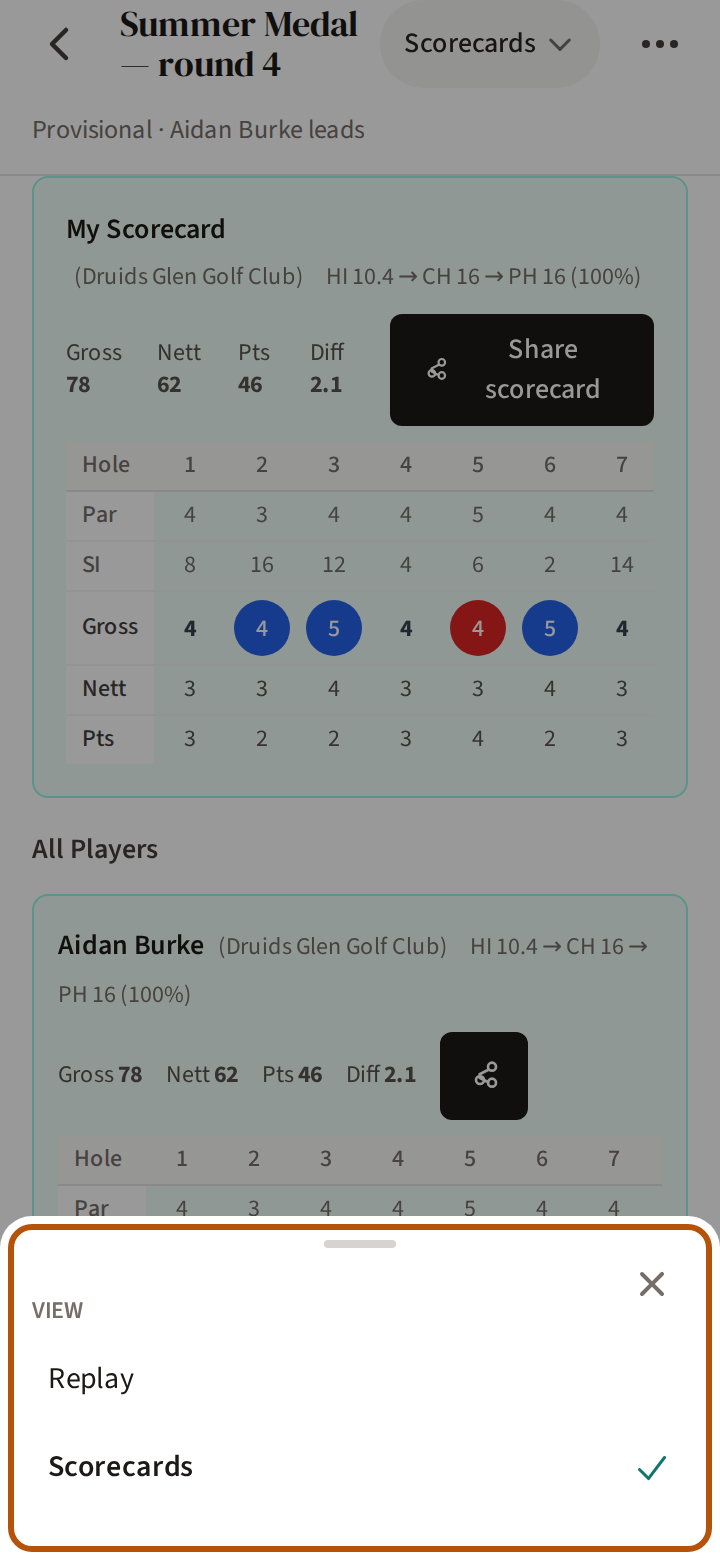
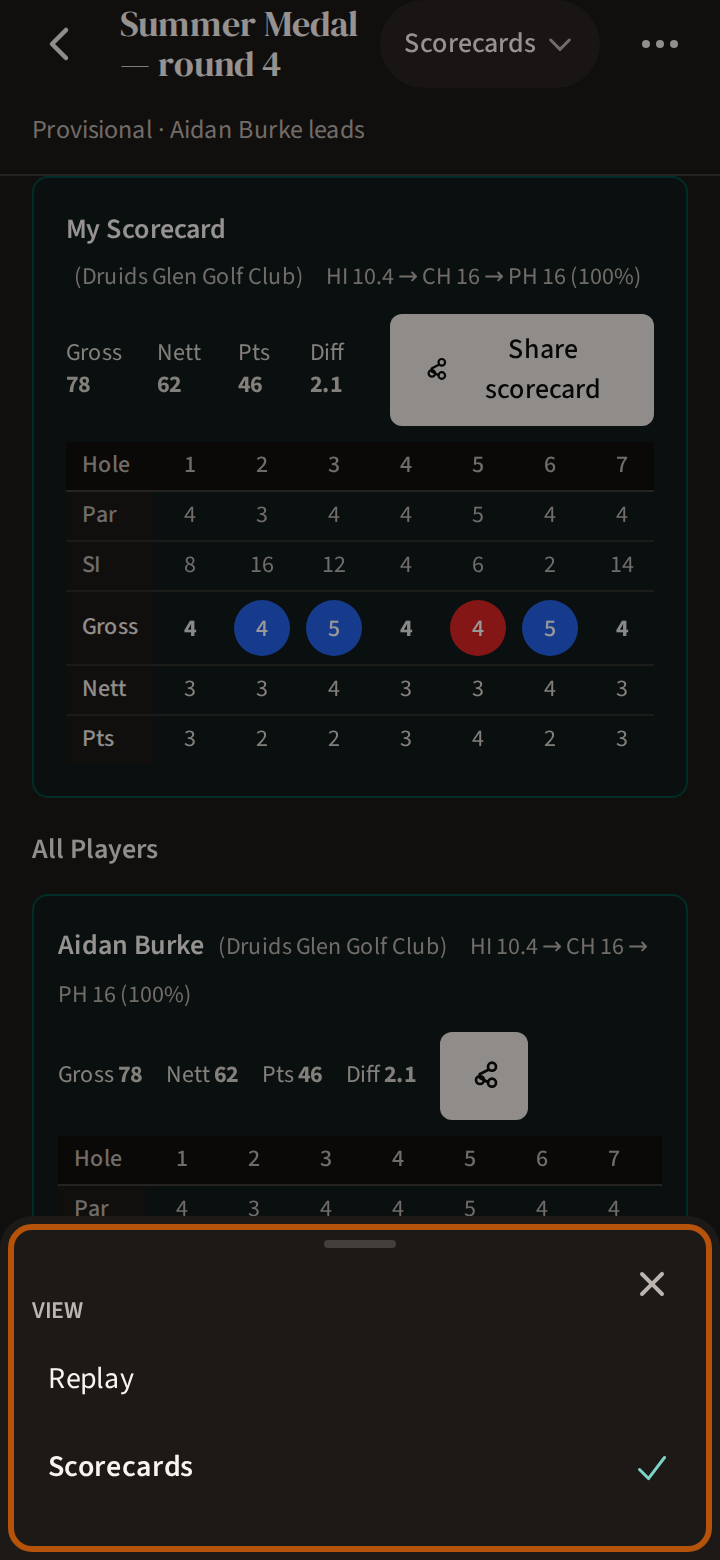
Press the picker and its choices rise from the bottom of the screen. Press the one you want; the ✕ closes it without changing anything.
The More menu
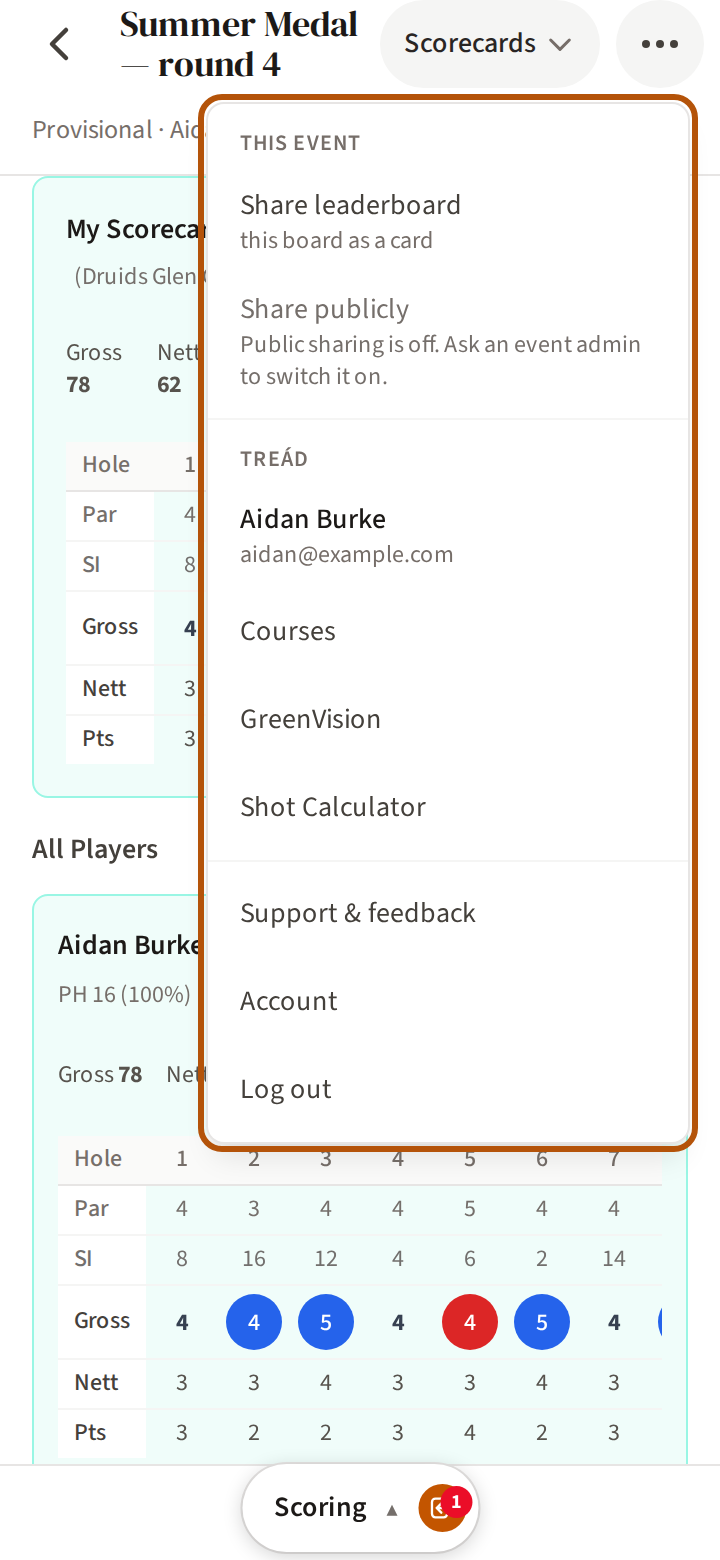
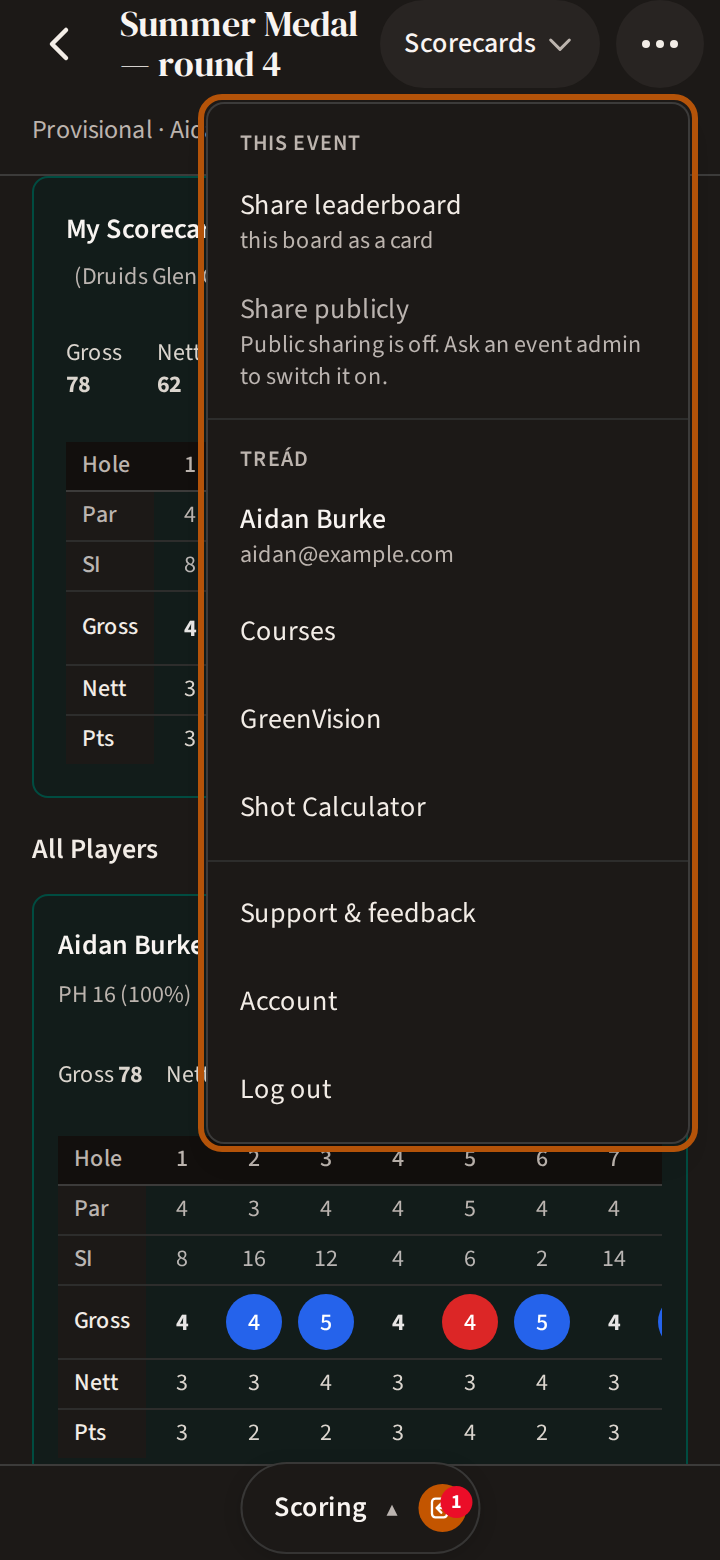
The top half is for the page you are on — on an event, sharing its leaderboard, for example. The bottom half, under Treád, is the same on every page: Courses, GreenVision if your flock has it, Shot Calculator, Support & feedback (these pages, and where to tell us about a problem or an idea), Account and Log out.
The hole bar
On a round you are playing, the Scoring section puts everything under your thumb: a score field beside each player's name — how to fill them in is Score a round — and the hole bar along the bottom.
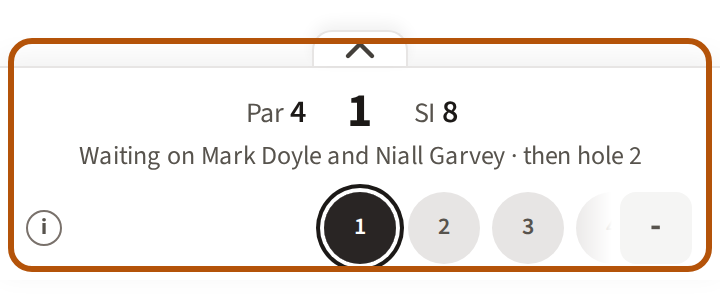
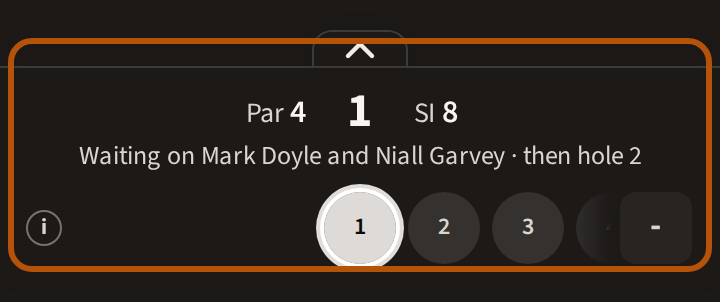
The hole bar sits where the bar was: the hole you are on, large, with its par and stroke index, and under it a circle for every hole. Press a circle to go to that hole — the one to the right of yours is the next. The score box at the right end shows your score to par so far — a dash before your first score; press it for the leaderboard.
The line under the hole number brings news the circles cannot show — who you are still waiting on, new scores on holes out of view, or a hole you passed without a score — and disappears when there is nothing to say. Where your next step is not simply the next circle, a button after your hole says where it goes: Review & submit once every card you mark is full, See full result on your card's last hole once it is submitted, or the hole you skipped.
Replay uses the same hole bar for the player you are following. A submitted card simply ends at its last hole; where a card stops short, the bar says so — Ended, No card, or Still out while that player's card is not yet submitted.
Still stuck? Tell us and we will help.