Read the Play button
Your round is on, a result is waiting, a rival has laid down a challenge — the Play button shows the one that matters most, and one press takes you there. Here's what its colours and the red number mean, how to open the Play list, and how to ask to play in a round.
1. Press it to go straight there
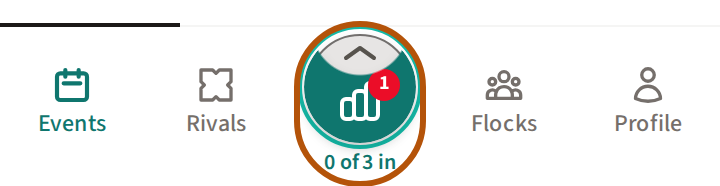
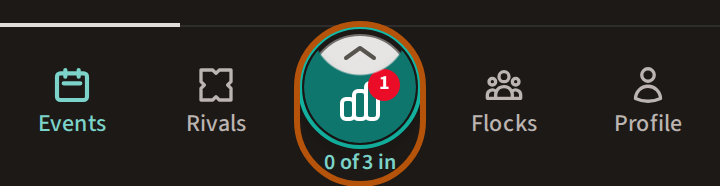
The button looks through everything in your flocks (your groups) — rounds, leagues, requests — and shows the one that matters most. Its colour says what kind of thing it is, and the words under it say what it is. Press the button and you go straight to it.
When two things tie, the button shows how many instead, with the count on its picture too — 2 on, 2 for you, 2 waiting or 2 up next — and pressing it opens the Play list so you can choose. When the button is one solid circle that says Play, with no arrow, pressing it opens the Play list too.
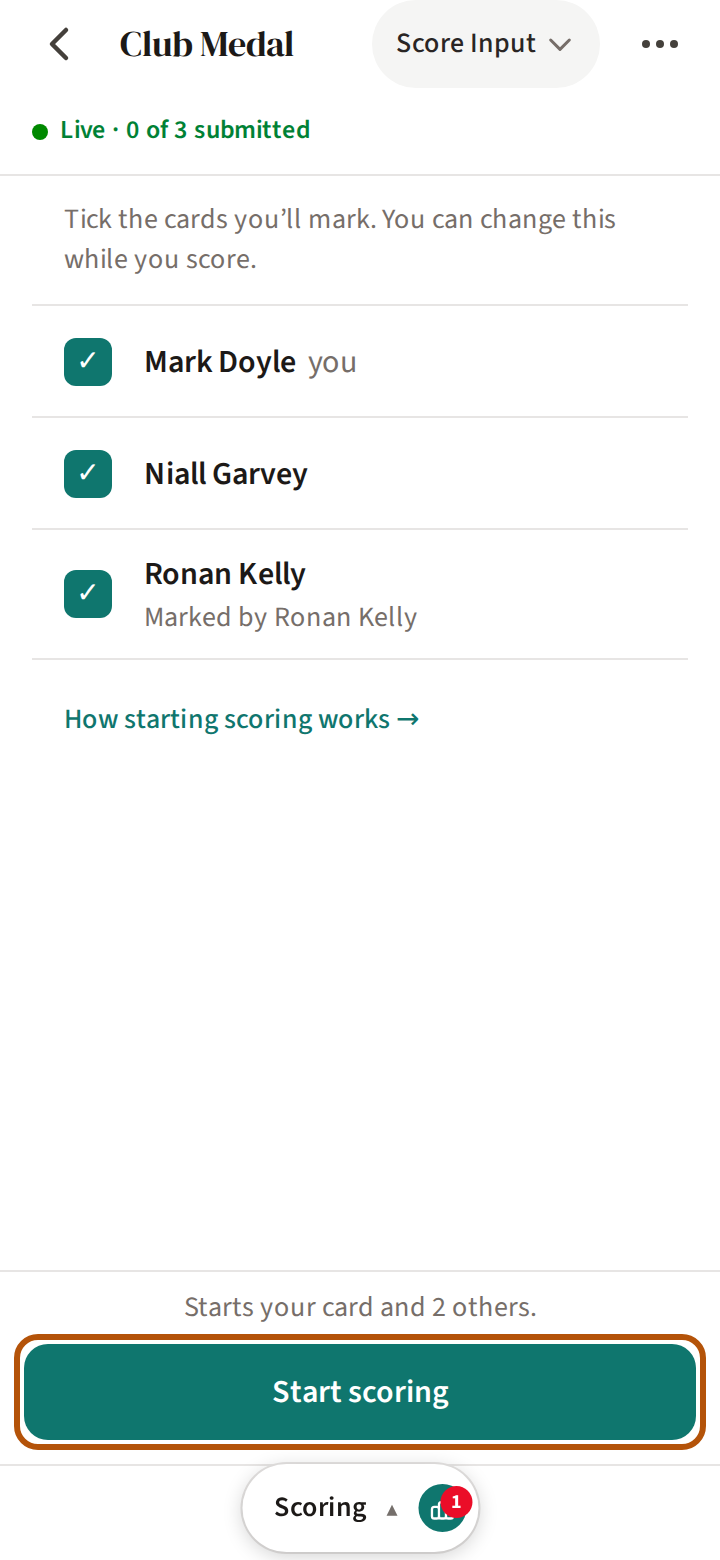
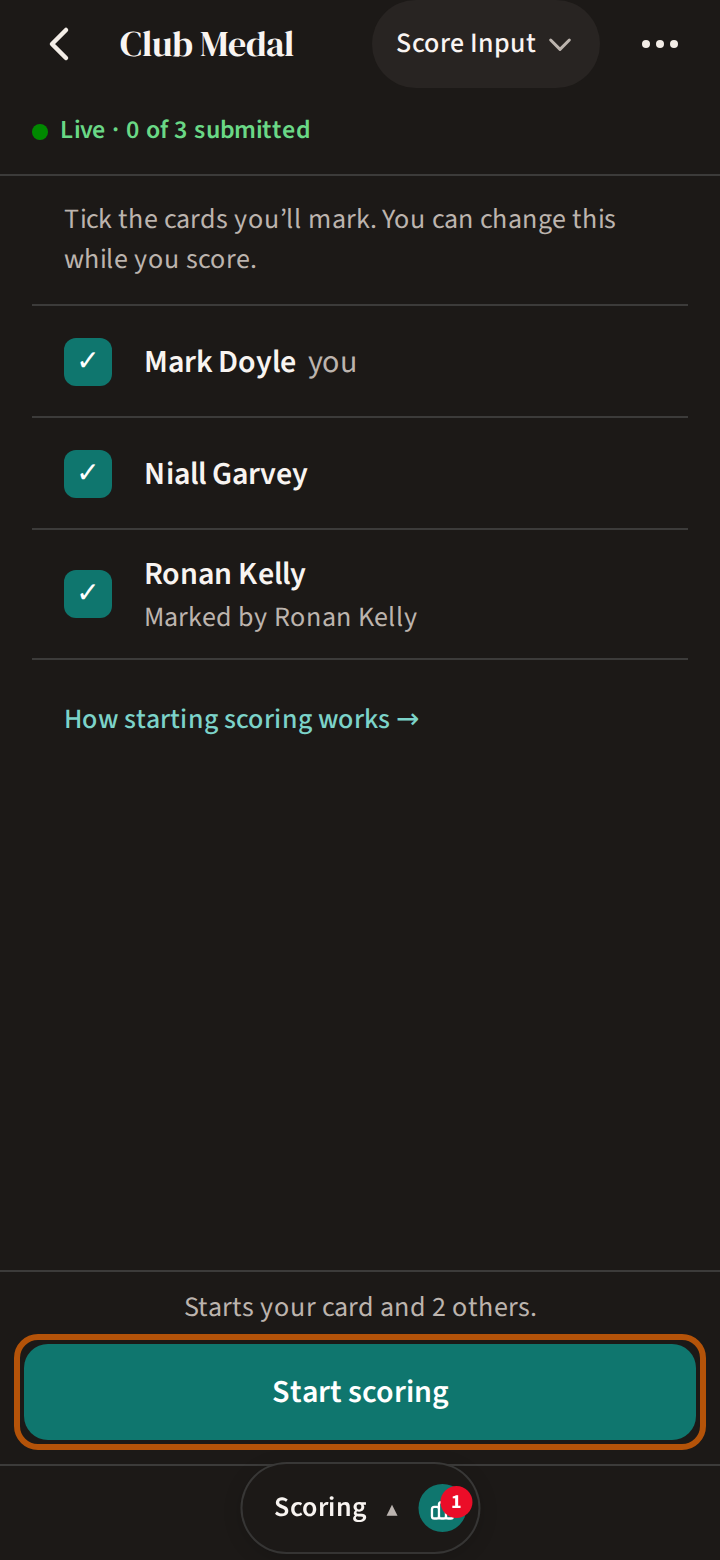
When a round holds scores you have not seen — Reveal, Scores in, Submitted, Watching, Result — the button opens the round at the first hole with a score new to you, and you walk on from there. The leaderboard asks you once, See the result?: Keep revealing takes you back to the holes, See the result shows where everyone finished. Any hole you have not looked at stays marked on your hole bar. On a live round you have not started yet, it opens the round's Scoring section on Start scoring — see Score a round.
2. Open the Play list
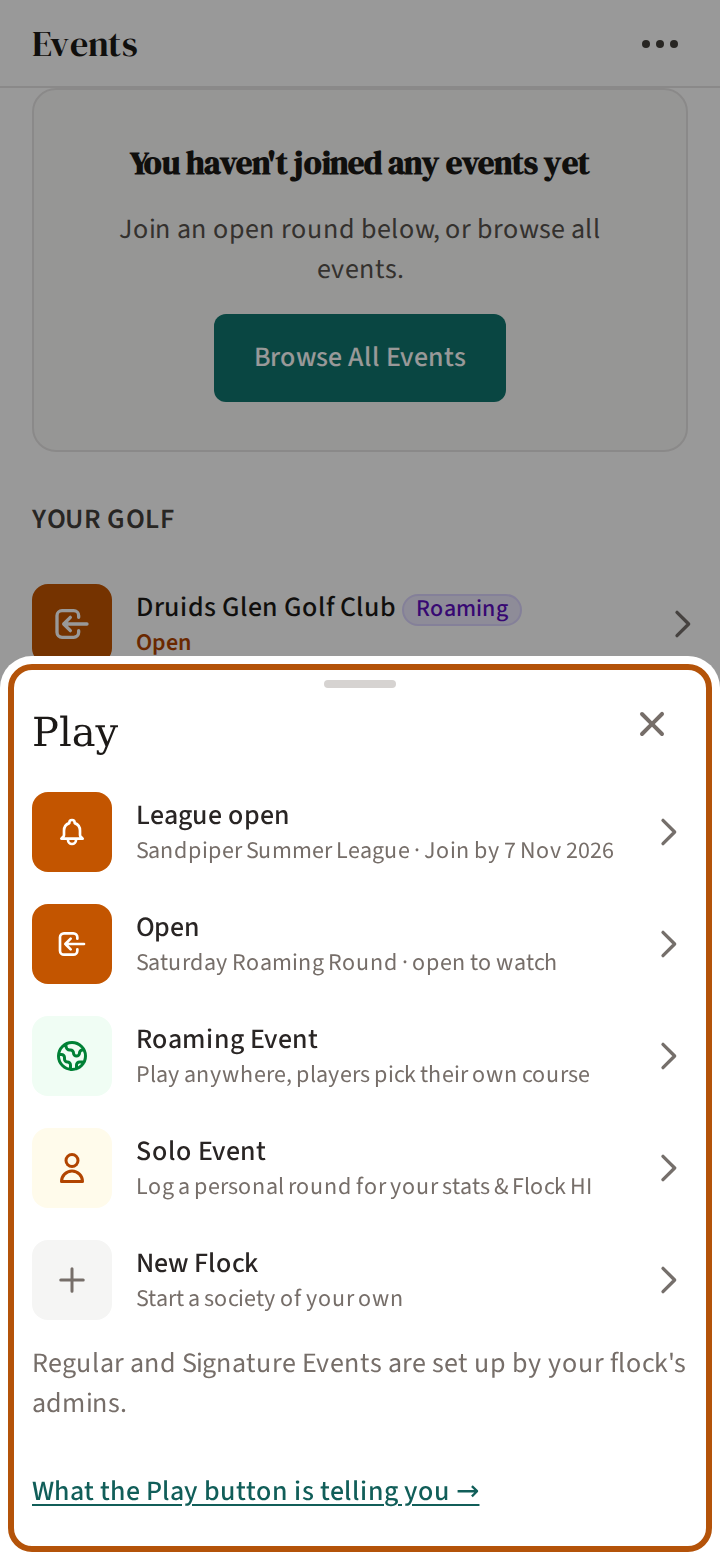
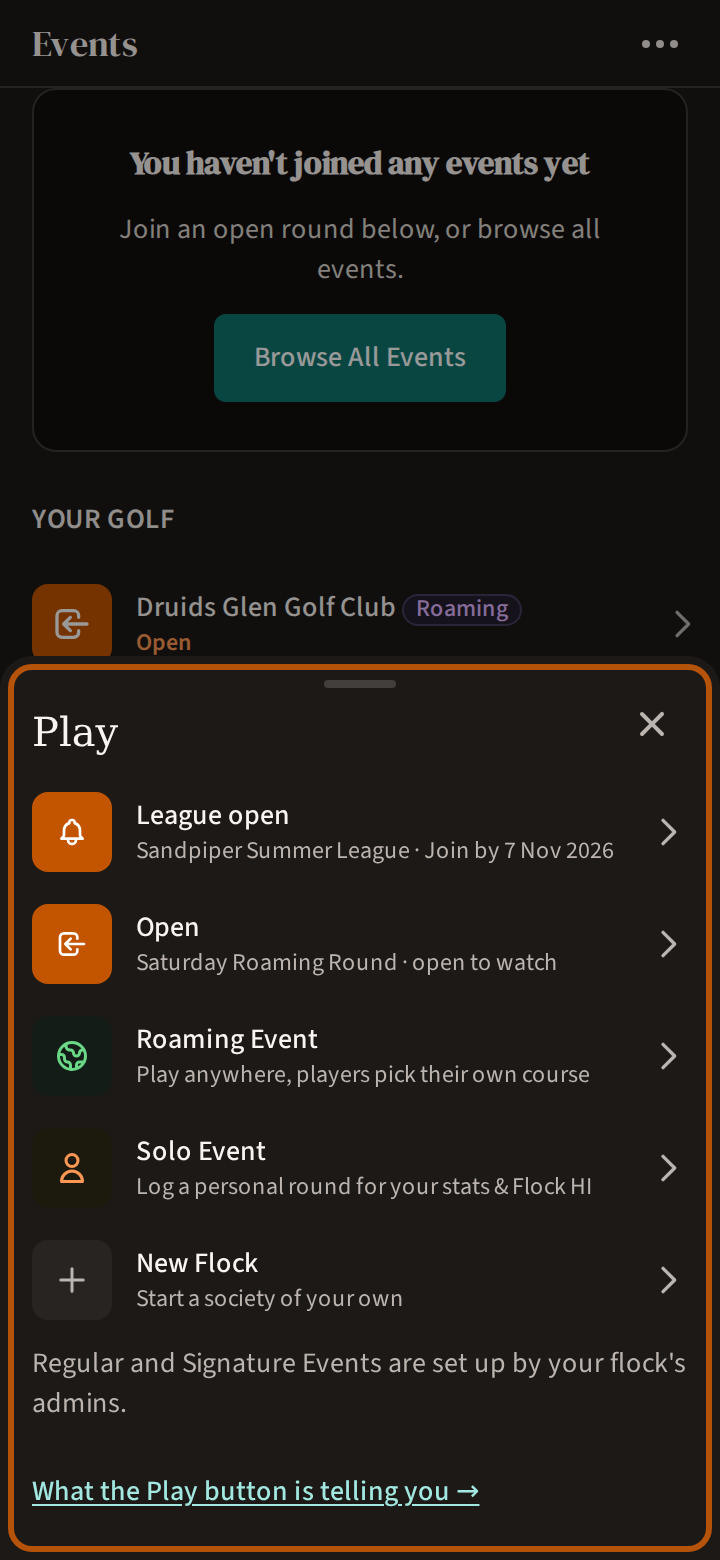
The small arrow on top of the button opens the Play list — everything that concerns you, the most important first, each in its own colour. Underneath is what you can start yourself: a Roaming Event, a Solo Event, or a New Flock of your own. You can also drag the button upwards to open it. When the button has no arrow, the whole button opens the list. The ✕ closes it.
What the colours mean
There are only four, and each also has its own picture and words, so you never have to go by the colour alone.
Teal — your golf is on
A round you are part of is happening now. The words under it follow the round: Live, Scoring, Submitted (your card is submitted, others are still out), Watching, Scores in, or how many cards are submitted so far. When every card you mark is full but not yet submitted, its row in the Play list reads Submit your card: press it to review and submit.
Amber — something for you
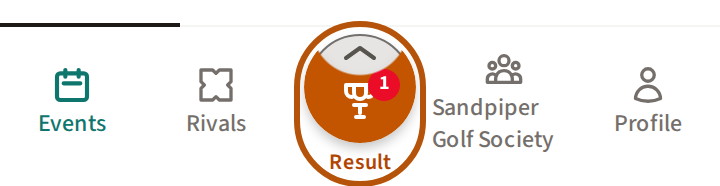
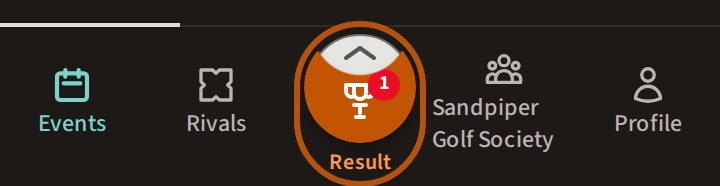
Something is waiting for you to look at or decide: a course to Set up before a round, a Reveal or a Result to see, a round that is Open to join, Your call on a rival's challenge, a League open to enter, Vote when your flock's forecast is open and See results once it is settled, Pot when you're in a round's pot without having said so, or an organiser has taken your stake out, or New admin when your flock has just made you one.
Blue — waiting on you as an organiser
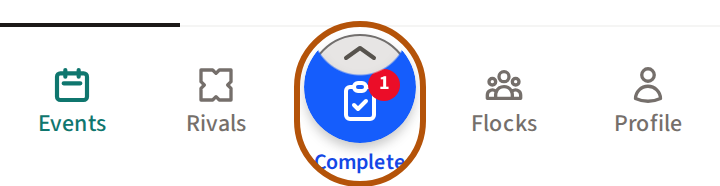
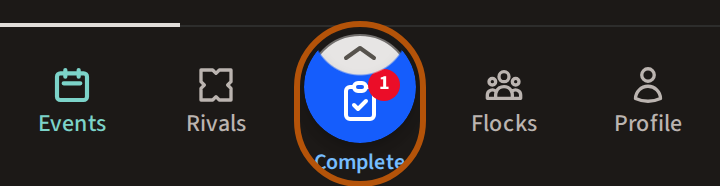
Someone is waiting on you as an organiser: a Play request or a Join request to answer, or an event to Complete now that every card is submitted.
Solid — nothing needs you
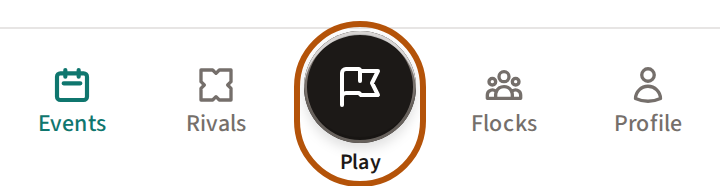
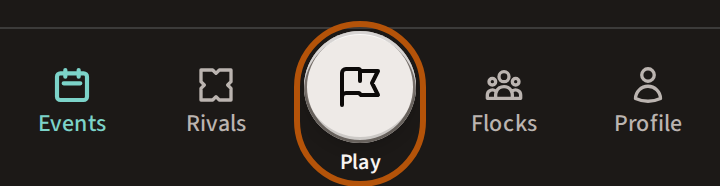
One solid circle in the bar's strongest colour — near-black, or near-white if you have Treád set to dark — and it says Play. Or, when the nearest thing is a round still days away, Up next; or All in when every card of a round is submitted and only the organiser has still to complete it. In those two cases it keeps its little arrow for the Play list, and the button itself takes you to that round.
The red number
The red number counts things that have arrived since you last looked, and it clears when you look. On a round's scores it counts the cards with new scores on them.
Asking to play in a round you’re not in
When your flock has a day you are not on the list for, open it and press Ask to play on its Clubhouse. The organiser gets your request — for them it is a blue Play request on their button — and their answer appears on the same card and in your Play list.
Still stuck? Tell us and we will help.