Score a round
No more soggy cards, lost pencils or squinting at someone's handwriting at the 19th. Scores go in on your phone hole by hole and save as you type, and you can keep scoring where there's no signal. Here's how to start your card, fill it in, mark a pick-up, move between holes and submit it.
1. Open your card
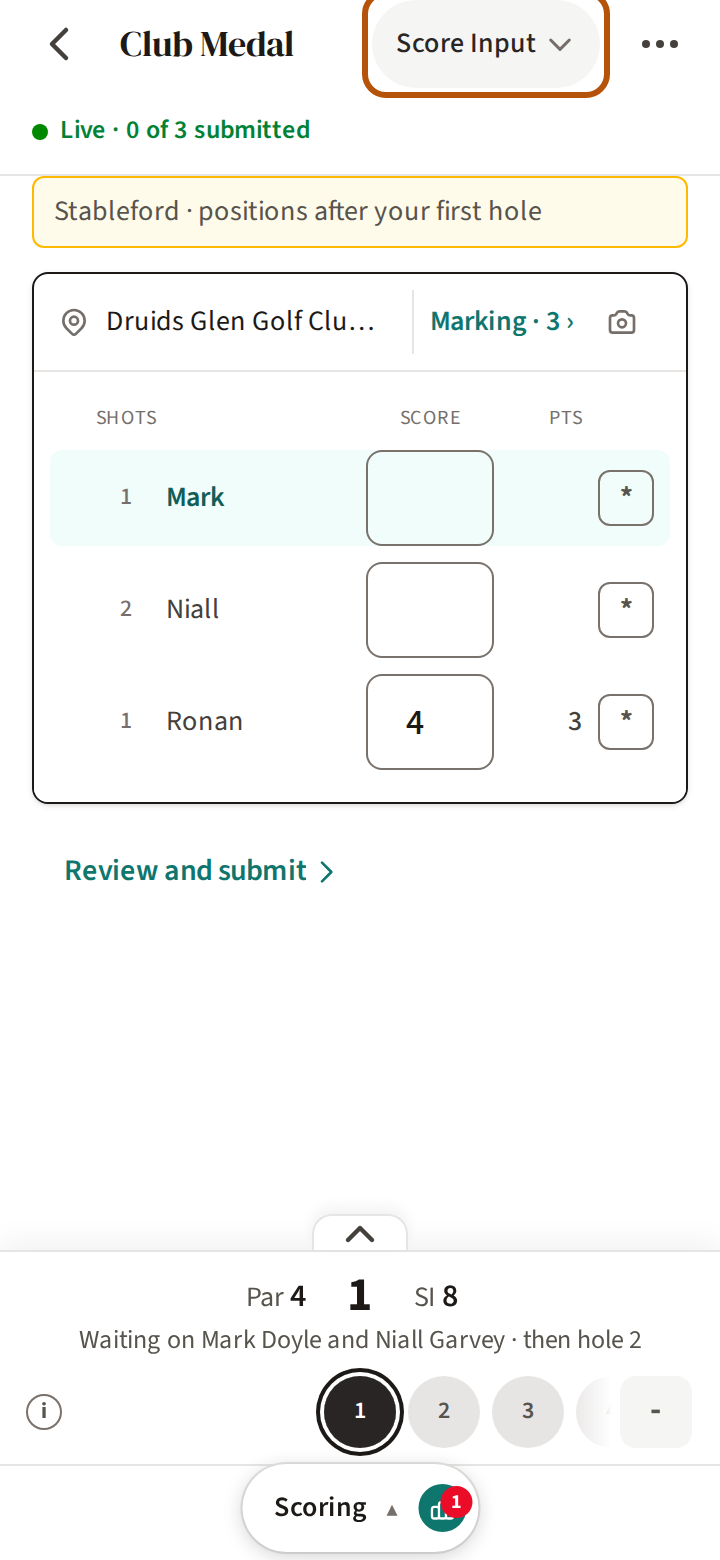
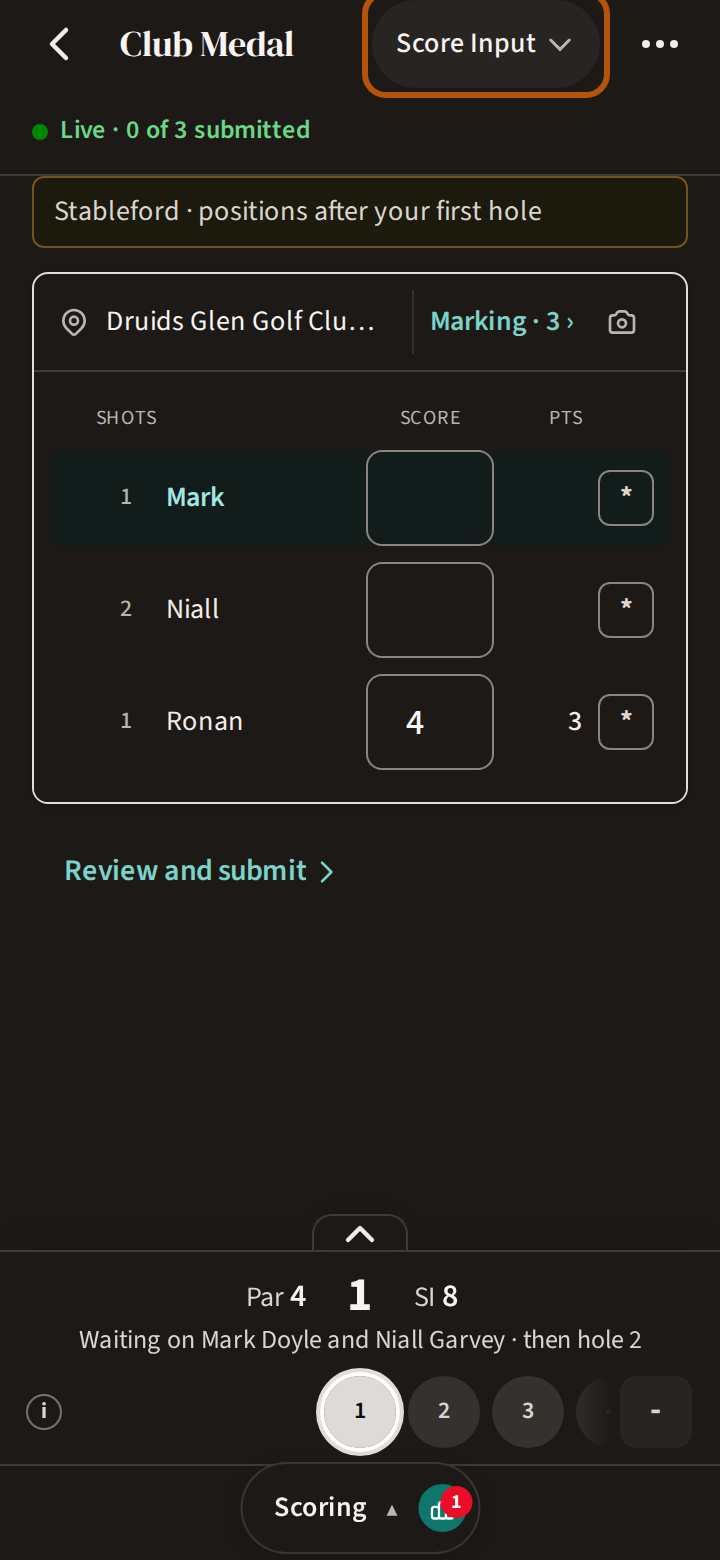
On the day, open the round — while it is on, your Play button usually points at it — and choose its Scoring section. While the round is on, the picker in the header shows Score Input: your group's card for the hole you are on. The first time, Scoring opens on Start scoring instead, to ask whose cards you'll mark — that is step 2.
2. Start scoring and whom you mark
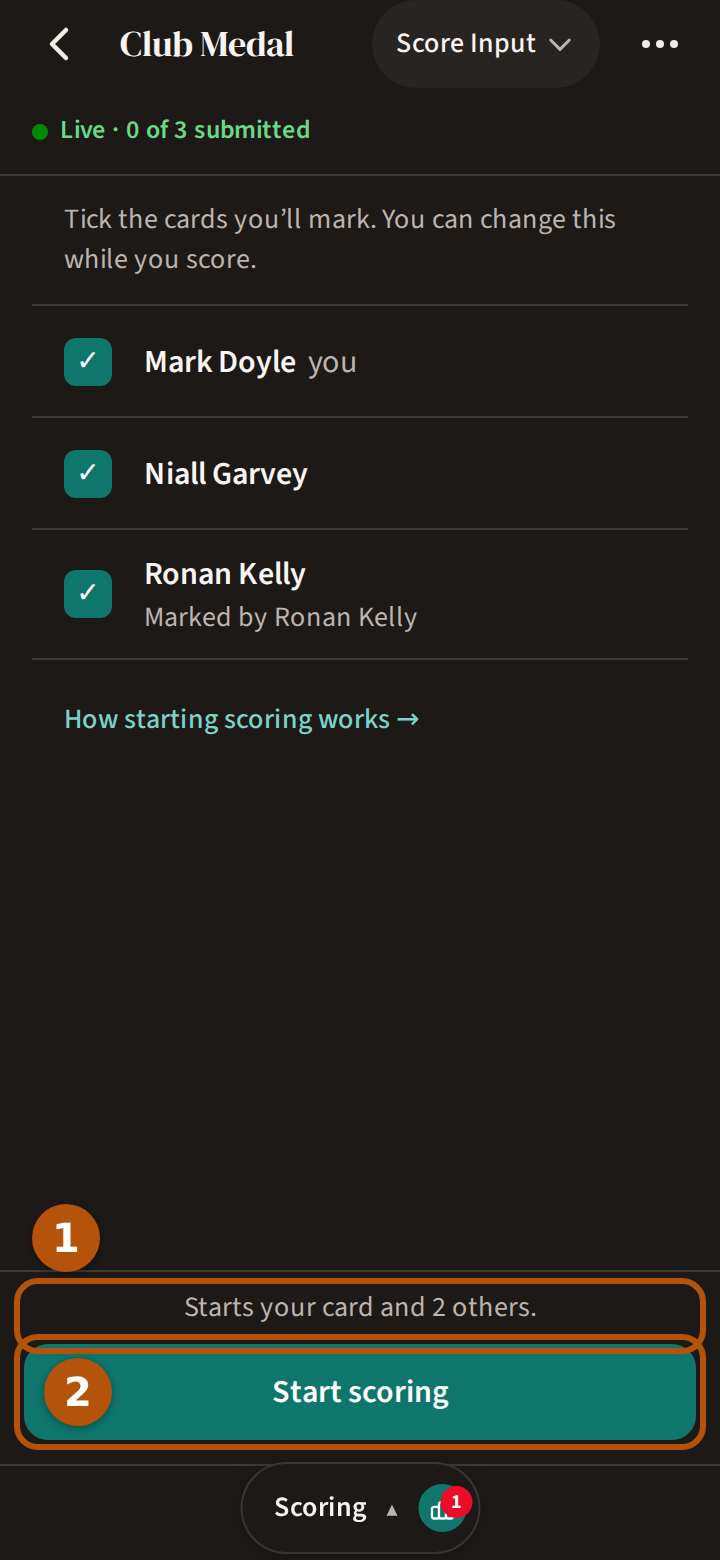
The first time, the Scoring section asks whose cards you will fill in: your group, each name with a tick beside it. Your group starts ticked; on a roaming round, just you. Tick the cards you will mark — the line above the button counts them ① — and press Start scoring ②. Your card opens.
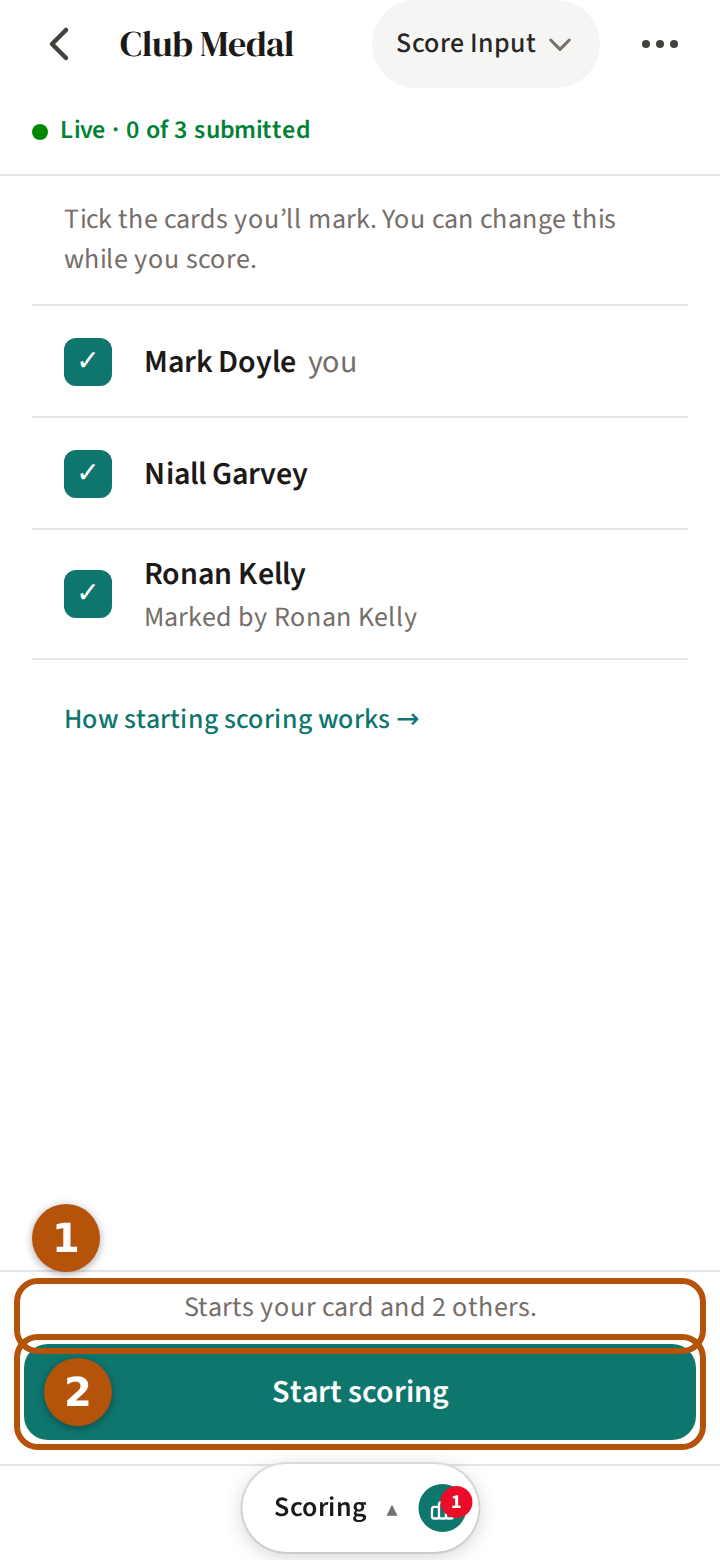
A name may say more underneath: Marked by someone else, or that the card is on another course and can't be marked. On a roaming round you set your course, tees and Handicap Index on the same screen, so one press sets you up and starts; a partner reading Not set up yet can be set up from their name — their tees and index on your course, then Save. A partner in another group is found by typing their name under Search other groups.
To change whom you mark later, press Marking and the number on the line naming your course, tick or untick, and press Done. Ticking a card starts it if it hasn't started.
The organiser chooses who may score when setting the round up:
- Open — anyone in a group can mark any card in it.
- Designated — the organiser names one scorer per group, whose cards are fixed: You score these cards. Everyone else sees Scores are being entered by that player, and can follow along.
- Admin only — the organisers put in every score, and the Scoring section shows the scorecards instead.
3. Put in the scores
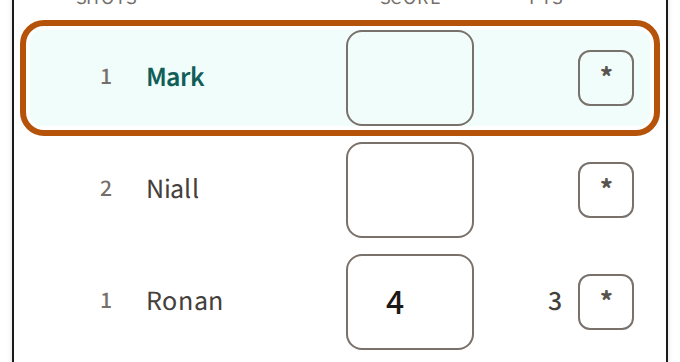
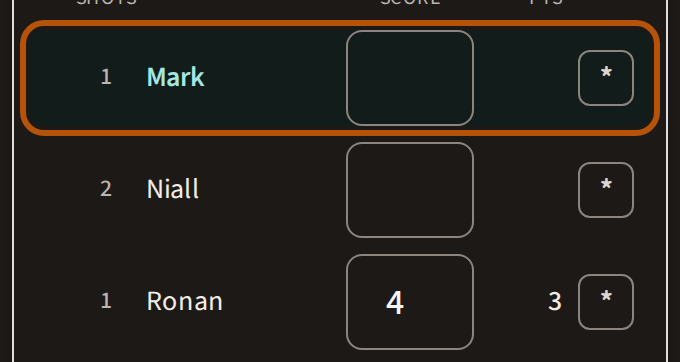
The cards you mark come first, each with its row: the shots they get on this hole, their name, a score field, and the points it is worth. Press a player's score field and type their score. It saves as soon as you type it: beside it, … means it is on its way and a ✓ that it has just been saved. Anyone else in your group follows below, their scores showing as they come in.
If someone else in the group put in a different score for the same player, the row says Score changed and asks which to keep — Use mine or Keep current.
4. A pick-up, or a hole not played
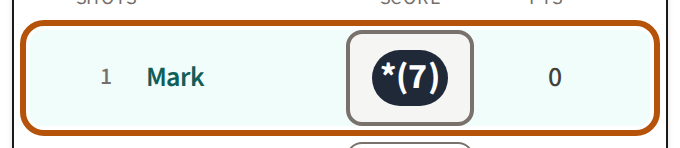
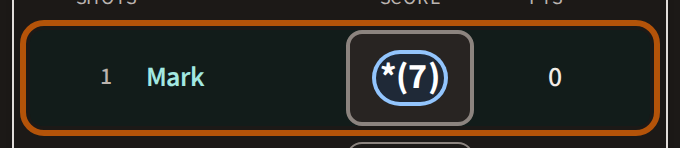
If a player picks up, press the small * at the end of their row instead of typing a score, and choose No score — it shows the score the hole counts as. If they never played the hole at all, choose Not played. Before you choose, it says what that costs: Scores 0 on this hole on points, DNF on Gross or DNF on Nett on those competitions, and Won’t count for your handicap. Their score field then shows a star with the score the hole counts as, or NP. Changed your mind? Press it and choose Enter a score. How a picked-up hole counts is on Read your scorecard.
5. Move to the next hole
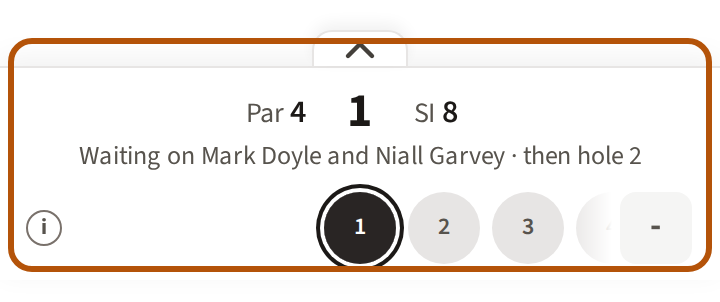
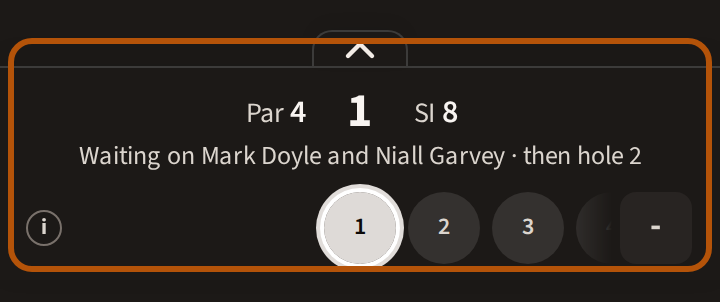
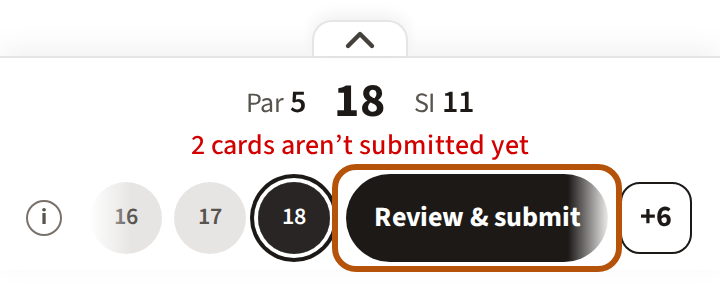
When every card you mark has a score, the card moves on to the next hole by itself after a moment. To go anywhere else, press that hole's circle in the hole bar. The ⓘ at the left of the circles says what their marks mean.
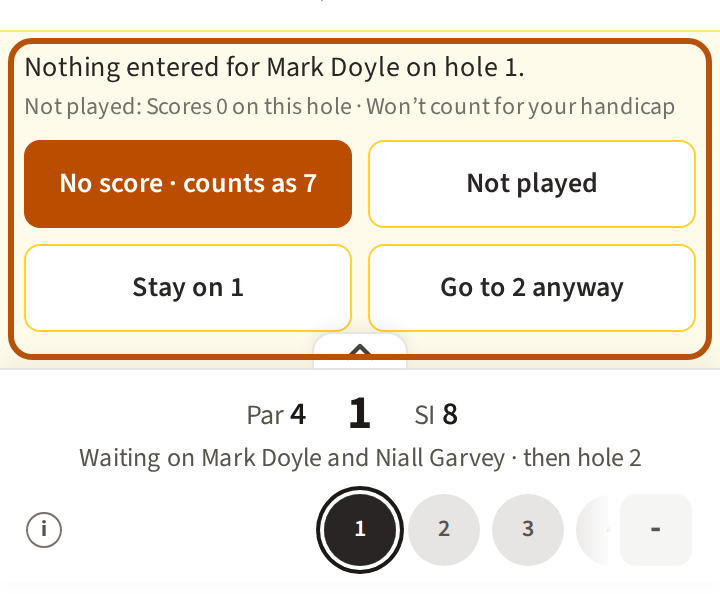
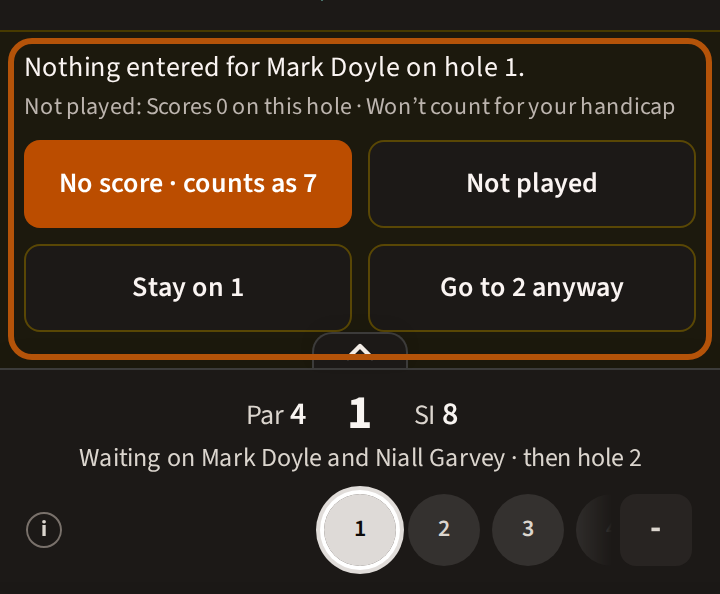
If you try to move on while a card you mark has nothing on the hole, the hole bar asks first, one card at a time: Nothing entered for the player on that hole. Choose No score (picked up), Not played, Stay on 7, or Go to 8 anyway (with your hole numbers) — so a hole is never left empty by accident. A line beneath it says what Not played would cost.
The score box at the right end of the hole bar is your score to par so far. Press it for the leaderboard, or your card.
6. Closest to the Pin and Longest Drive
When the organiser has put a side contest on a hole — a Closest to the Pin, a Longest Drive — your card shows it on that hole, in a row above the scores: the contest's name, then Record at the end of the row. On the hole before, a line under the card says it is coming up.
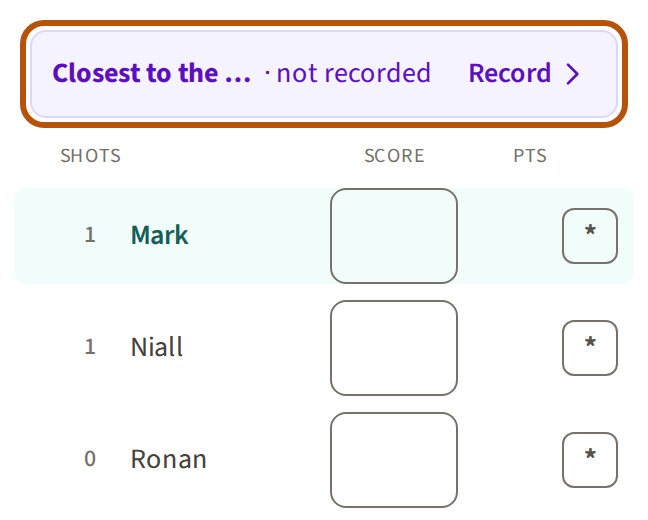
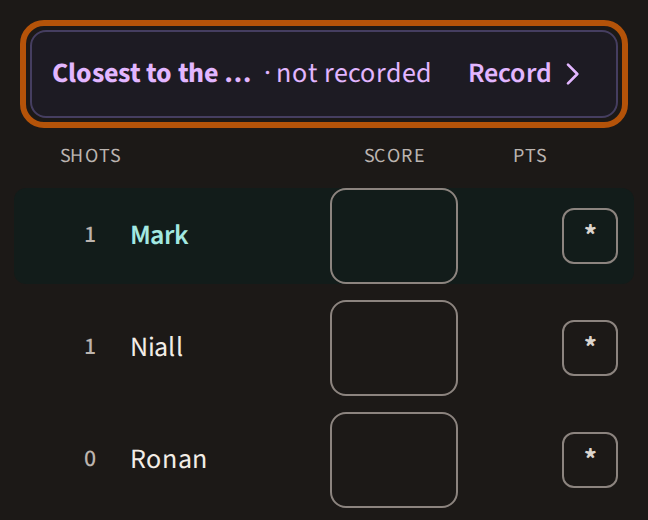
Press Record. Pick the player in your group who won it, type their distance, and press Save. If nobody in your group managed it, pick Nobody close enough (or Nobody hit the fairway for a Longest Drive) and press Save.
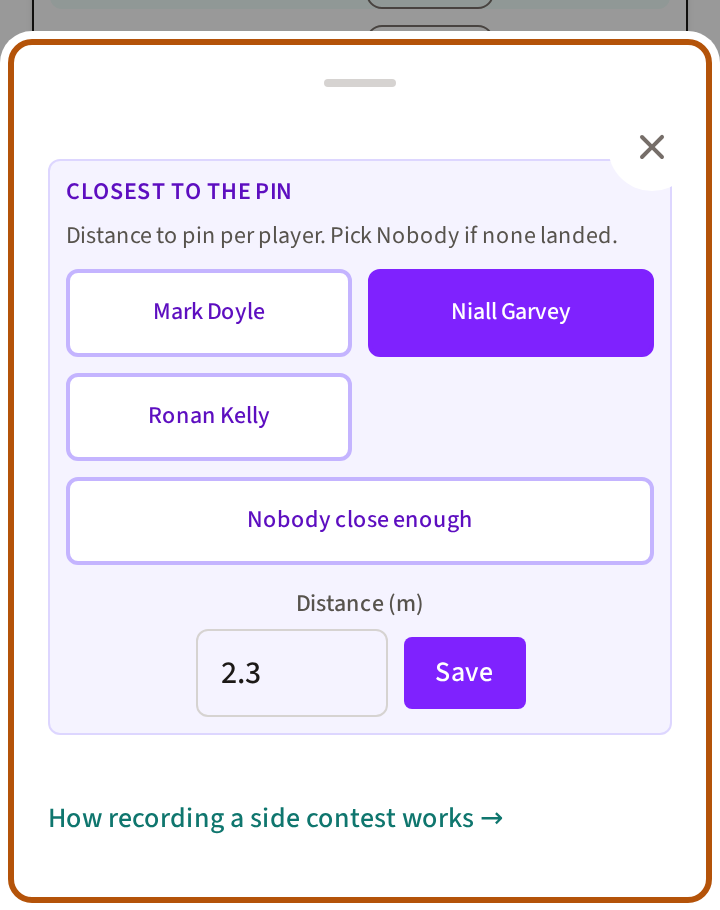
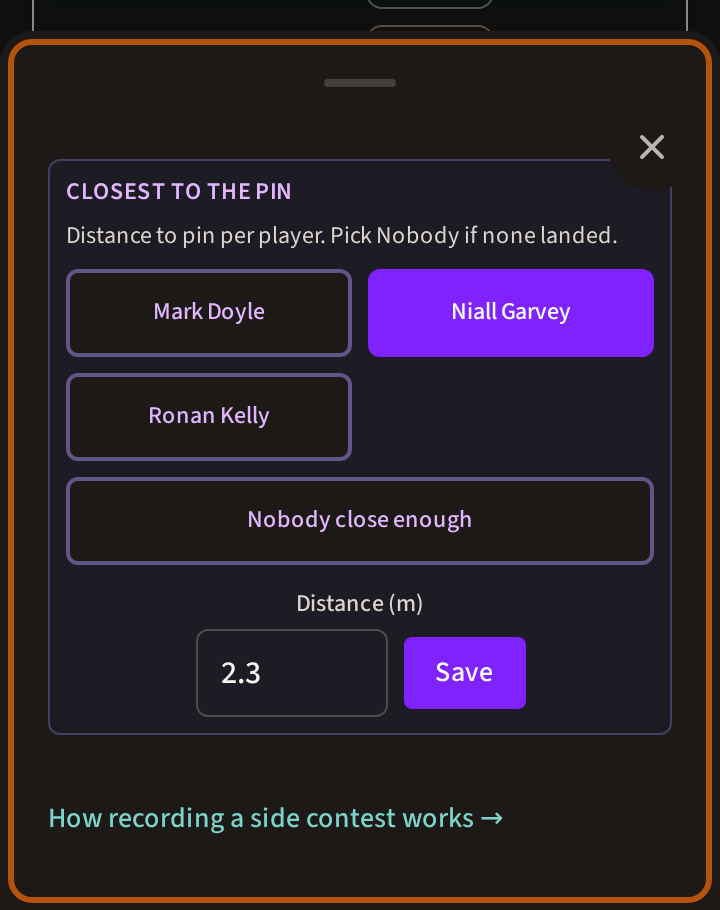
Once it is saved, the row's button reads Edit — press it to see or change what was recorded.
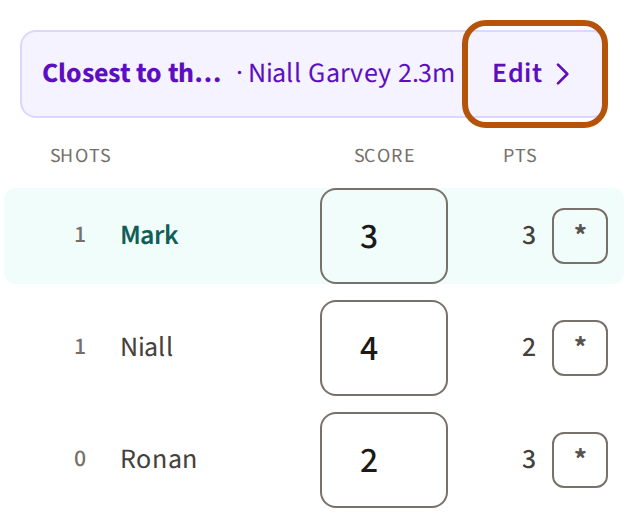
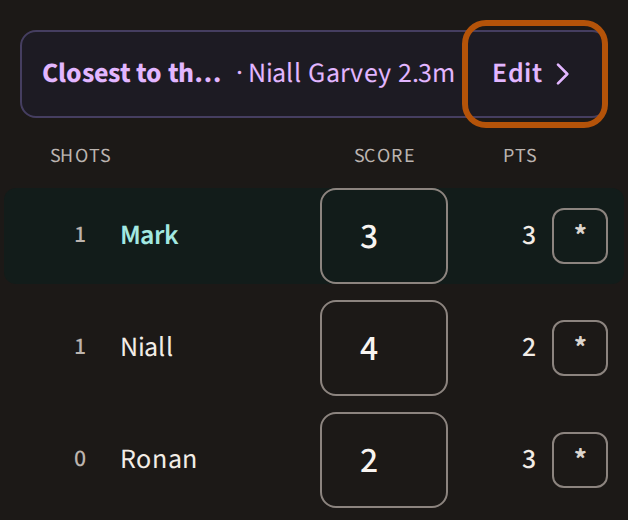
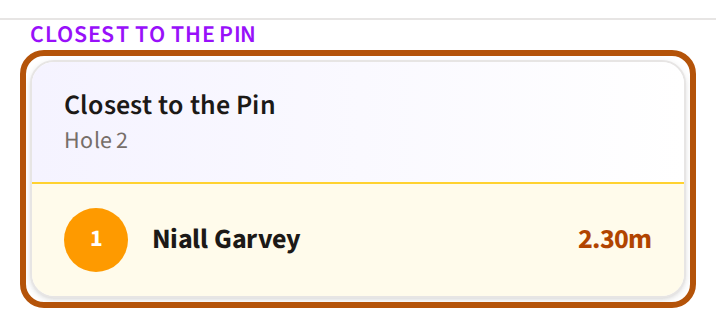
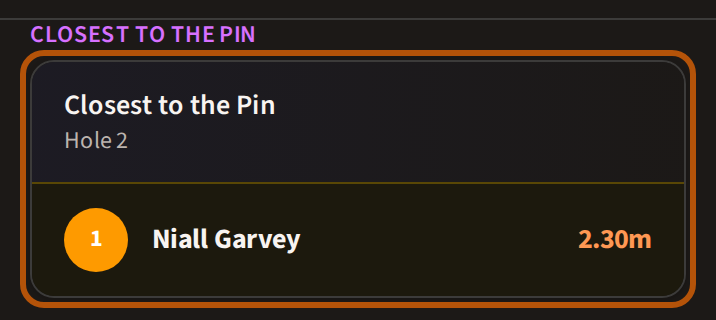
The best of every group's goes up on the Leaderboard: choose Bragging Rights in the picker to see each contest with its winner and their distance.
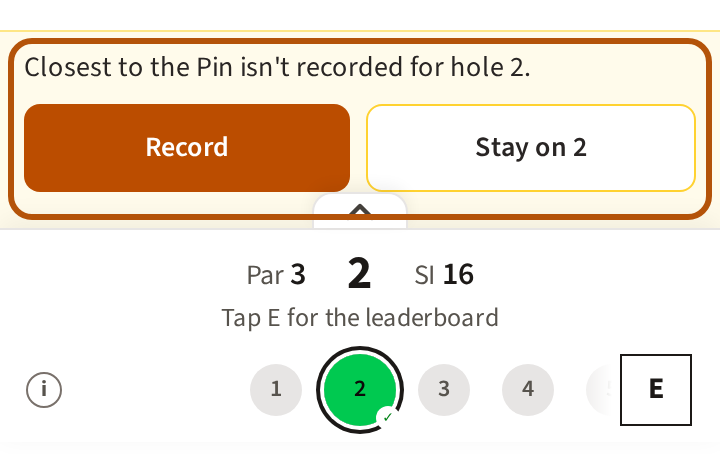
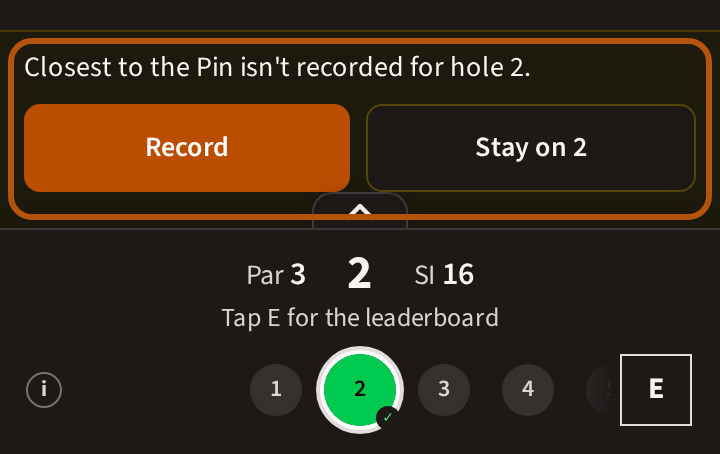
Your group cannot move on until it is recorded. When the hole is done, or you press the next circle, the hole bar stops and says the contest isn't recorded for this hole, with Record and Stay on 7 (with your hole's number). There is no going on anyway: one of you records it, and then you can move on.
7. No signal on the course
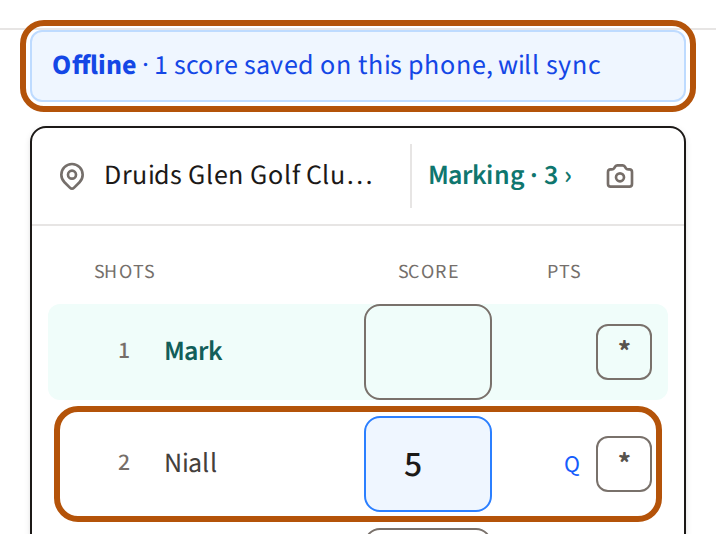
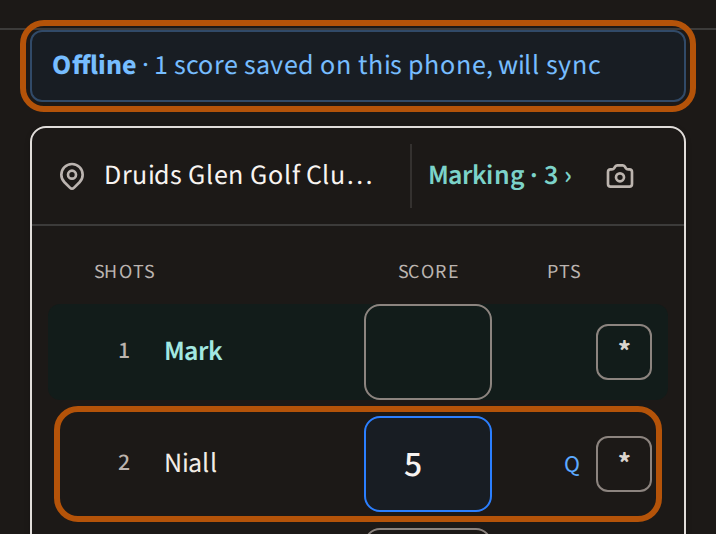
Keep scoring. Scores you put in with no signal are kept on your phone — a Q beside the score field means it is waiting there — and the line above the card says how many are saved on this phone. They go up by themselves when you are back in range. You can press Start scoring with no signal too, and a card you submit reads Waiting to sync until it reaches Treád; Reopen card beside it takes the submit back. If any scores are still waiting once you are back, the hole bar says how many are waiting to sync, with Sync now; if any fail, it says so, with Retry all.
Sometimes Treád can't take a score when it arrives — the card was submitted meanwhile, or you don't mark it. The score stays on your phone, under the row with the reason, and only the answers that can work: Change marking, Reopen card, Keep theirs or Discard this score. That card can't be submitted until it is answered.
8. Hand your card in
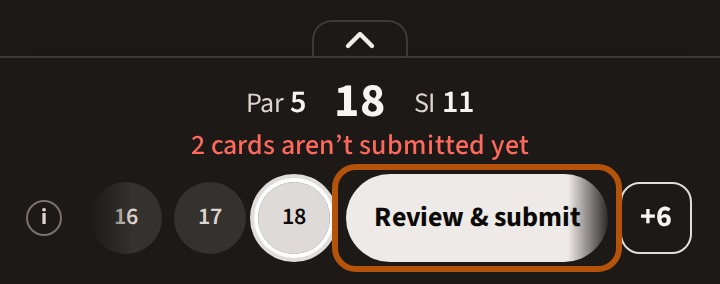
When every card you mark has something on every hole, the hole bar shows Review & submit. Reviewing and submitting your cards, a card that stops short, reopening one and conceding a match are all in Submit your card.
Still stuck? Tell us and we will help.