Run a league
A league gives the whole season something riding on it, and once it's set up there's nothing to do: points are worked out every time an event is completed, so there's no spreadsheet on the kitchen table. Here's how to start a season, get your members in and keep it running to the last event.
How points are won and which rounds count is in Follow your league. This page is the organiser's side.
1. Start a league
An admin starts a league from the Leagues section of the flock (your group) — press Create league — or from the Play list's Create League. A flock runs one league at a time. Give it a name and its season dates, and set Joining closes: members can join until that date, then the league starts scoring with whoever joined.
Advanced settings can usually be left alone. By default the number of results that count grows with the season, and the number of league members an event needs grows with the league; set either yourself only if you want a fixed number.
2. Getting members in
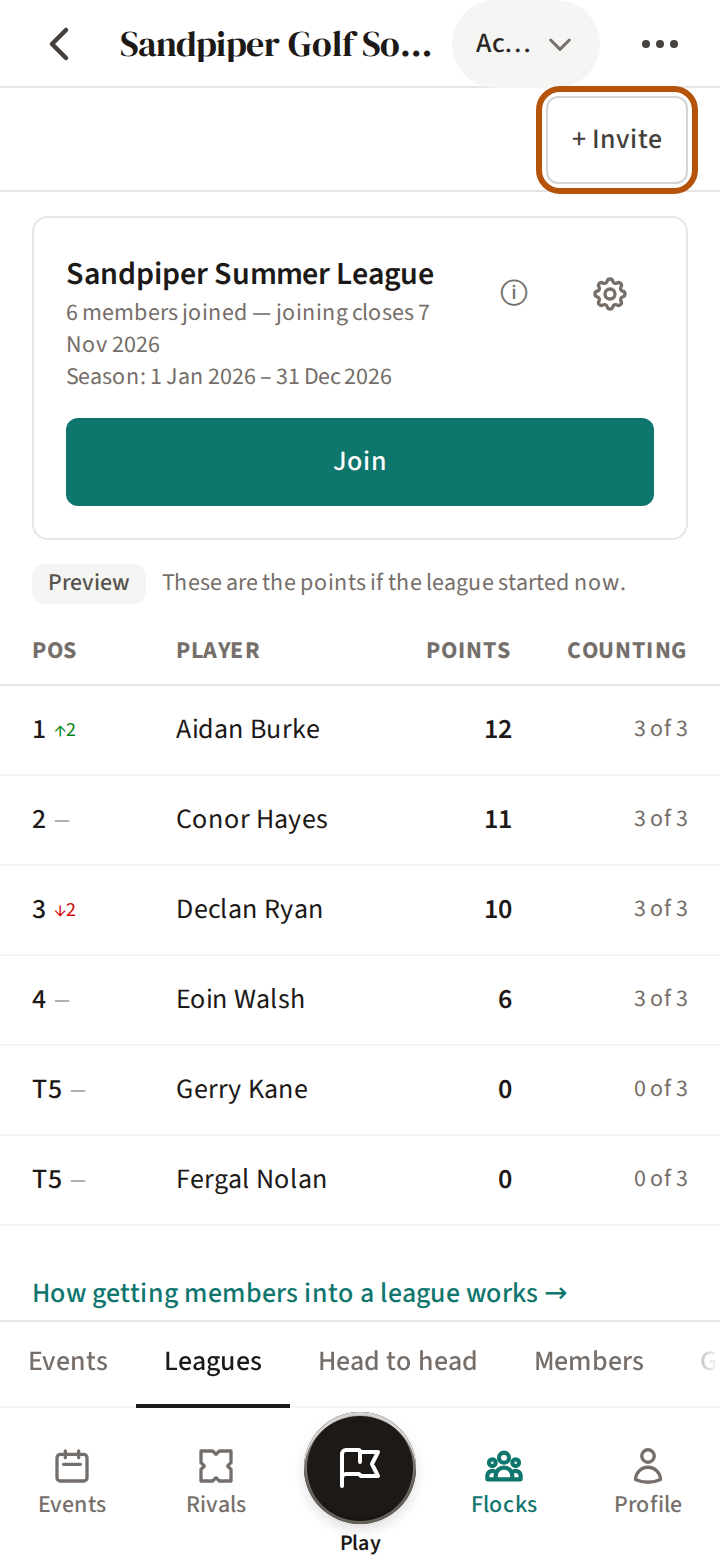
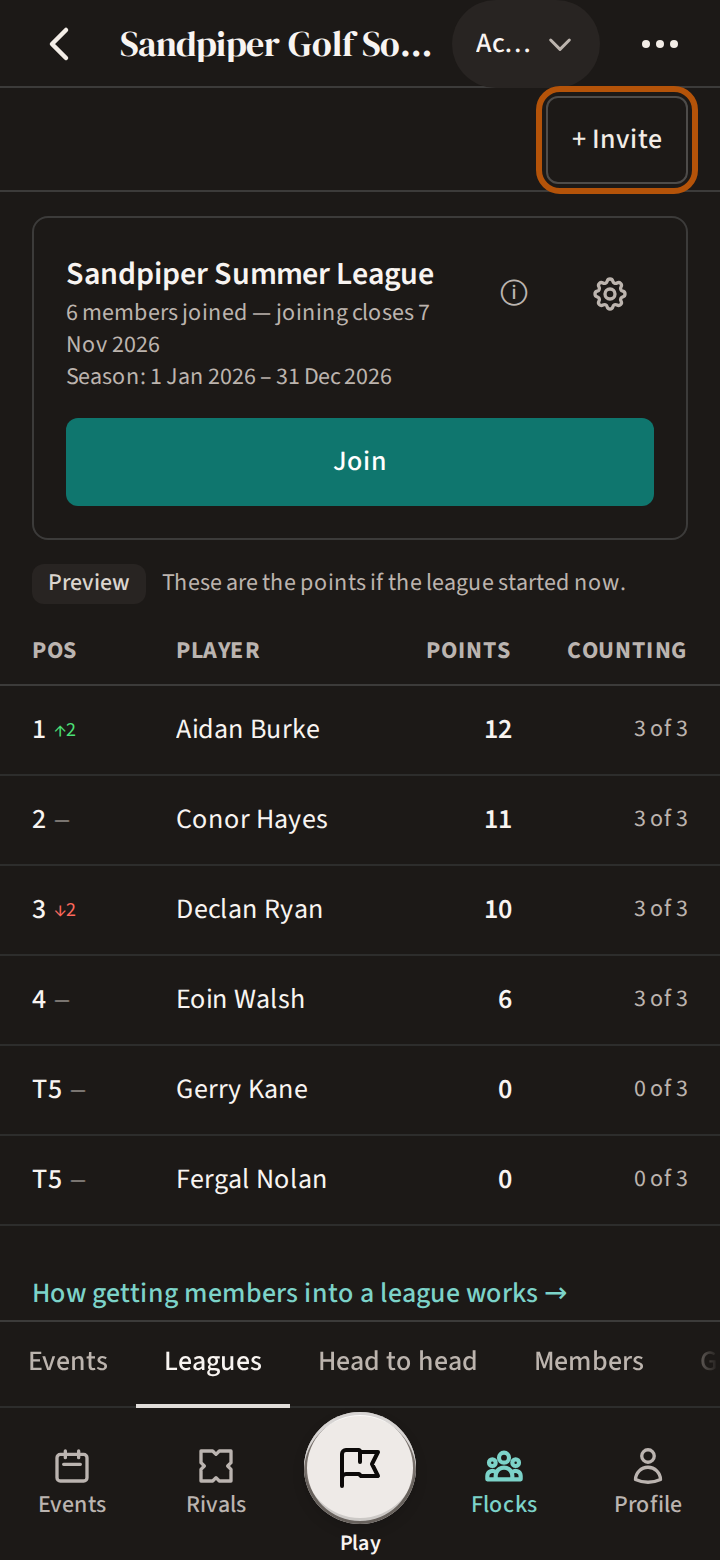
While joining is open, members press Join on the league's card, and their Play button shows League open until they do. Press + Invite above the card to send the league's link. After joining closes, a member can still press Request to join. Their request appears on the flock's Leagues section, just above the table, saying what letting them in would change — press Approve or Reject. To add someone yourself, press Add a member below the table.
3. League settings
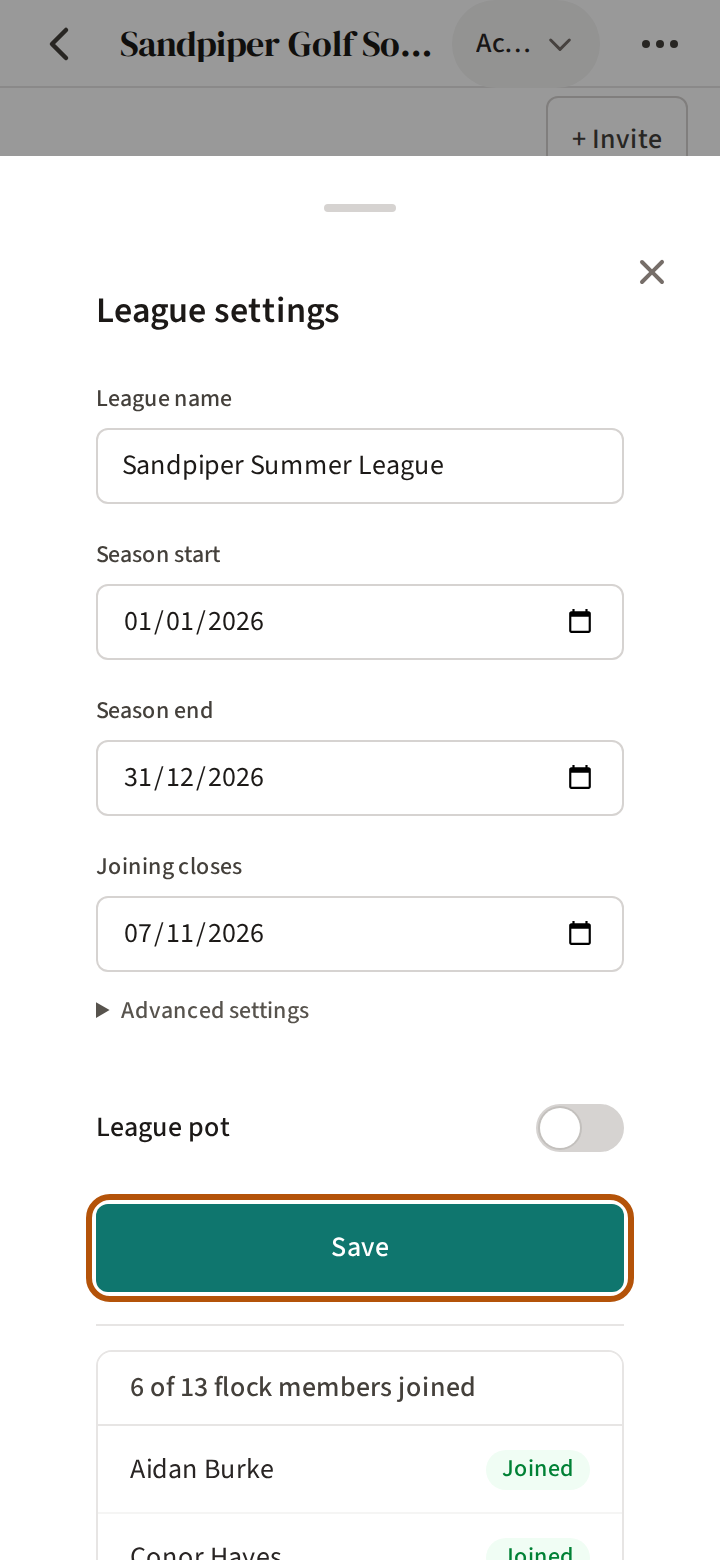
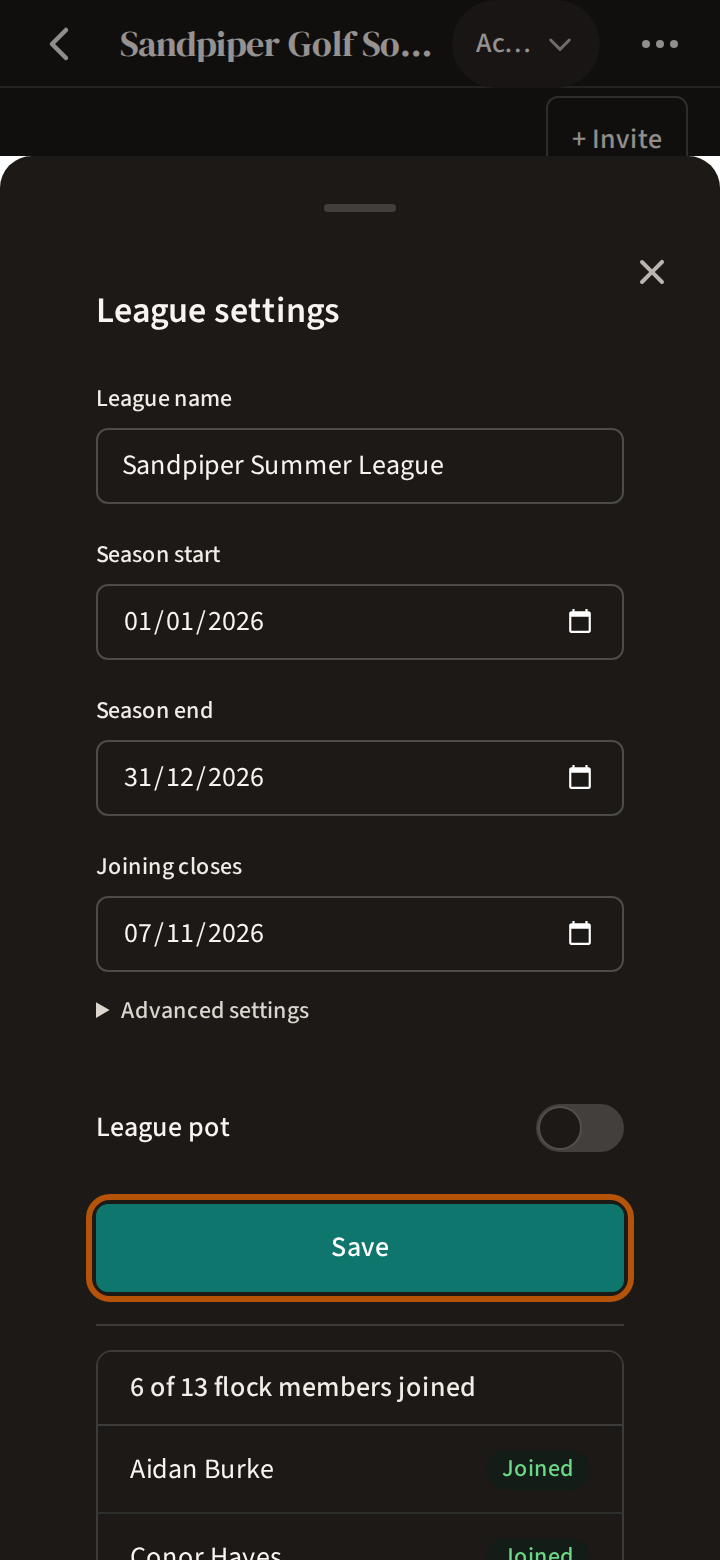
The ⚙ on the league's card opens League settings: its name, dates and advanced settings, and who has joined so far. Press Save after a change. Once the league is scoring, the dates and the advanced settings lock. Close joining early starts scoring straight away for those who have joined — and it cannot be undone: joining does not reopen, and the dates lock.
4. A league pot
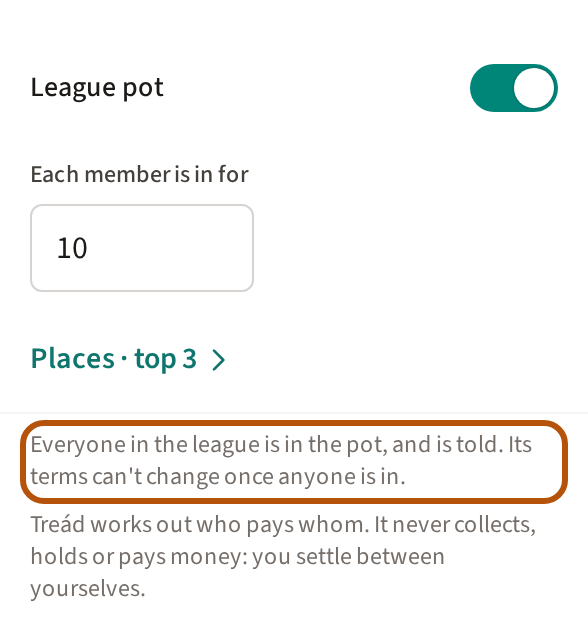
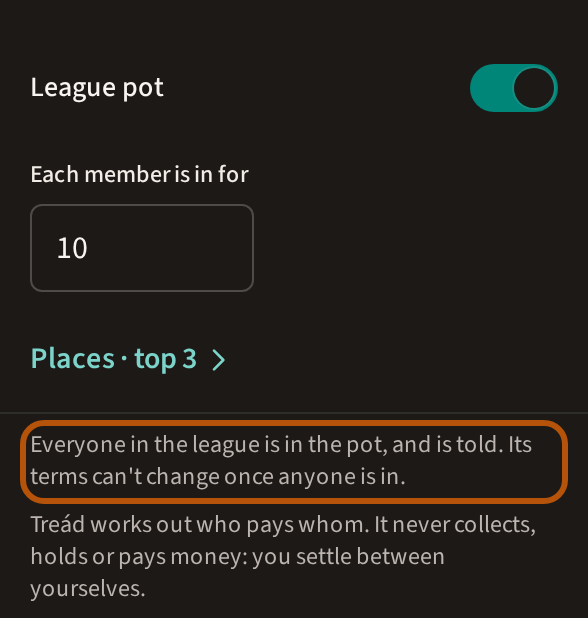
A league can carry a pot for its final table. While joining is open, turn on League pot in League settings, or when you create the league, and type Each member is in for. Places · top and a number, beneath it, sets how many places it pays. There is no opting in: everyone already in the league is put in the pot and told, and from then the terms are fixed, so set the amount and the places before you press Save. Members who join later see the amount on Join before they join.
When the season ends, the finished league's row carries Settle up — choose Completed in the picker — with who won and who pays whom, for you and every member who was in. Treád works out who pays whom. It never collects, holds or pays money: you settle between yourselves.
5. Signature events


A signature event is one of your flock's big fixtures, and it earns 1.25× league points. Make one by choosing Signature Event when you create it, or turn on Signature event later on the event's Admin Overview. Turning it on or off for an event already completed changes that event's league points, so Treád asks you to confirm first. It carries the gold ★ Signature mark wherever it is listed, and the flock's Honours can be shown for signature events alone.
6. During the season
Nothing to do: points are worked out every time an event is completed.
To change one player, press their row in the table. Change entry date sets the date their events count from: an earlier date adds results, and a later date deletes the results before it. Remove from league deletes every result they earned in the league, for good. Either can change other members' totals too, because an event may stop having enough league members to count. Treád shows what will change before you confirm.
To stop early, End season early in League settings freezes the standings for good — it cannot be undone; then start a new season. Delete league, also in League settings, removes the league and every standing for good.
Still stuck? Tell us and we will help.