Set up an event
Forget pencilling fourballs on the back of an old scorecard: Treád can draw the groups for you, and copying last month's outing brings its course, format, players and groups along with it. Here's how to set up an event, from choosing its kind to the tee times, and send it live.
1. Choose the kind of event
Open the Play list — the little arrow on top of the Play button, or the button itself when it has no arrow. At the end of the Play list is a row for each kind of event. If your list is long, they are gathered into one row, Create › — press it to see them.
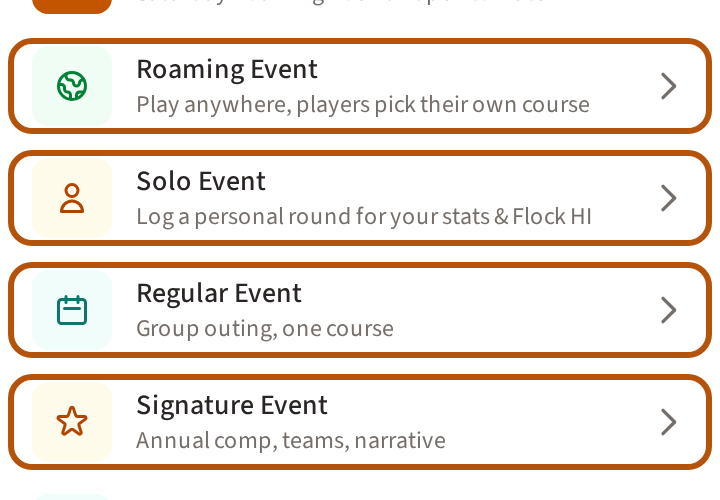
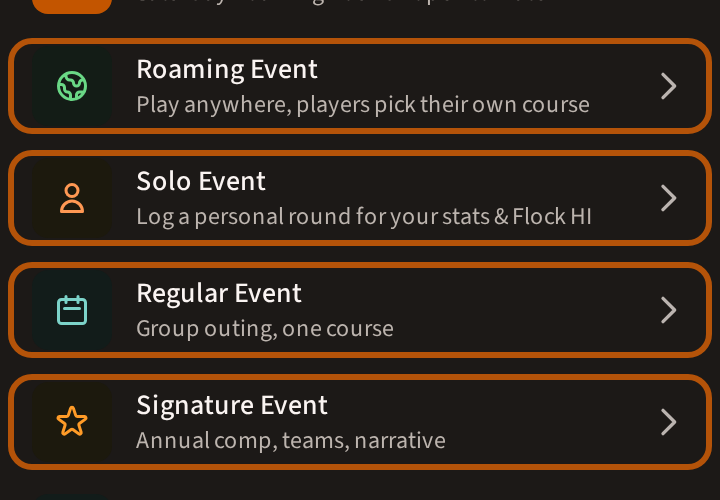
- Regular Event — a group outing on one course.
- Signature Event — the big fixture of your flock (your group): the annual competition, with teams and a story. It counts for more in a league.
- Roaming Event — play anywhere: each player picks their own course.
- Solo Event — a personal round, for your stats and your Flock HI: Log a solo round.
Only admins set up Regular and Signature Events. Members can set up Roaming and Solo Events too, unless the flock has switched that off — see Run your flock.
2. Copy a past event, or start fresh
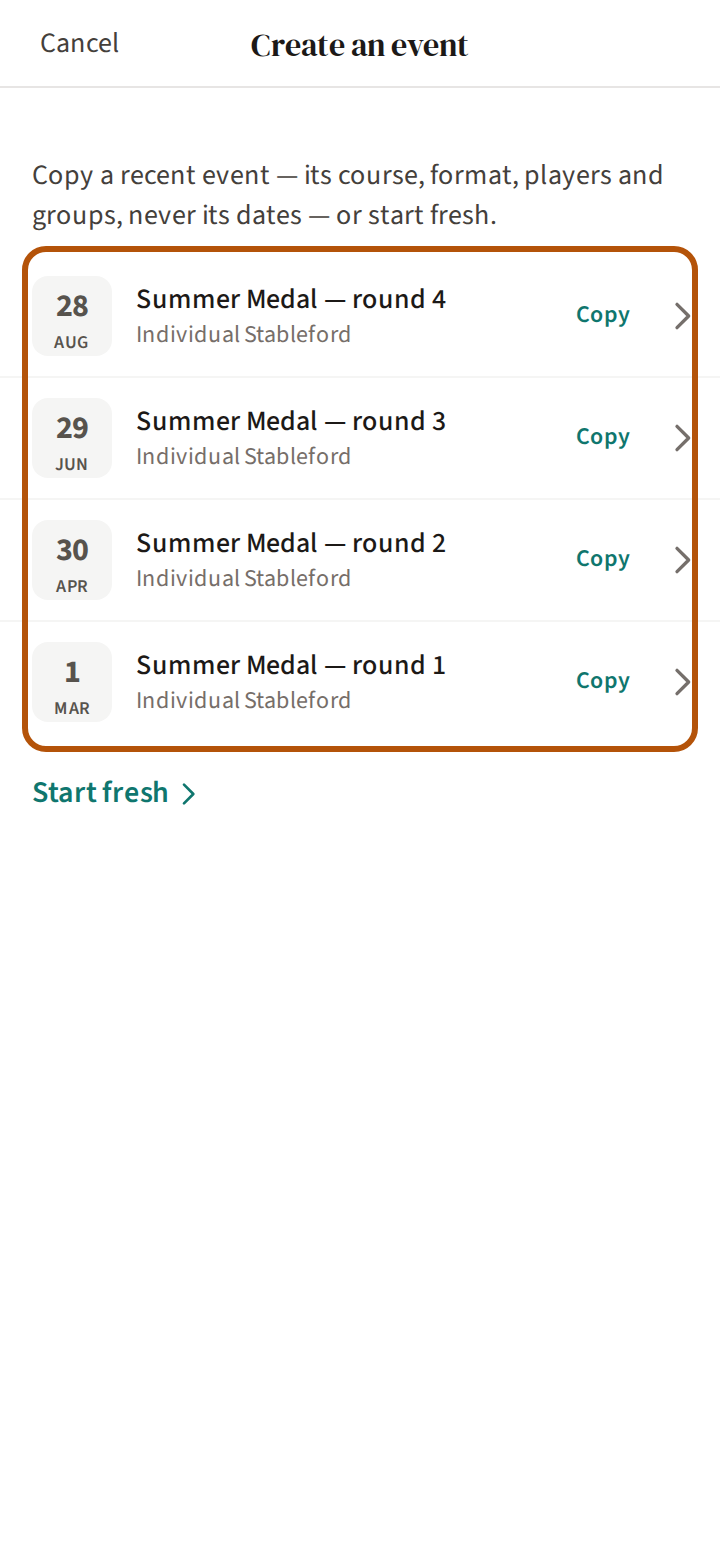
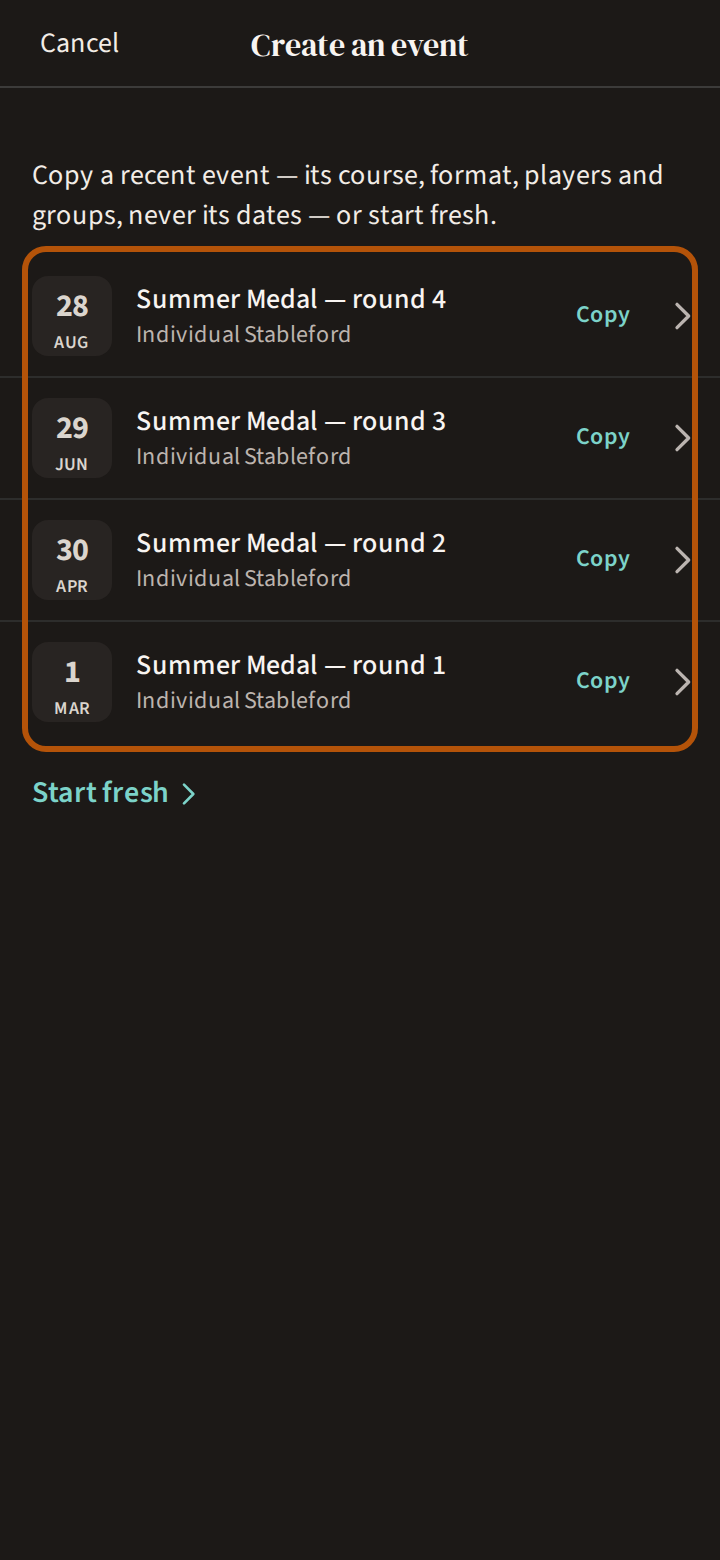
If your flock has played before, the first step offers its recent events. Press one to copy it — its course, format, players and groups come with it, never its dates. Or press Start fresh. You can also copy a finished event from its own More menu: Copy event.
3. Fill in the form
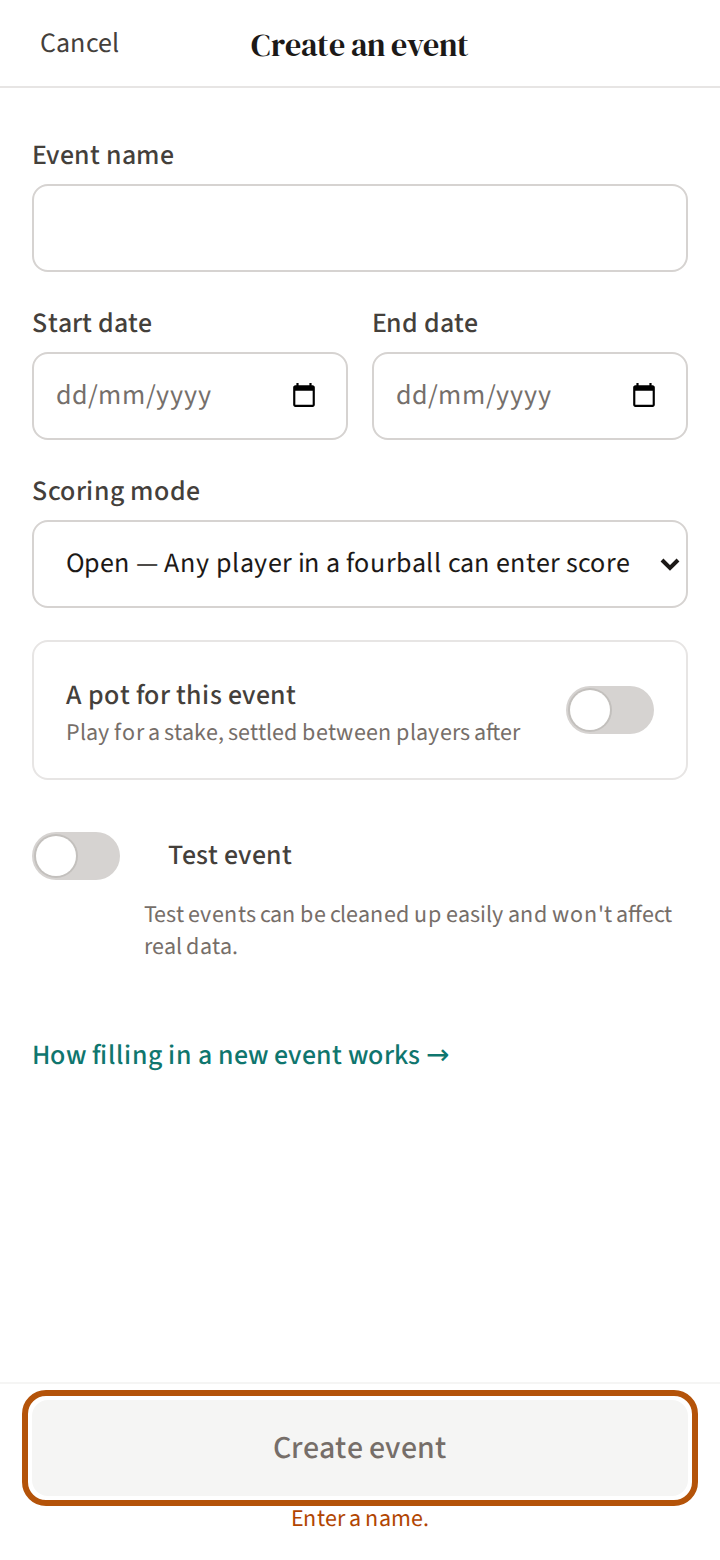
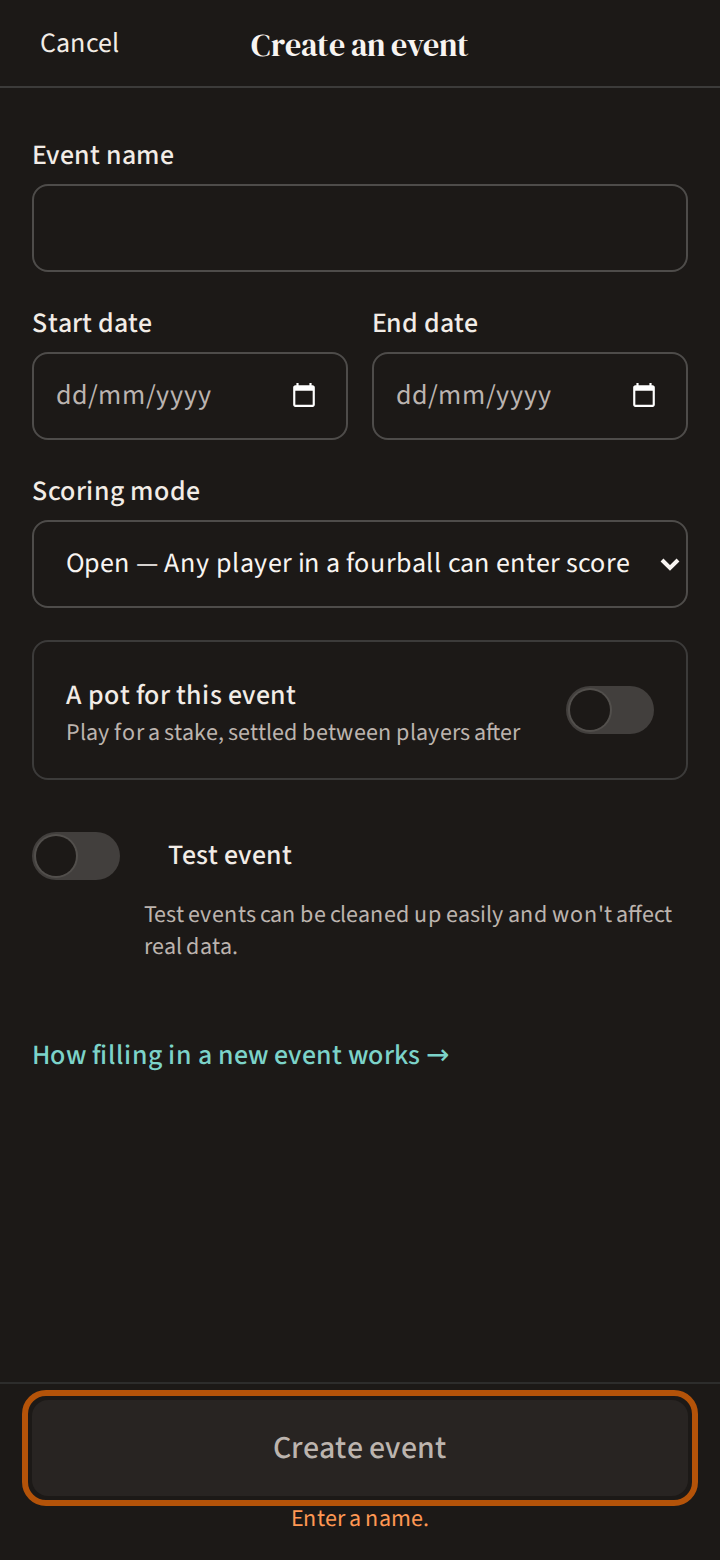
Give it a name and its dates, and choose its Scoring mode — who can put in scores: Open (anyone in a group, the usual choice), Designated (one scorer per group, chosen by you) or Admin only. To play for a sweep, turn on A pot for this event — see Run a pot. Press Create event. If the button won't press, the line under it says what is missing.
A roaming round's form is shorter: the dates, the format, and whether it is Open to flock — any member can join themselves. Its button reads Start Round, or Schedule Round for a later date.
4. Finish it in Admin
A new Regular or Signature event opens in Admin; to come back, open the event, then the More menu (⋯) and Admin. Its sections are Overview, Event Setup, Player Setup, Round Review and Engagement; the picker chooses the part of each.
The Setup checklist on the Overview lists what the event still needs before it can go live, each line taking you to the part that does it; the steps below follow its order. When nothing is left it says Setup complete — ready to go live!
5. The course
In Event Setup → Courses, find the course and choose the tees you will play. A copied event already has its course.
6. The players, and teams
In Player Setup, the Players part adds people: Add All Flock Members, one at a time with + Add player (choose Guest for someone without Treád), or Copy from Event. Each player's handicap for the day is under Event Setup → HC Setup.
For a team competition, the next part, Teams, is where you make the teams.
7. Competitions and formats
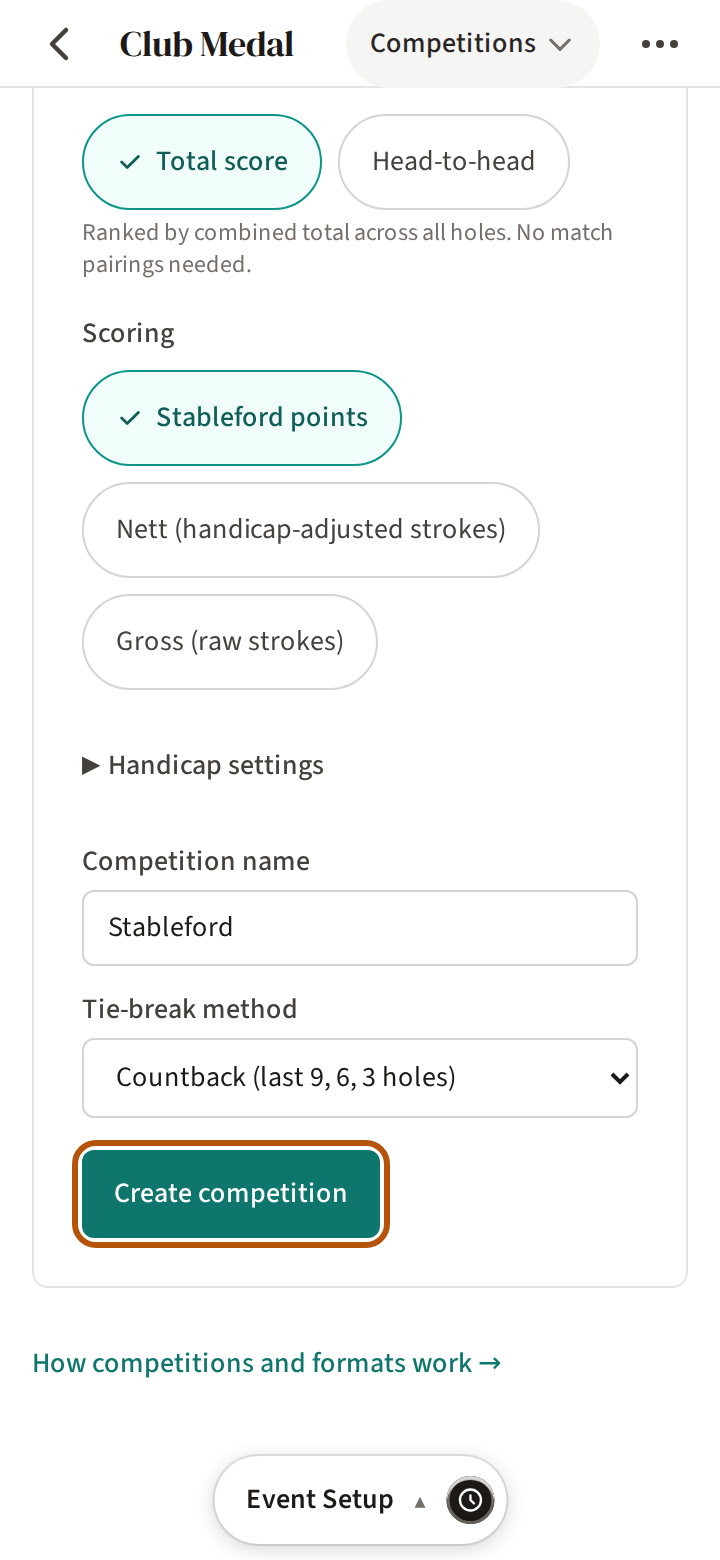
In Event Setup → Competitions, under Create competition, press a format: Stableford, Strokeplay, Match Play, Better Ball, Team Aggregate, Baa-tle Royale and more — or Custom to set it up yourself. Its settings open below, filled in; check them, then press Create competition at the foot. An event can run more than one competition. Roaming events are scored in Stableford.
To give each round its own format, make the rounds first (step 8). With two or more rounds, the form starts with Round format: Same format every round or Different format each round.
8. A round, its groups and tee times
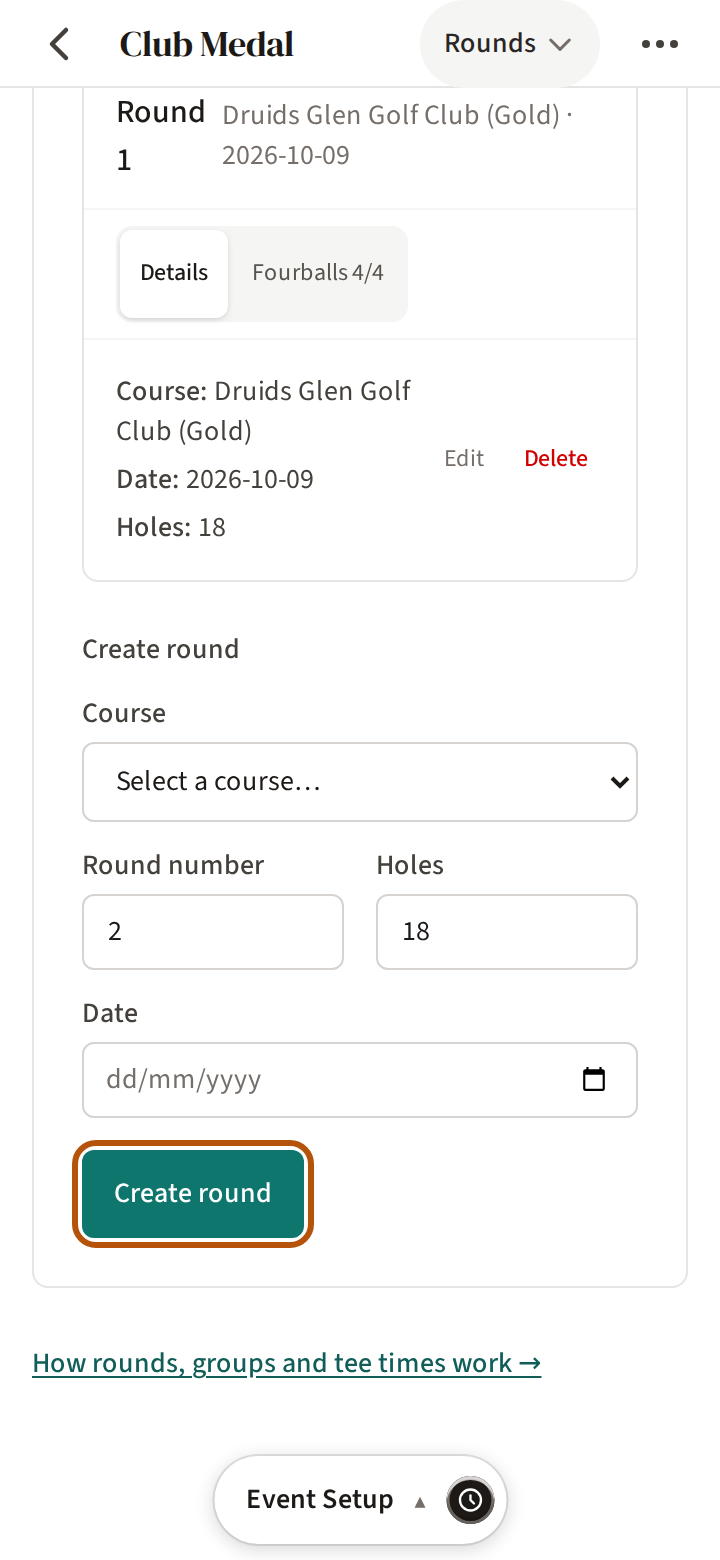
In Event Setup → Rounds, fill in the form headed Create round — the course, the date — then press Create round at its foot. A copied event brings its rounds with it.
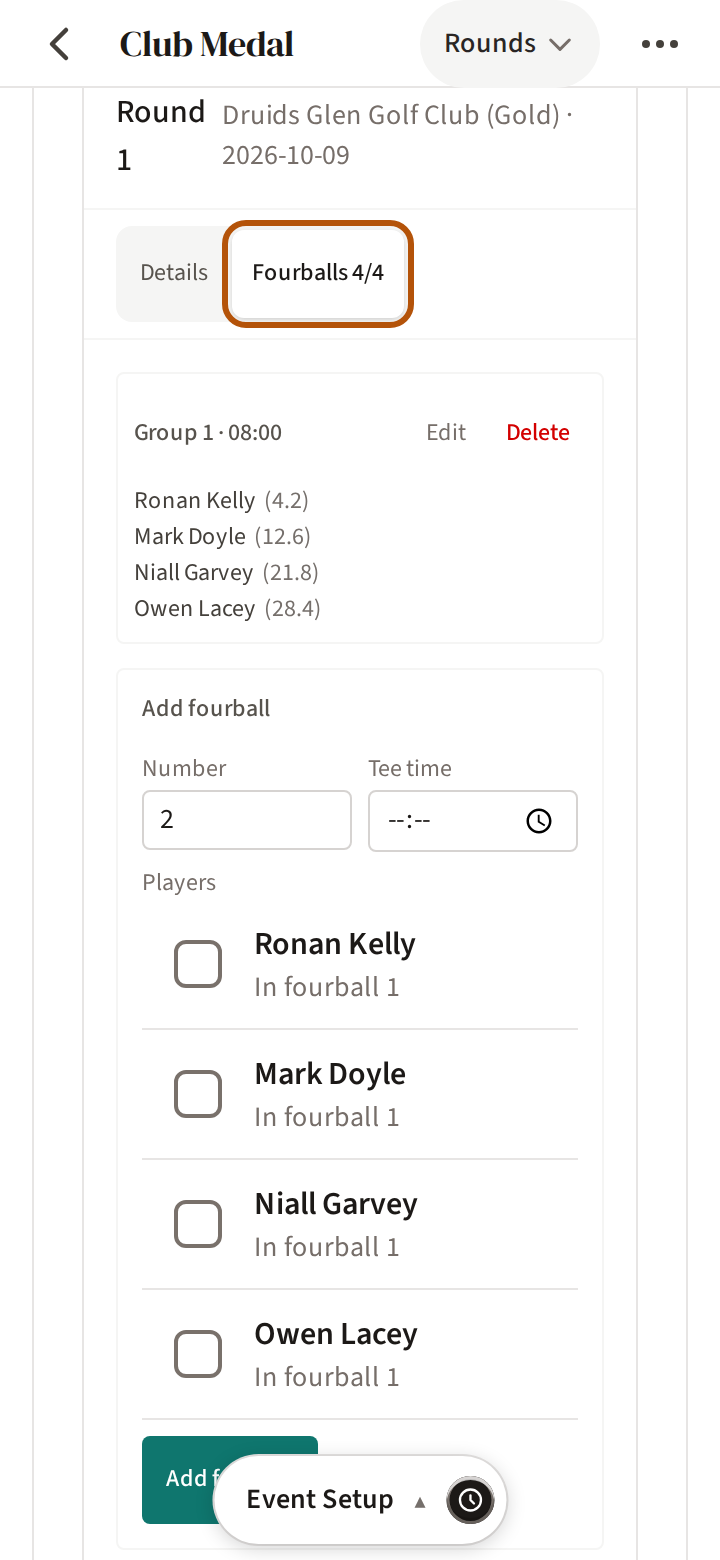
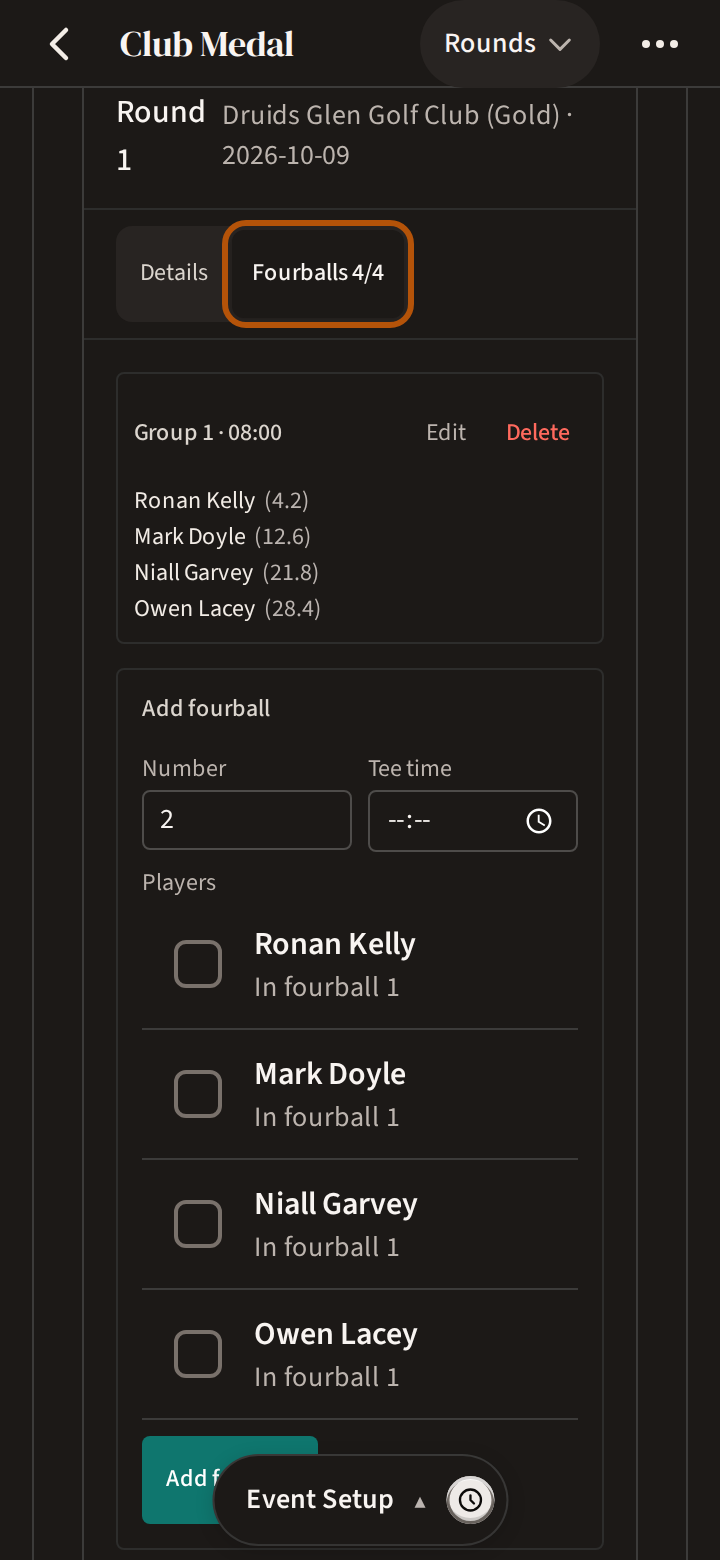
Each round's card has a Fourballs view. Press Auto-assign to let Treád make the groups — by team, by handicap, or at random — or add each fourball yourself with its tee time. In Designated mode, this is where you name each group's scorer.
If a competition is match play, the round's card also has a Matches view. Set up who plays whom in each fourball there: Go Live stays blocked until every fourball has its match.
9. Go live
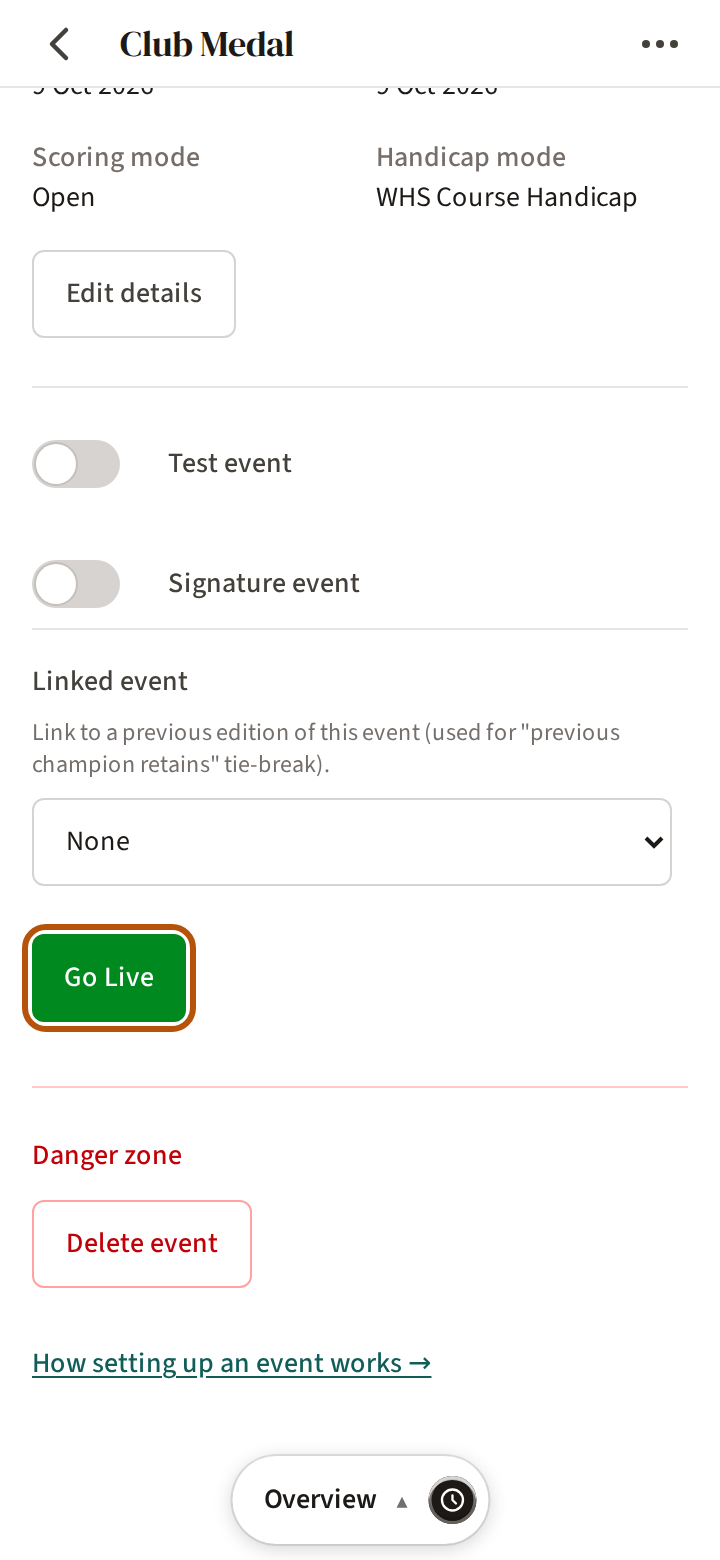
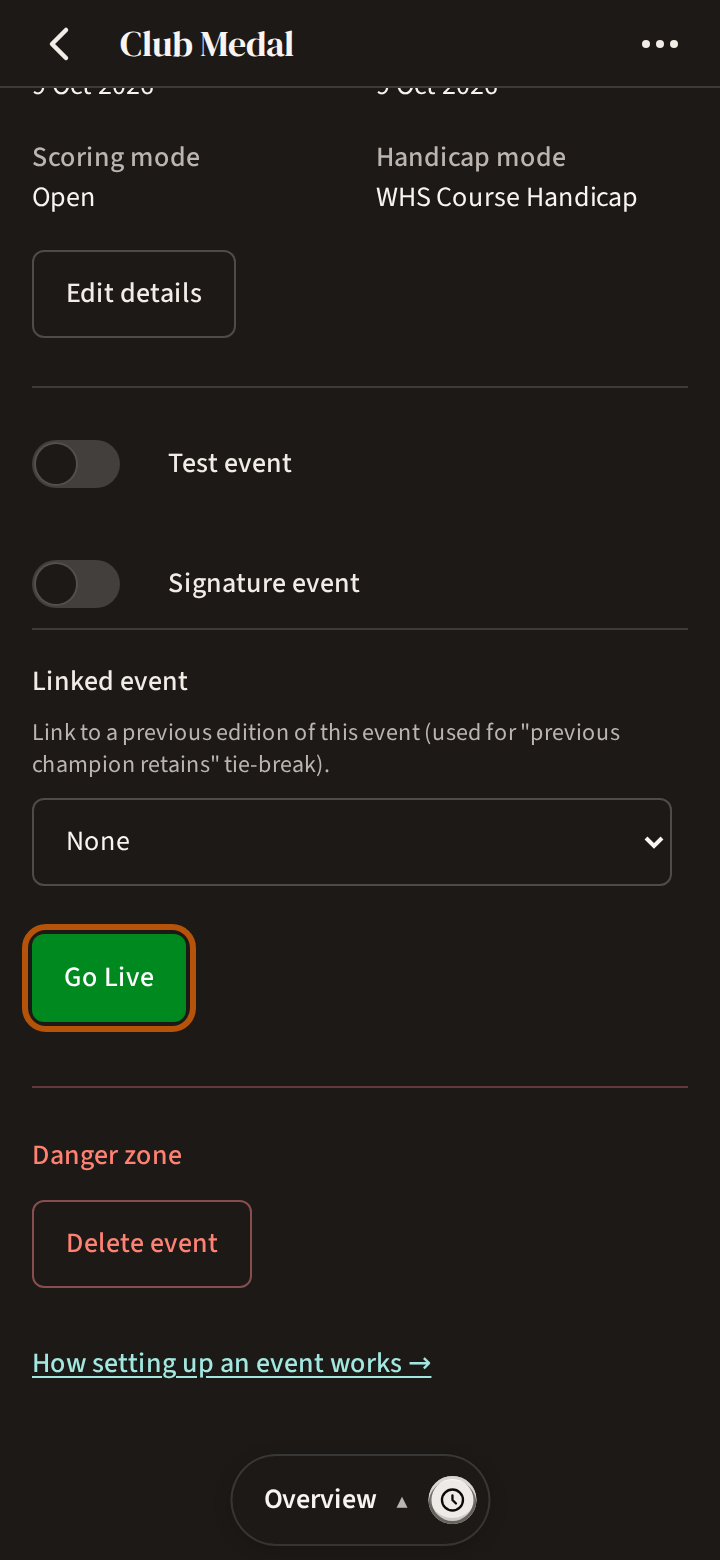
When the checklist is done, press Go Live on the Overview. Treád checks first: anything that would stop the round working must be fixed, but with only warnings you can press Go Live Anyway. An event with a pot can't go live until you choose what the pot pays (Run a pot). To share the leaderboard outside the flock, press Enable sharing in Engagement → Sharing.
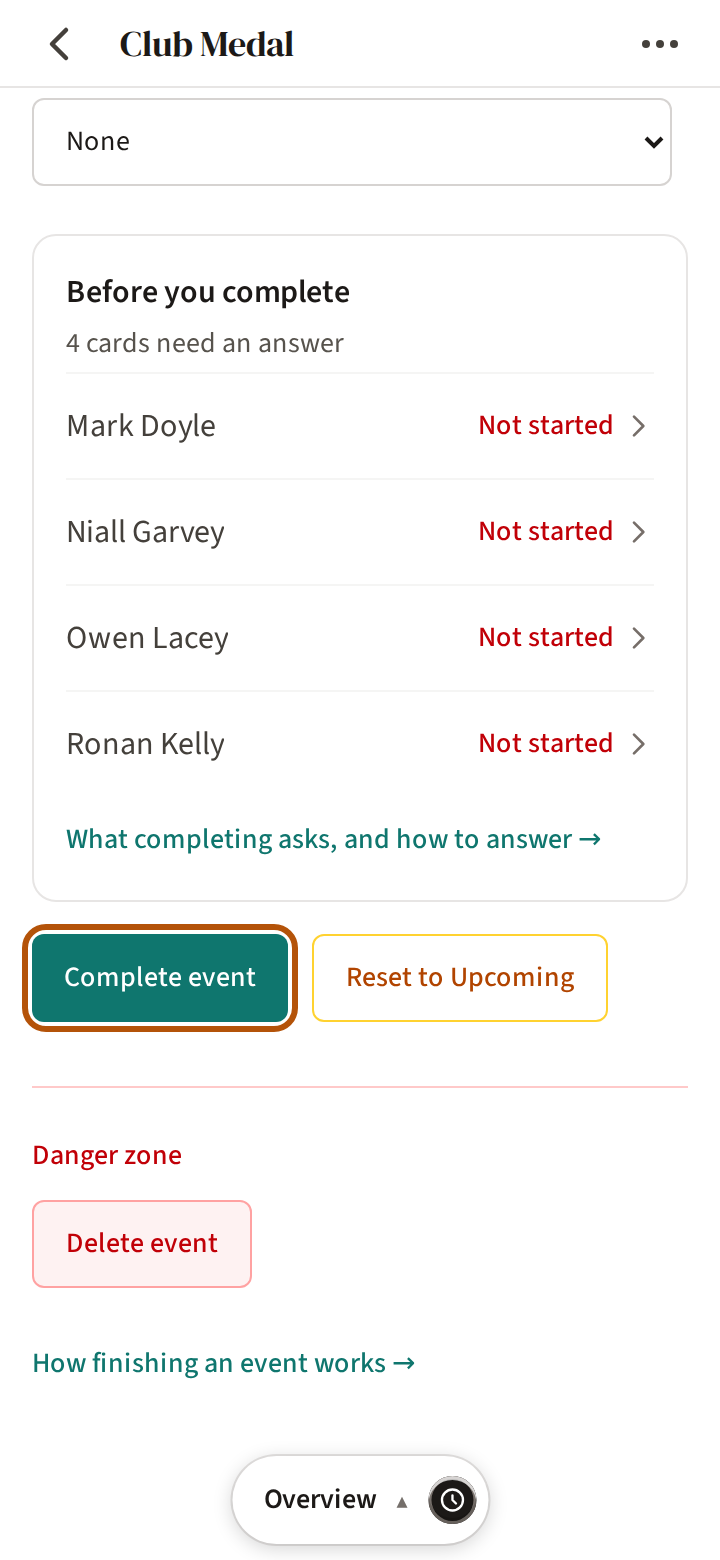
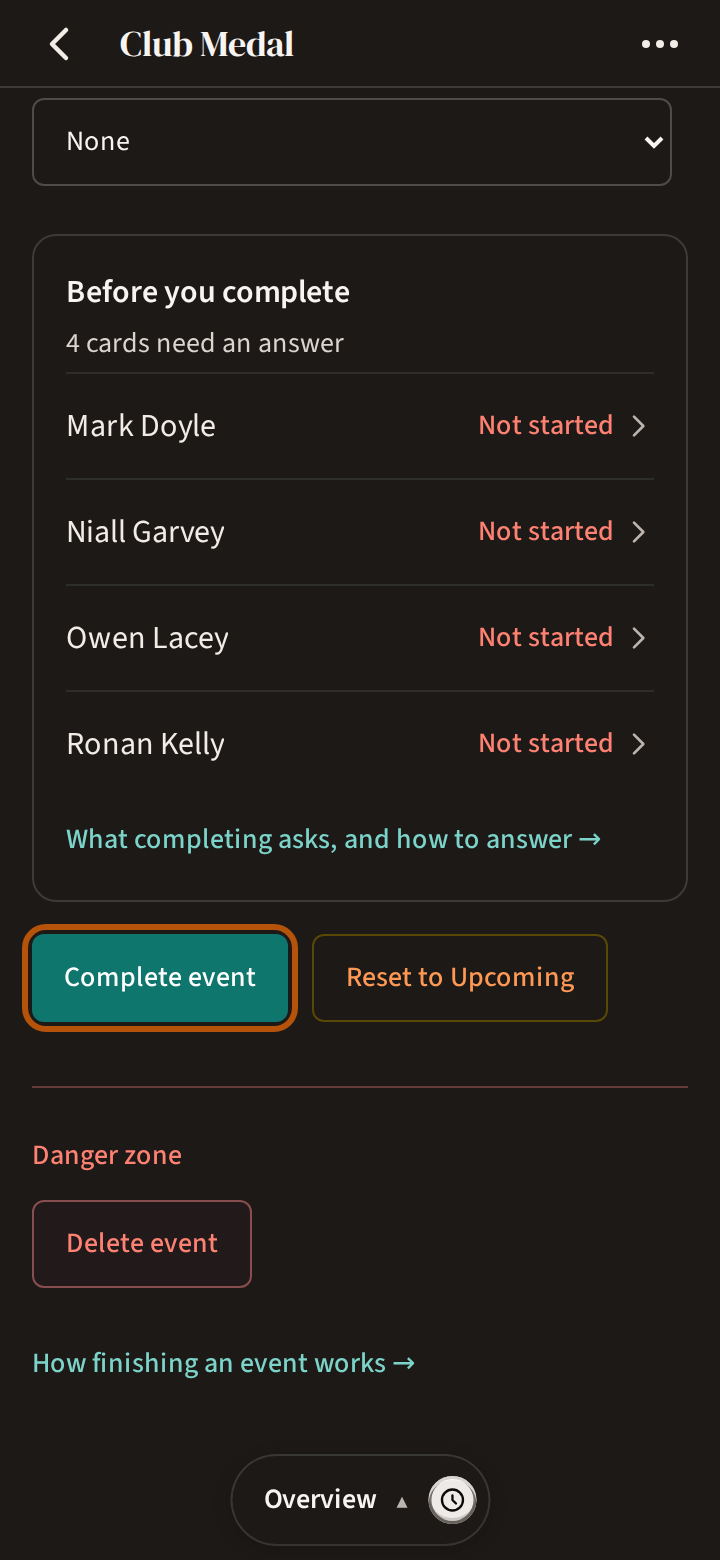
Once it is live, the Overview has the button for the end of the day — Complete event, which Close out an event explains.
10. Changes on the day
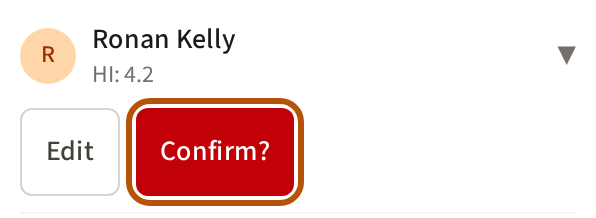
Admin takes changes until the event is completed. A late withdrawal: in Player Setup → Players, press Remove beside them; it turns red and reads Confirm? — press it again. A player with a score in can't be removed.
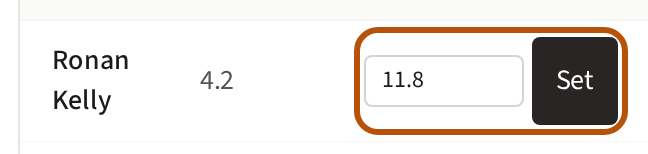
A changed handicap: in Event Setup → HC Setup, type the new index under Override HI in that round's table and press Set. Everyone's shots are worked out again.
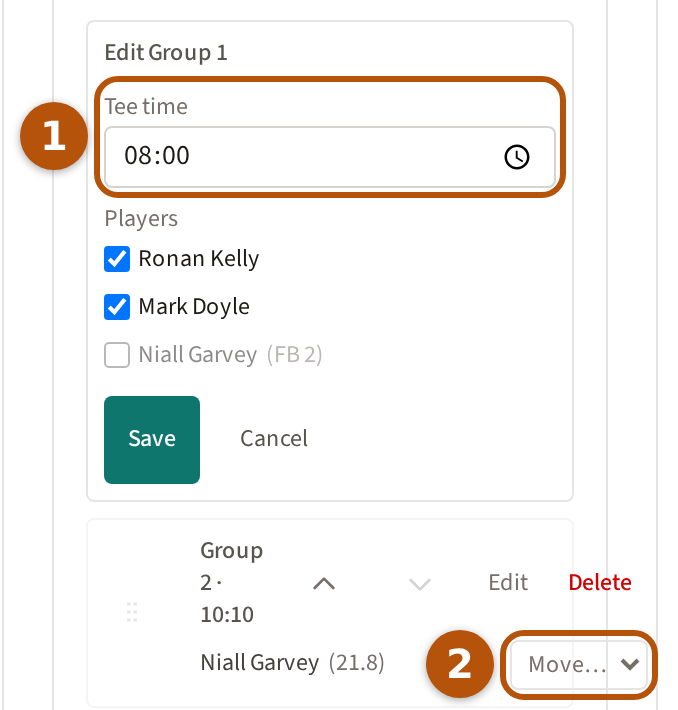
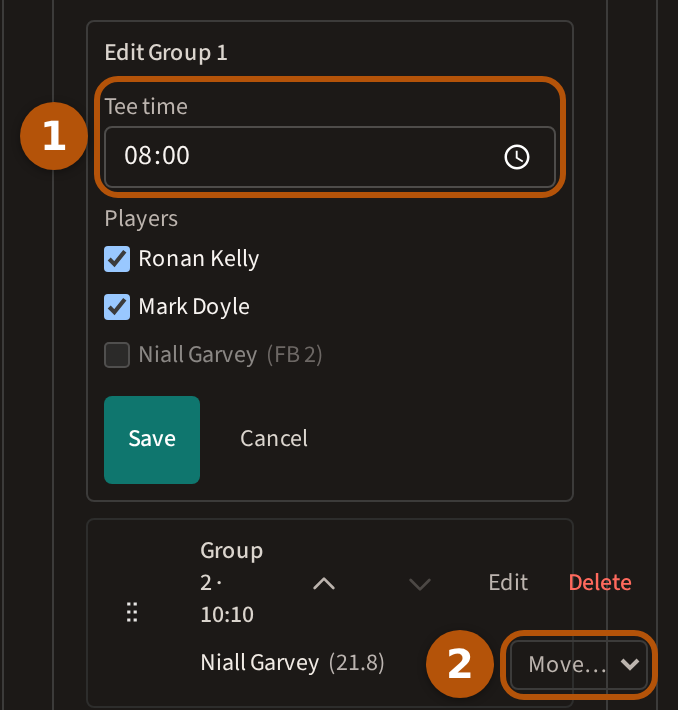
A new tee time or a swap: in the round's Fourballs view, a group's Edit opens its Tee time ① and players; change them and press Save. To send a player to another group, choose it from Move… ② beside their name.
Still stuck? Tell us and we will help.