Run your flock
Every society has one person who does all the organising — this one's for you. Send one invite link and your golfers sign themselves up, then make a couple of others admins so it isn't all on your shoulders. Here's how to start a flock, invite people, approve who joins and set how it runs.
1. Start a flock
A flock (your group) is your golf society on Treád. To start one, open the Play list and press New Flock. Give it a name and, if you like, a description, then press Create flock. You are its first admin. Treád then offers an Invite link to share and a way to Create your first event.
2. Invite people
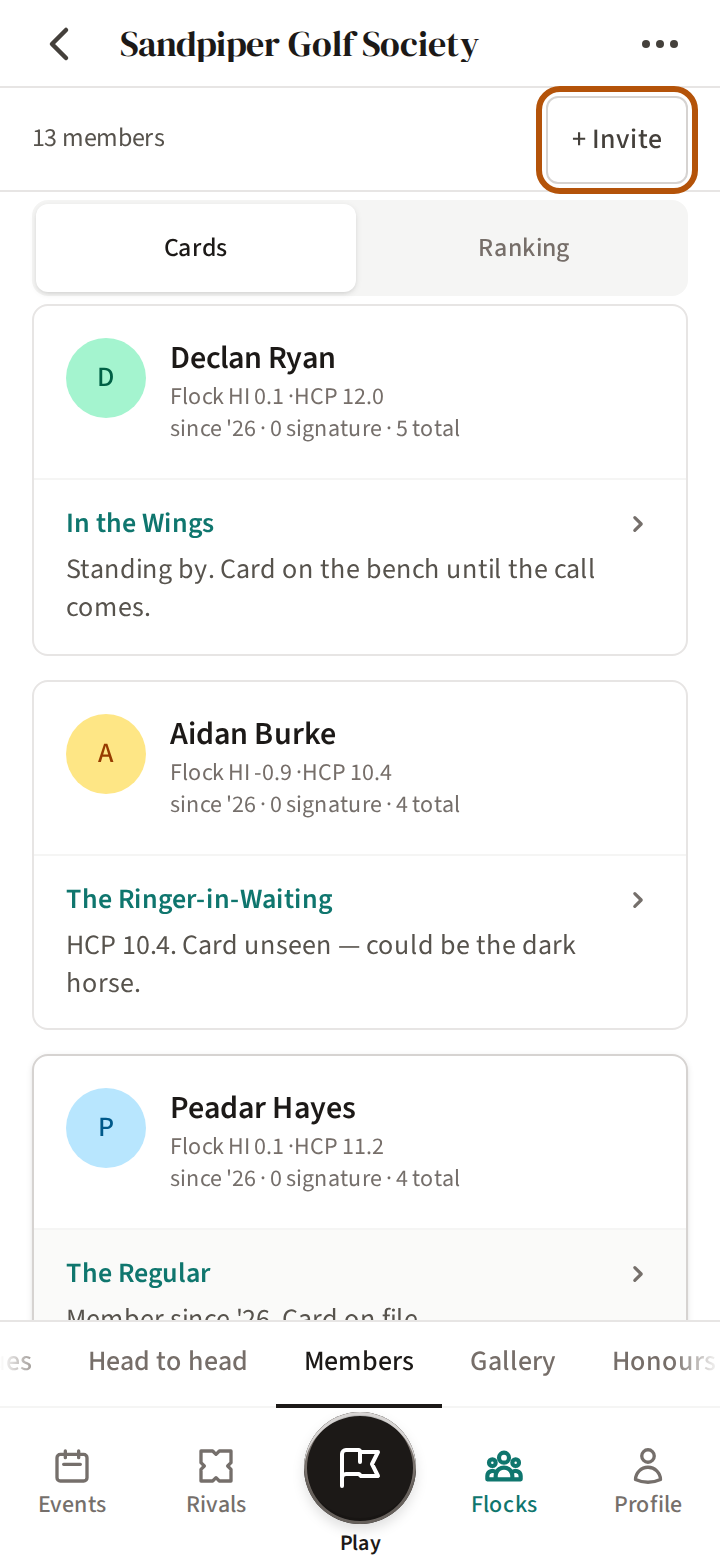
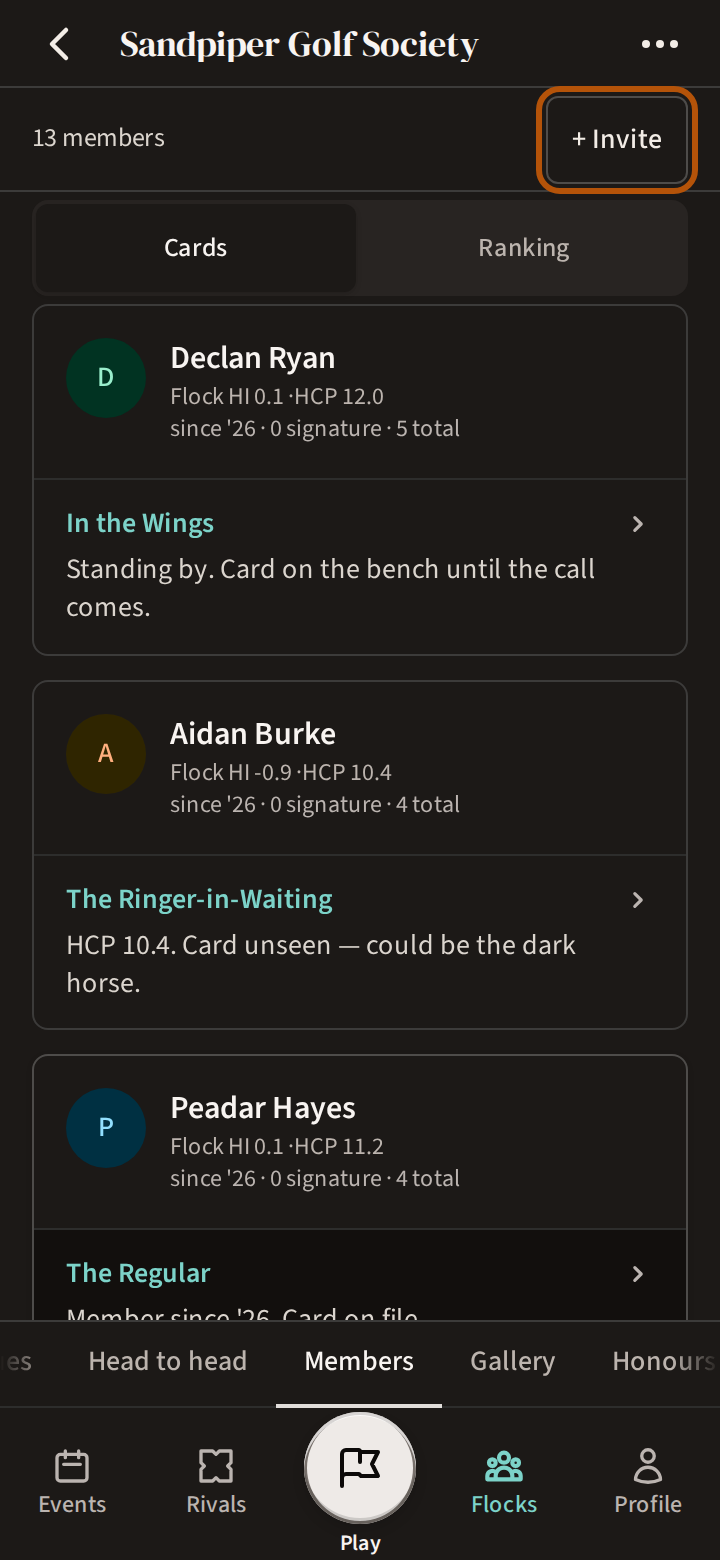
On the flock's Members section, press + Invite and send the link however you like — a message, a group chat, an email. The same link is in the flock's More menu as Invite link.
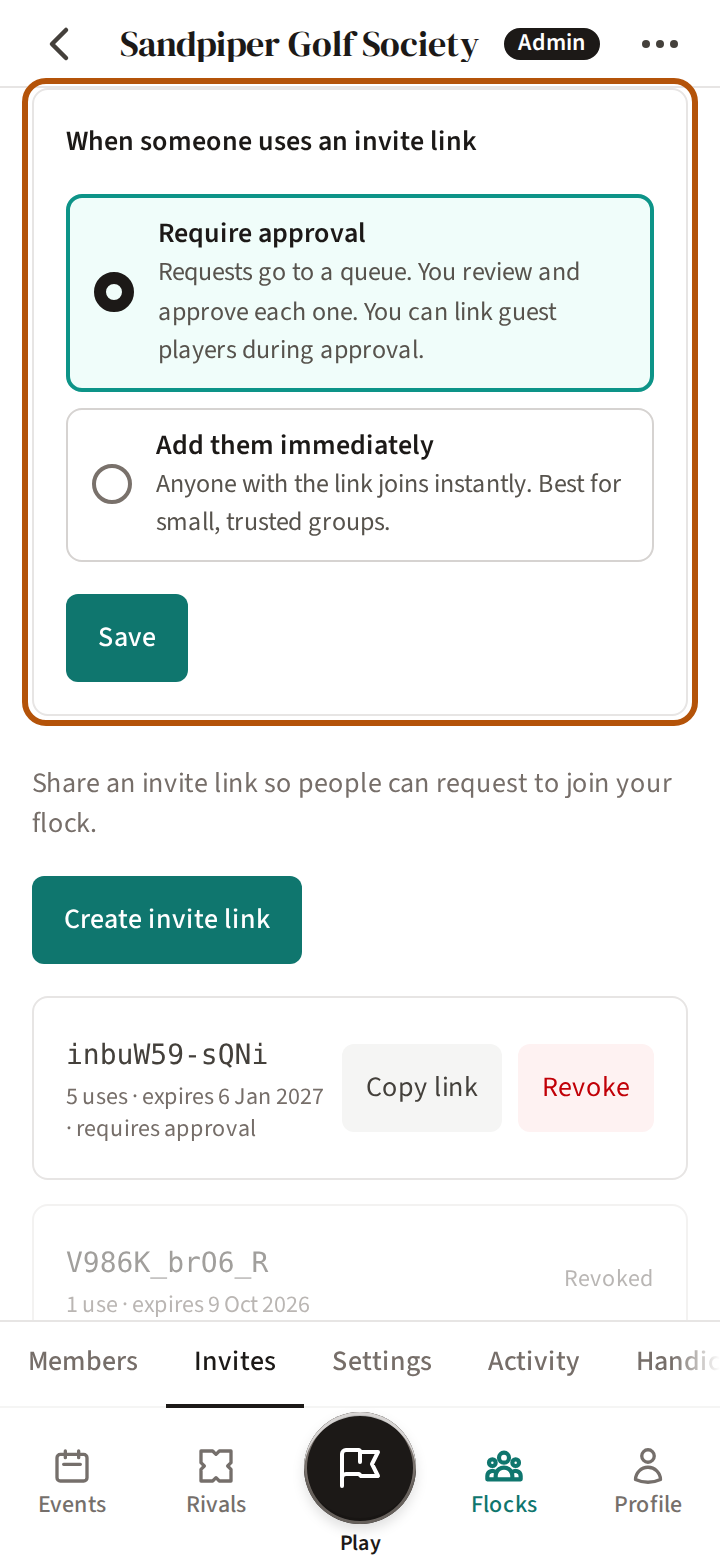
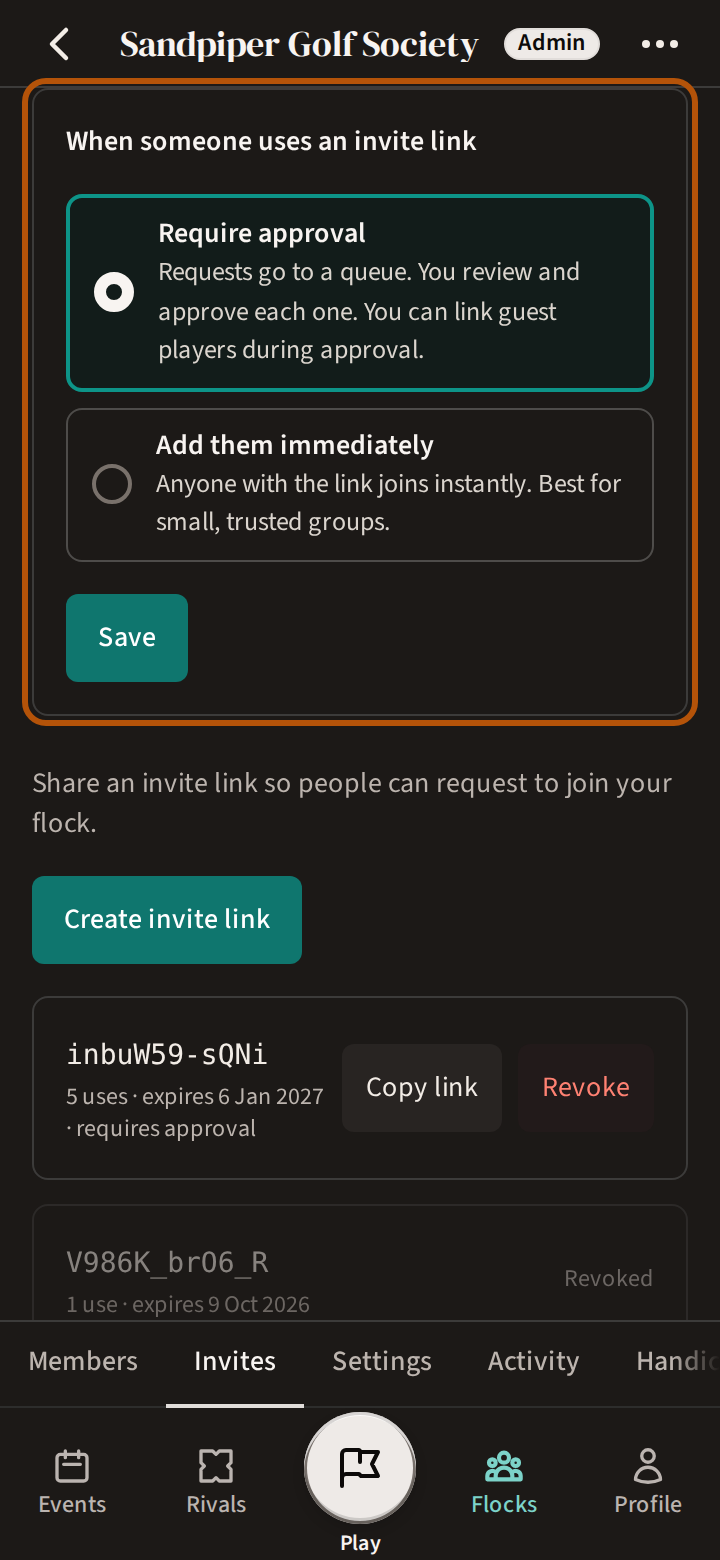
Every flock's organiser pages are its Admin: open the flock, then the More menu (⋯) and Admin. Under Invites you choose what a link does — Require approval (each person waits for you) or Add them immediately, best for a small group you trust — then press Save. Below that, Create invite link makes a new one. Every link runs out after 7 days unless you choose a different number of days, or a number of uses, when you make it — so send a fresh one if someone says theirs has stopped working. Revoke stops a link the moment you press it — there is no confirm and no undo, so anyone you already sent it to will need a new one.
3. Approve join requests
With approval on, a request turns your Play button blue — Join request. Press it and you land on Members in Admin, where Pending requests are at the top. Press Approve or Reject. If the person has played in your events as a guest, you can link those rounds to them as you approve.
You can also link guests at any time: while any guest on your events has no account, the Members list starts with Link guests. Linking puts that guest's rounds on the member's record.
4. Admins and members
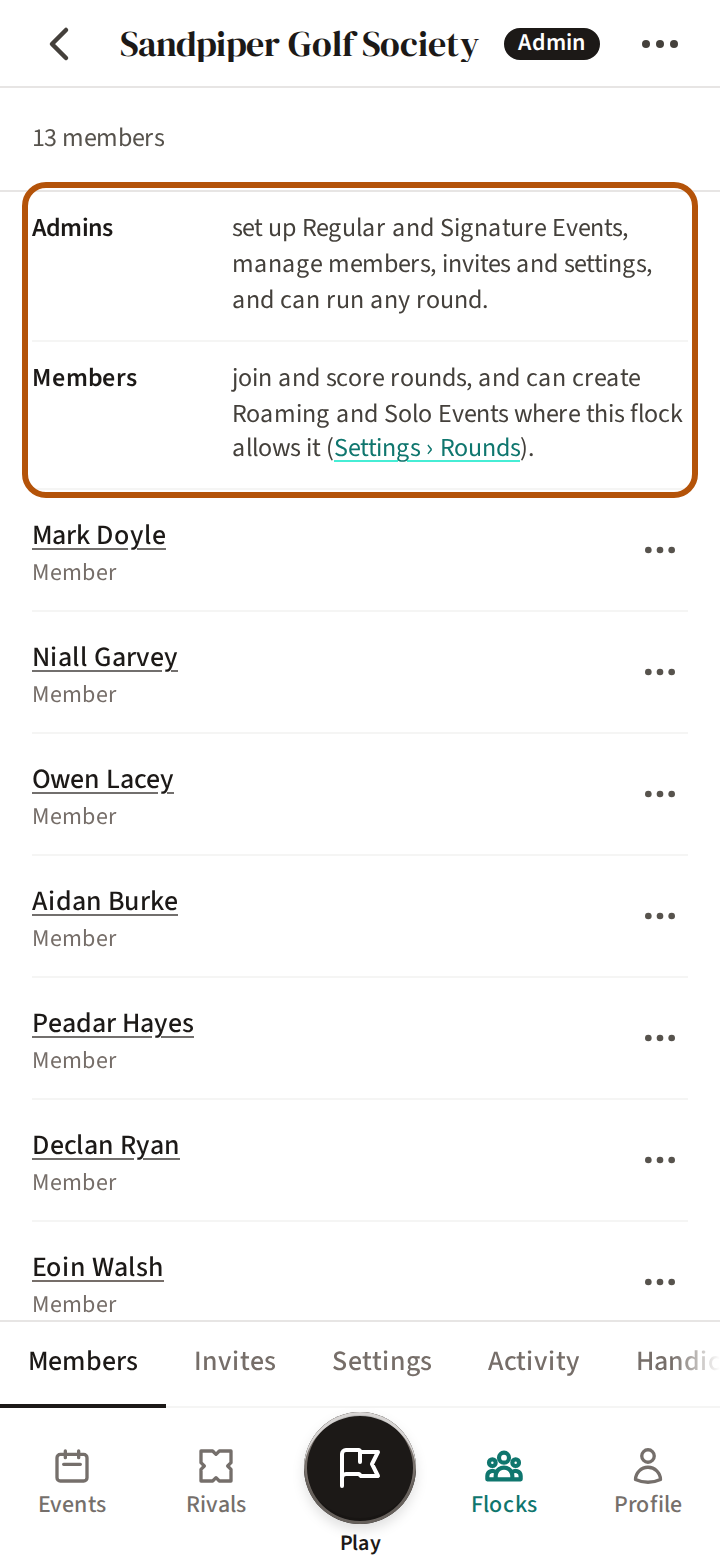
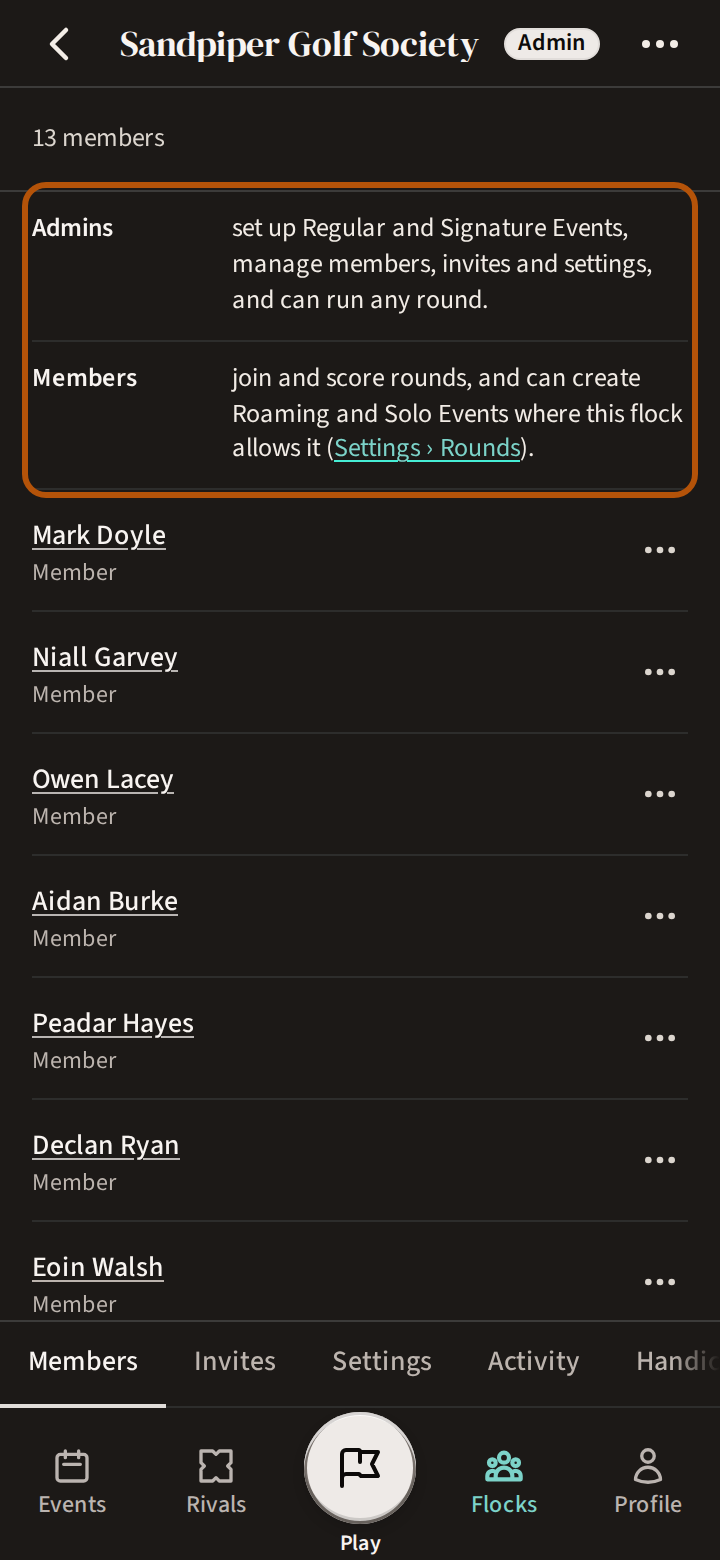
Admins set up Regular and Signature Events, manage members, invites and settings, and can run any round. Members join and score rounds, and can create Roaming and Solo Events where the flock allows it. To change someone's role, press the ⋯ on their row and choose Make admin or Make member; Treád asks you to confirm. The same ⋯ has Remove from flock — they lose access to the flock, but their results stay on the events they played.
5. The flock's settings
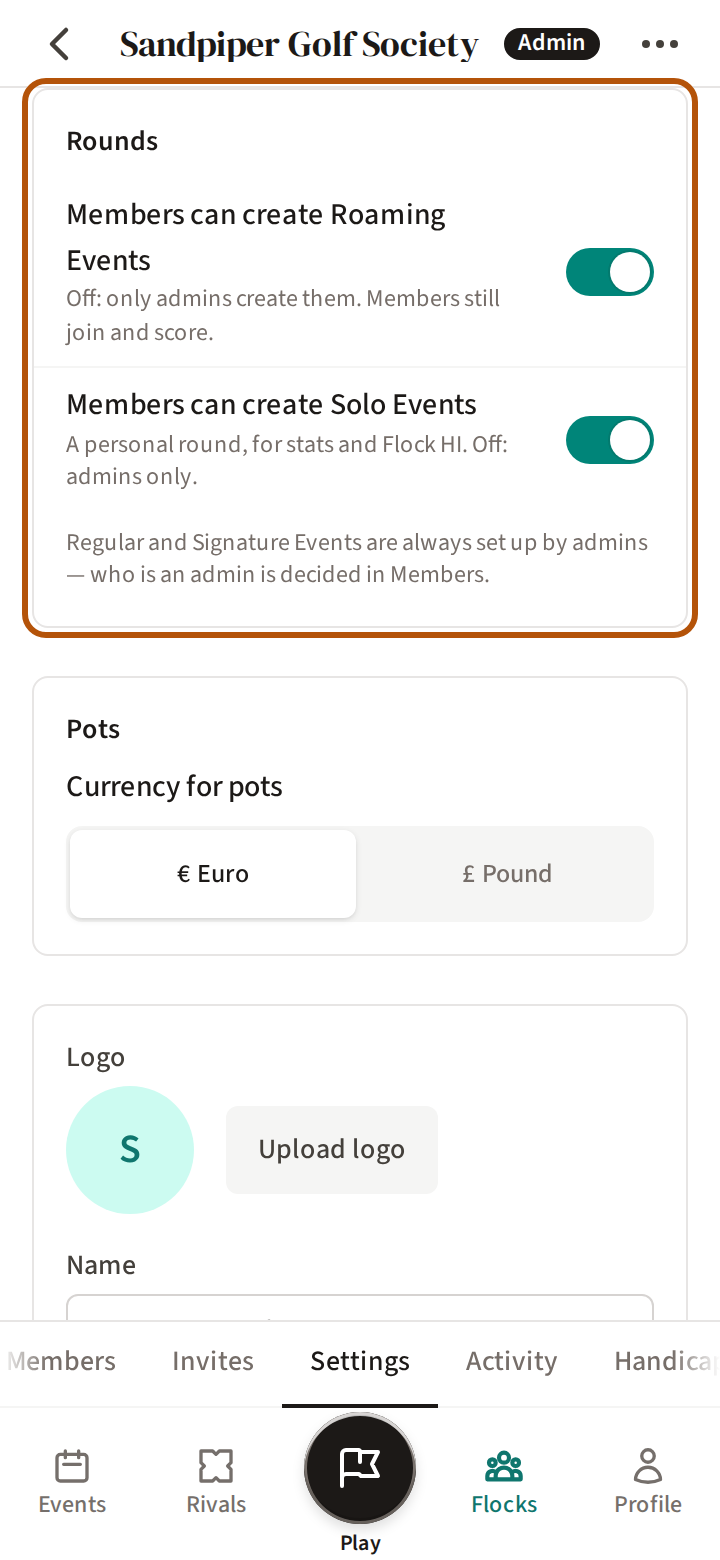
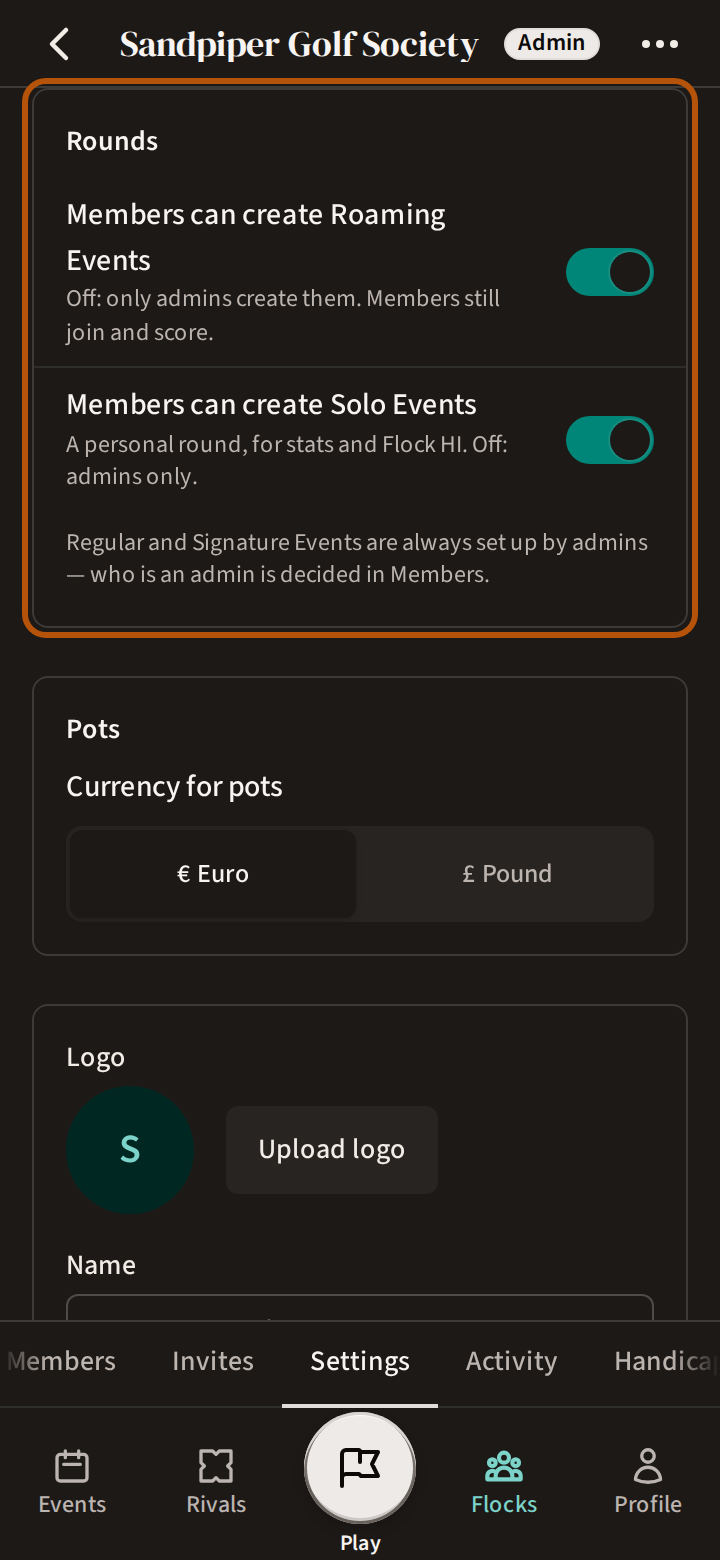
Under Settings, the Rounds switches decide whether members can create Roaming and Solo Events; each takes effect as soon as you press it. Currency for pots, below them, sets what every pot in the flock is counted in — see Run a pot. Below that are the flock's logo, name and description — press Save settings after changing them.
6. Activity
Activity lists what the flock's admins have done — events created, deleted or changed — newest first. Admin also has two handicap tools: the Handicap Analyser, which shows how each player is performing against their handicap, and Handicap Index, each member's Flock HI.
Still stuck? Tell us and we will help.