Close out an event
The last putt has dropped and the nineteenth is calling — don't leave the result hanging till next month. Completing the event makes the leaderboard final, names the winner, and updates league points, honours and everyone's handicap records. Here's how to answer requests to play, check the cards, answer what completing asks and finish the day.
Your Play button turns blue when something is waiting on you as an organiser — a Play request, or an event to Complete now that every card is submitted. Press it to go straight there — or, when it shows how many, to choose from the Play list.
1. Answer requests to play
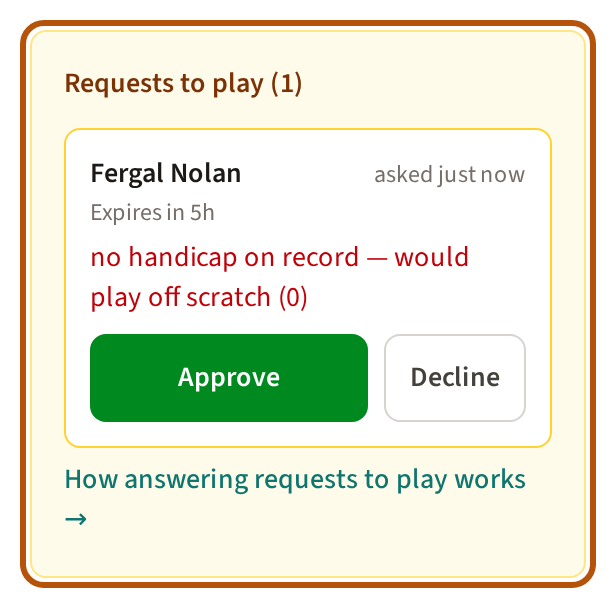
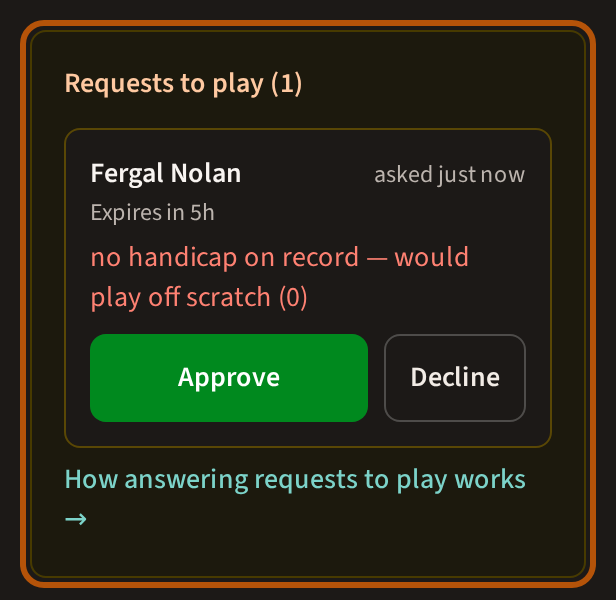
Members who are not in a Regular or Signature Event can ask to play, and so can anyone spectating a roaming round. Their requests are at the top of Player Setup → Players, under Requests to play, each with when it expires. Press Approve or Decline. Approving a Regular or Signature request adds them to the event — then seat them in a group; on a roaming round it seats them.
Decline is final: that member cannot ask again for this event. A request nobody answers before it expires can be made once more.
2. Check the scores
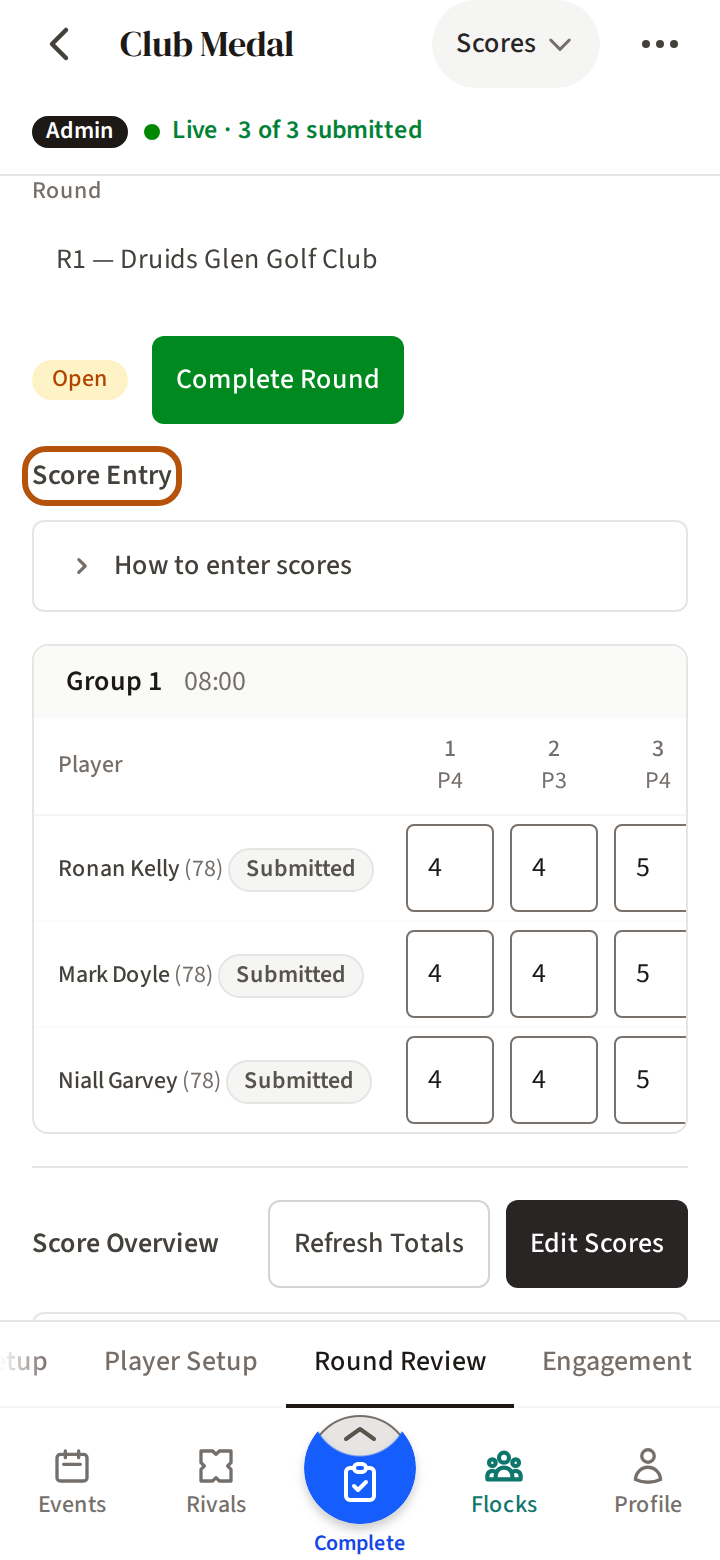
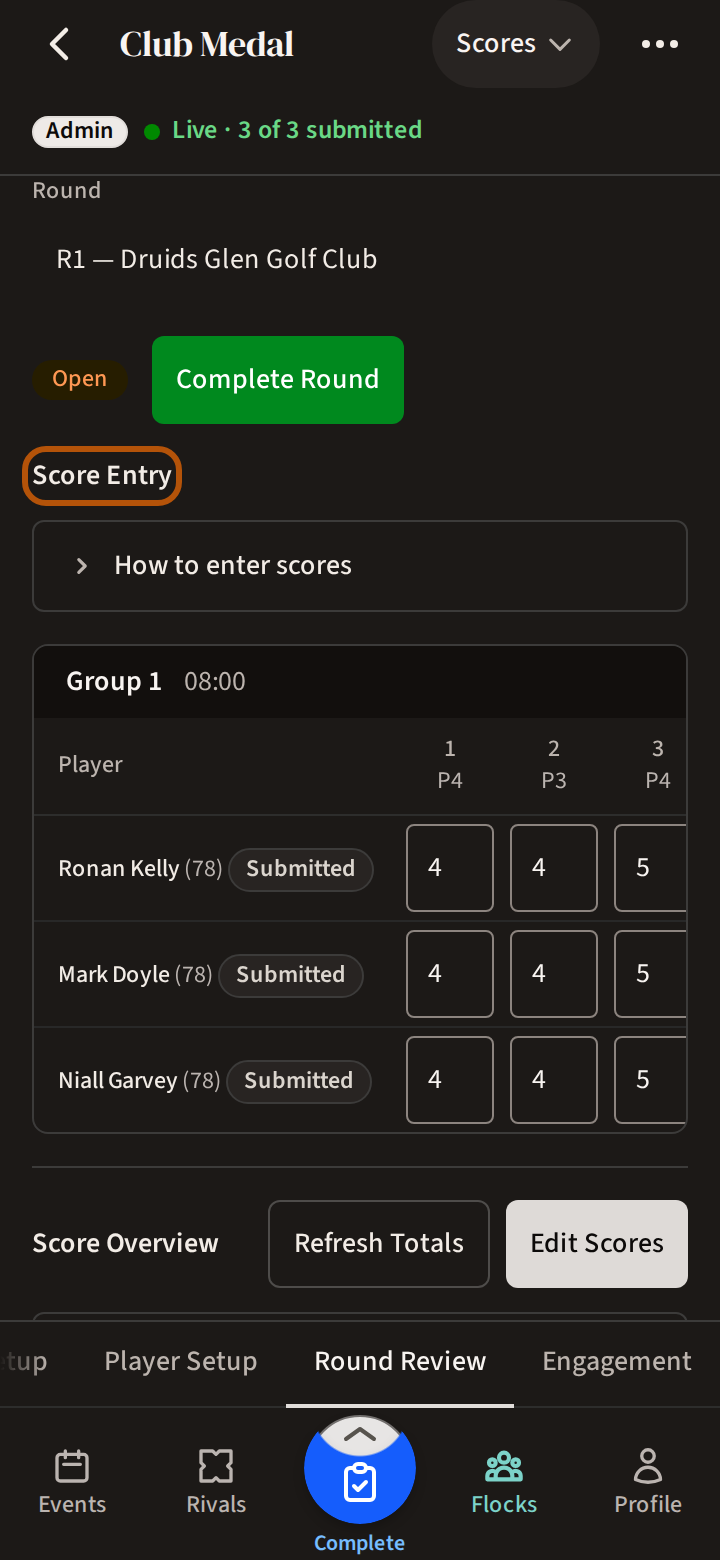
Round Review → Scores shows every card in the round; if the event has more than one round, choose the round on the line under the header. The Score Entry grid at the top saves each score as you change it — in Admin only mode it is where you put in every score. Further down, to correct a card, press Edit Scores, change it, then Done Editing.
Beside each name the grid says where the card is: Not started, Started by you or Submitted. A card nobody has started says so above its group, and your first score starts it. Press a hole for No score or Not played under the group. A card ready to go in has Submit card under its name, and Submit all at the top sends every one. Changing a hole on a submitted card keeps it submitted, recorded as yours.
You can also fix a card from the round's Scoring section: press ⋯ for the More menu and choose Edit as admin. Every group's card opens to you, and the line naming the course reads Admin. Press a submitted card's hole to change it without reopening the card. Choose Stop editing as admin when you are done; it is off each time you come back.
3. Complete a round
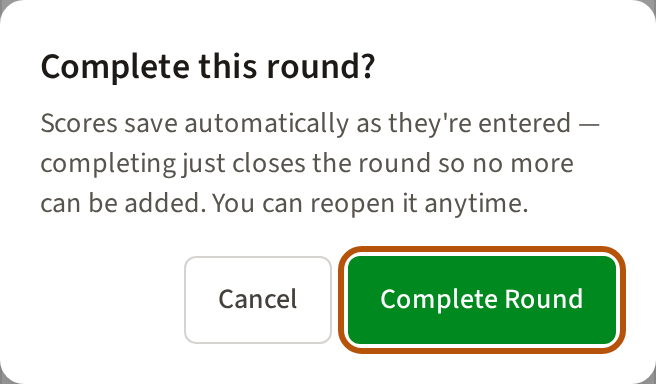
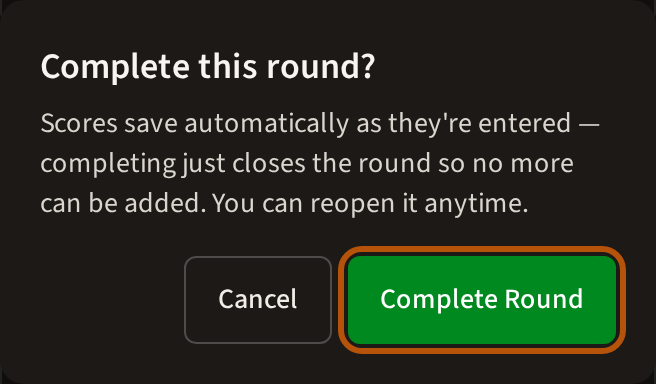
A round is Open while scores can still go in, and Closed once you complete it. Press Complete Round. Treád shows whose cards are not in yet, so nobody is closed out by surprise — scores already in are never lost, and while the event is live you can reopen the round.
On match play, a match that finished all square needs a result first: press Resolve and say how it was settled — an extra hole, a play-off, a committee decision, or halved.
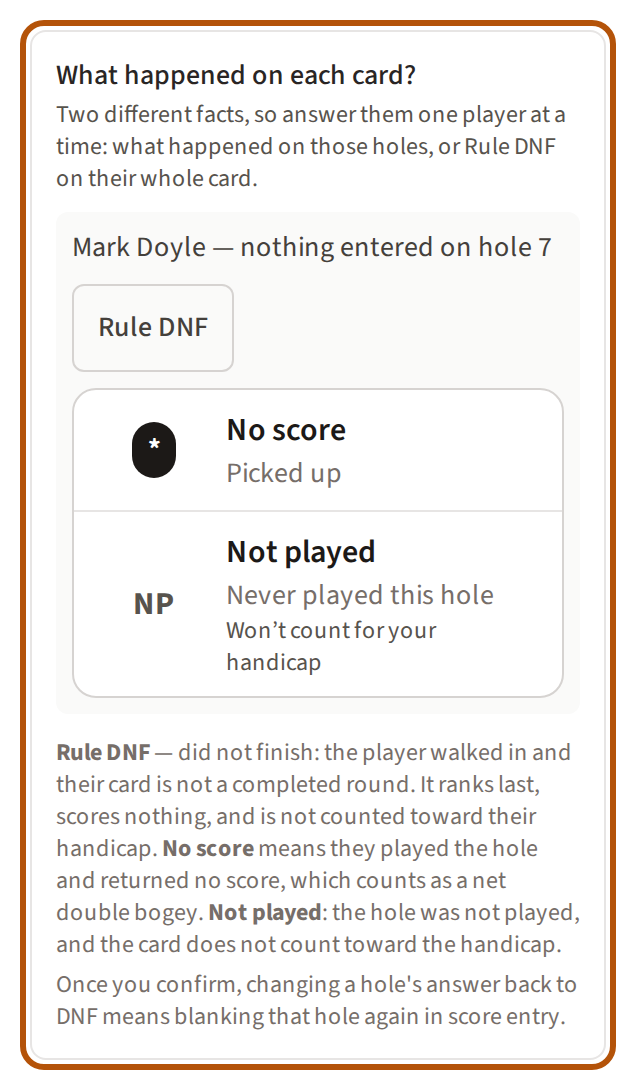
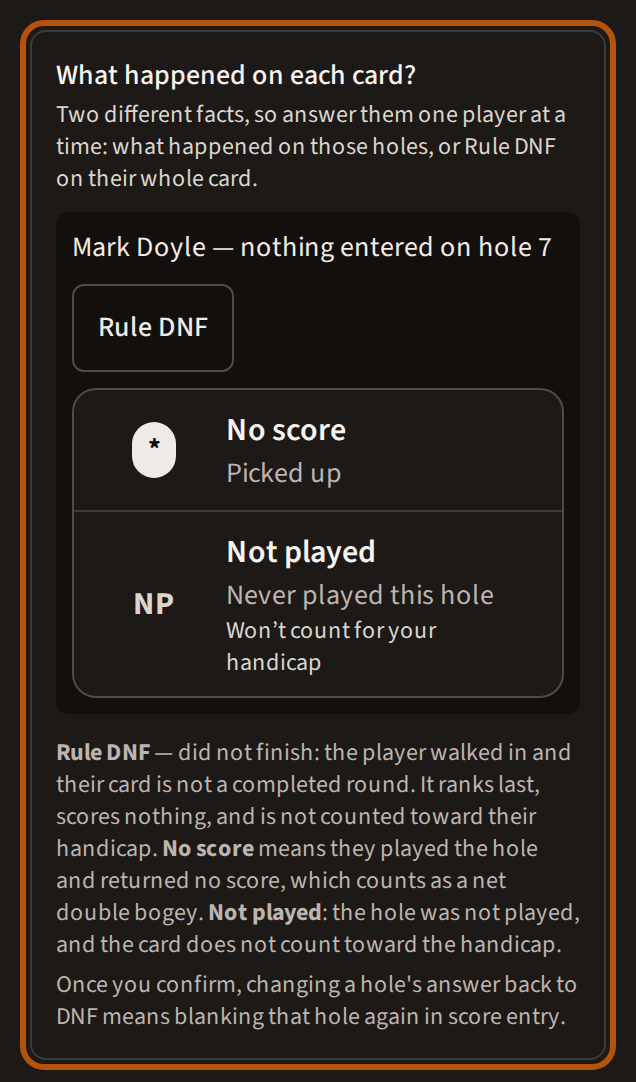
If a card has a hole with nothing entered, Treád asks what happened before it closes the round. For each one choose No score — they played the hole and returned no score, which counts as a nett double bogey — Not played, or Rule DNF: the player did not finish, ranks last, scores nothing, and the round does not count towards their handicap. A DNF asks why; the player reads your reason on their own scorecard. Then press Mark as picked up and close the round (on the Overview it reads Mark as picked up and complete). Once you confirm, changing a pick-up back to a DNF means blanking that hole again in score entry.
4. Look over the handicaps
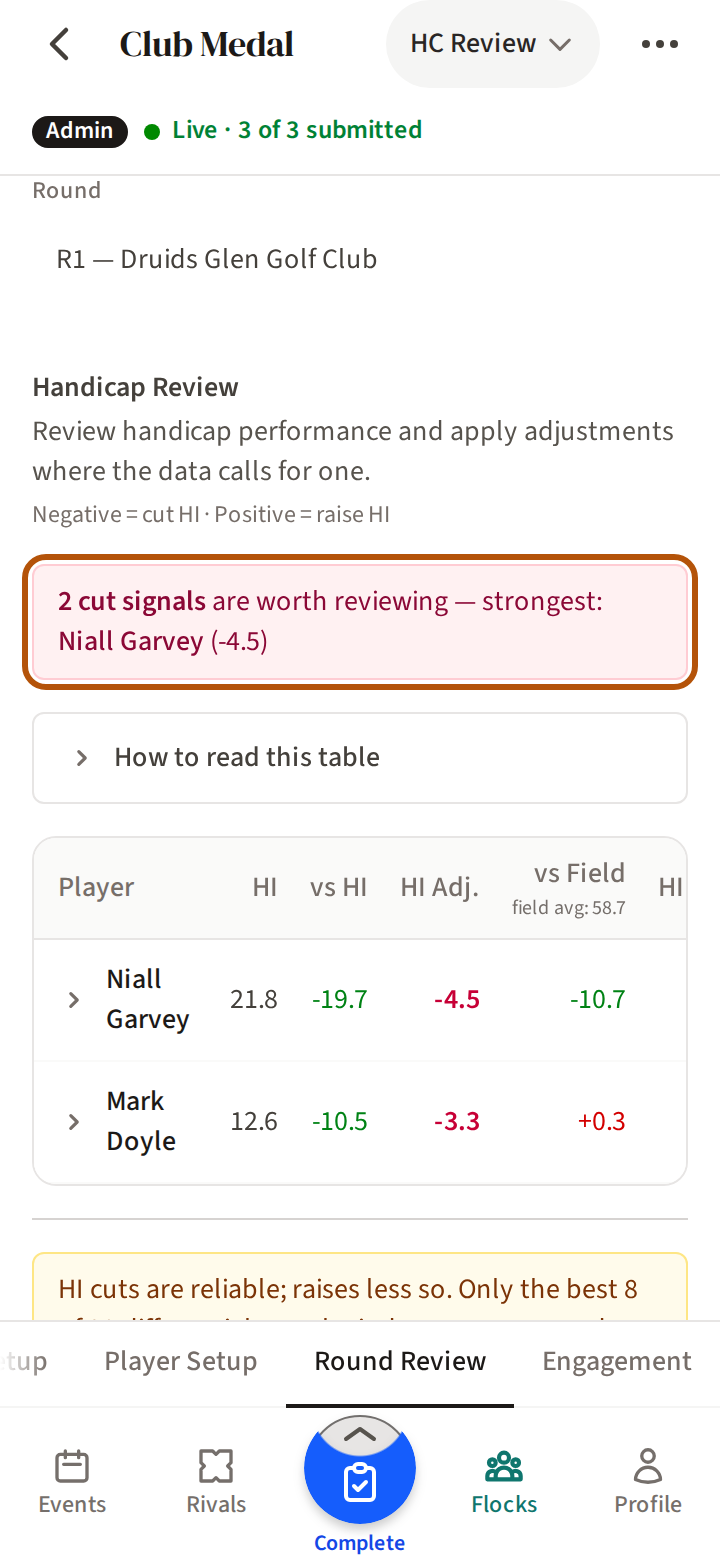
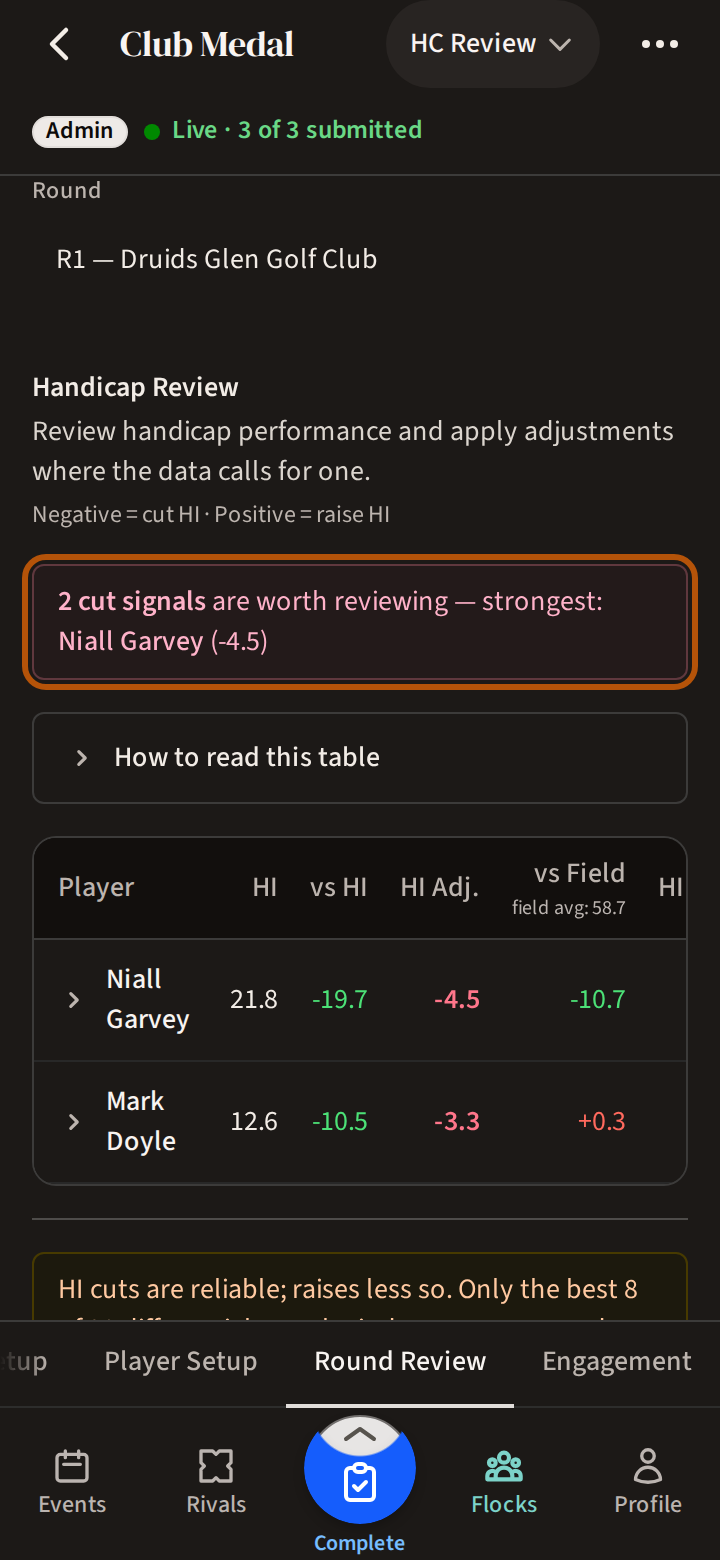
Before you complete the event, open Round Review → HC Review. For each player it sets the round against their own Handicap Index (vs HI) and against the rest of the field (vs Field), and turns each into a suggested change under HI Adj. — a minus is a cut, a plus a raise. The line at the top says either that everyone is within normal range, or how many cuts are worth a look and whose is strongest. How to read this table explains every column.
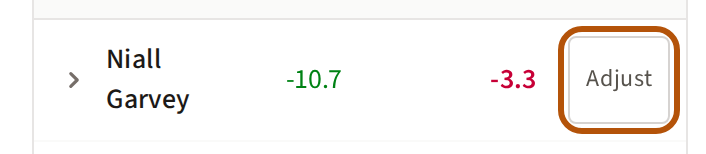
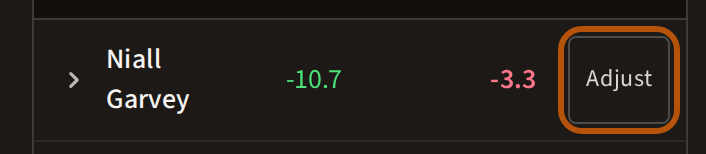
It is a cue to look closer, not an order. If you decide a player's index should change, scroll their row across, press Adjust, put in the new index and a reason, and press Save. It sets their Handicap Index for that round, so their shots in it are worked out again, and the change is listed under Adjustment History. Once the event is complete it can't be changed here.
5. Answer what completing asks
While the event is live, the Overview starts with Before you complete: every card that needs an answer, one row each, and each row opens that card in Round Review. When every card is in, it says Every card is submitted.
Press Complete event and Treád asks about each of those cards in turn, under the player's name:
- Nobody submitted this card. — Submit as entered, or Rule DNF.
- Never started. — Did not play, or Rule DNF.
- Short on Gross. or Short on Nett. — a card submitted before the last hole. It already reads DNF on that leaderboard; press Rule DNF and give a reason to confirm it.
- Match play, no concession recorded. — say who conceded.
- A hole with nothing entered — No score or Not played.
Rule DNF means the card is not a completed round: it ranks last, scores nothing and does not count toward the handicap. Did not play lists the player without a position, out of every result. Either asks why, and the player reads your reason on their own scorecard. An answered card closes up to one line with Change. Nothing is saved until you press Complete event, which sends every answer at once — so Cancel loses nothing but your choices.
6. Complete the event
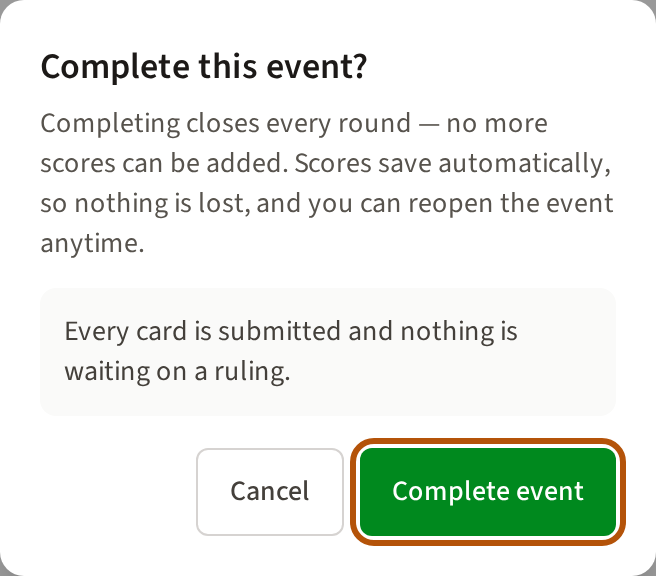
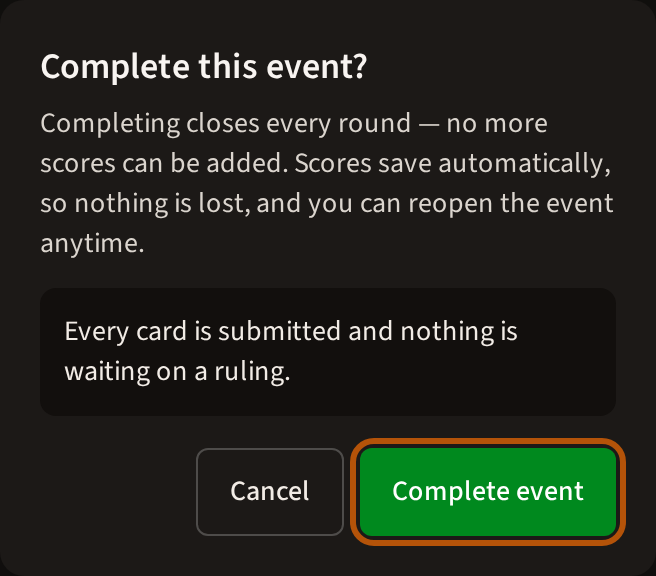
When the golf is over, open the Overview and press Complete event. Once every question above is answered, it completes any round still open, then fixes the result: the leaderboard is final, the winner is announced, and league points, honours and everyone's handicap records are updated. Players can reopen their own cards until then, and not after.
Don't press Reset to Upcoming, the button beside it, to finish the day: it deletes every score entered during the event, and that cannot be undone. Treád asks you to confirm.
7. Reopen if you need to
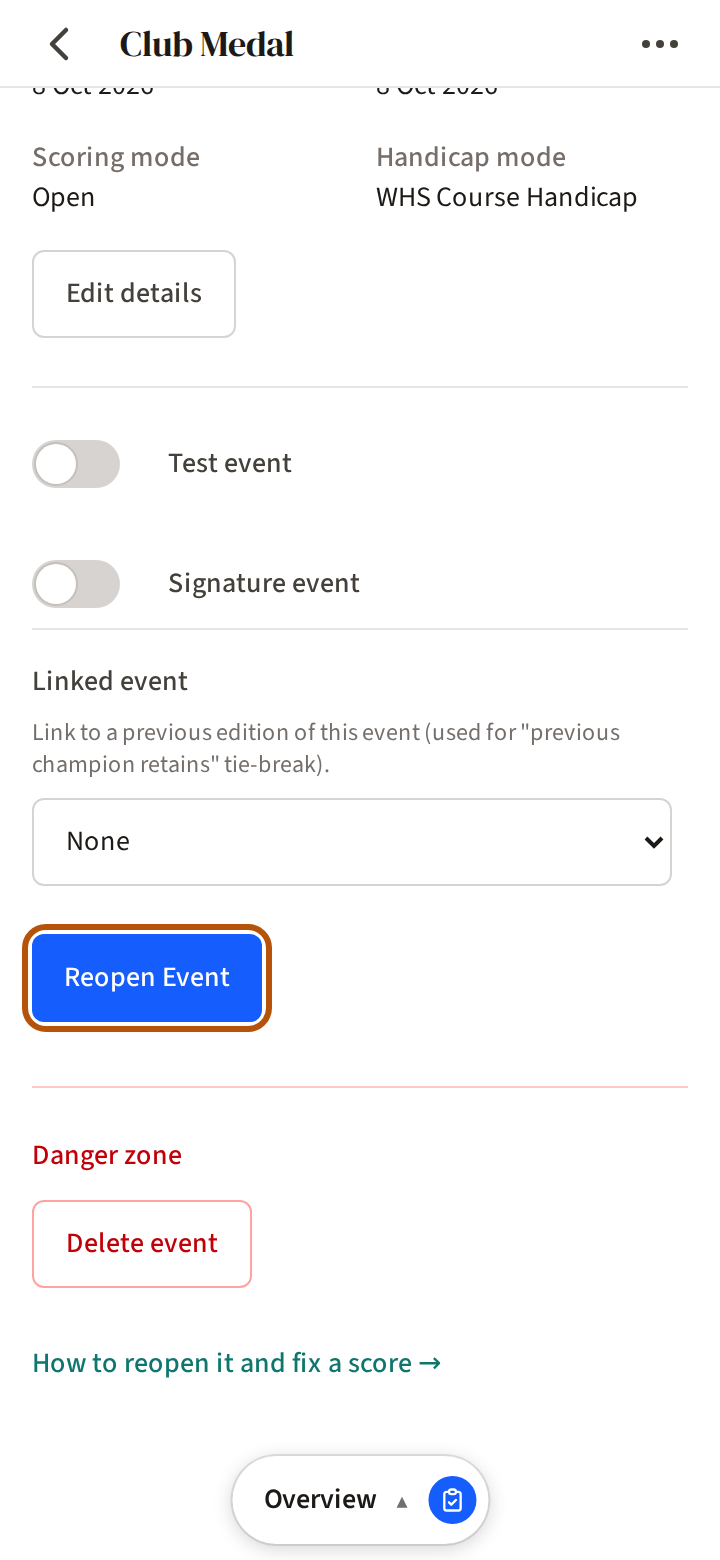
Found a wrong score after completing? Press Reopen Event on the Overview and choose the round to reopen, fix it, and complete the event again. If the correction changes the result, Treád shows the saved result beside the new one and asks before saving it.
Still stuck? Tell us and we will help.