Share your photos
The birdie nobody believed, the drive that found the wrong fairway, the whole group at the 19th: a day out is better with the evidence. Here you'll add photos to an event, caption and tag them, react and share, and find every one you're in.
Every event has a Gallery anyone in the flock (your group) can add to. Your flock gathers them all, and your Profile keeps the ones you are in.
1. Add photos to an event
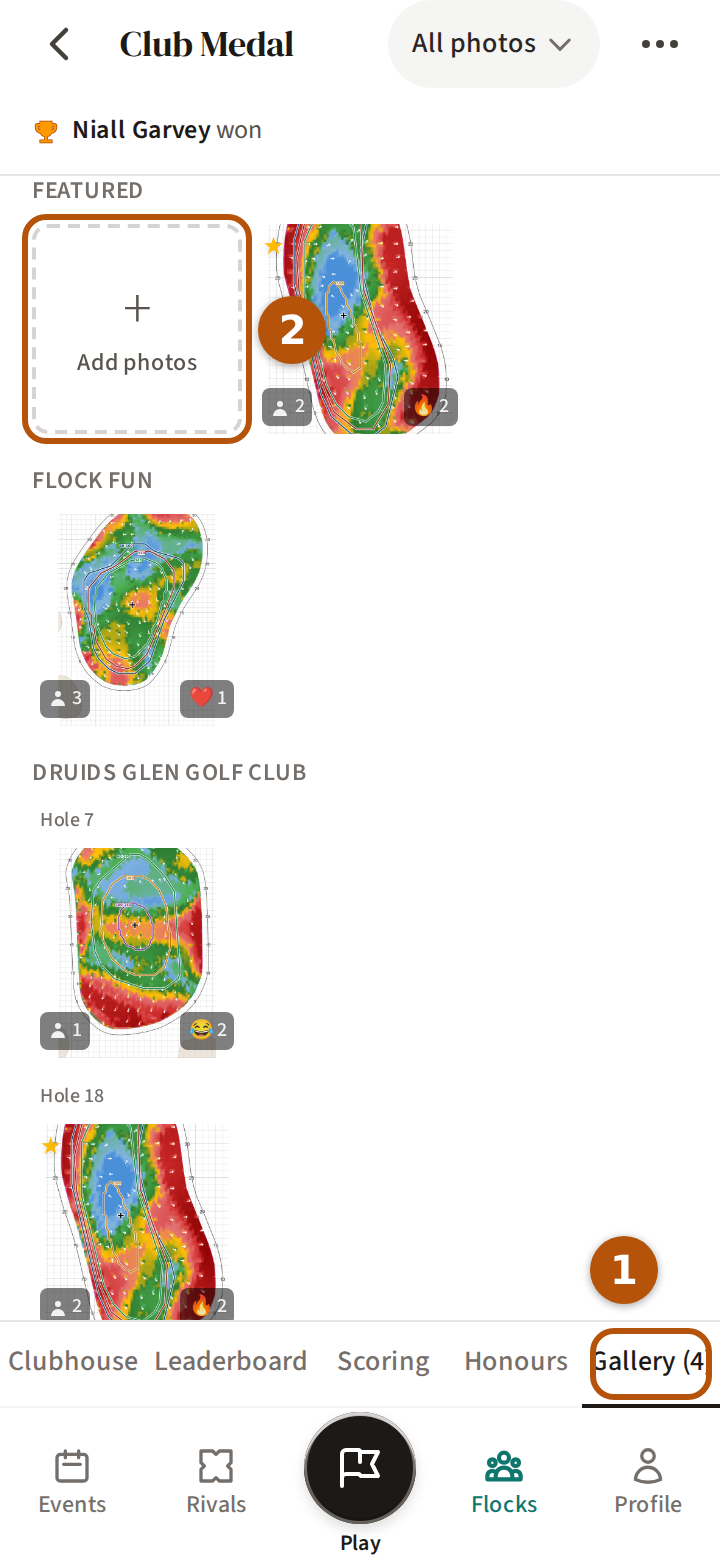
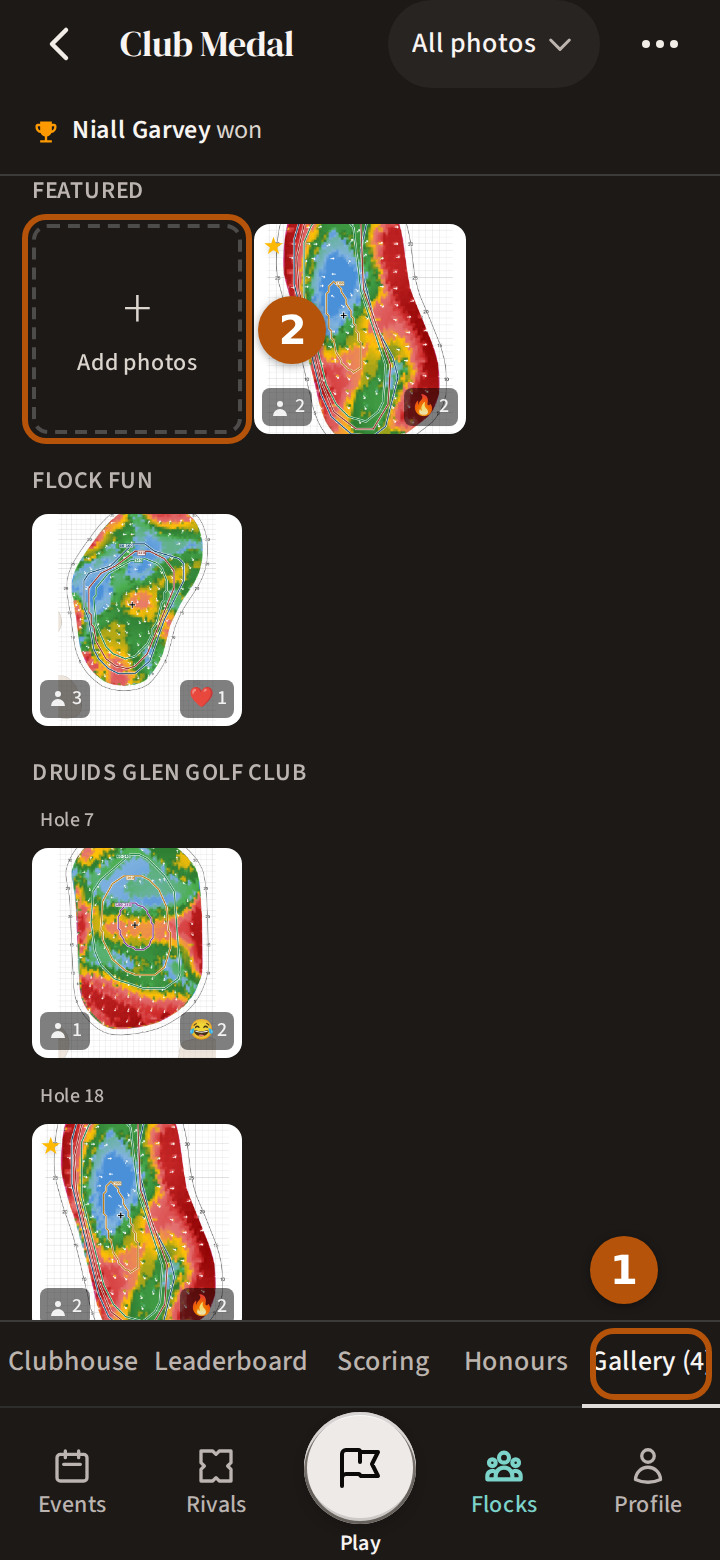
Open the event and choose Gallery ① in its sections; the number beside it counts the photos. The first square is Add photos ② — press it and pick photos or videos from your phone, as many as you like at once.
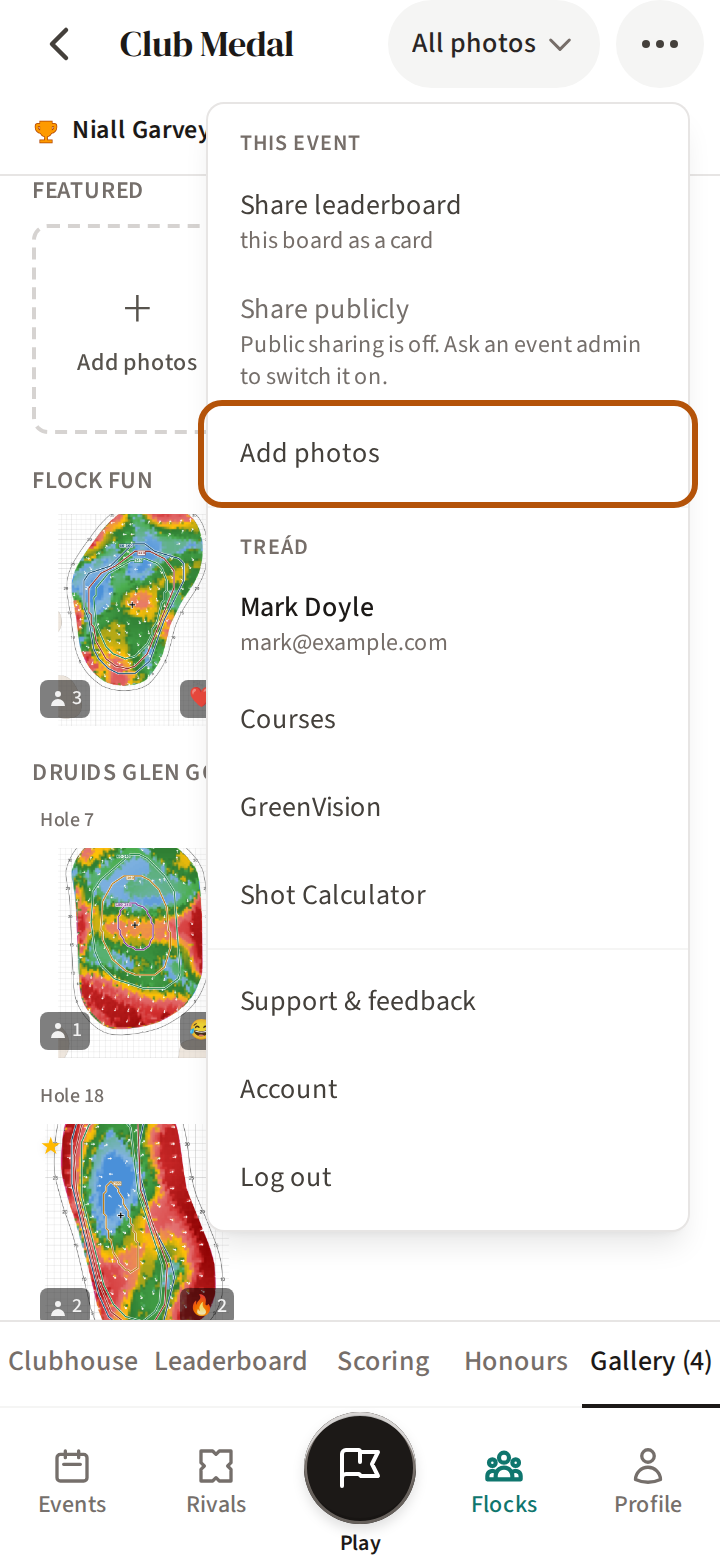
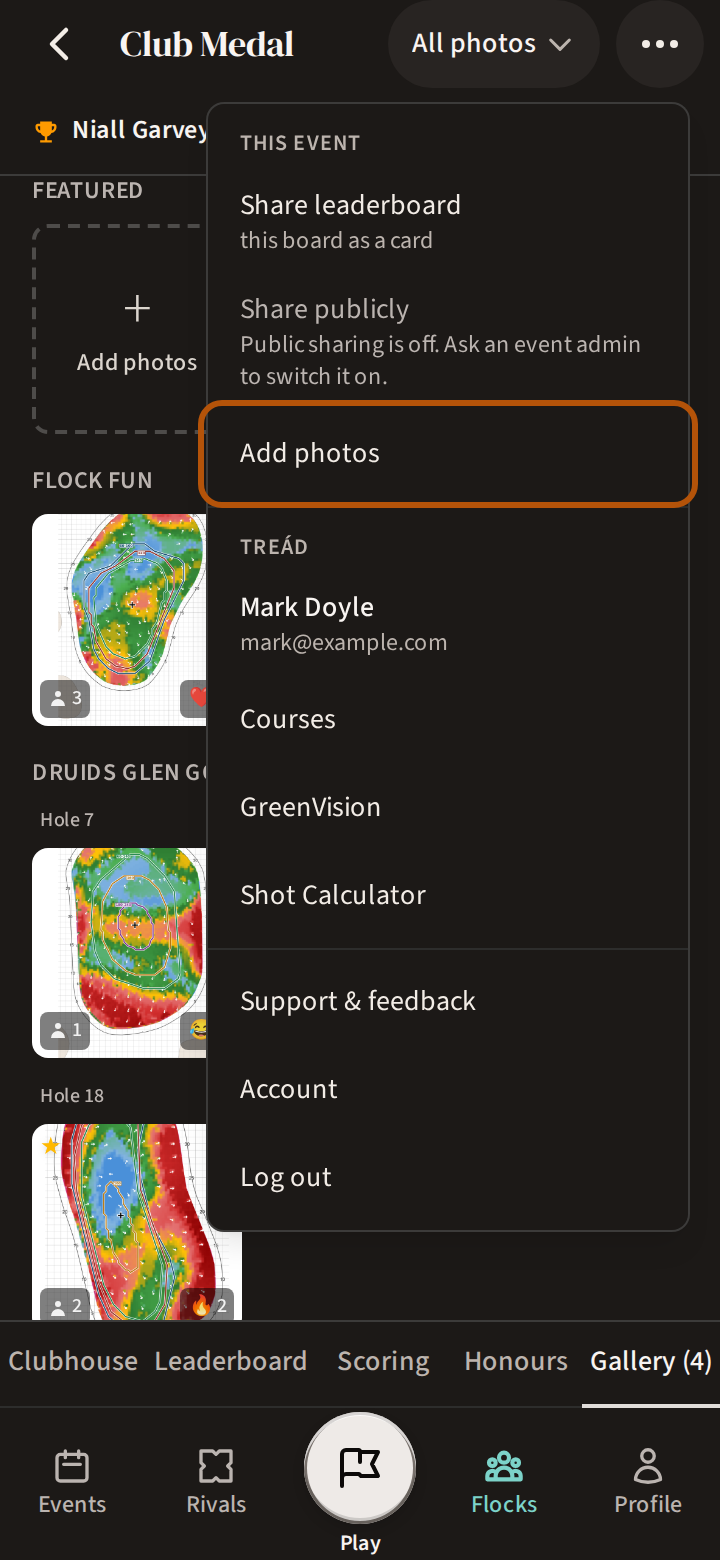
The More menu (⋯) has the same Add photos, under This event. The event's other sections are in Find your way around an event.
2. Say where it was, then upload
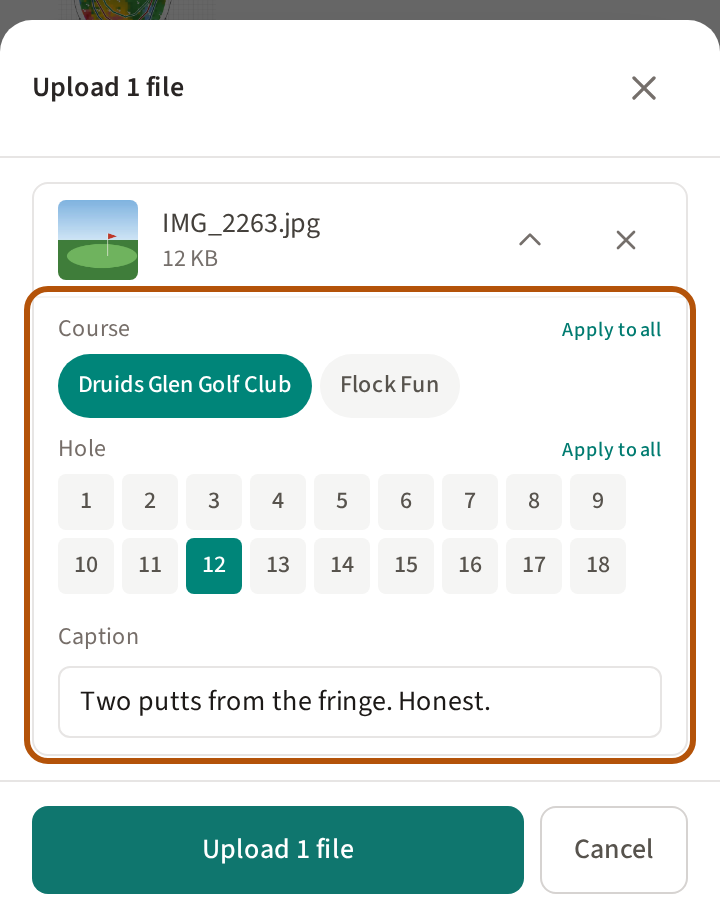
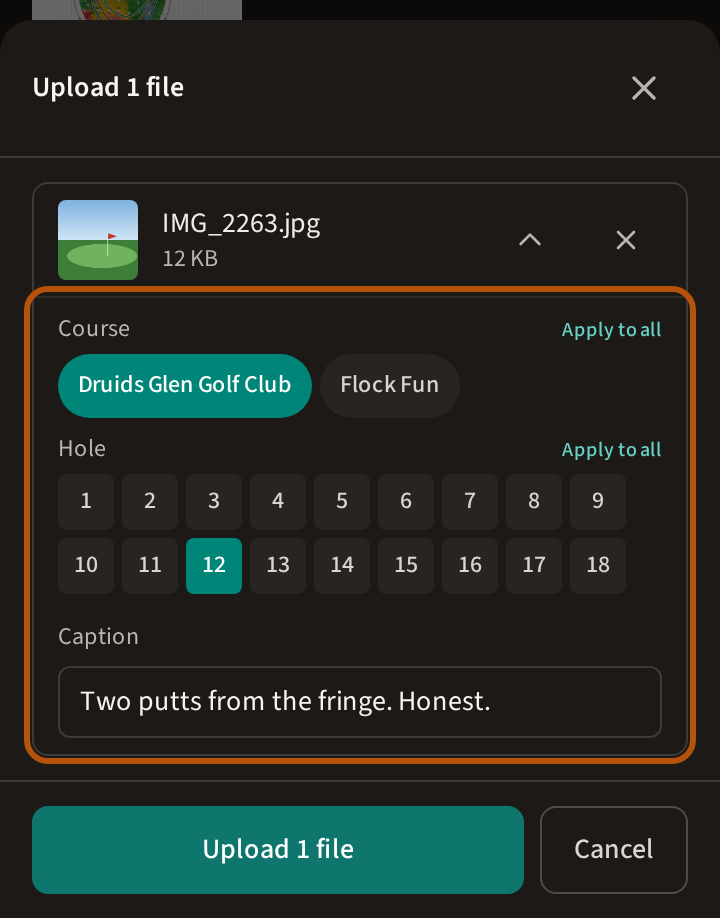
Nothing goes up until you say so. Treád lists the photos you picked — the first one open, the others behind the little arrow beside each — and asks three things about each: Course — the event's course, or Flock Fun for anything off the course, the nineteenth hole included; Hole; and a Caption. On the first photo, Apply to all gives every photo the same course or hole.
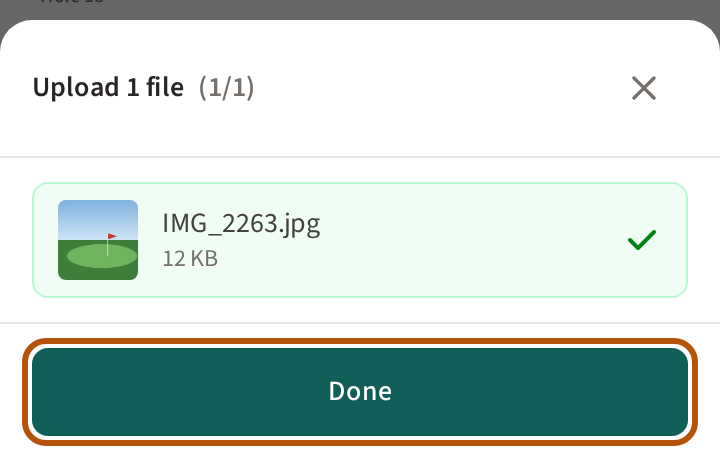
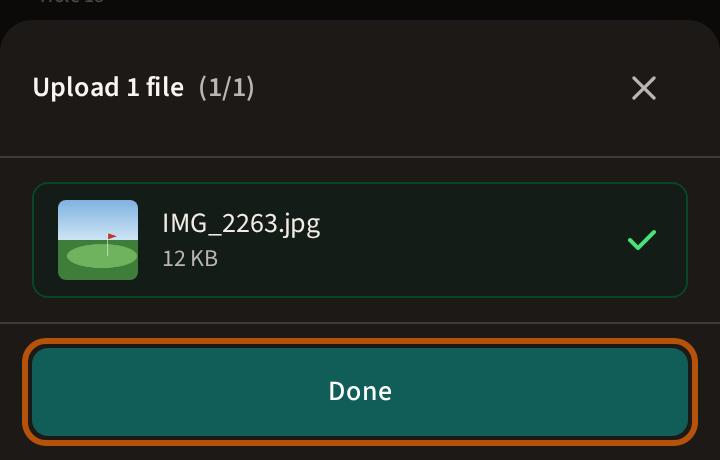
Then press Upload — the button counts the files. Each photo gets its tick as it goes up; press Done and they are in the Gallery. Cancel, before Upload, sends nothing.
3. Open a photo, react and share
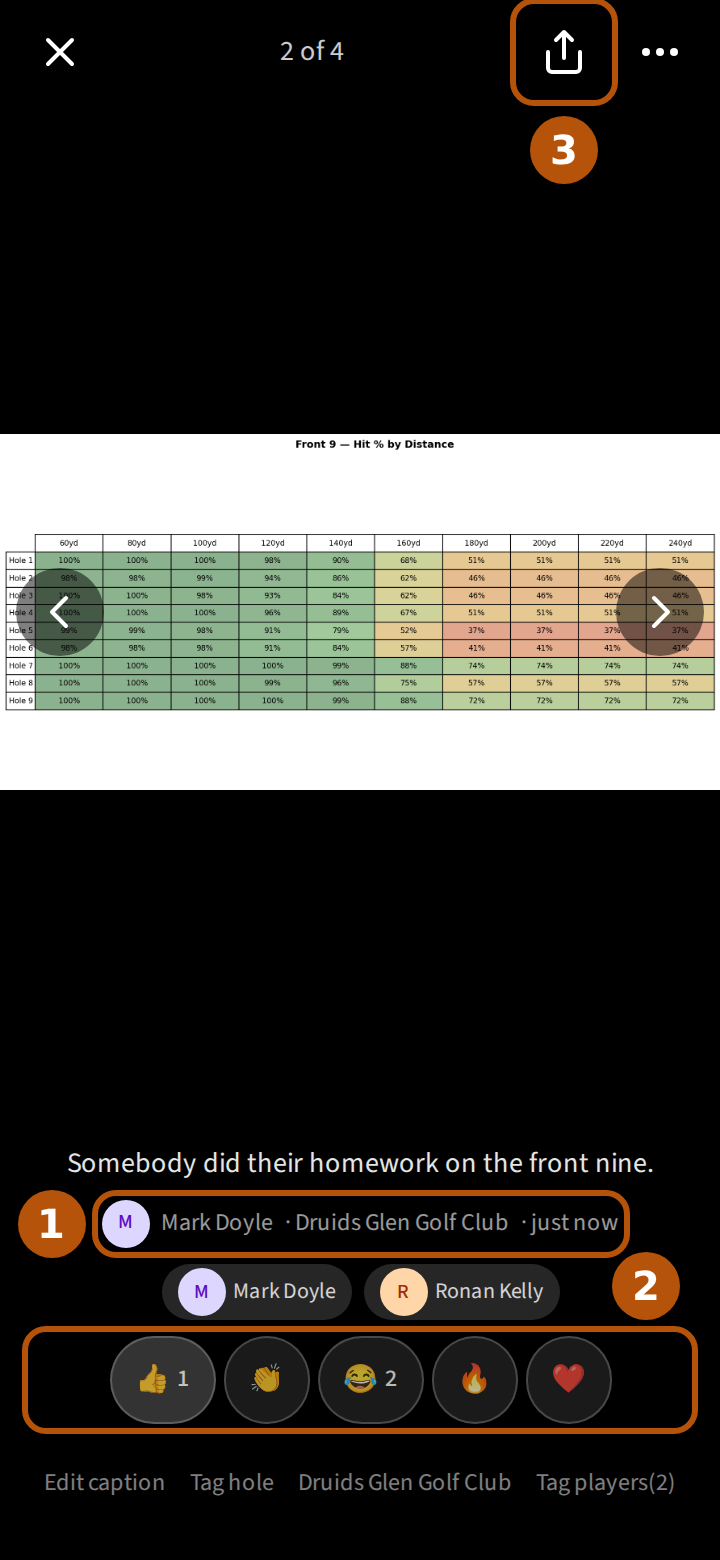
Press any photo to see it full size. Swipe sideways, or press the arrows at its sides, for the next or the last; swipe down, or press ✕ at the top left, to go back. The top counts which photo you are on, of how many. Beneath the photo are its caption, then who added it, the course and hole, how long ago and a ★ if it is featured ①, then the names of anyone tagged.
Under that are five reactions ②: 👍 👏 😂 🔥 ❤️, each with how many have given it. Press one to give it — yours is picked out — and press it again to take it back. The favourite reaction, with its count, sits in the corner of the photo's square in the Gallery.
The share button ③ at the top right sends the photo through your phone's own sharing, with a link — where your phone can attach it, it lands in the group chat as a photo, not just a link. Where there is no way to share, Treád copies the link and says Link copied. The link opens the photo for anyone in the flock once they have signed in.
4. Tag players, fix the details, feature the best
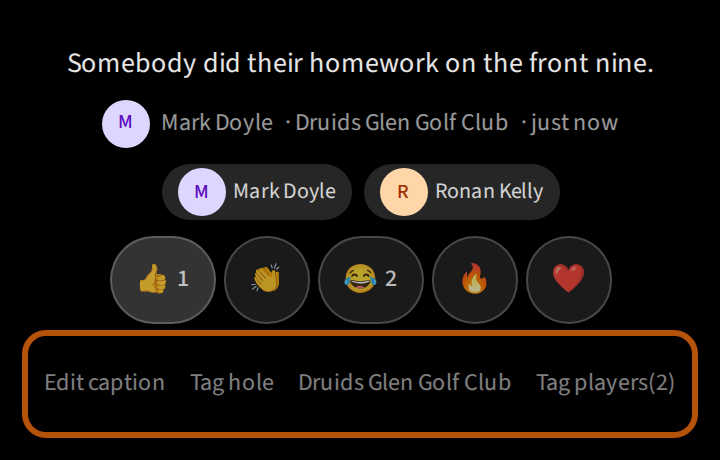
Beneath the reactions, Add caption (or Edit caption), Tag hole — which reads the hole once there is one — and the course beside it are for whoever added the photo, and the flock's admins. Tag players is for anyone in the flock, and counts who is tagged already.
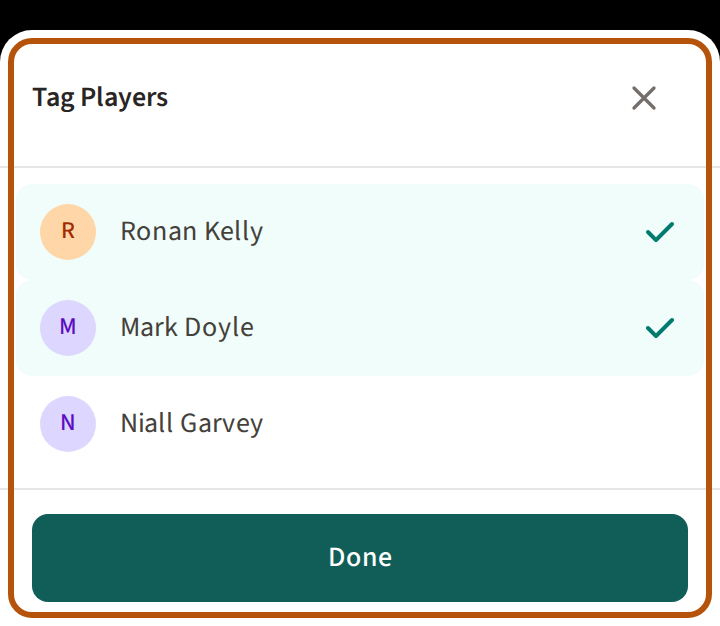
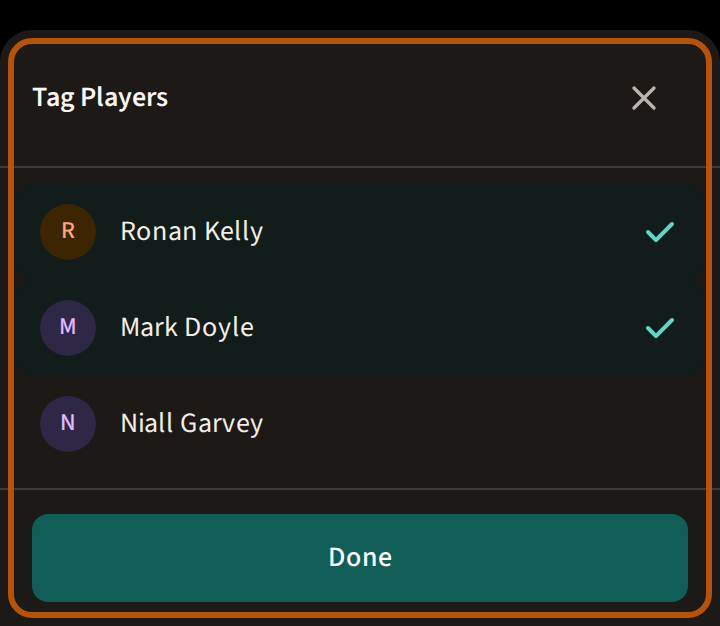
Tag players lists the event's players. Press a name to tag them — it is ticked, and their name appears under the photo — and press it again to untag. Press Done when you have them all.
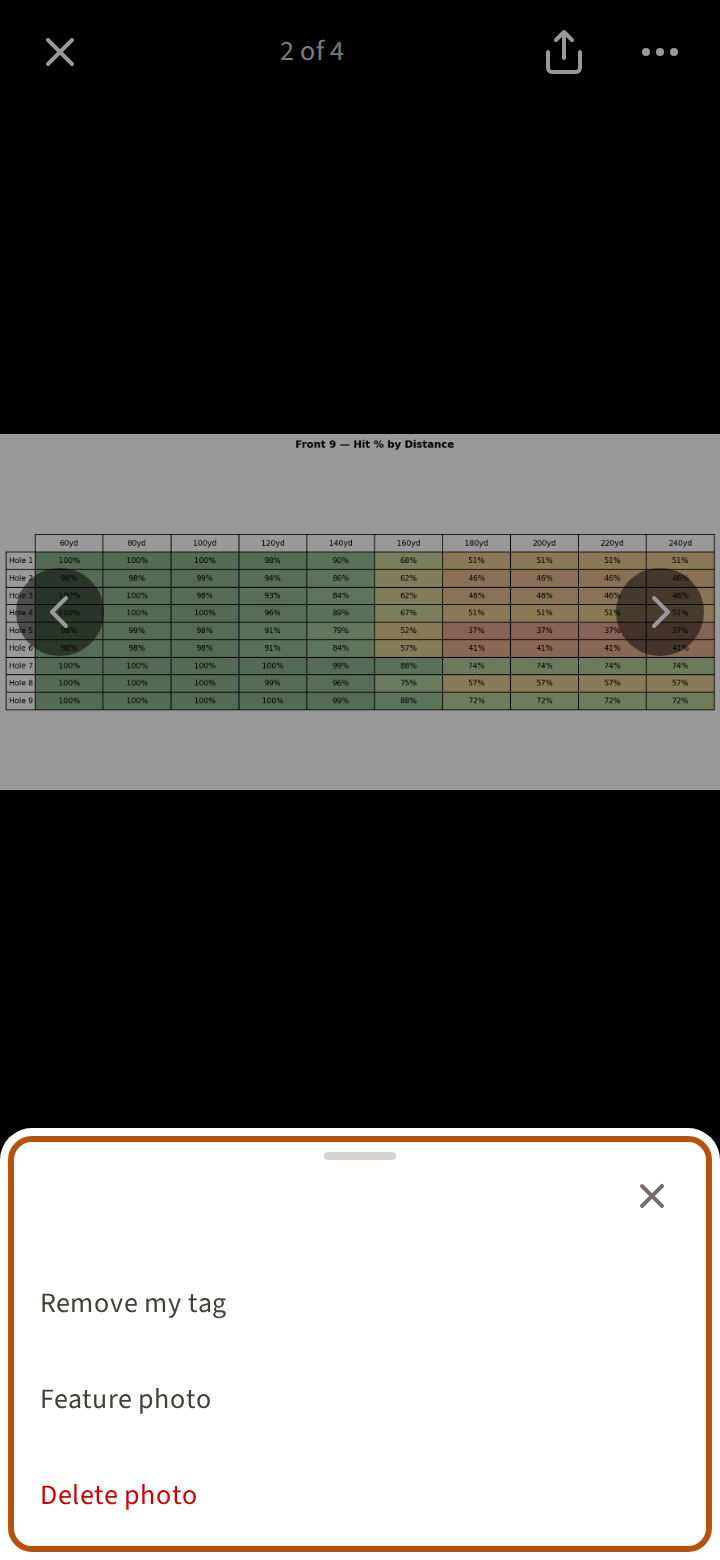
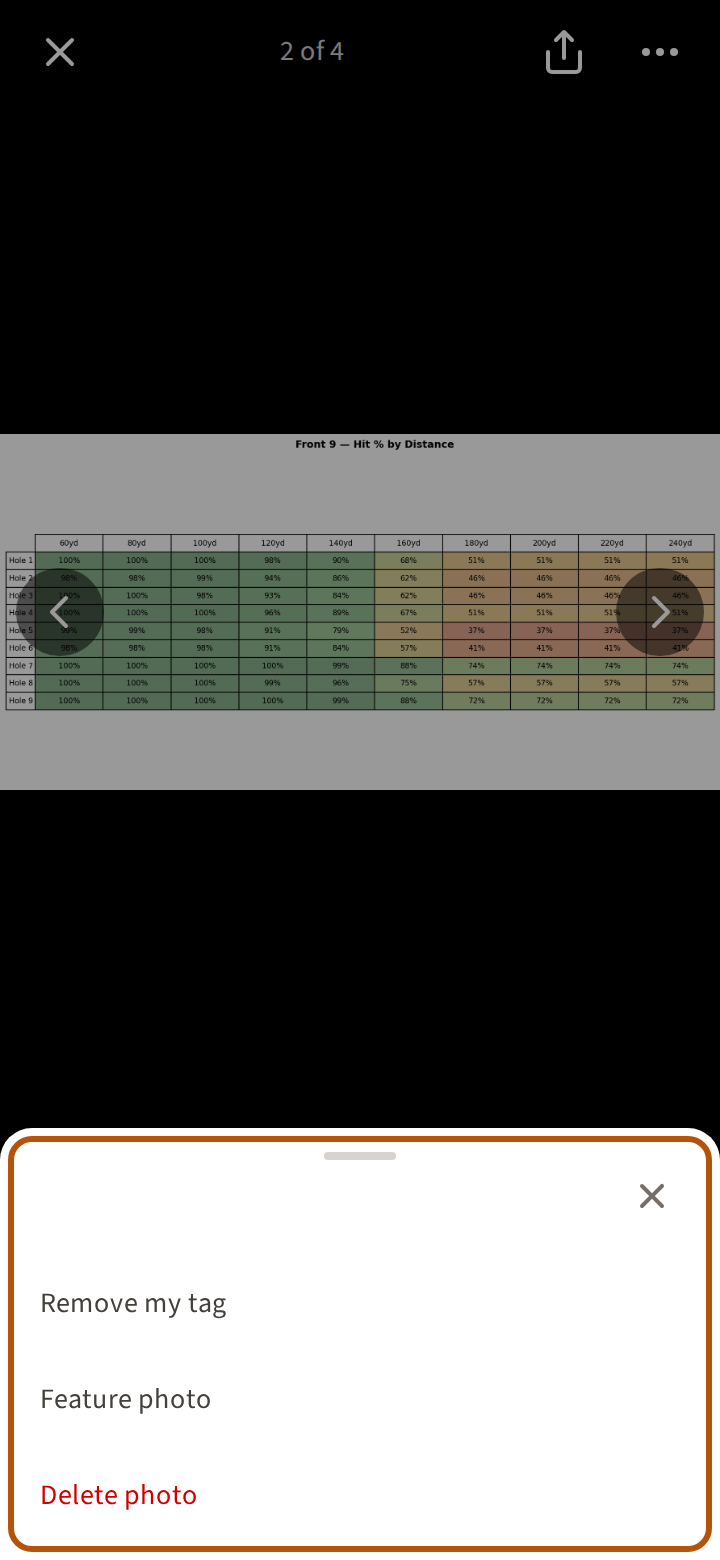
The ⋯ beside the share button holds the rest. Tagged in one you'd rather forget? Choose Remove my tag. An admin can choose Feature photo. Whoever added a photo, or an admin, can choose Delete photo.
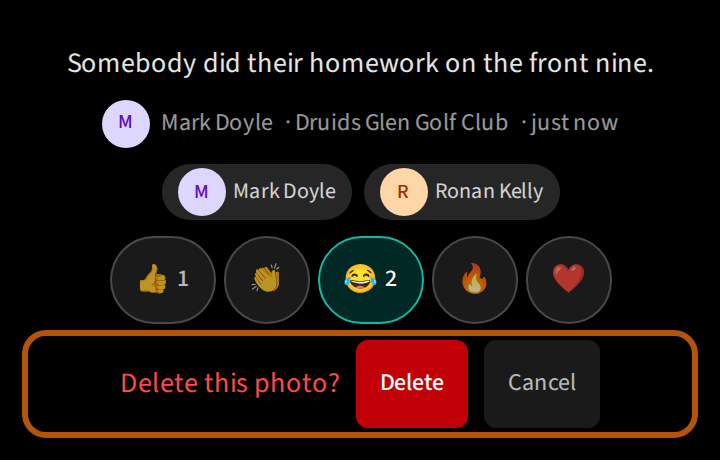
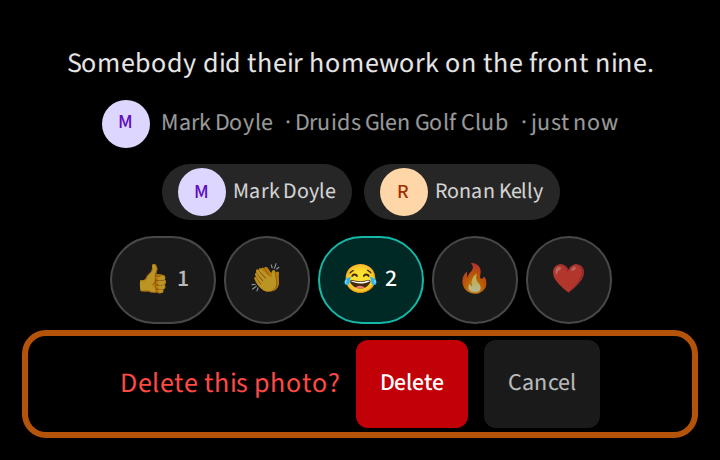
Treád asks Delete this photo? under the reactions first. Nothing goes until you press Delete; Cancel keeps it.
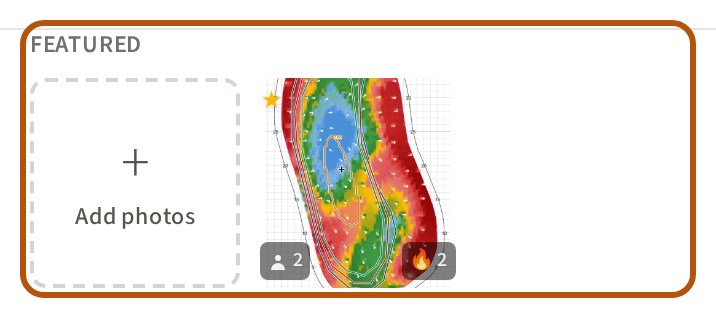
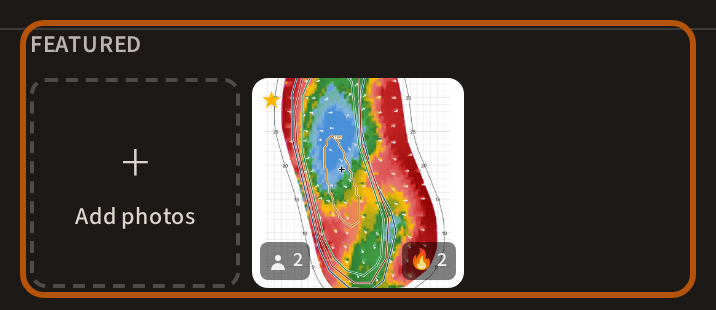
Featured photos stand first in the Gallery, under Featured, with a ★ in the corner of their square, until an admin chooses Remove feature.
5. Find the photos you want
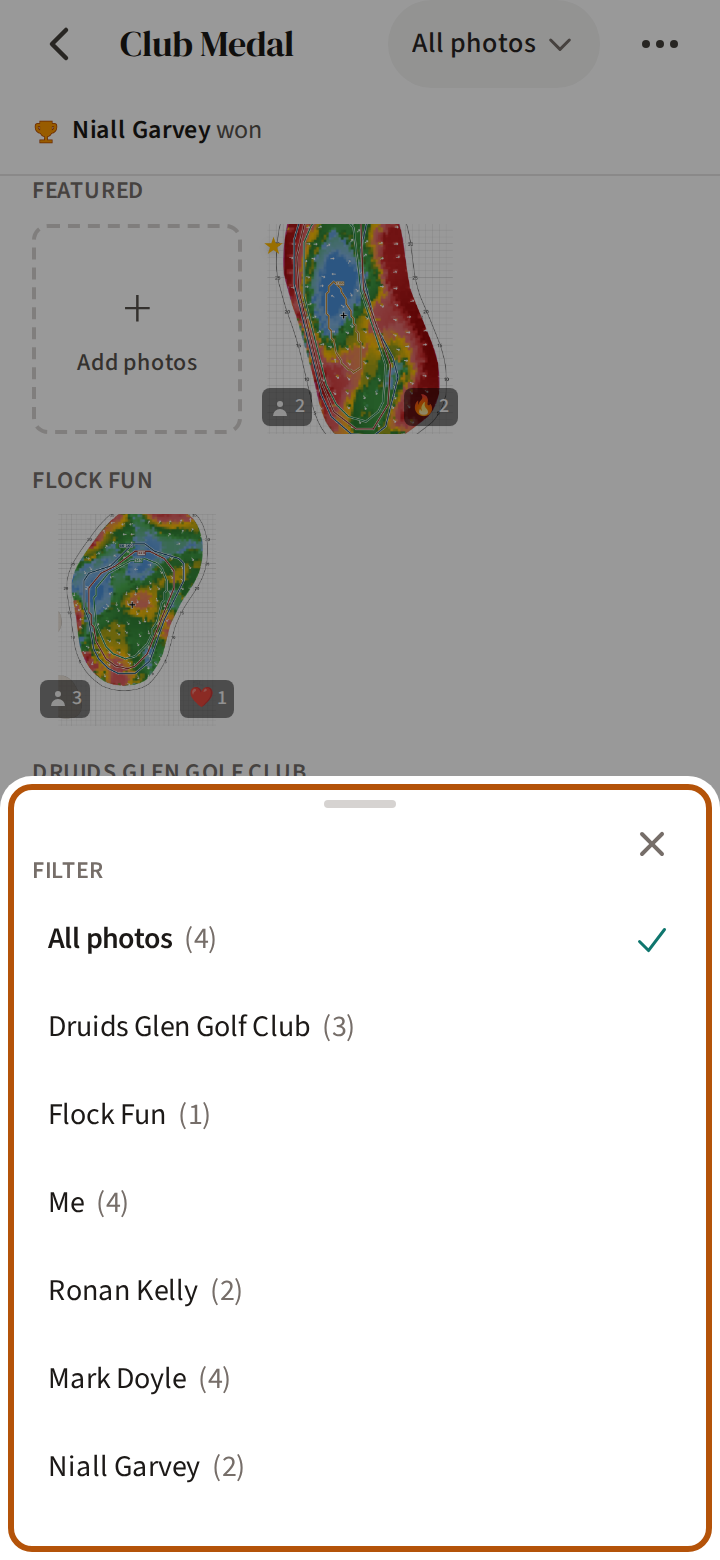
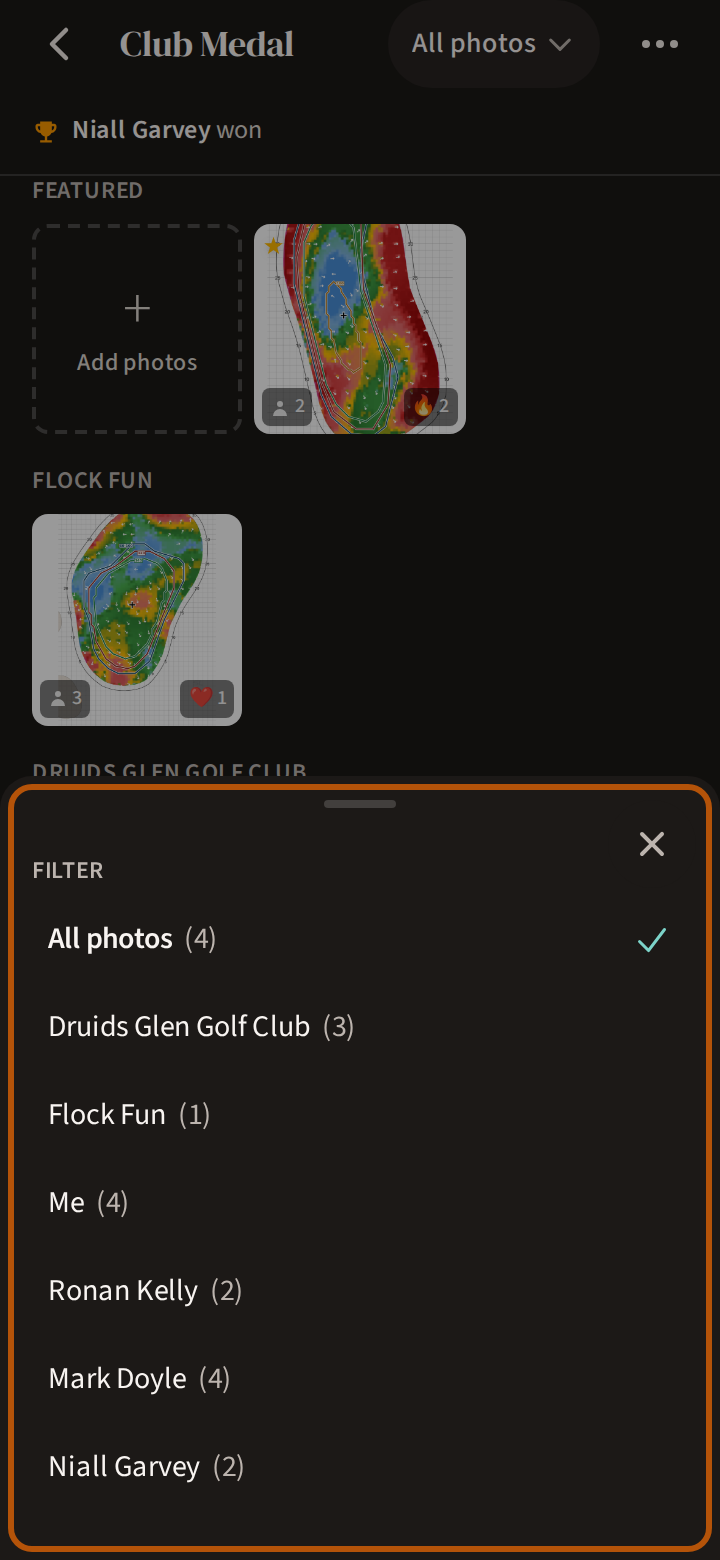
In an event's Gallery the photos come in groups: featured ones first, then Flock Fun, then each course, split by hole. With more than one choice, the picker in the header filters them: All photos, each course, Flock Fun, Me — the photos you are tagged in — and each player someone has tagged, every one with its count.
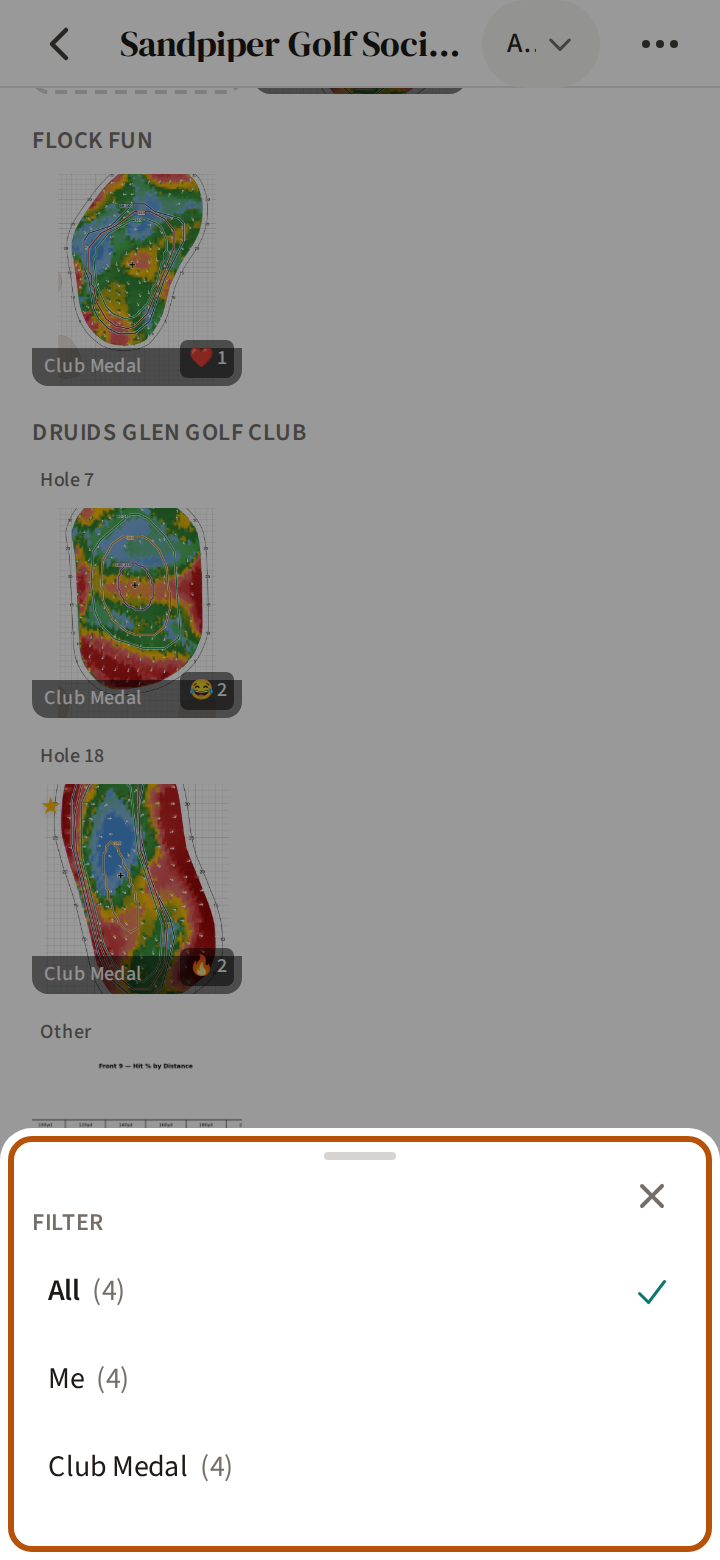
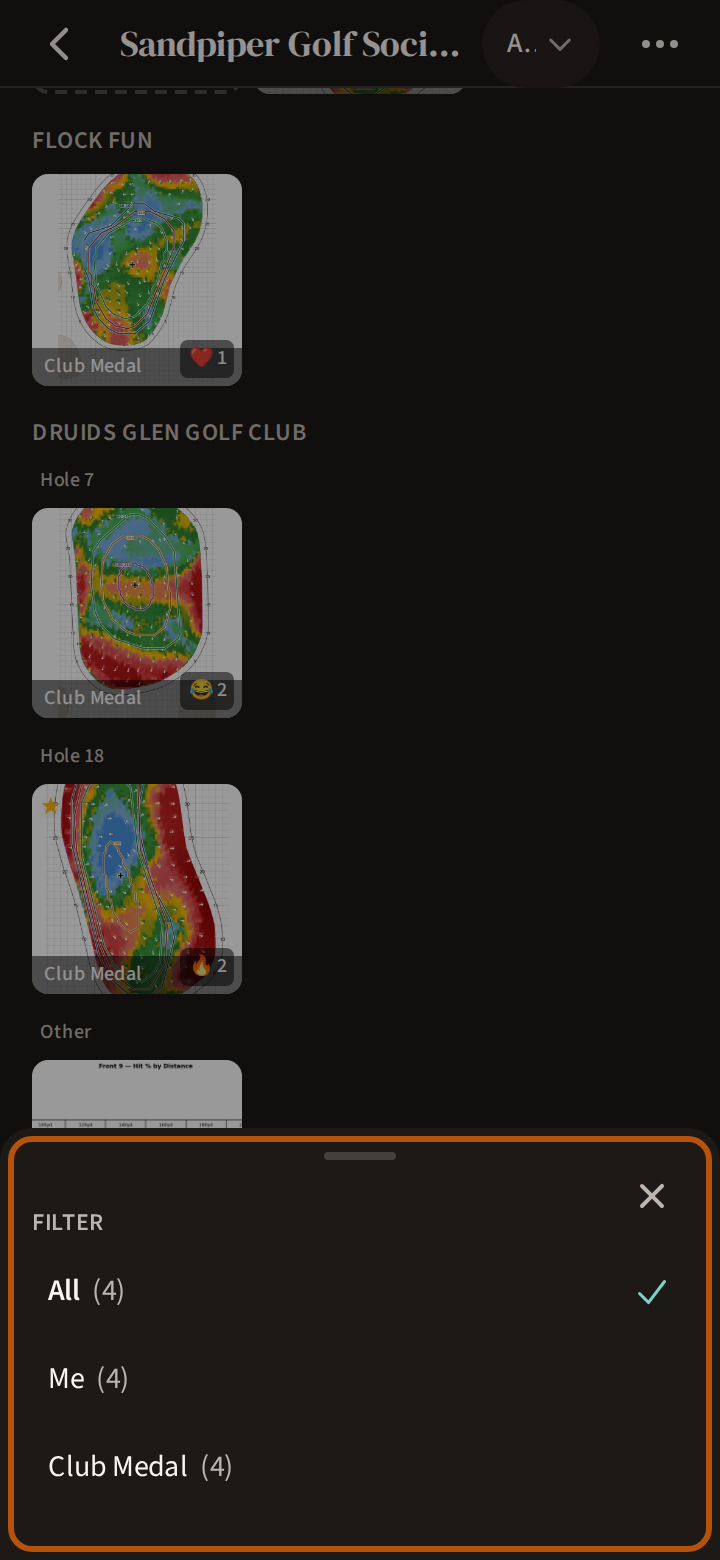
Your flock's Gallery has a picker of its own: All, Me, and each event that has photos.
6. Your flock's Gallery
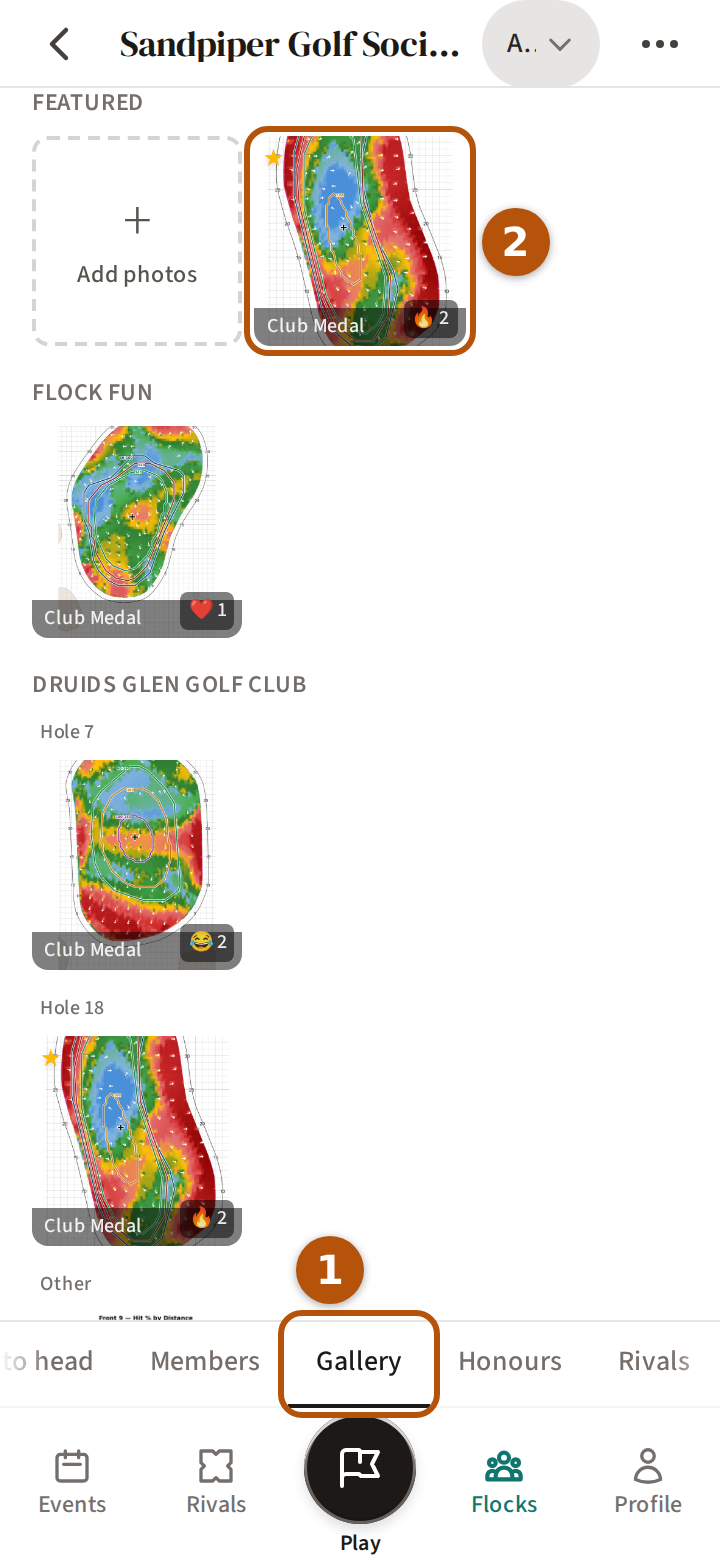
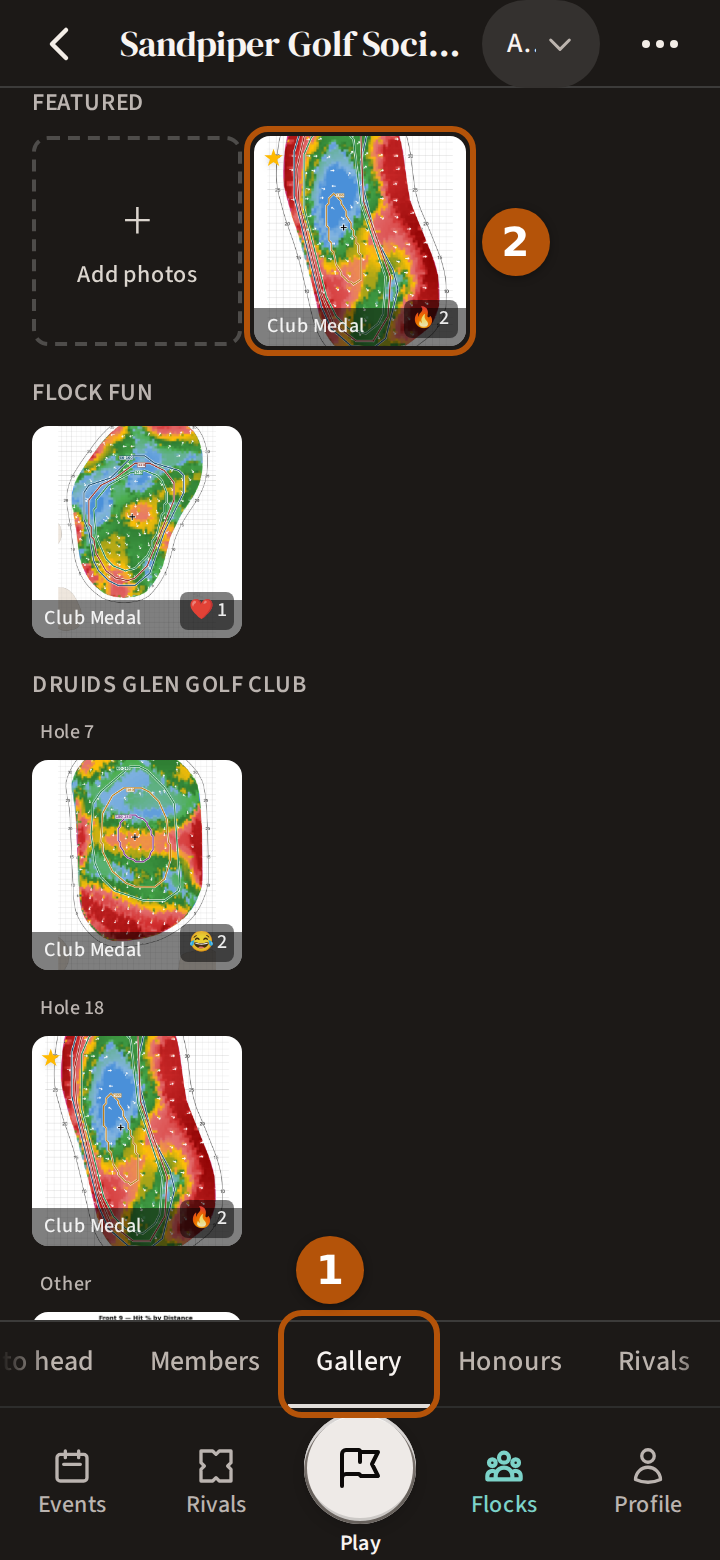
Every event's photos, in one place. Open your flock from the bar and choose Gallery ① in its sections. Each photo carries its event's name across its foot ②; open one and the name sits above the caption.
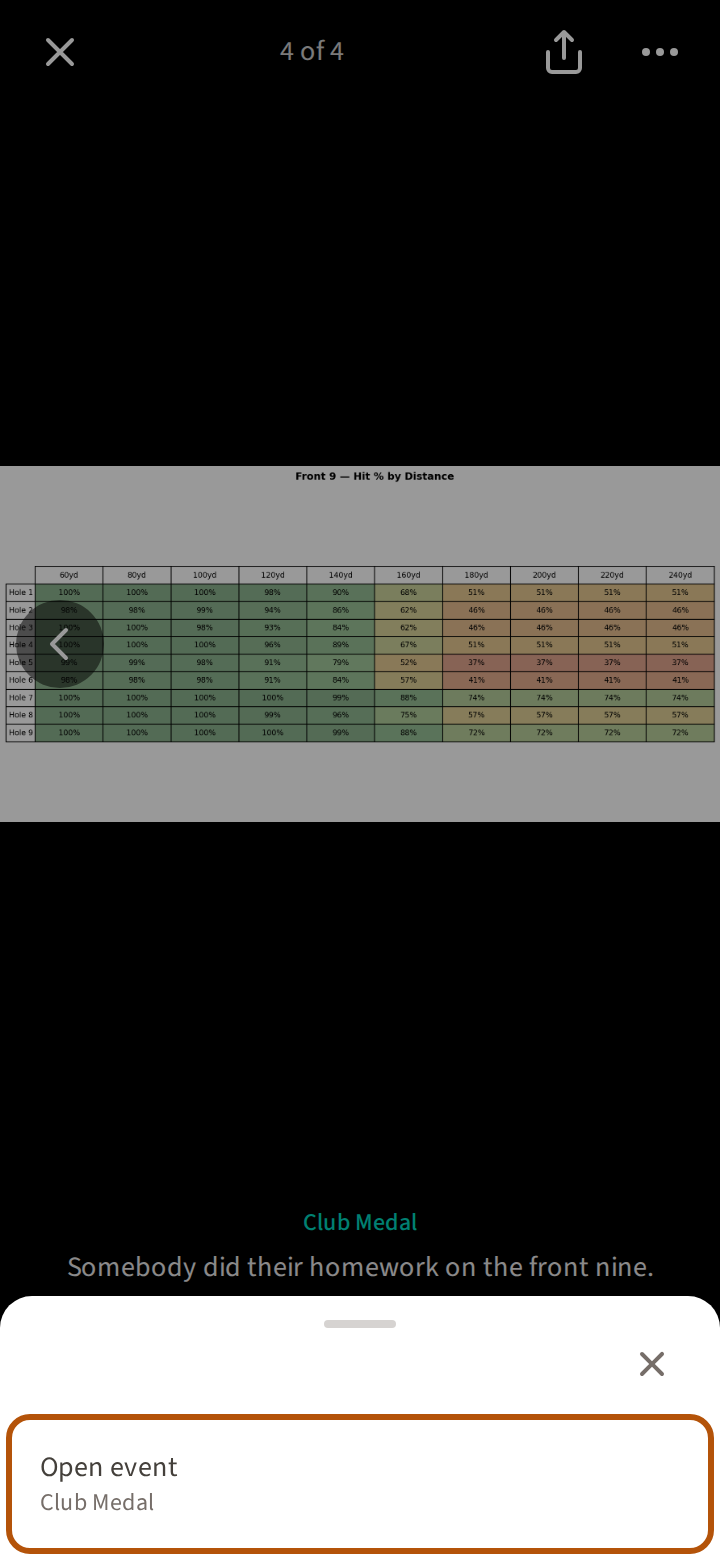
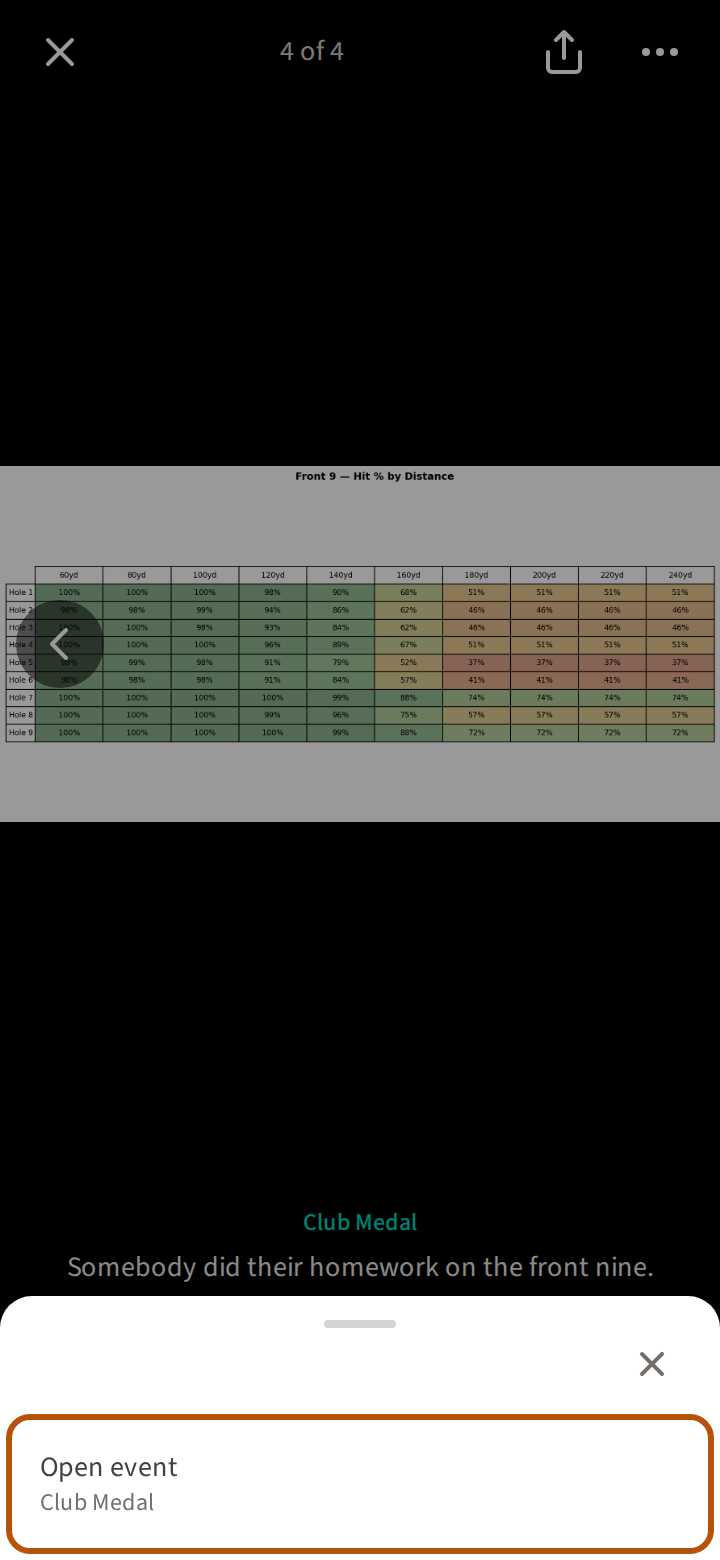
Here its ⋯ offers Open event, to go to that event.
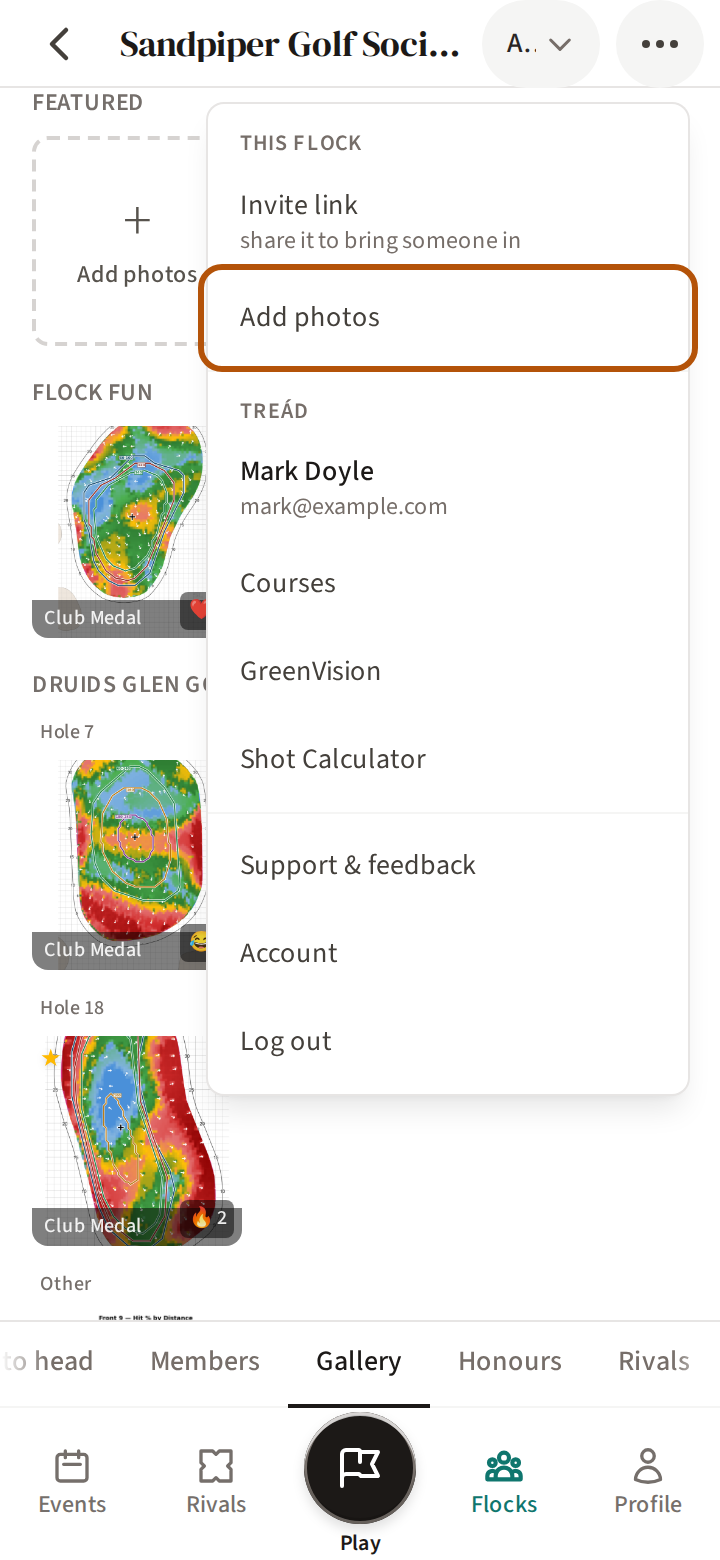
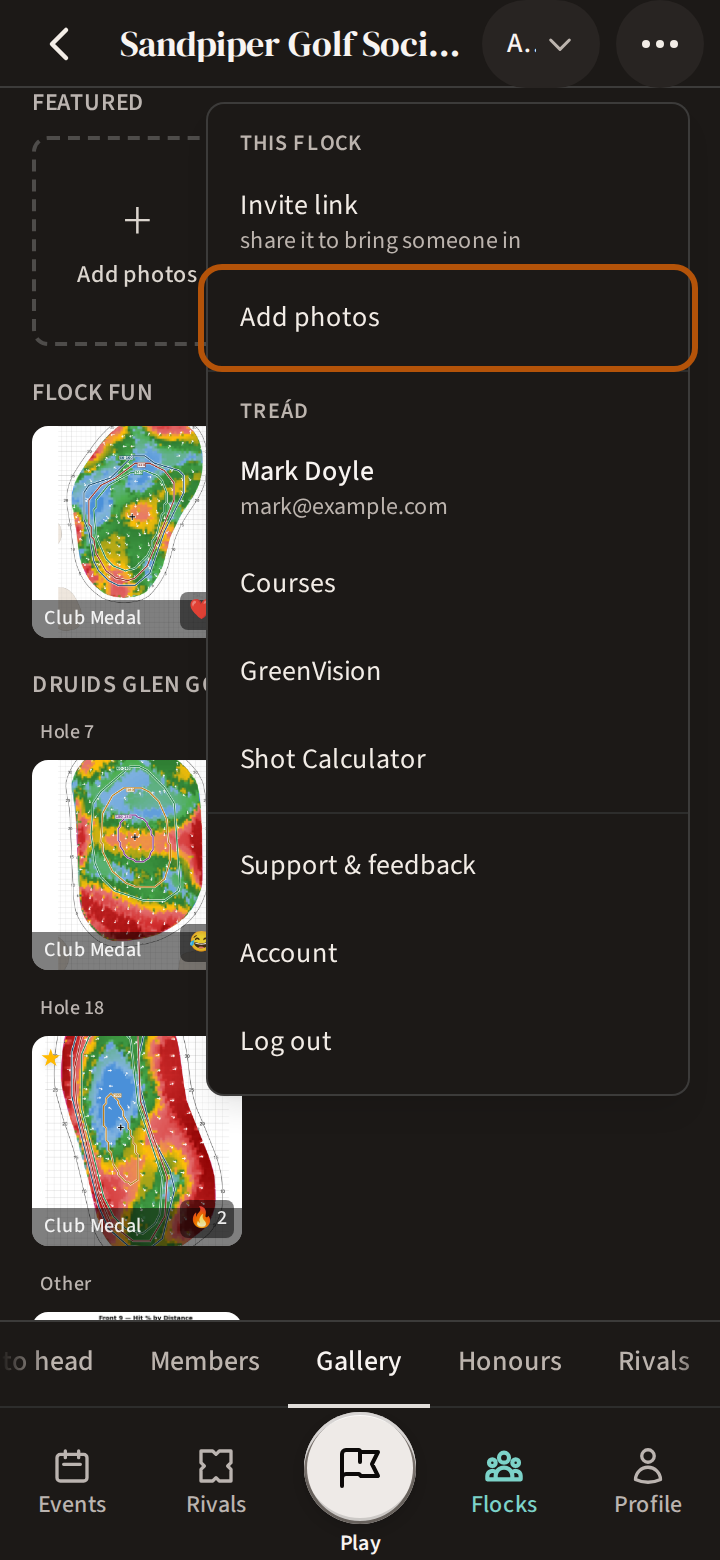
A photo always belongs to an event, so here the first square, Add photos, takes you to the Gallery of the event you filtered to, or else the most recent event that is live or finished. The More menu has the same Add photos, under This flock. The rest of your flock's page is in Get around your flock.
7. Photos of you, on your Profile
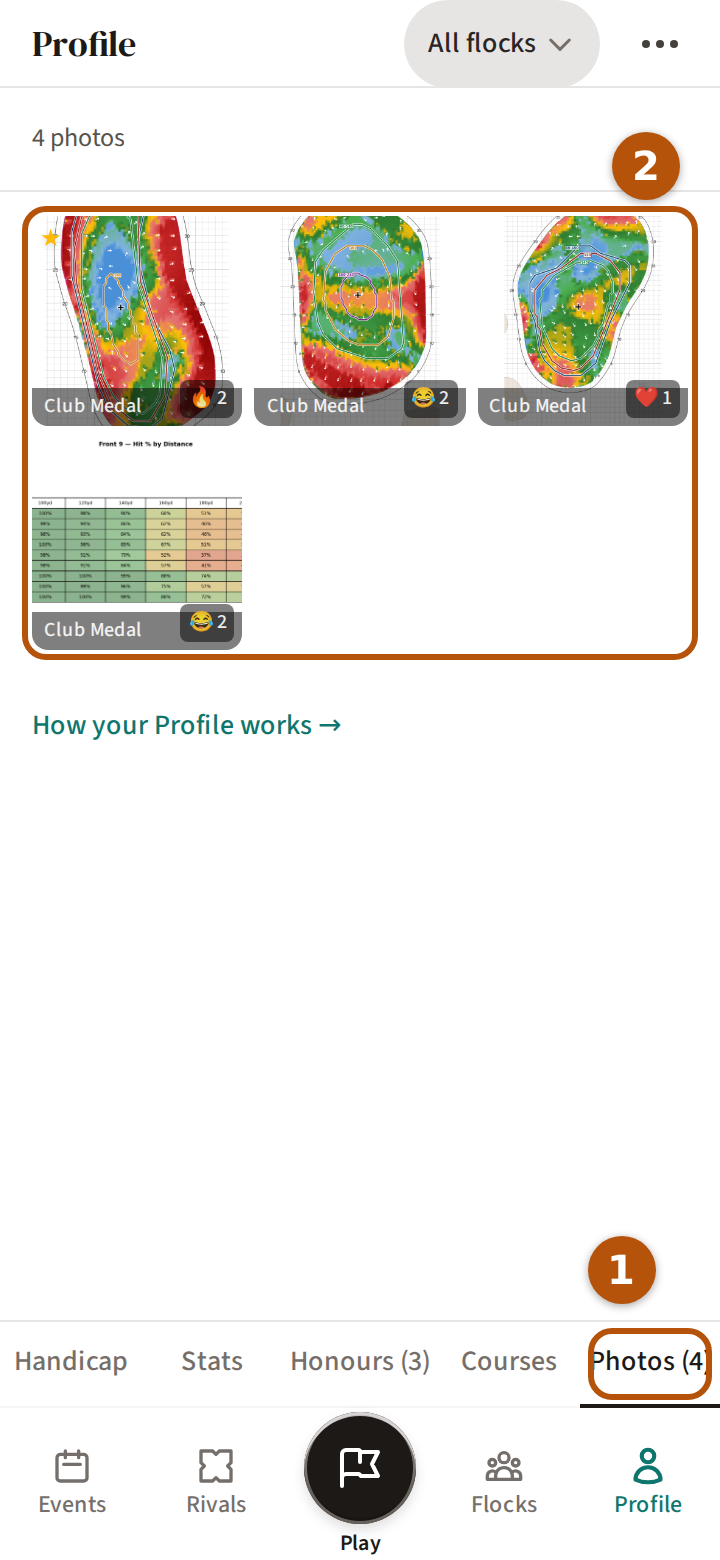
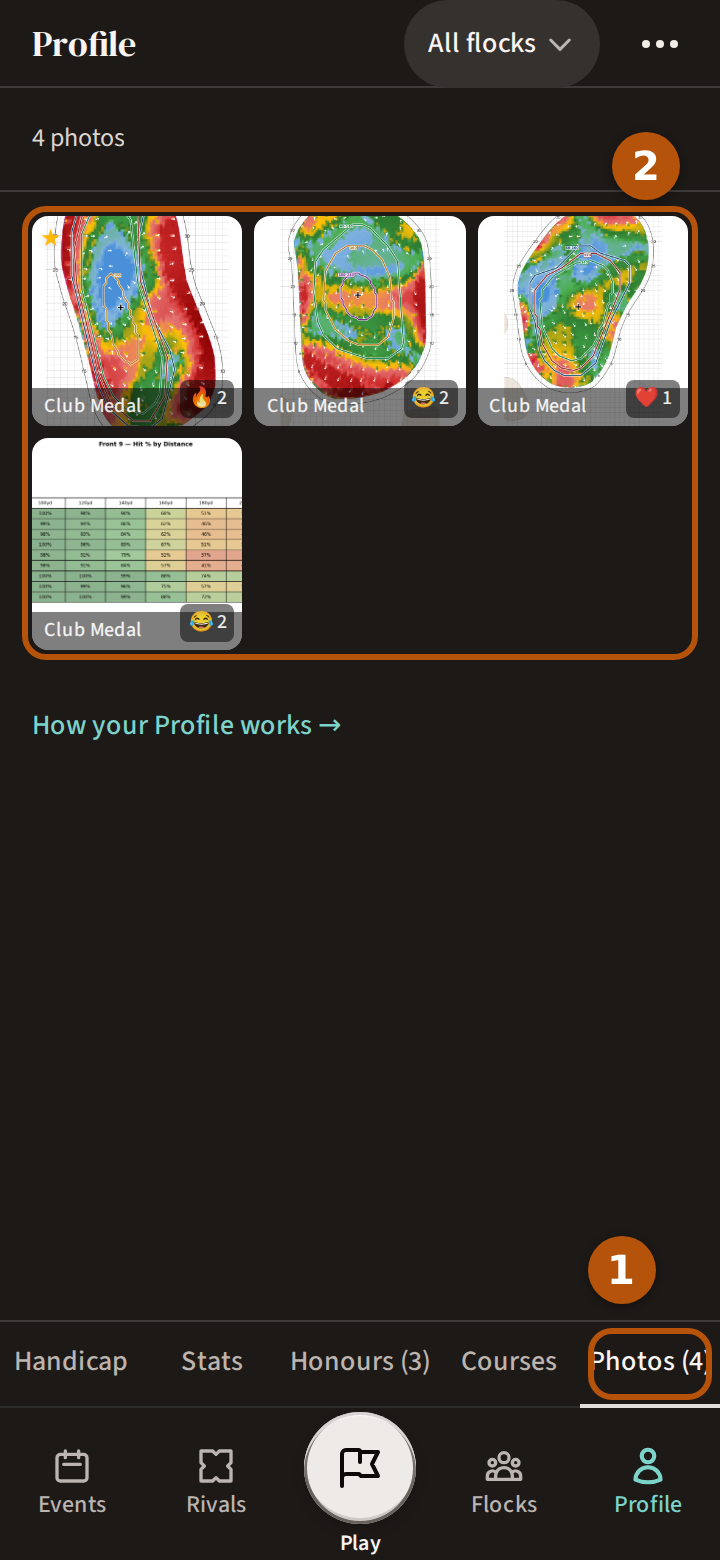
Press Profile on the bar and choose Photos ① in its sections — every photo you are tagged in, counted. Each square ② carries its event's name, and pressing one opens the photo in that event's Gallery. With more than eight from the flock you have chosen, See all photos opens that flock's Gallery. Until somebody tags you, a line says there are none yet. The rest of your Profile is in See your handicap and record.
Still stuck? Tell us and we will help.