Share an event
That birdie on 17 deserves a bigger audience than the three people who saw it. Treád sends the leaderboard to the group chat, rounds up the flock for the next event, and puts the live scores where family and friends can follow them. Here's how to share each one, and what people see when they open it.
1. Find sharing in the More menu
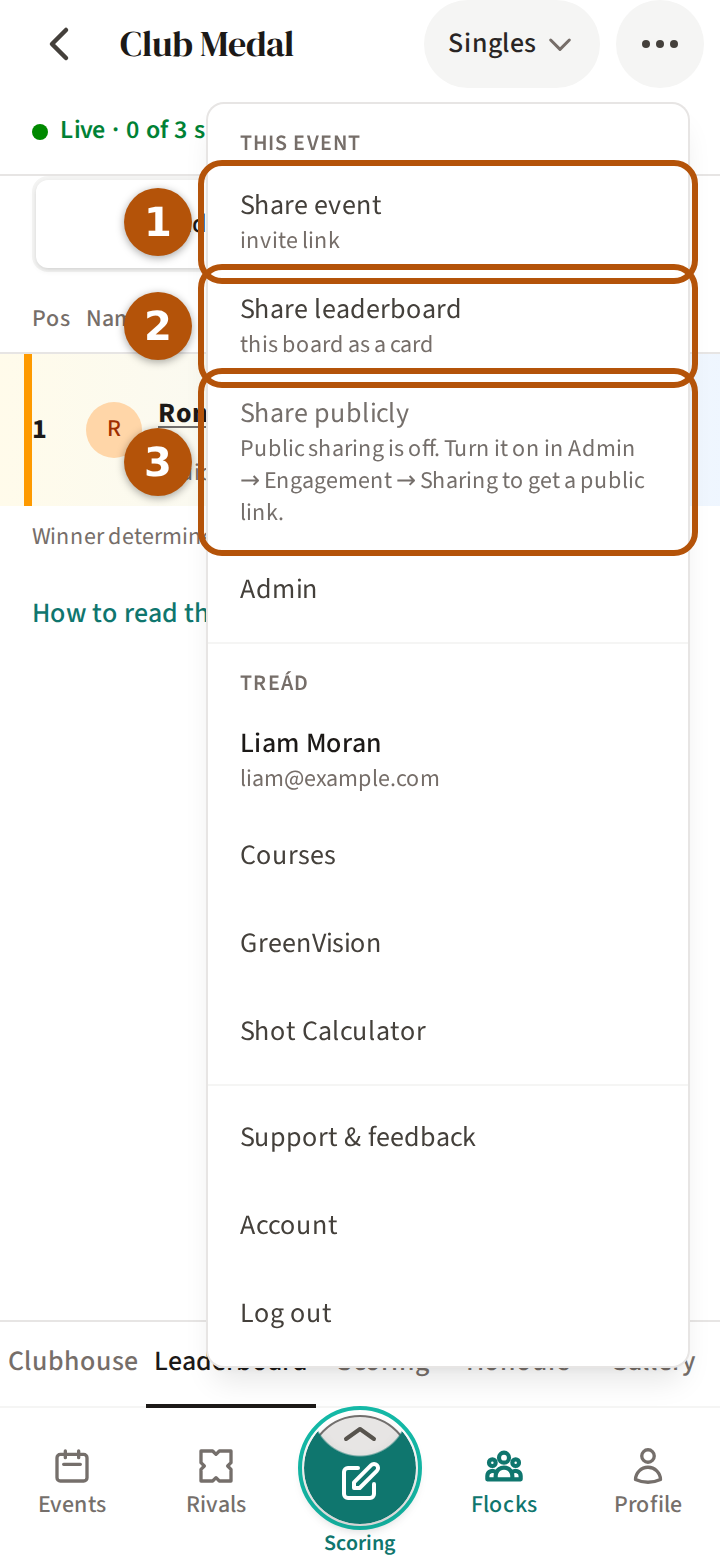
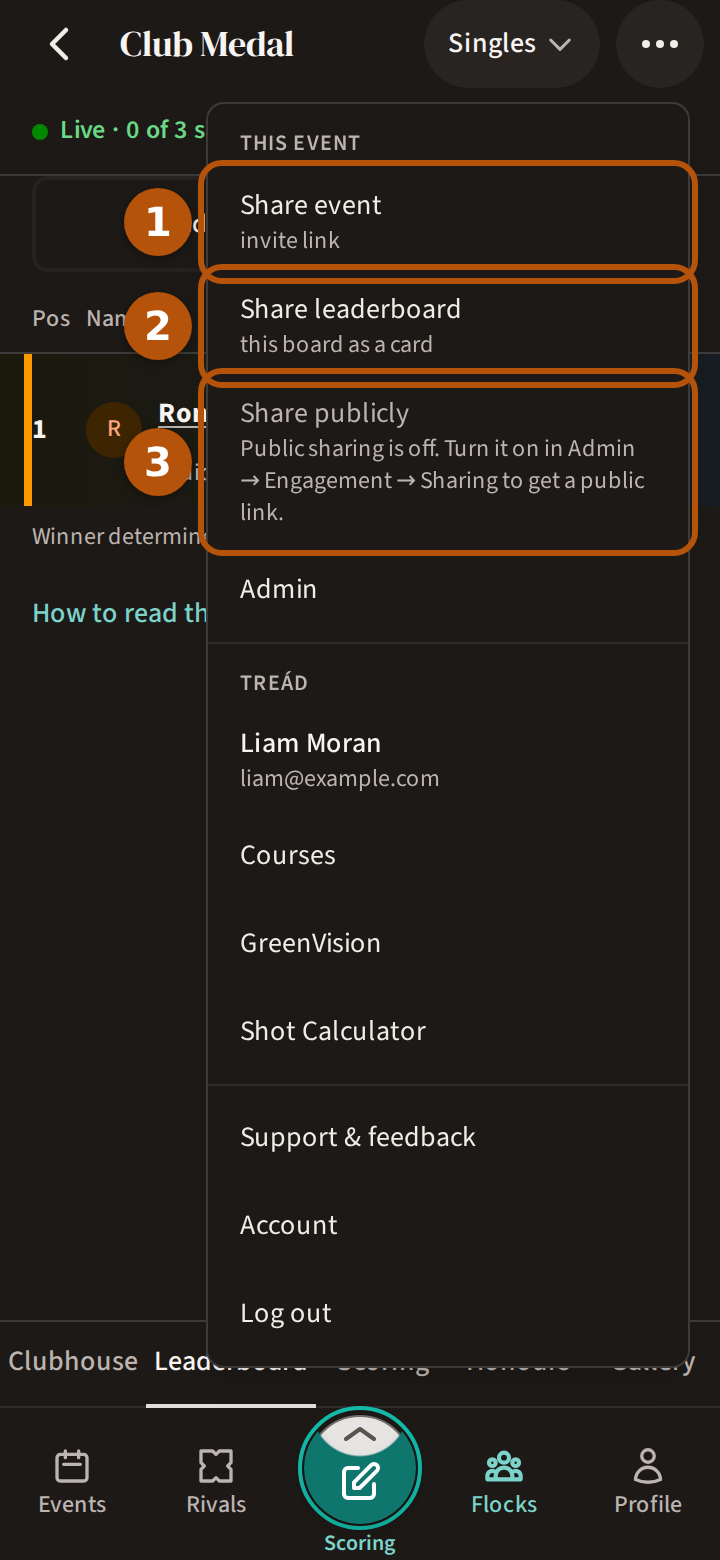
Open the event and press ⋯ at the right of the header. The More menu's first rows, under This event, are for sharing: Share event ①, Share leaderboard ② and Share publicly ③. Share event is there until the event is over; the other two arrive once it has started, because before then there is no leaderboard to share.
Whichever you press, on a phone Treád opens your phone's own sharing, so you pick WhatsApp, Messages or email as you would for a photo. Where there is no sharing of its own, as on many computers, it copies the link instead and says Link copied, ready to paste.
2. Send the leaderboard
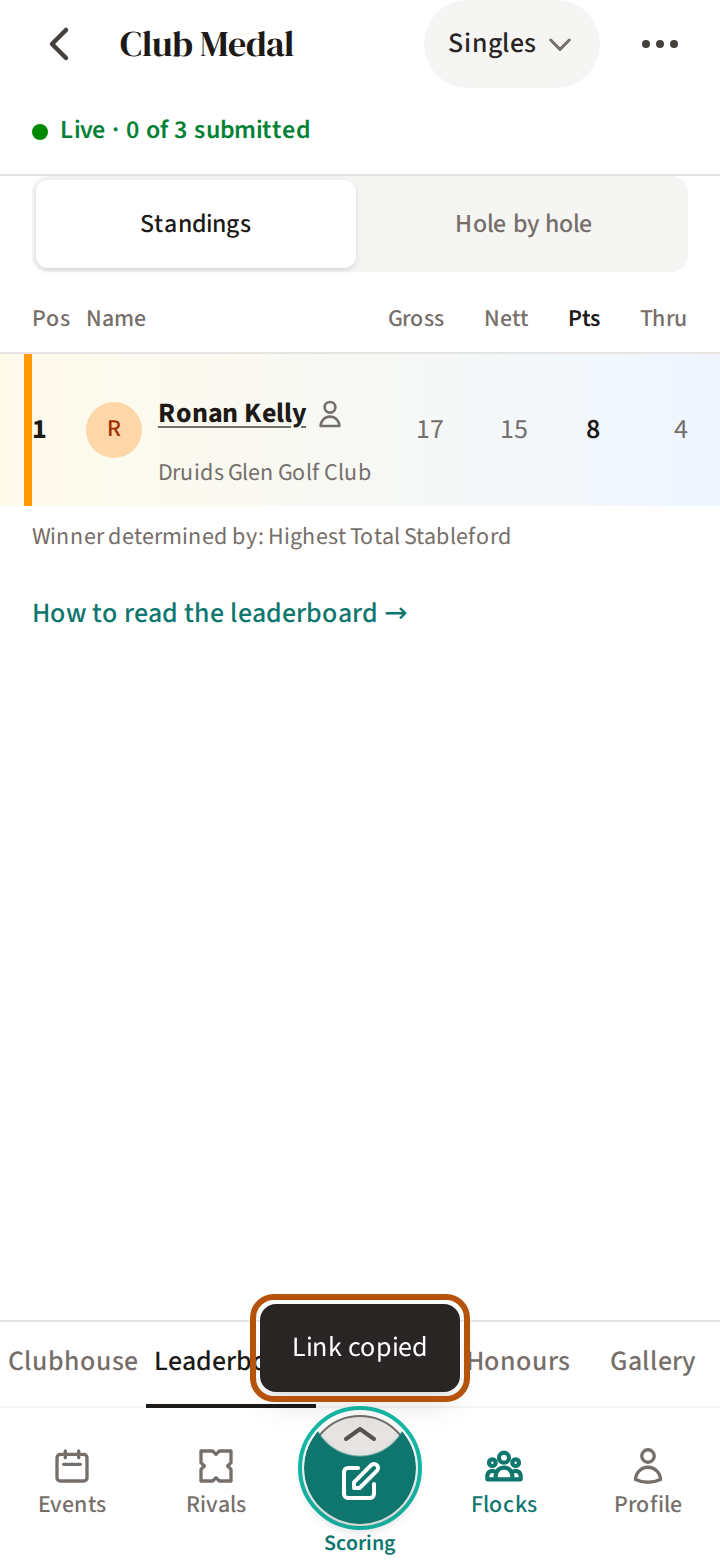
Press Share leaderboard. What goes is a picture of the leaderboard you are looking at — pick a competition first and it is that one — with a link under it. The picture is drawn from the scores as they stand at that moment.
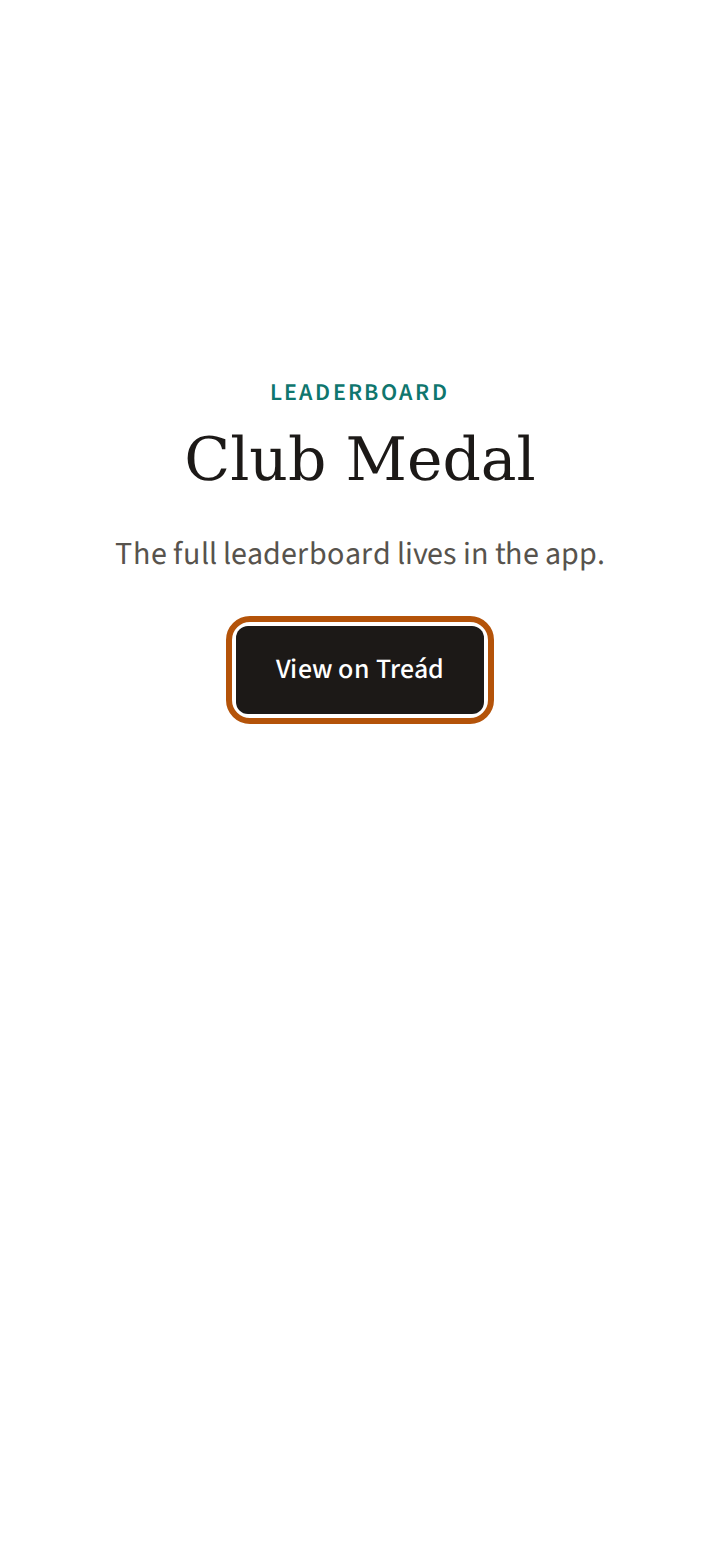
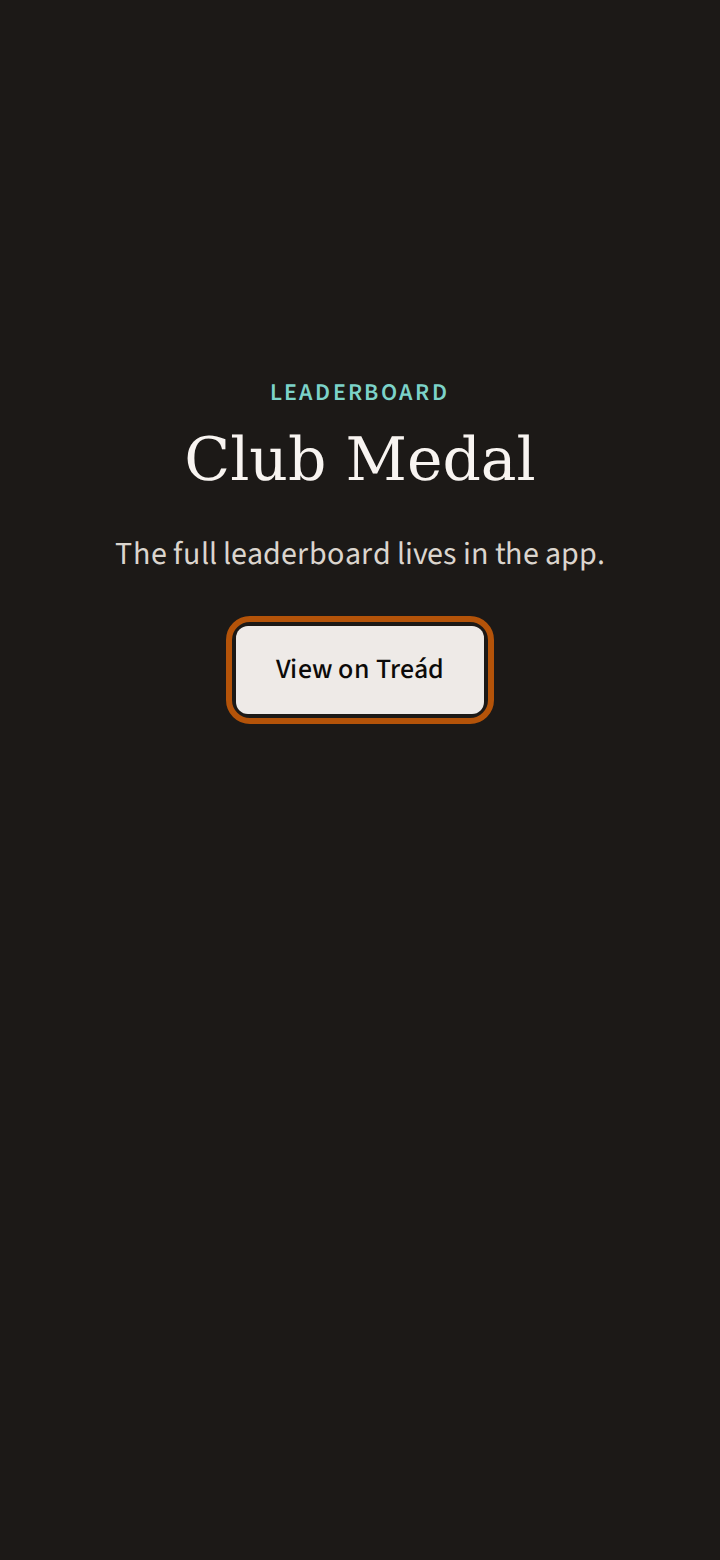
Anyone can see the picture, but the leaderboard behind the link is for the flock (your group). Opening it shows the event's name and View on Treád, which asks them to sign in, and only members of the flock get in. To show the live scores to people outside the flock, use Share publicly (step 5).
3. Invite someone to the event
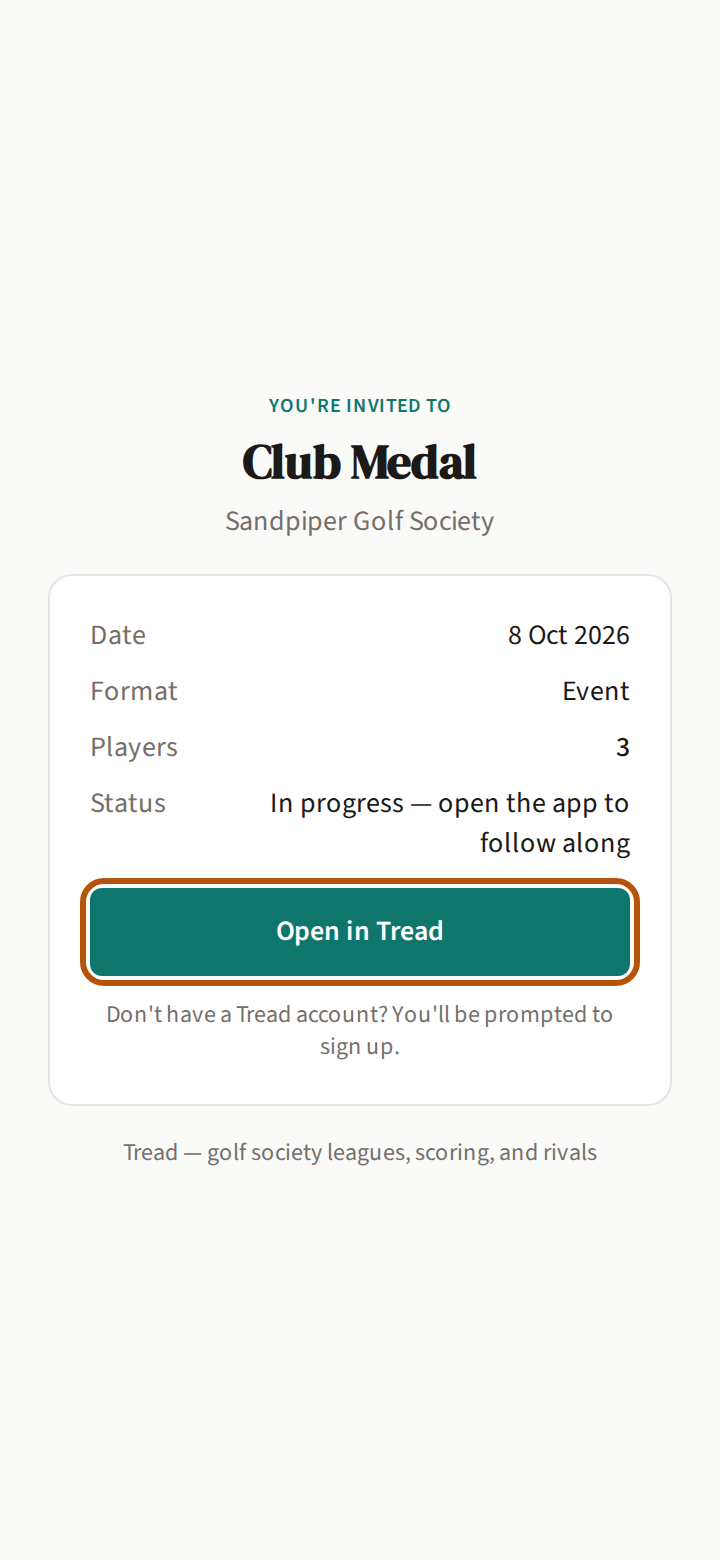
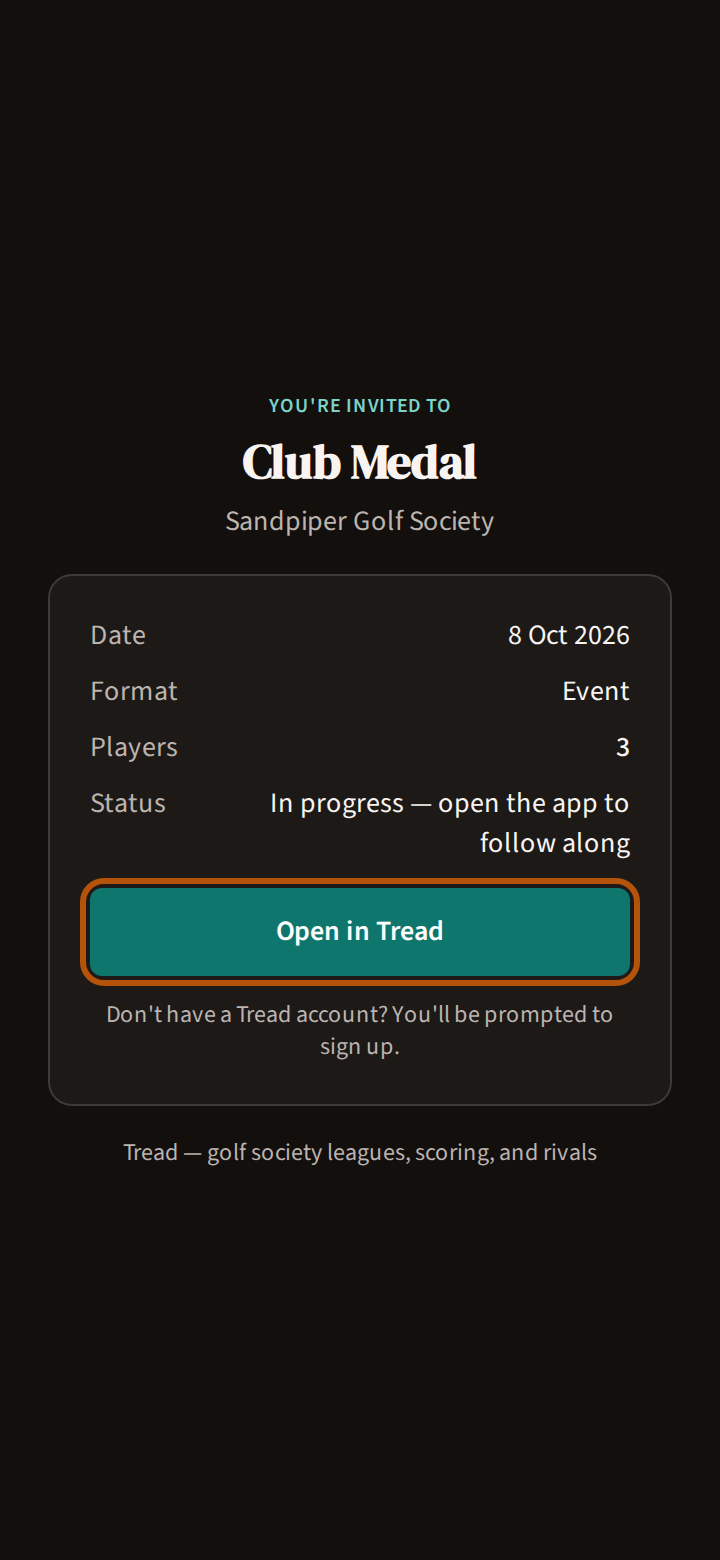
Press Share event to send an invitation. The link opens a page that reads You're invited to, then the event's name and flock, its date, whether it is a roaming event, how many are playing and whether it has started. Open in Tread takes them into the event, and anyone without an account is asked to sign up first.
The event is for the flock's members. If the person is not in the flock yet, send them the flock's Invite link first, from the flock's own More menu — see Run your flock.
4. Turn on public sharing
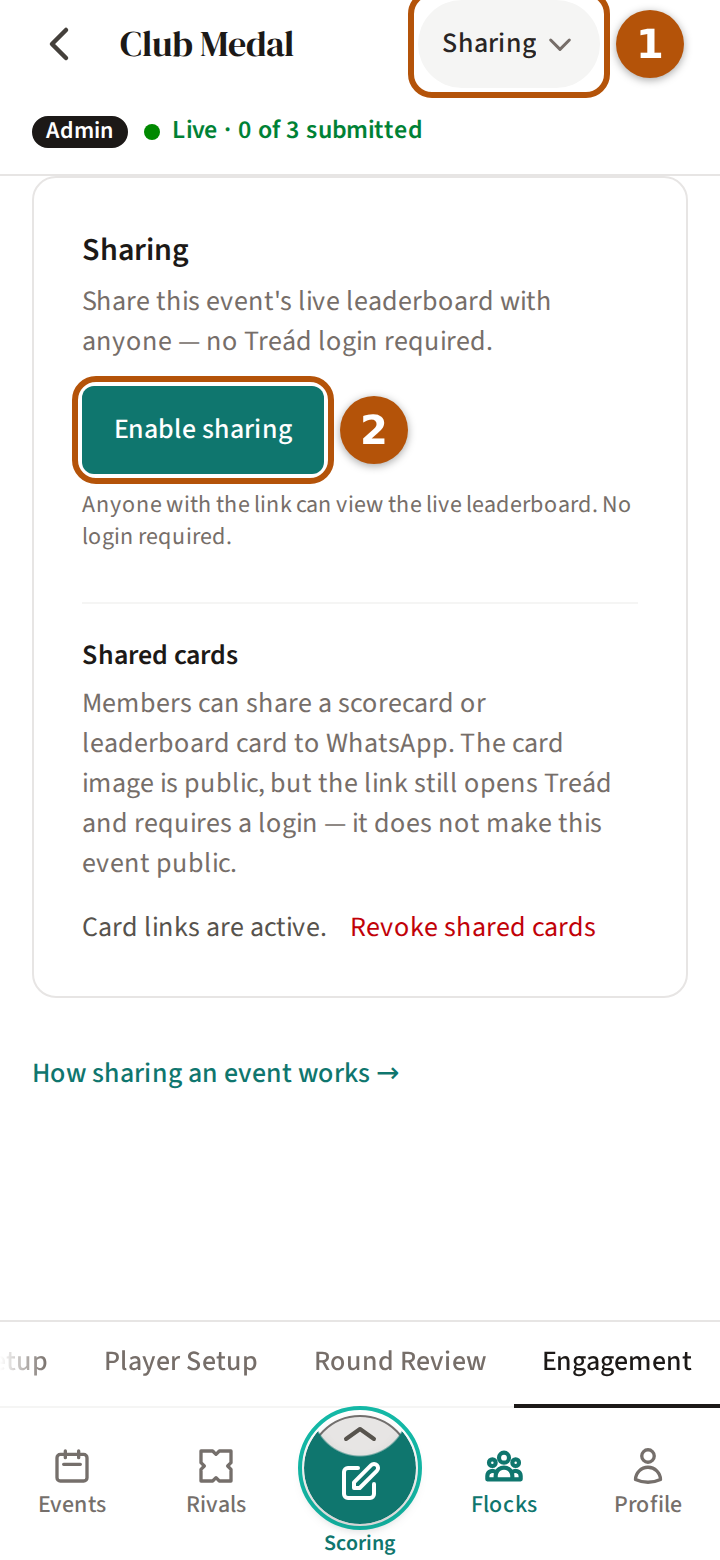
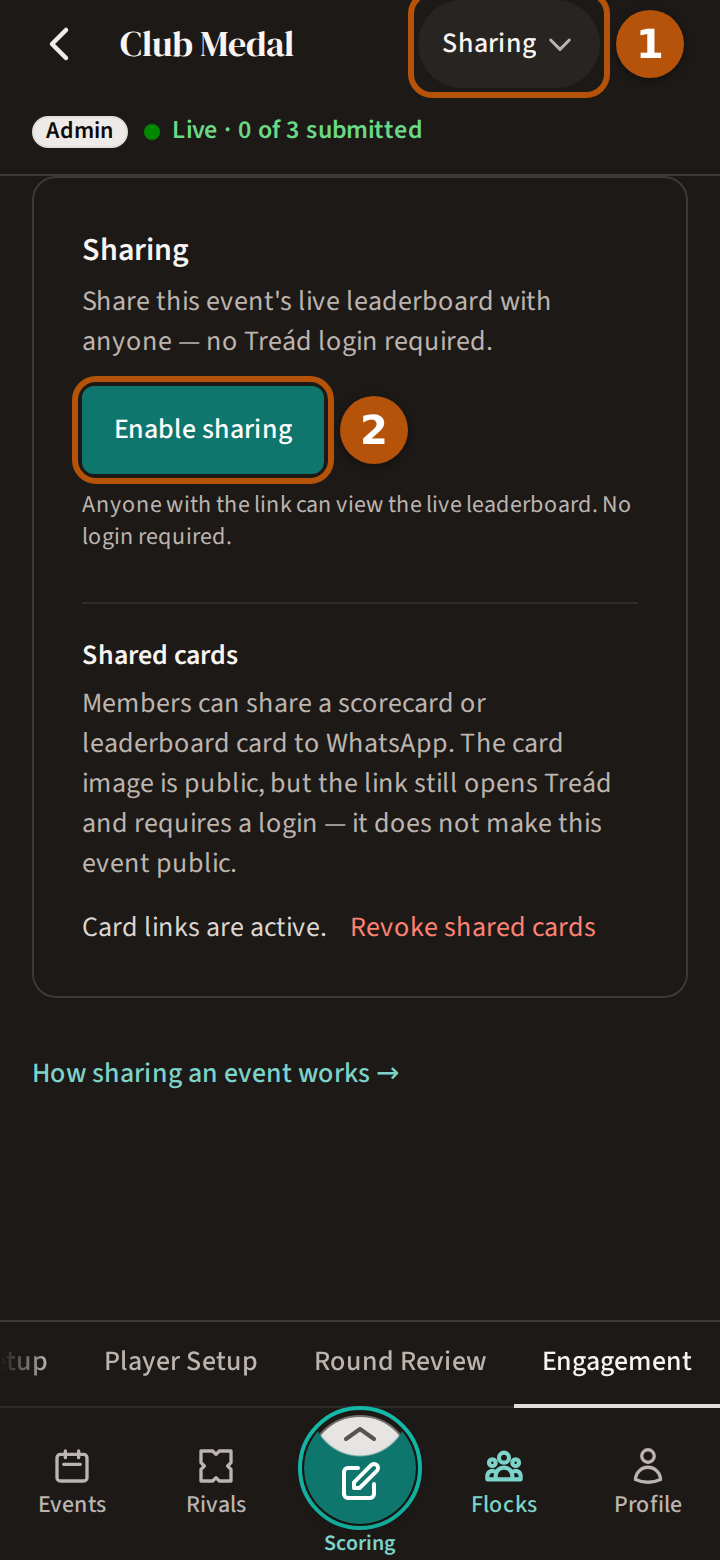
A leaderboard anyone can open without signing in has to be switched on by one of the event's admins. Open the More menu and press Admin, go to the Engagement section and choose Sharing with the picker ①. Press Enable sharing ②. You can do this before the event goes live — Set up an event — or any time after.
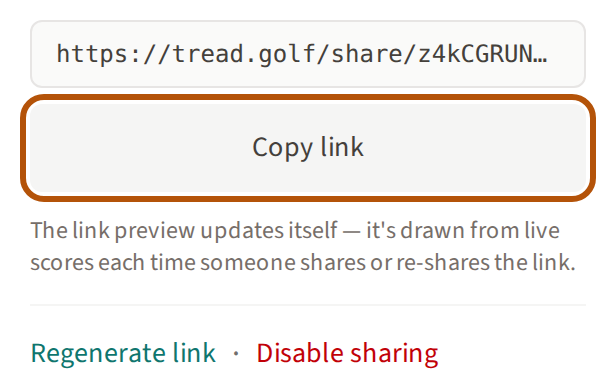
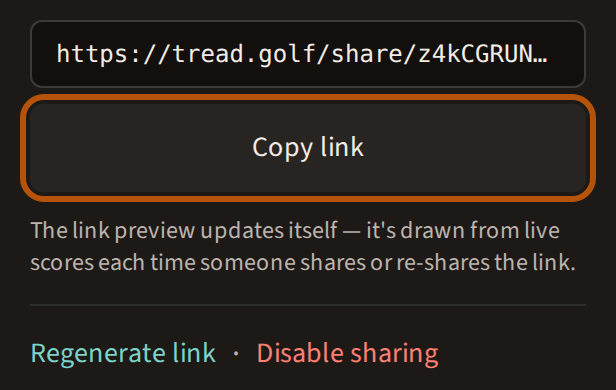
Treád makes the link and shows it with Copy link. The picture people see when it is shared is drawn fresh from the live scores every time. If a link goes somewhere it should not, Regenerate link makes a new one and the old one stops working; Disable sharing switches it off, and anyone who opens the link then sees This shared leaderboard has been disabled. Further down, Revoke shared cards stops every card link sent from the event so far, scorecards included.
5. Share the live leaderboard publicly
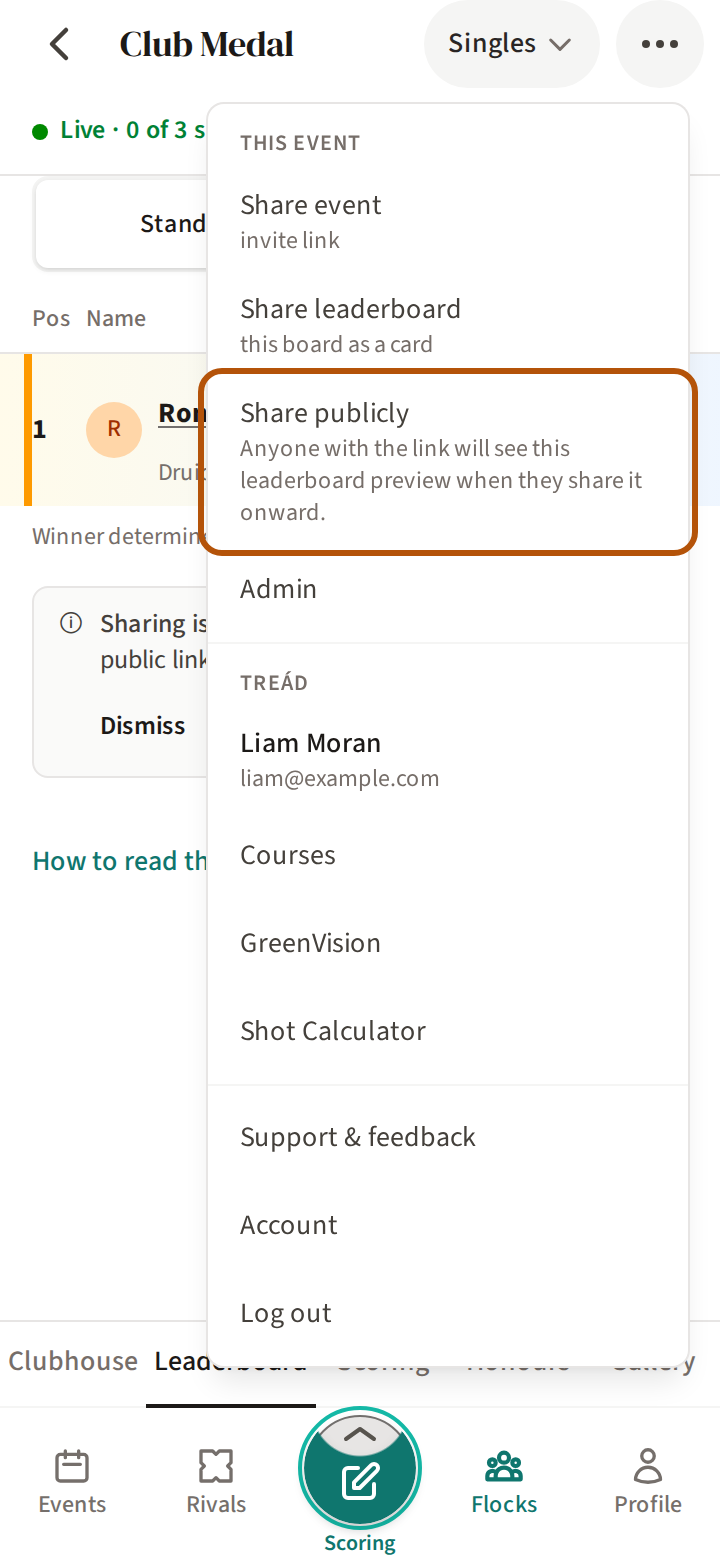
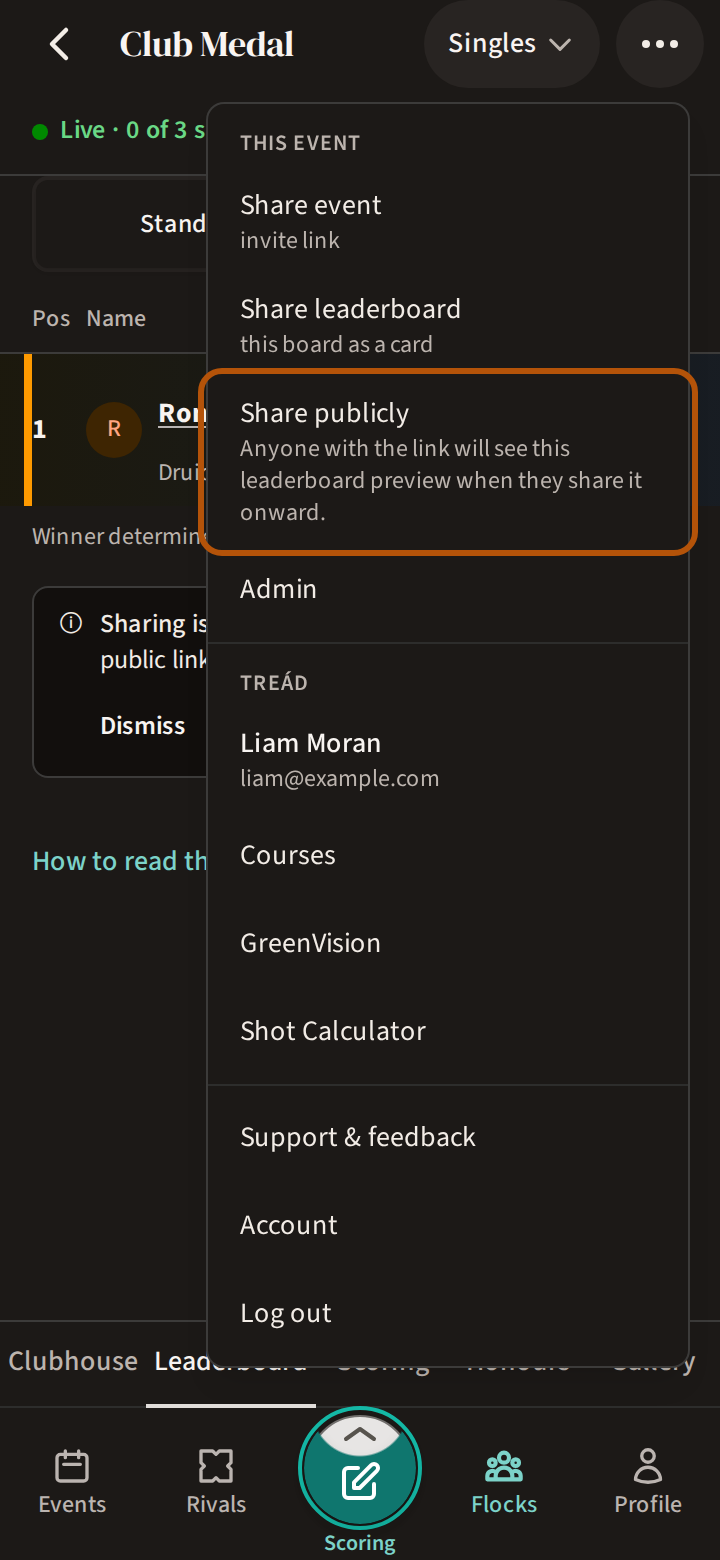
With sharing on, Share publicly in the More menu is ready to press for everyone in the event. It sends the public link with a picture of the leaderboard as it stands, and whoever gets it can pass it on.
While sharing is off, the row stays in the menu greyed, with the reason under it: Public sharing is off. An admin is told where to turn it on; anyone else is told to ask an event admin.
6. What they see when they open it
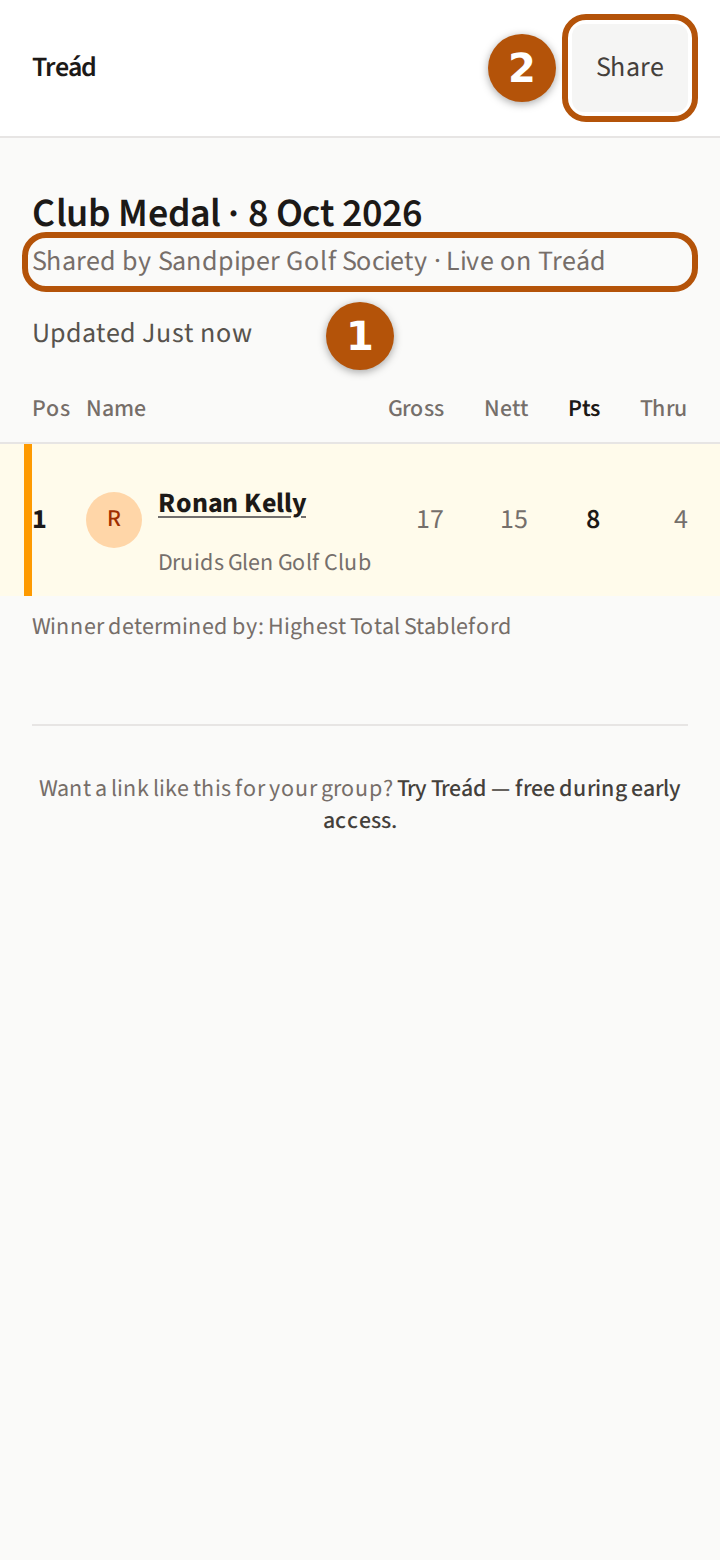
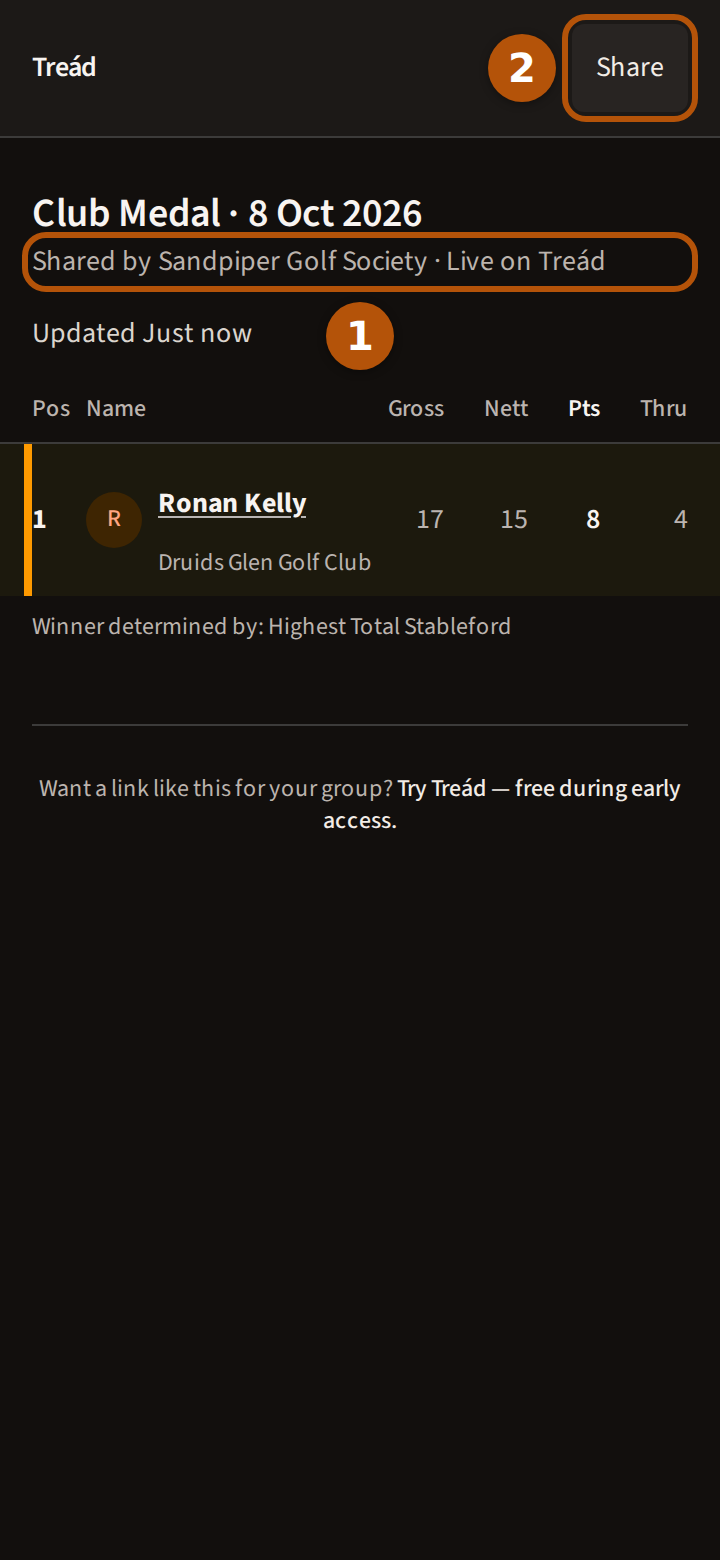
The public link opens in any browser, with no app and no sign-in. At the top is the event's name and date and Shared by your flock ①, then the leaderboard itself. If the event has more than one competition, they can pick between them above it. Share ② at the top passes the link on.
The public leaderboard shows the scores as they stand: it is not held back the way the players' own view is in the reveal. Open it before the event starts and it says when it starts and that live scores will appear once it begins.
7. Share a hole from Replay
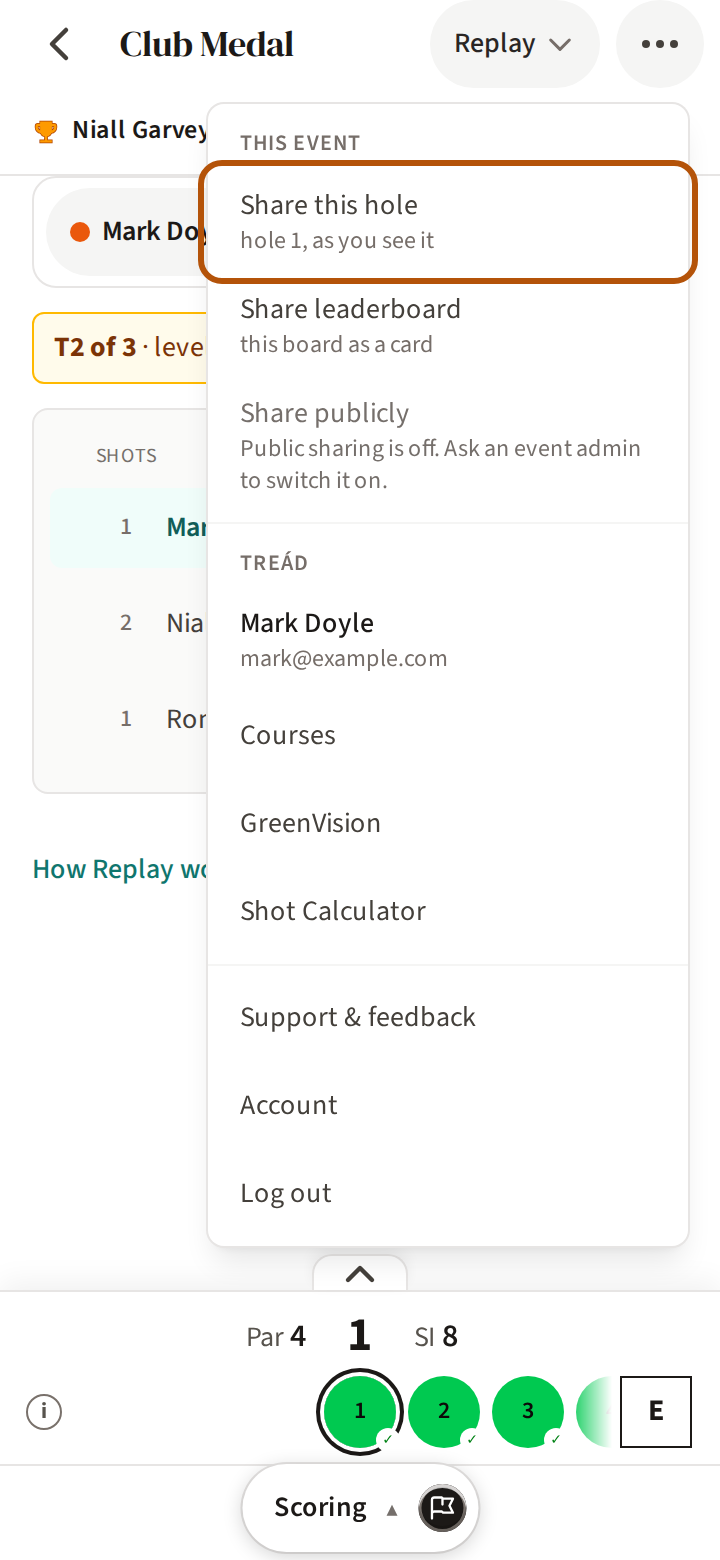
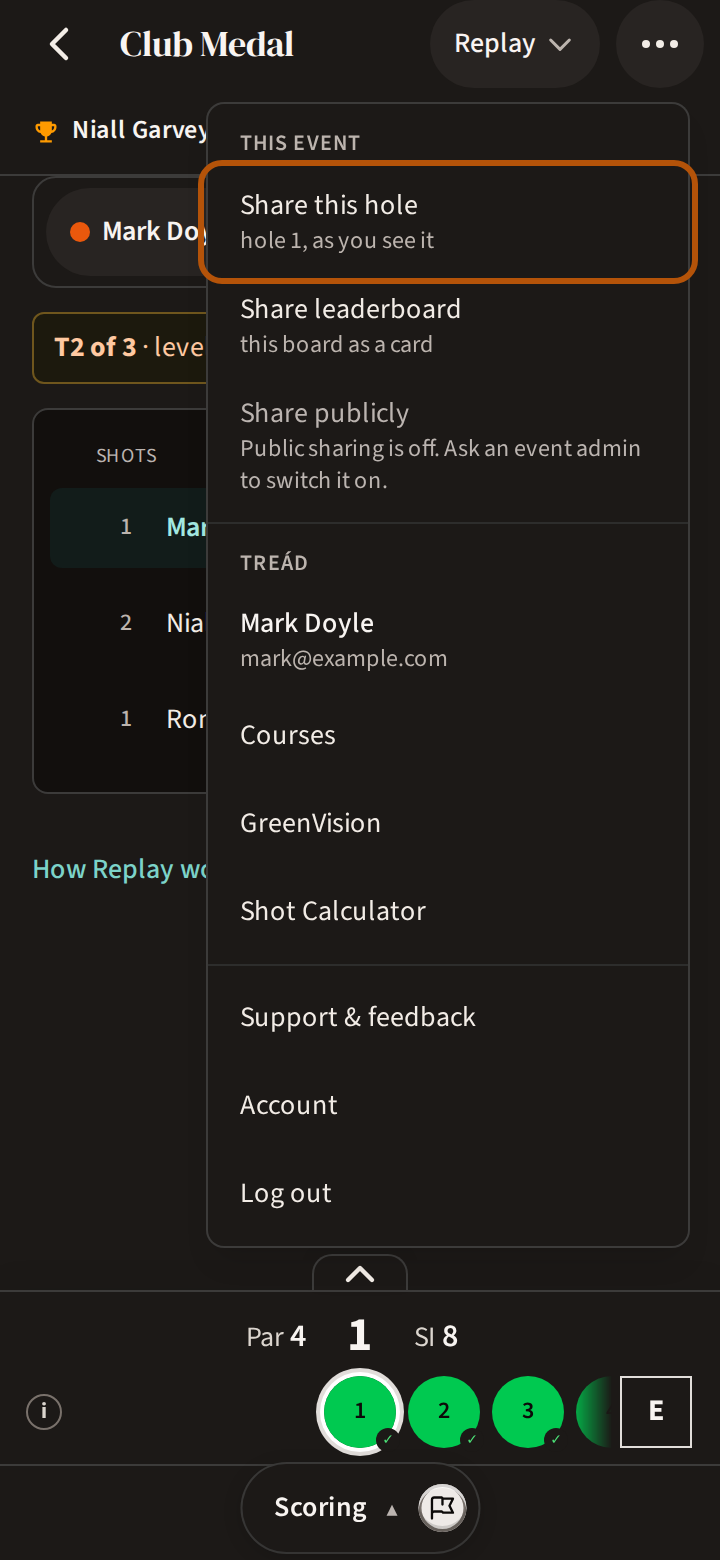
In Replay, the More menu's first row is Share this hole. It sends a link that opens Replay on the same hole, following the same player you are looking at, so the others land on the exact moment you are crowing about. It opens in Treád, so it is for people in the flock.
Still stuck? Tell us and we will help.