Find and fix a course
Playing somewhere new? Chances are the course is already in Treád, tees, slope and all — and if your home course isn't, add it yourself and it's right for everyone who plays it after you. Below: finding a course, choosing your tees, keeping your regulars handy and filling in anything missing.
Treád keeps one list of courses, shared by your flock (your group) and every other. A round takes its par, stroke index, slope and course rating from it, so put a course right once and it is right for every golfer who plays it next.
1. Find a course
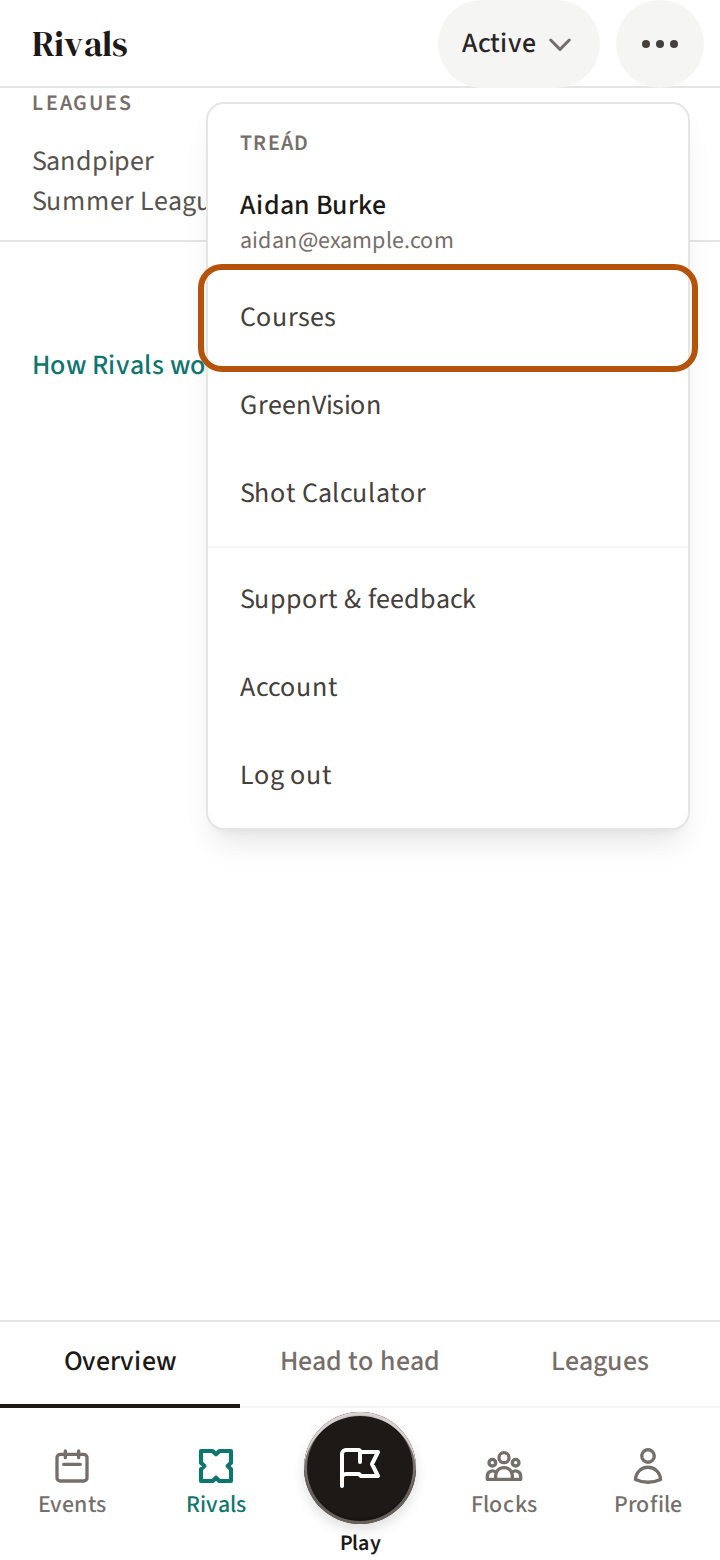
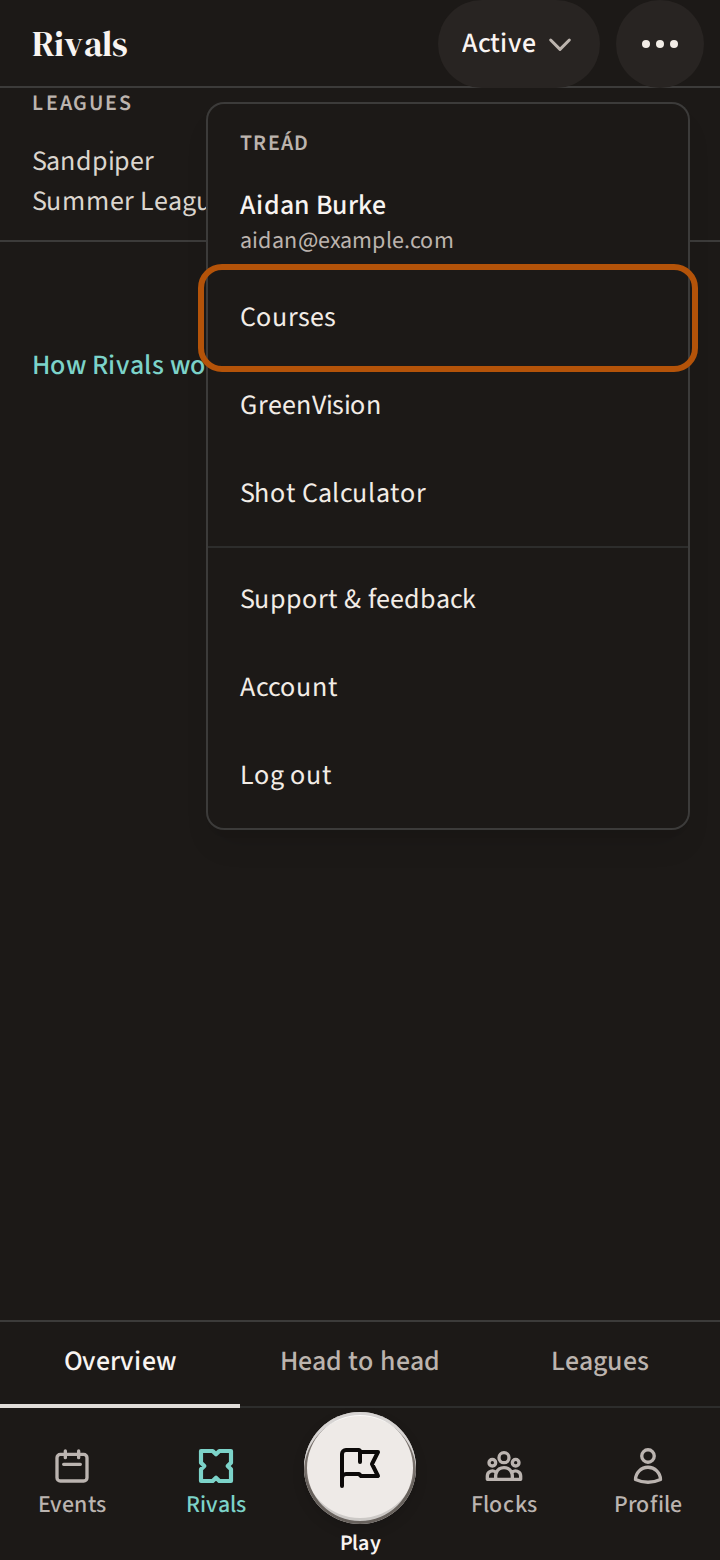
Open the More menu (⋯) in the header and choose Courses. The list opens with how many courses Treád holds, then a row for each country with its count — press a country to open it. Quicker still, type the club's name under Search courses… and press Search.
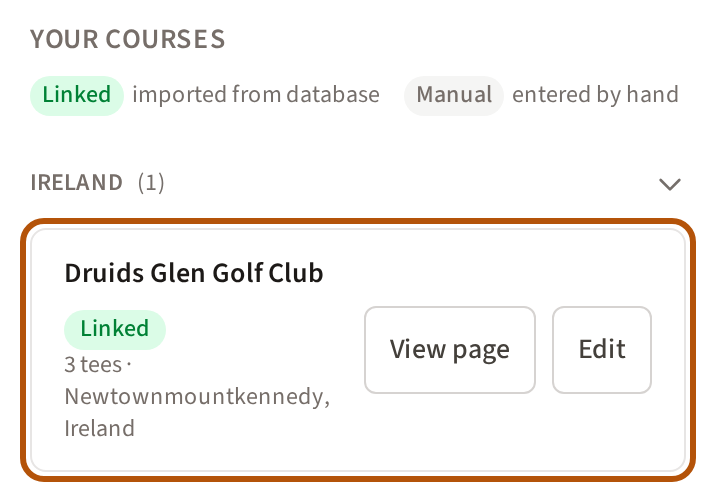
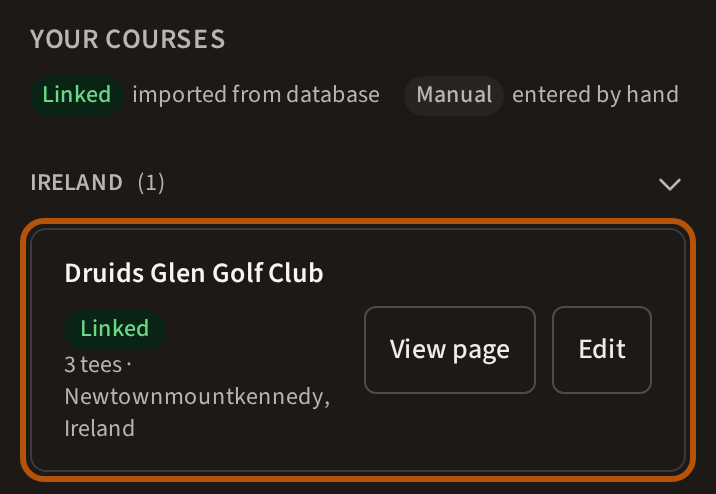
Courses Treád already has are under Your Courses. Each shows how many tees it has and where it is, marked Linked if it came from the golf course database or Manual if someone typed it in, and Missing SI if a tee has no stroke index yet. Press View page to open the course's page, or press its name to see its tees (step 6).
2. Read a course's page
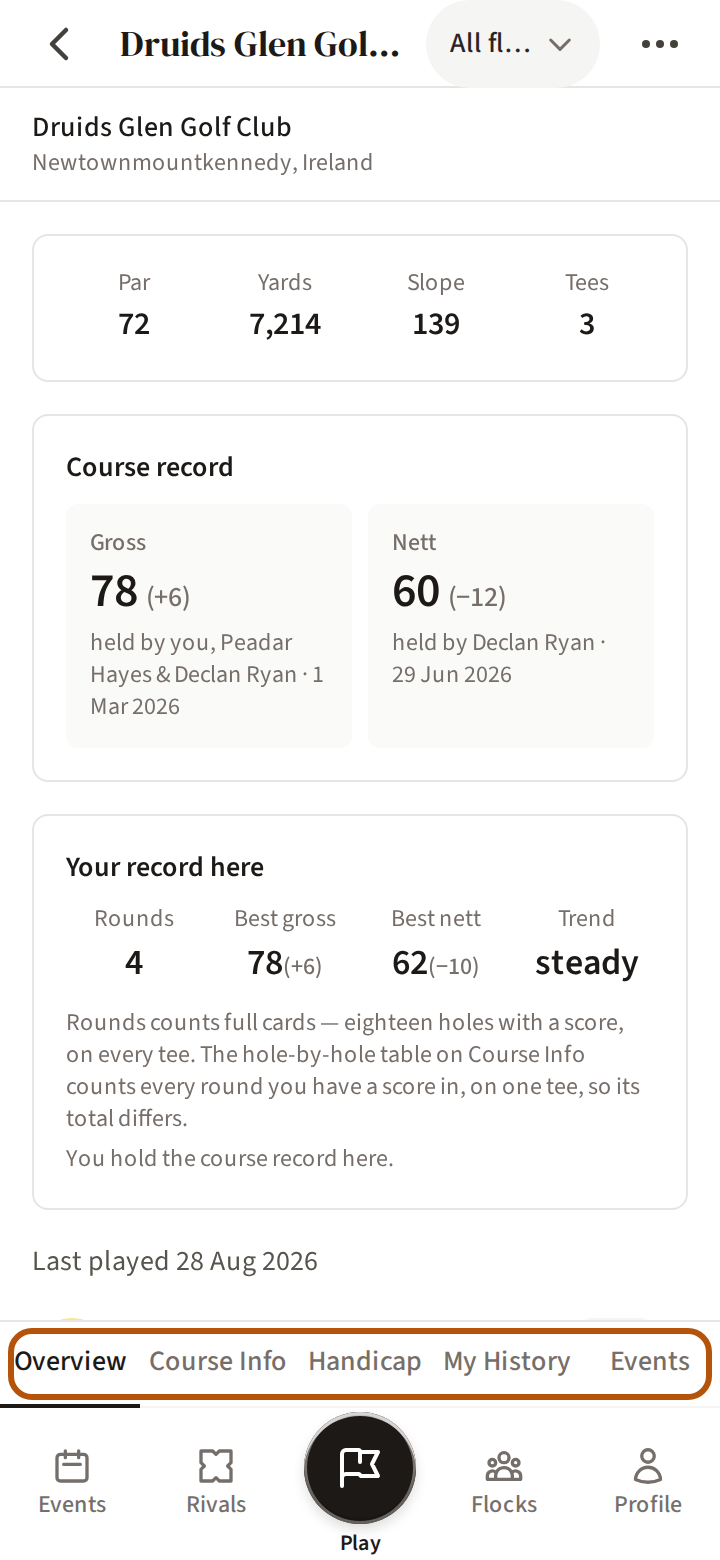
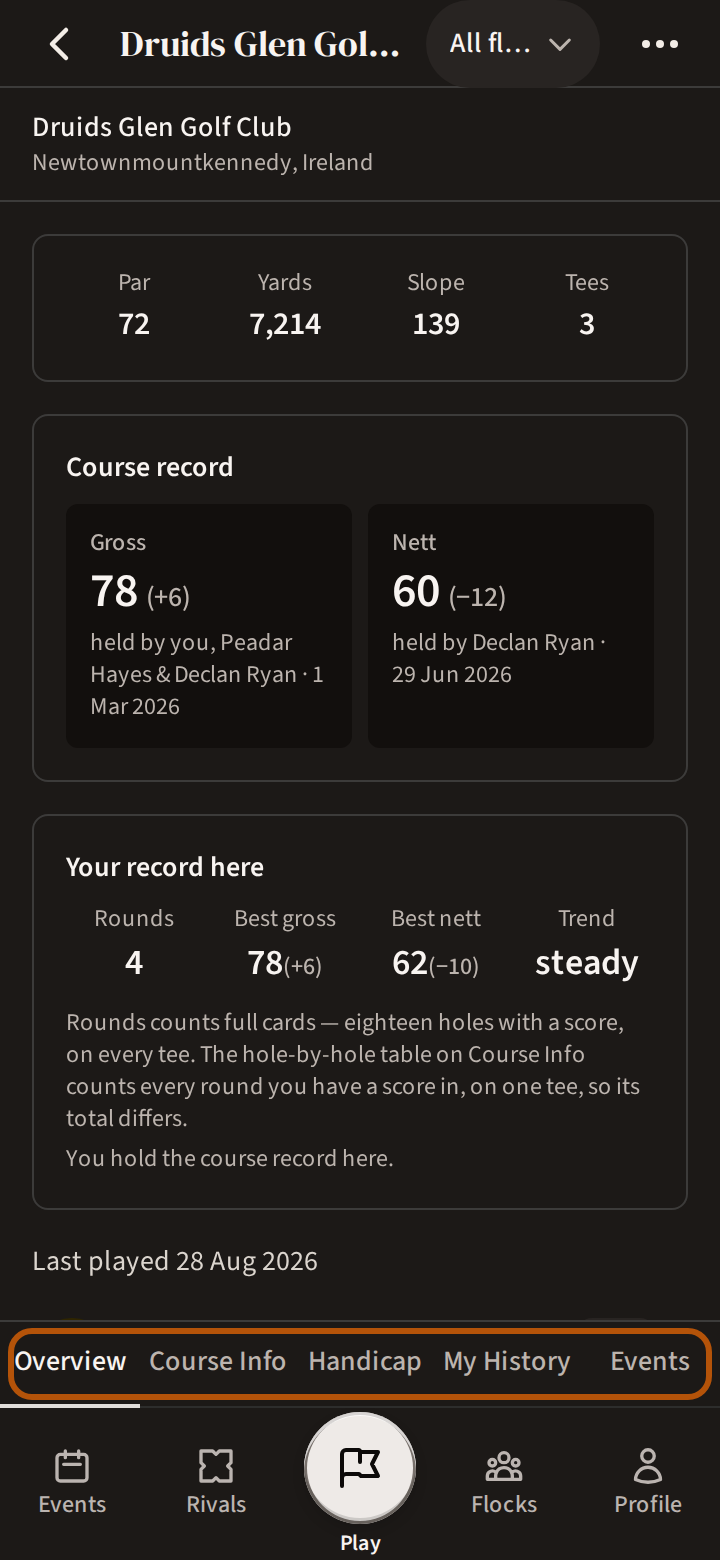
A course's page has five sections. Overview gives the club and where it is, the par, yards, slope and number of tees, and once you have played it, Your record here. Course Info is the scorecard with your own record on it — See where your shots go walks through it. Handicap holds the Handicap calculator: your course handicap and playing handicap off a tee. My History is your rounds here, and Events the flock's events played on it.
3. Choose your tees
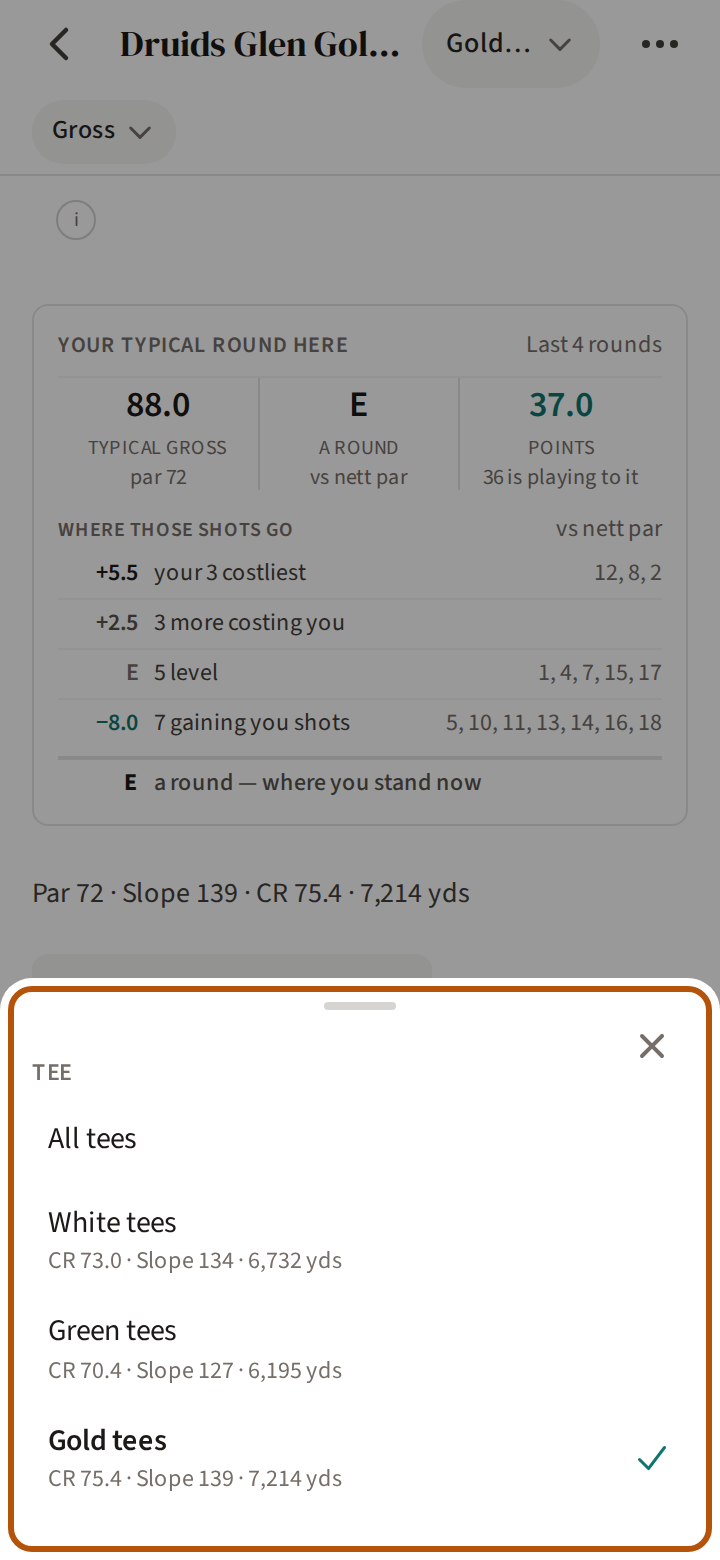
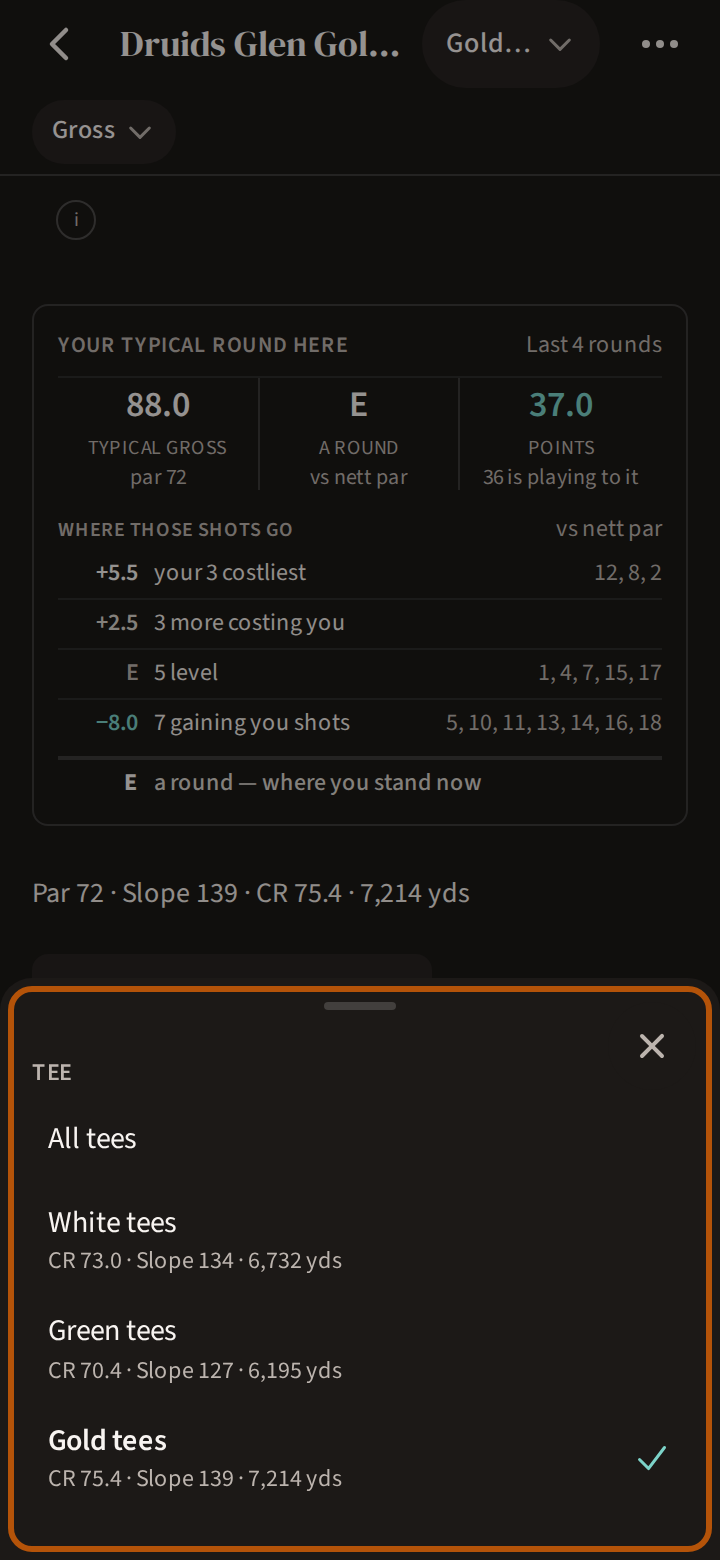
On Course Info or Handicap, press the picker in the header. The list is headed Tee: every tee by name, with its course rating, slope and yardage beneath, and All tees at the top when the course has more than one. Choose yours.


The line above the scorecard then reads that tee's par, slope, course rating (CR) and yards, and the card, your record and the calculator are for that tee.
4. Favourite a course
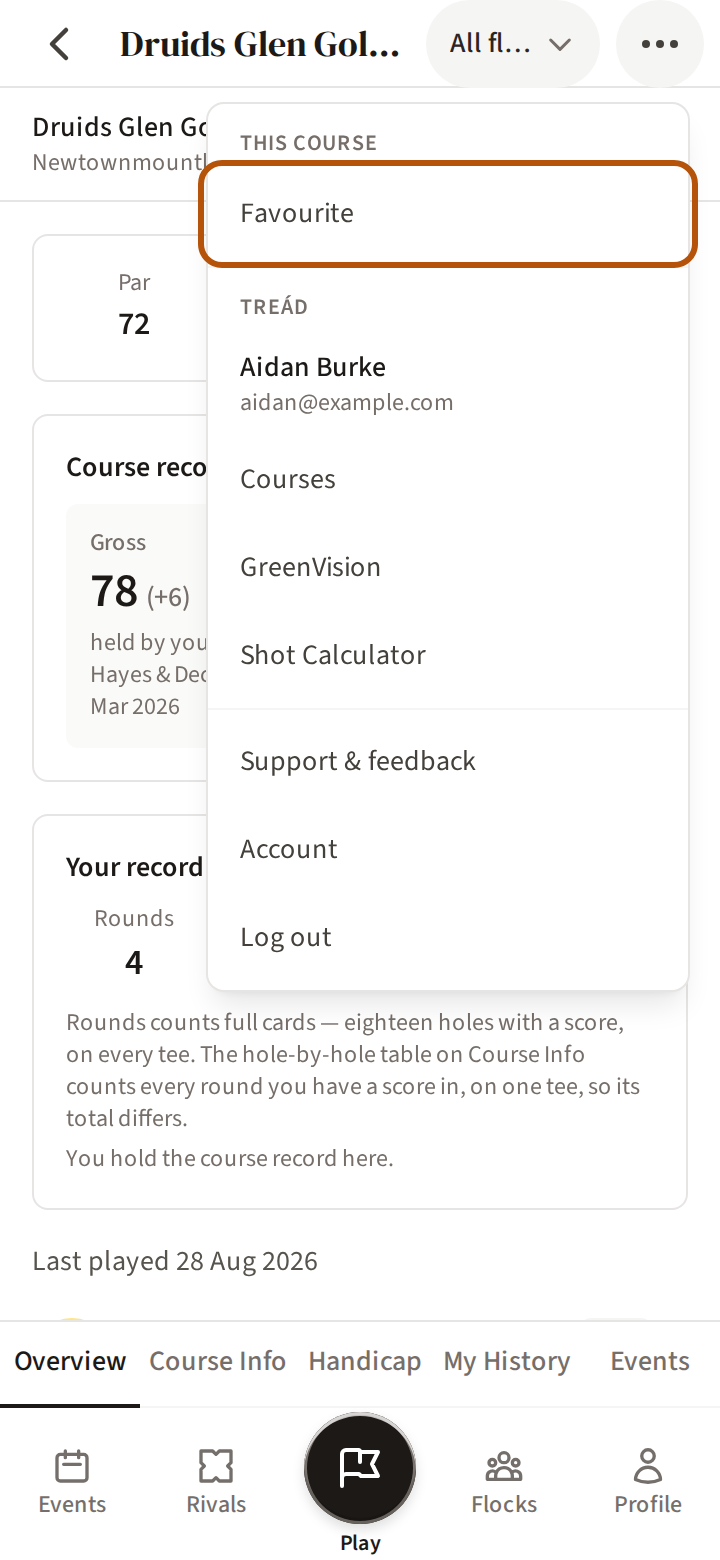
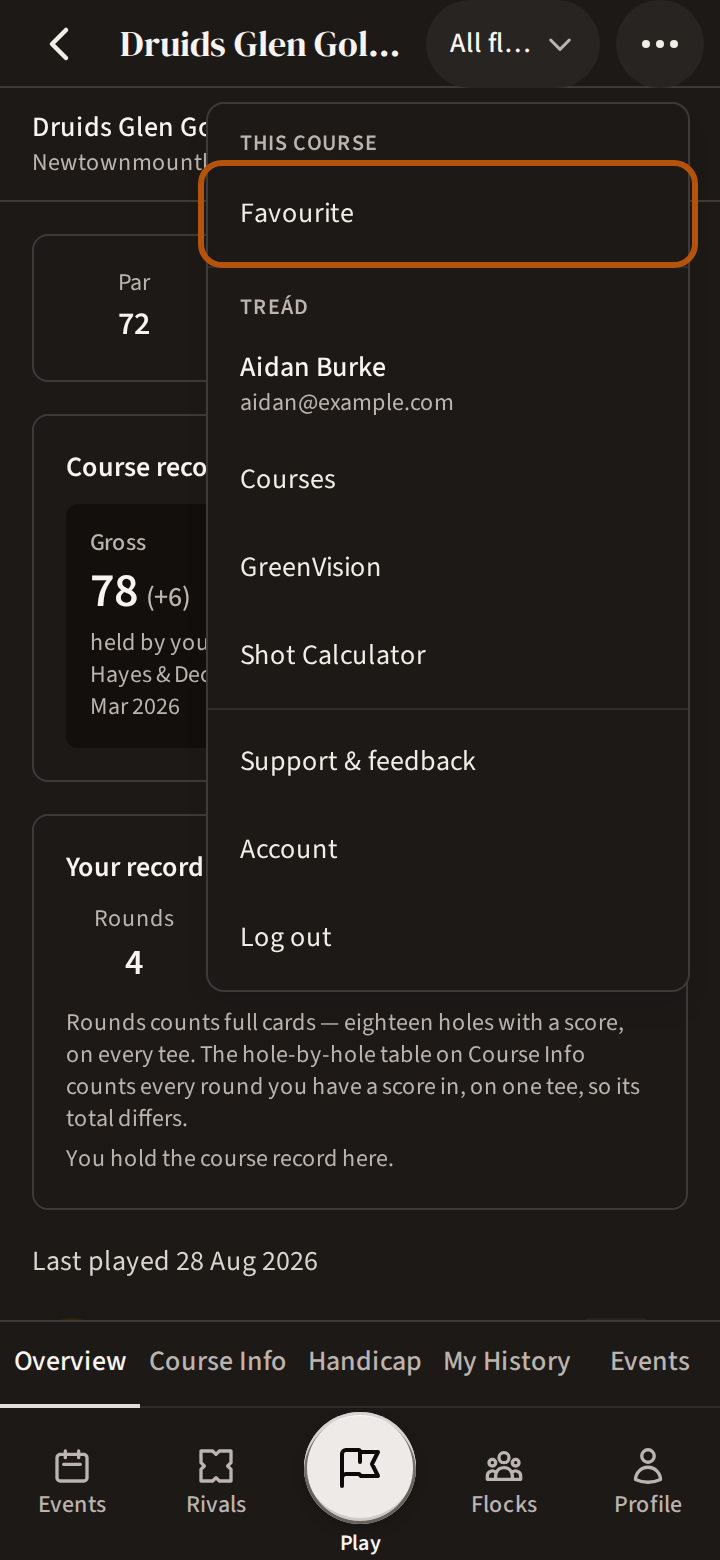
Play a course often? On its page, open the More menu: under This course, press Favourite (Unfavourite takes it off). Your favourites wait at the top of your list when you set up a round, and your record on each is one press from your Profile — Keep your regular courses close shows how.
5. Add a course that isn't there
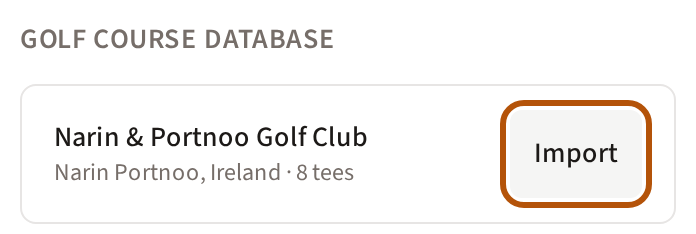
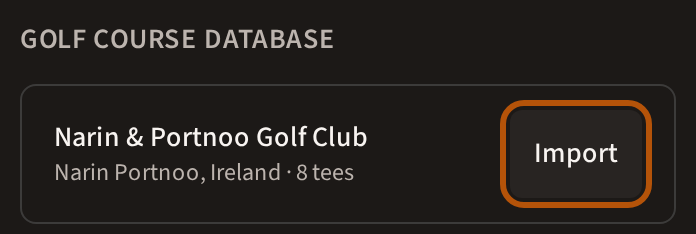
Search first. A course Treád hasn't got yet often comes back under Golf Course Database, with an Import button beside it. Press it.
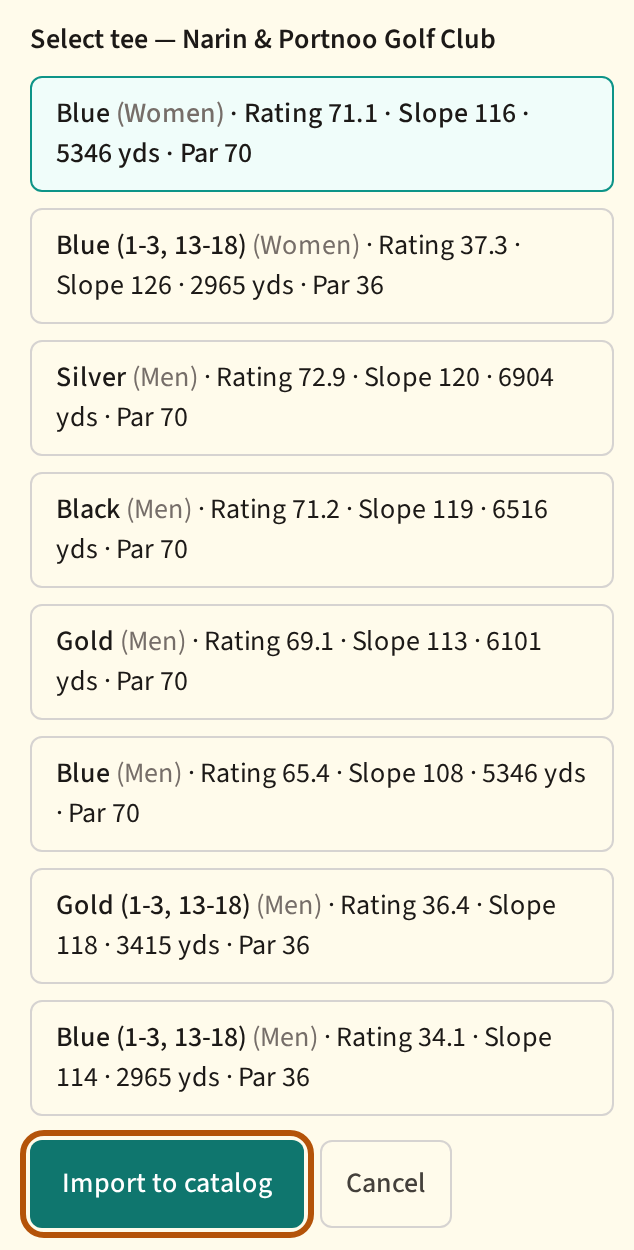
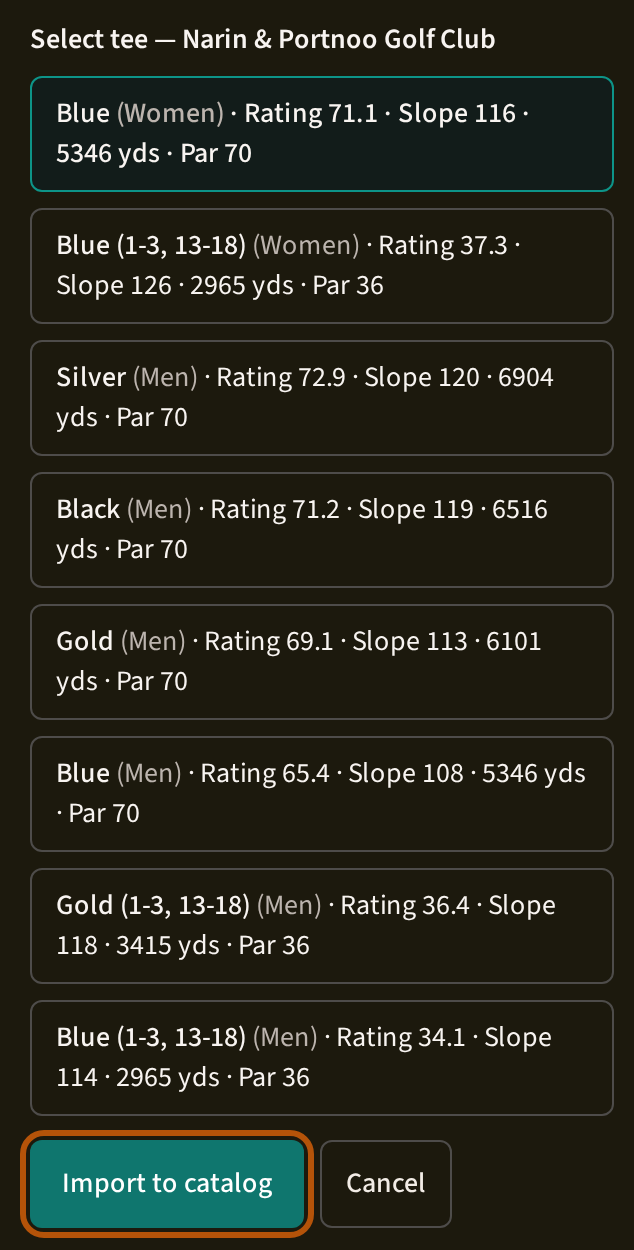
Under Select tee, choose the tee you play and press Import to catalog. The course joins the list, marked Linked; bring in its other tees later with + Add tee (step 6). If the course is already there, Treád says so and offers View existing course to open it — and where that one came from the database too, Add tee to existing brings this tee into it.
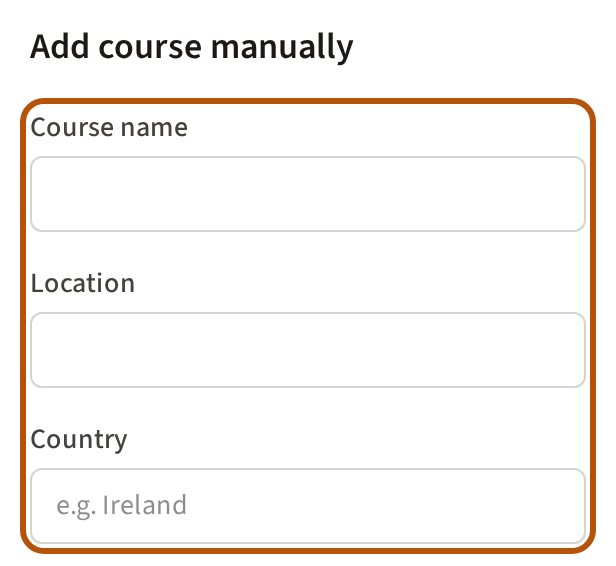
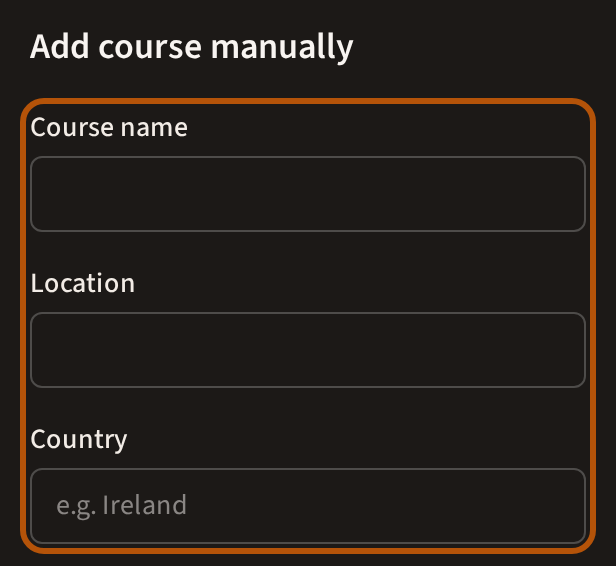
Not in the database either? Press + Add course at the top of Courses. Under Add course manually, fill in the Course name and where it is.
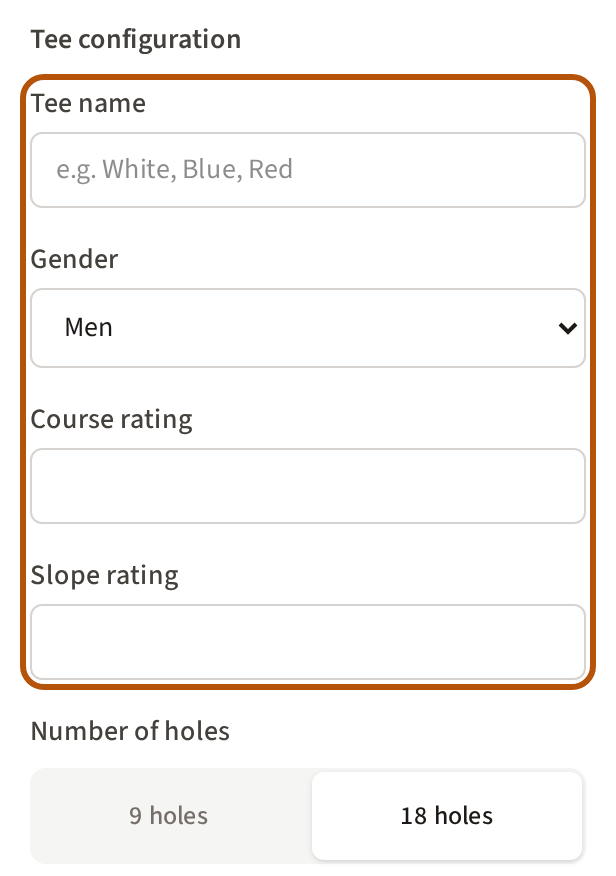
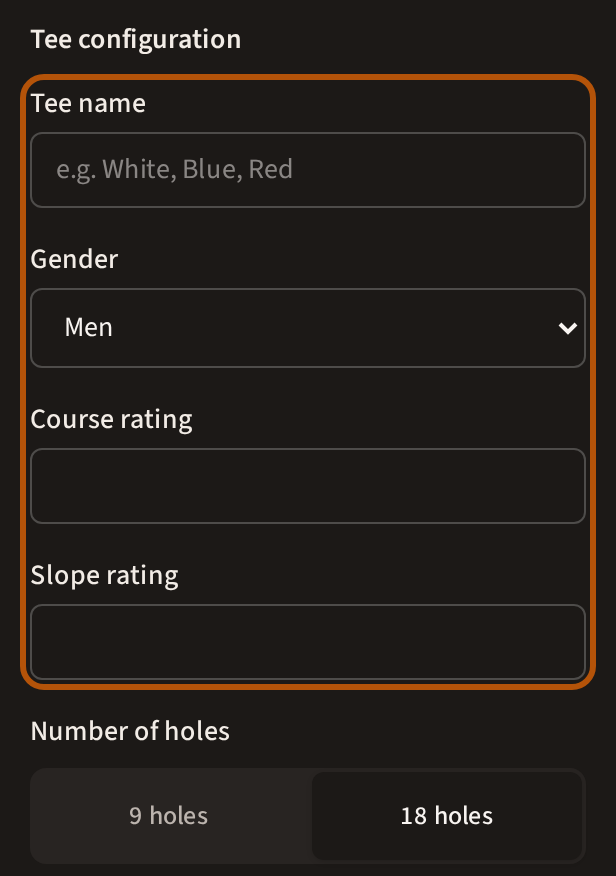
Then the tee: its Tee name, men's or women's, its Course rating and Slope rating off the scorecard, 9 or 18 holes, and each hole's par, stroke index and yardage. Import par & stroke index from photo reads the holes off a photo of the card for you. Press Save course.
6. Add a missing rating or stroke index
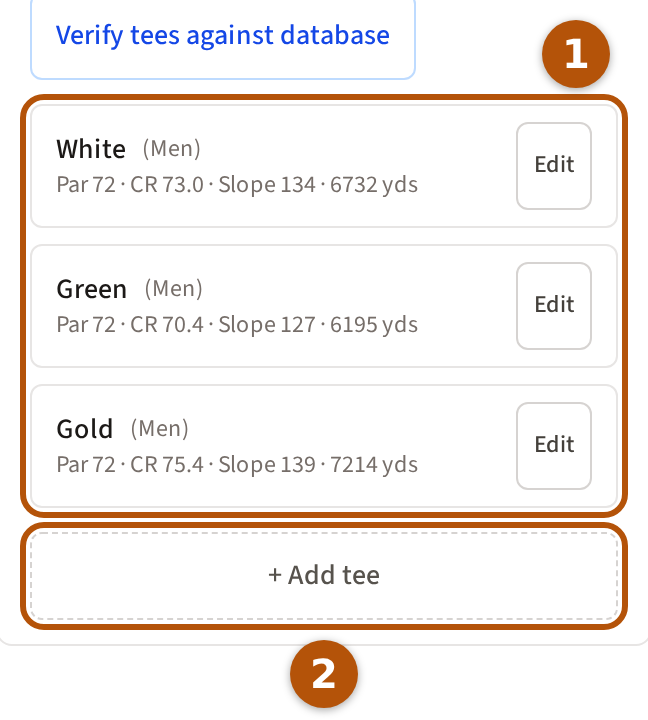
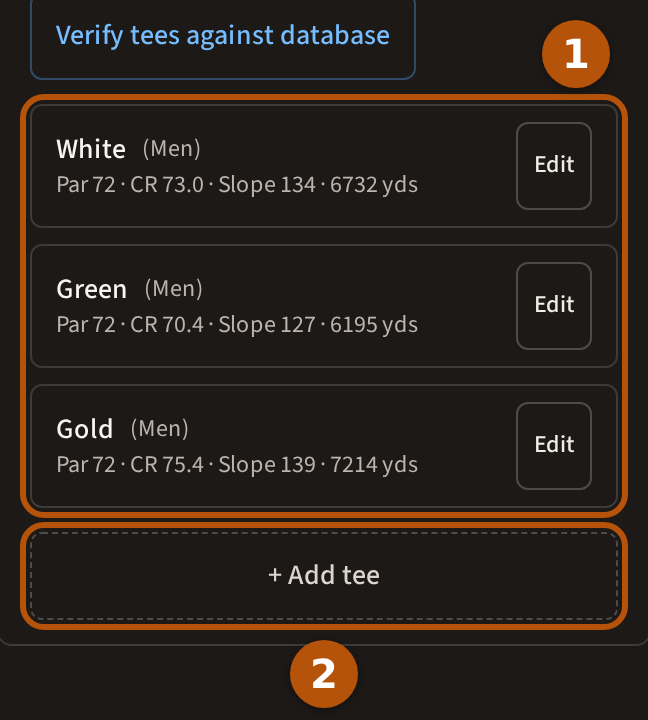
In Courses, find the course and press its name. Its tees open beneath it ①, each with its par, course rating and slope; + Add tee ② adds one it is missing. To fill in a rating, press Edit beside the tee.
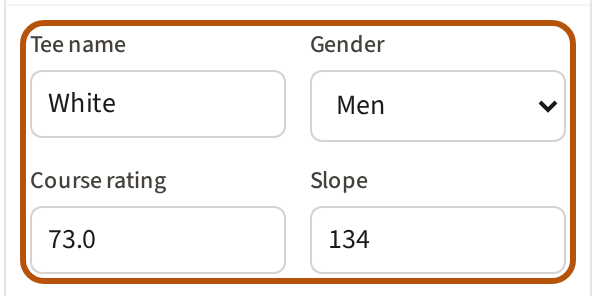
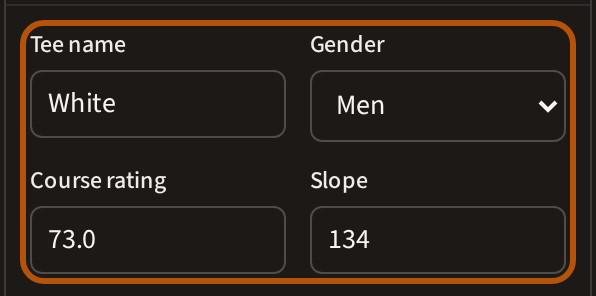
Type the Course rating and Slope from the scorecard and press Save. Without both, the tee can't be used for a roaming or solo round — Treád stops you at Set up your round and when a solo round is finished.
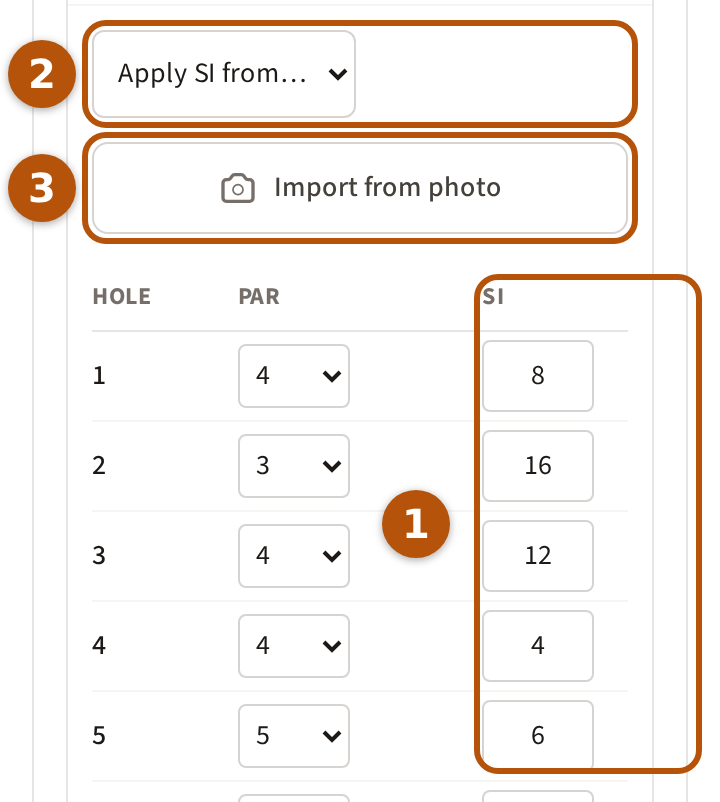
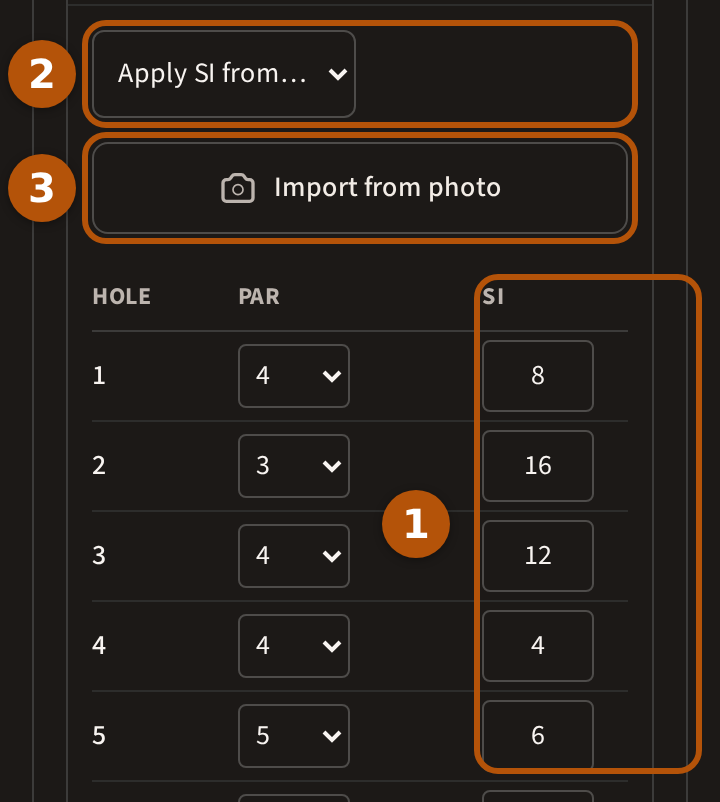
Beneath it are the tee's holes, with an SI column ① — each stroke index from 1 to 18 used once (1 to 9 on a nine-hole tee). Fill in any that are empty and press Save Stroke Index, which appears once there is something to save. If another tee of the course has its stroke index, Apply SI from ② that tee copies it across, and Import from photo ③ reads it off a photo of the card.
On a roaming round, once your course is set, a missing stroke index shows on your card in the Clubhouse, with Add SI. It opens Stroke index for the course you're playing; save it there, and where the course in the list is missing it too, it is filled in there as well.
Who can change a course
Any member of a flock can add a course or a tee and fill in ratings and stroke indexes. A member who isn't a flock admin can make three changes in ten minutes; after that Treád asks you to wait a few minutes. Flock admins have no such limit. Removing a course or a tee is kept to Treád's own team.
Still stuck? Tell us and we will help.