Keep your regular courses close
Your home course, and the few you play most, shouldn't need searching for every time. Save up to five as favourites: they wait at the top of your list when you set up a round, and your record on each is a press away on your Profile. Here's how to save them, order them and put them to work.
1. Save a course as a favourite
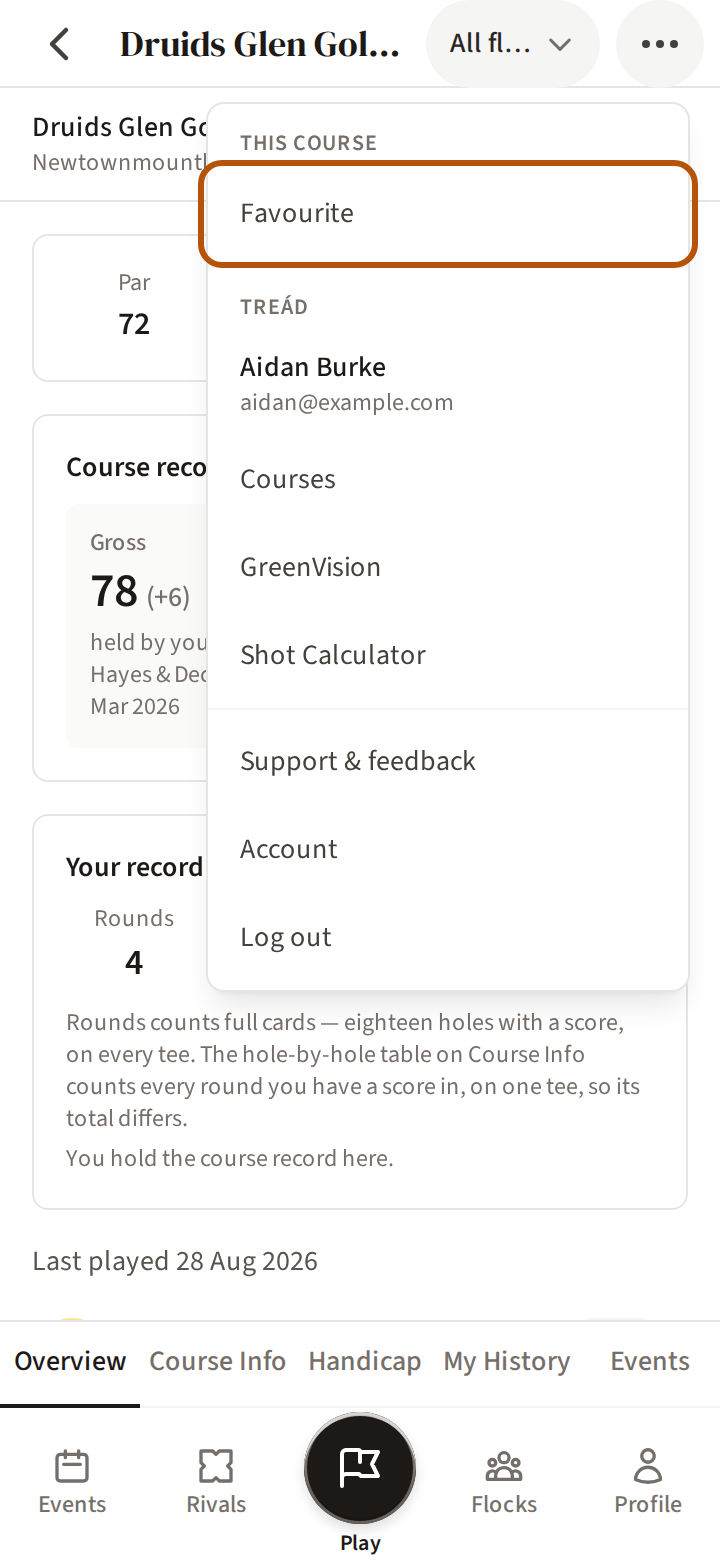
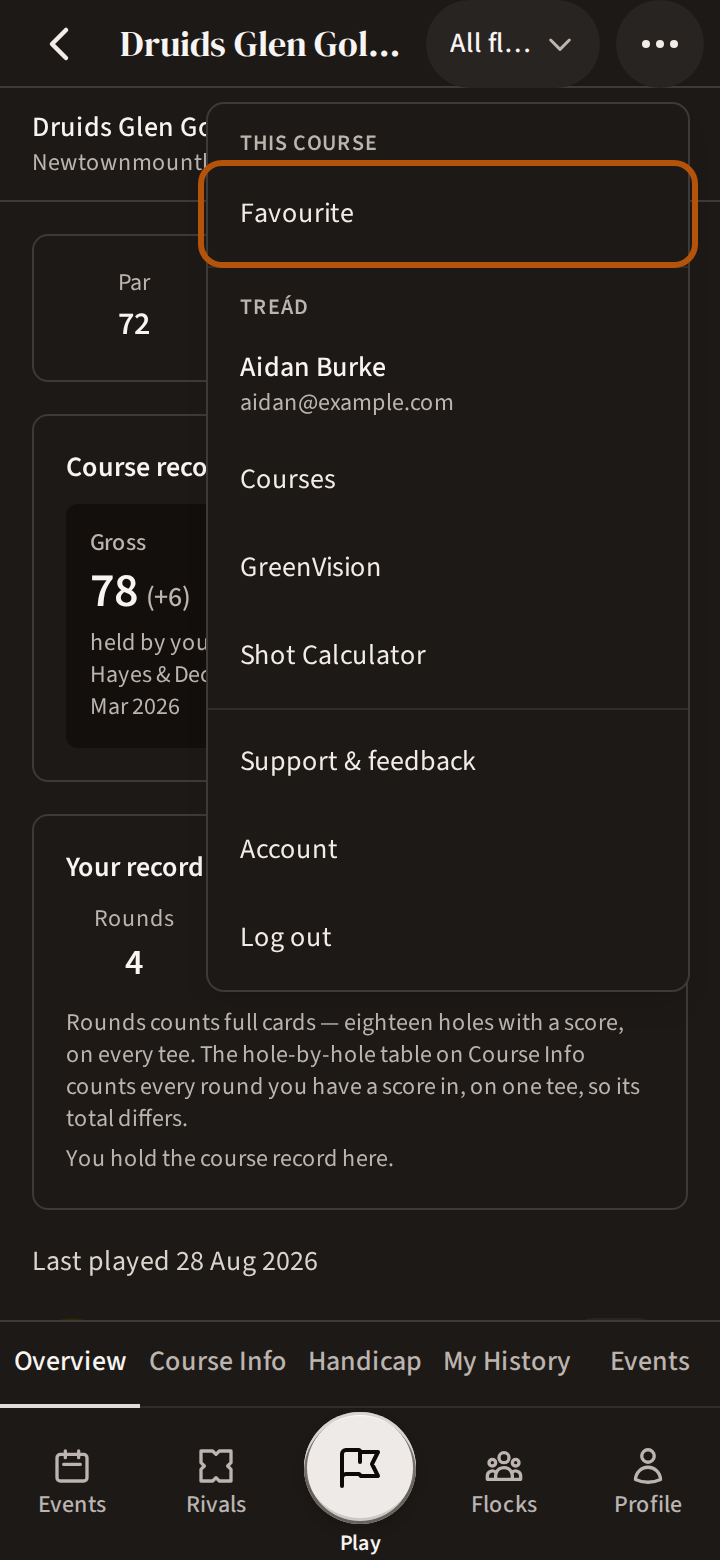
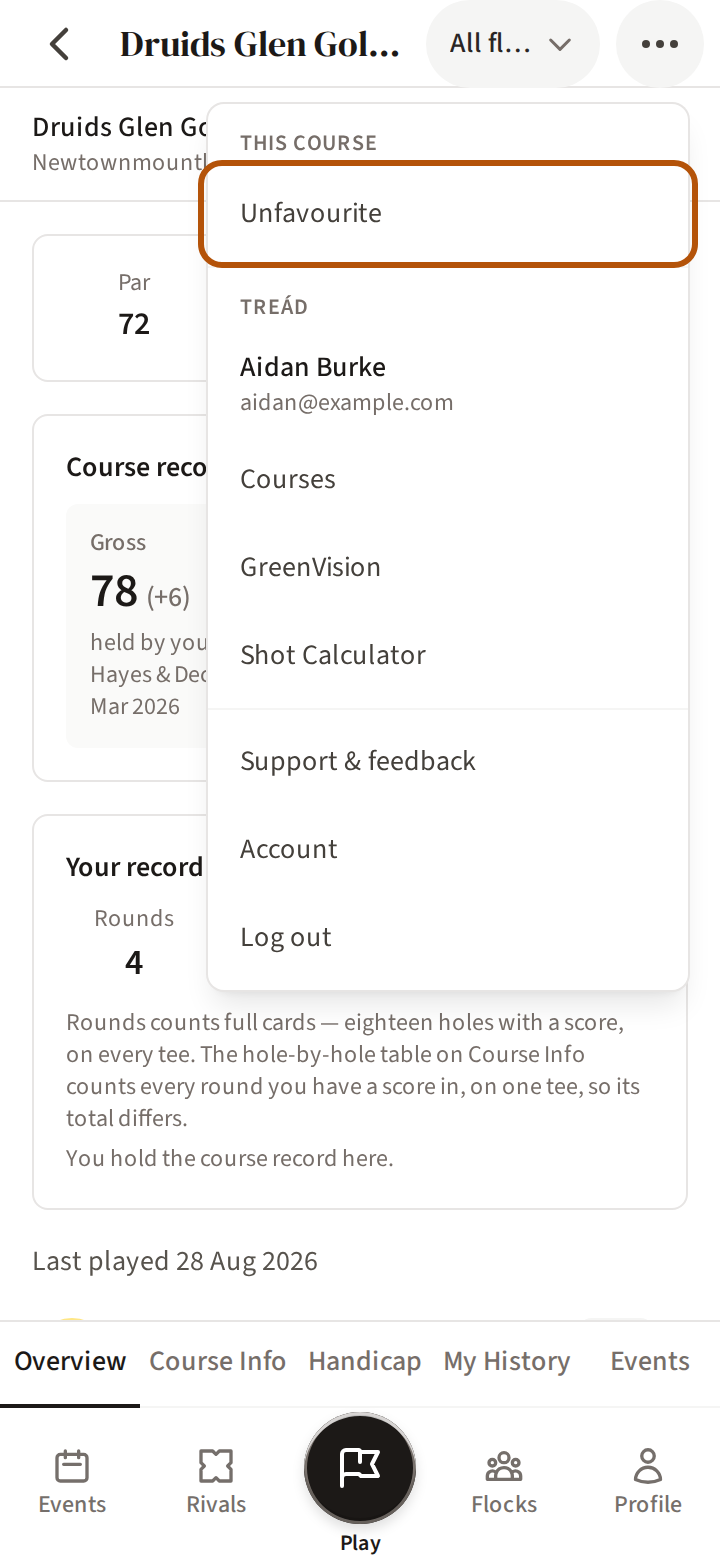
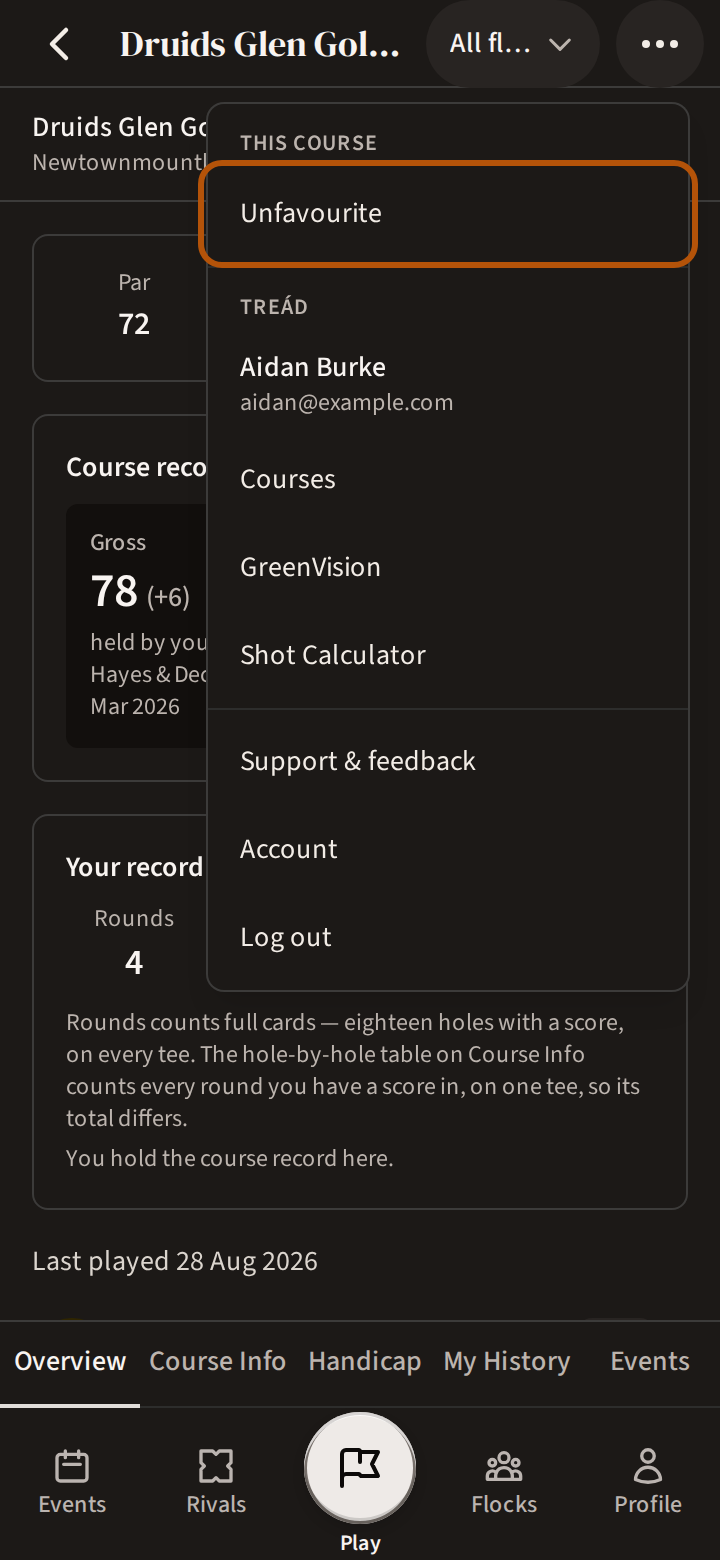
Open the course's page — Find and fix a course shows how to find it. Open the More menu (⋯) in the header and, under This course, press Favourite. To take it off again, press the same row: on a favourite it reads Unfavourite.
2. Or save it as you set up a round
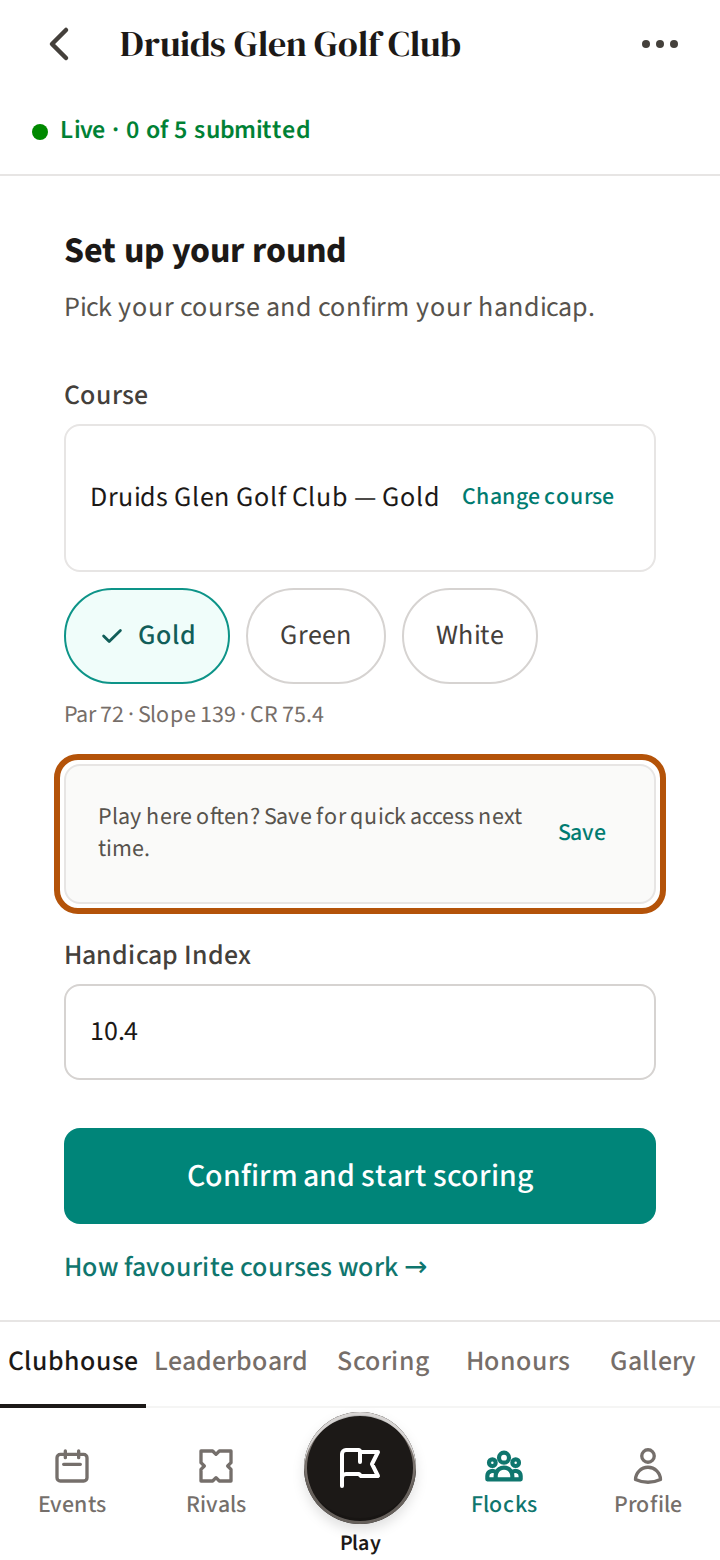
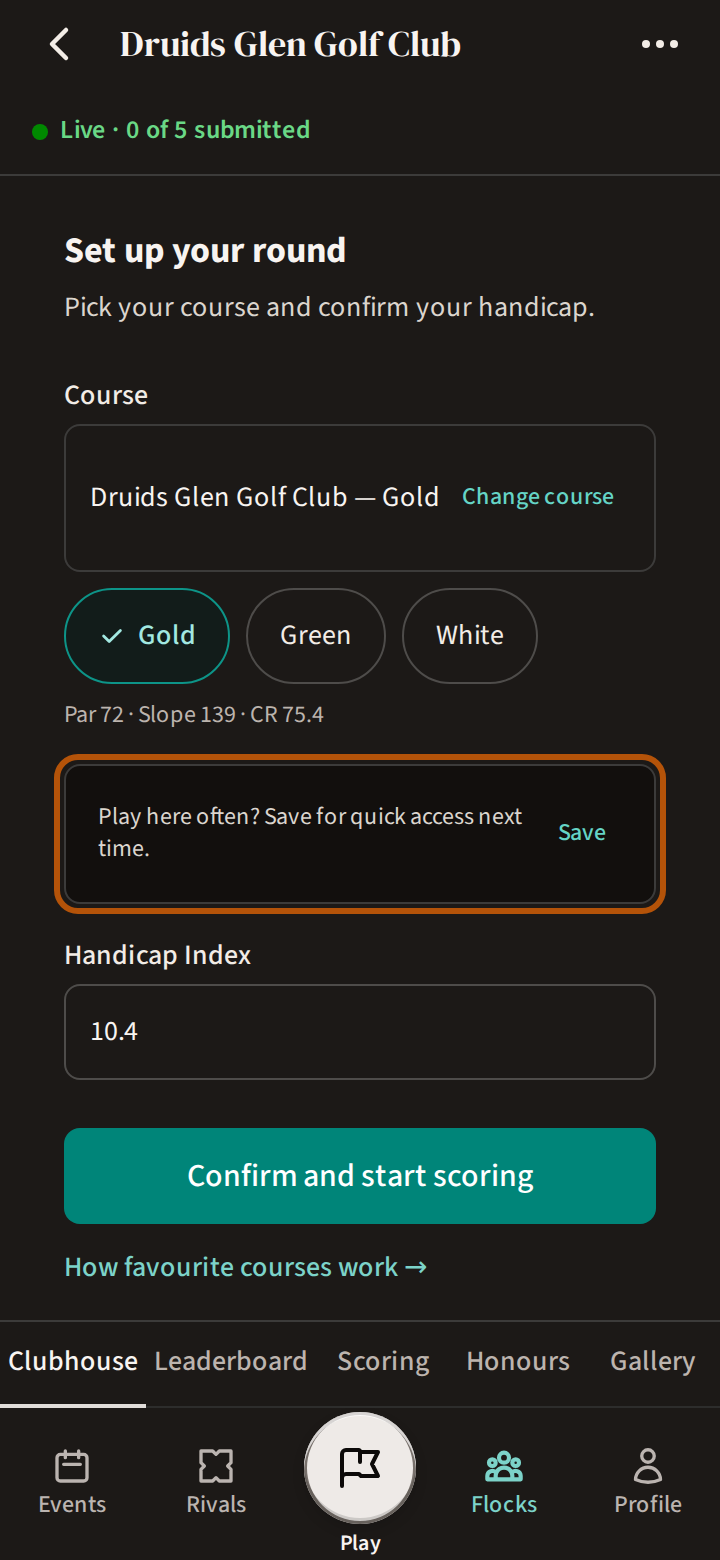
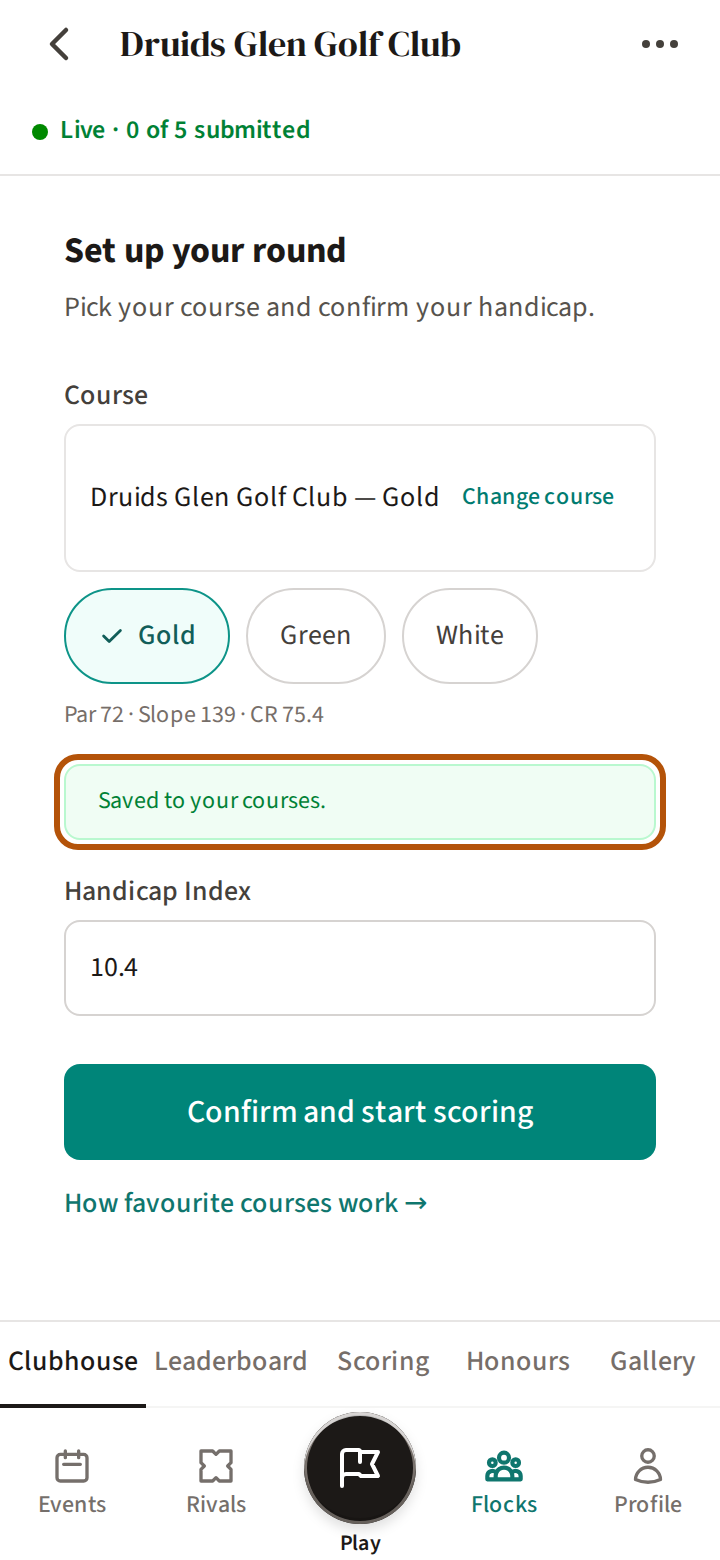
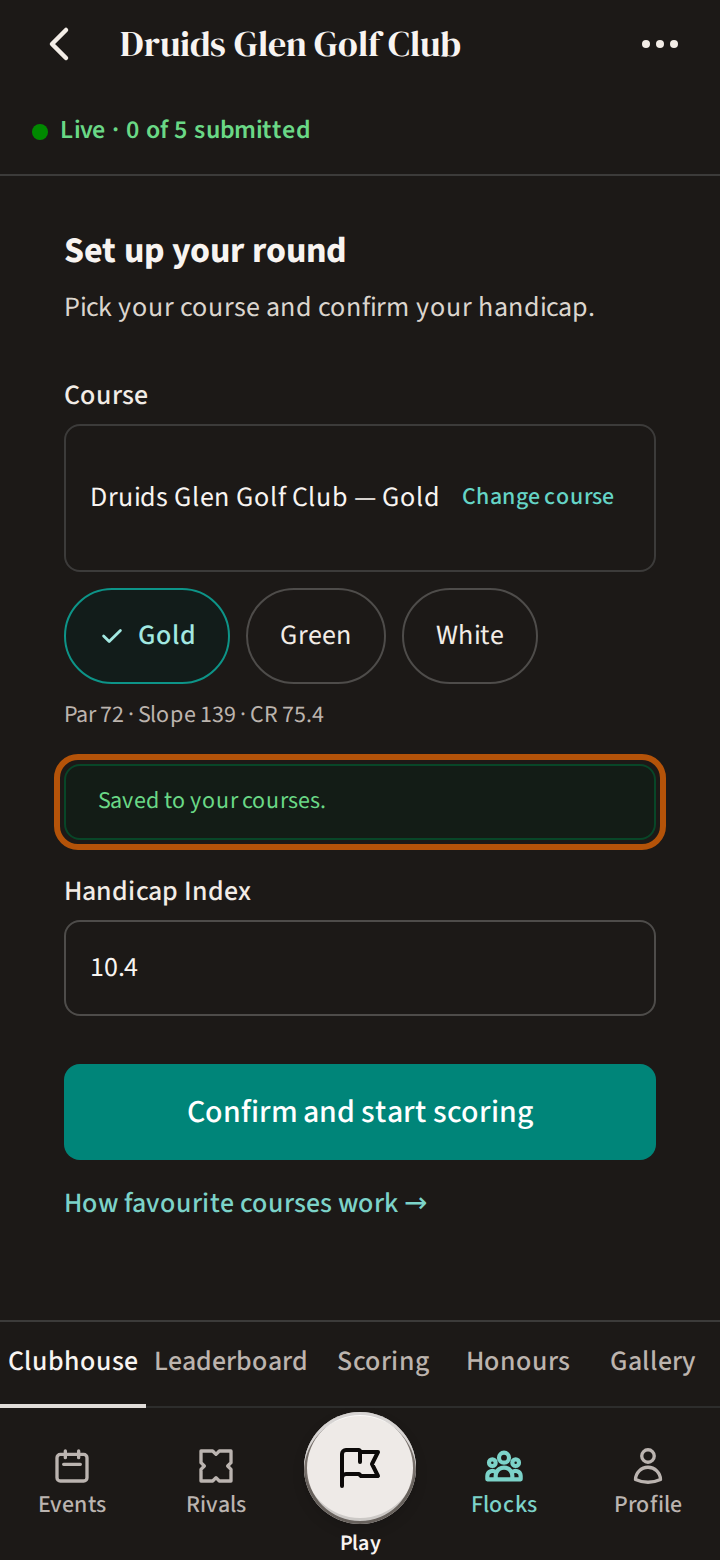
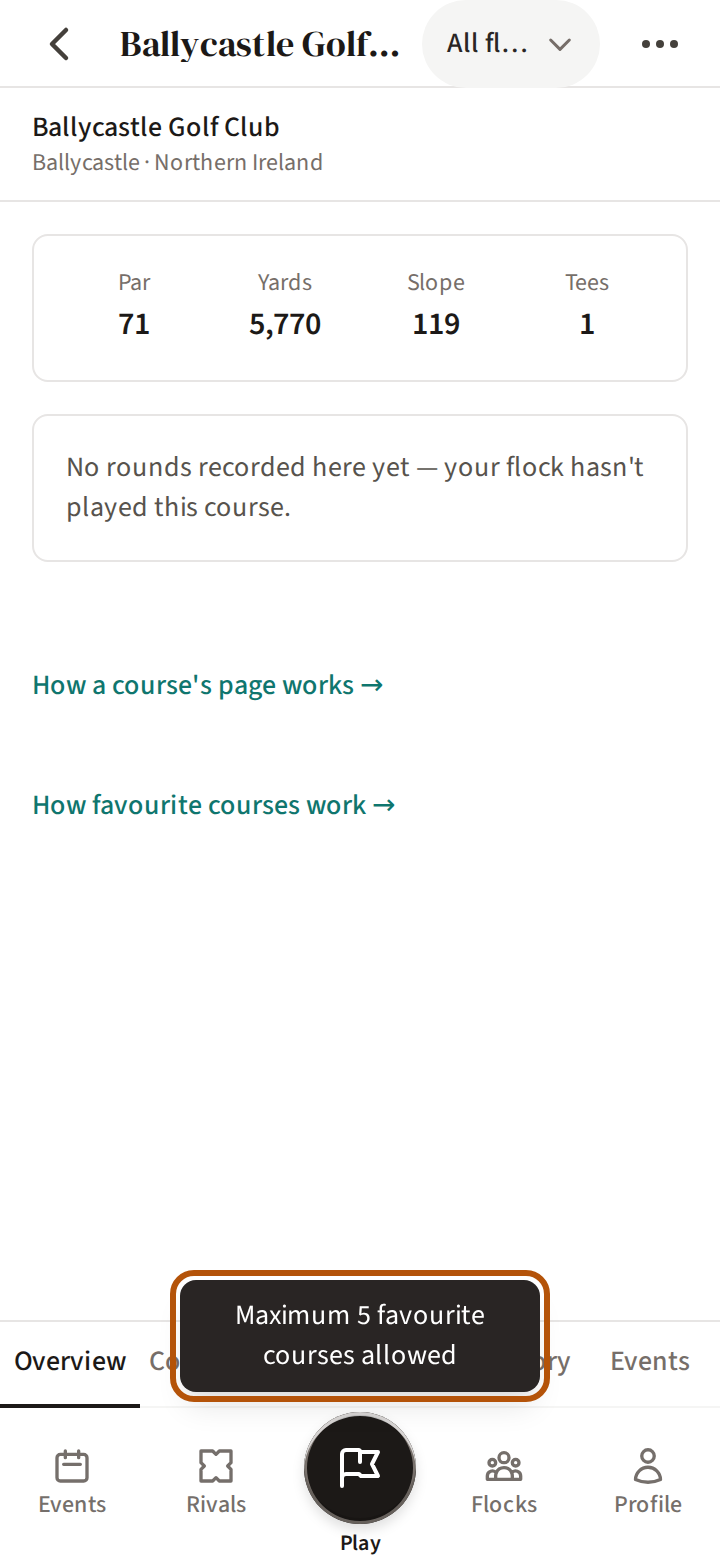
Setting up a roaming or solo round on a course you haven't saved? Once you have chosen the course and your tees, Set up your round asks Play here often? Press Save, and Saved to your courses. shows briefly to confirm it is one of your favourites. It doesn't ask about a course that is a favourite already, or once you have five.
3. Put them in order on your Profile
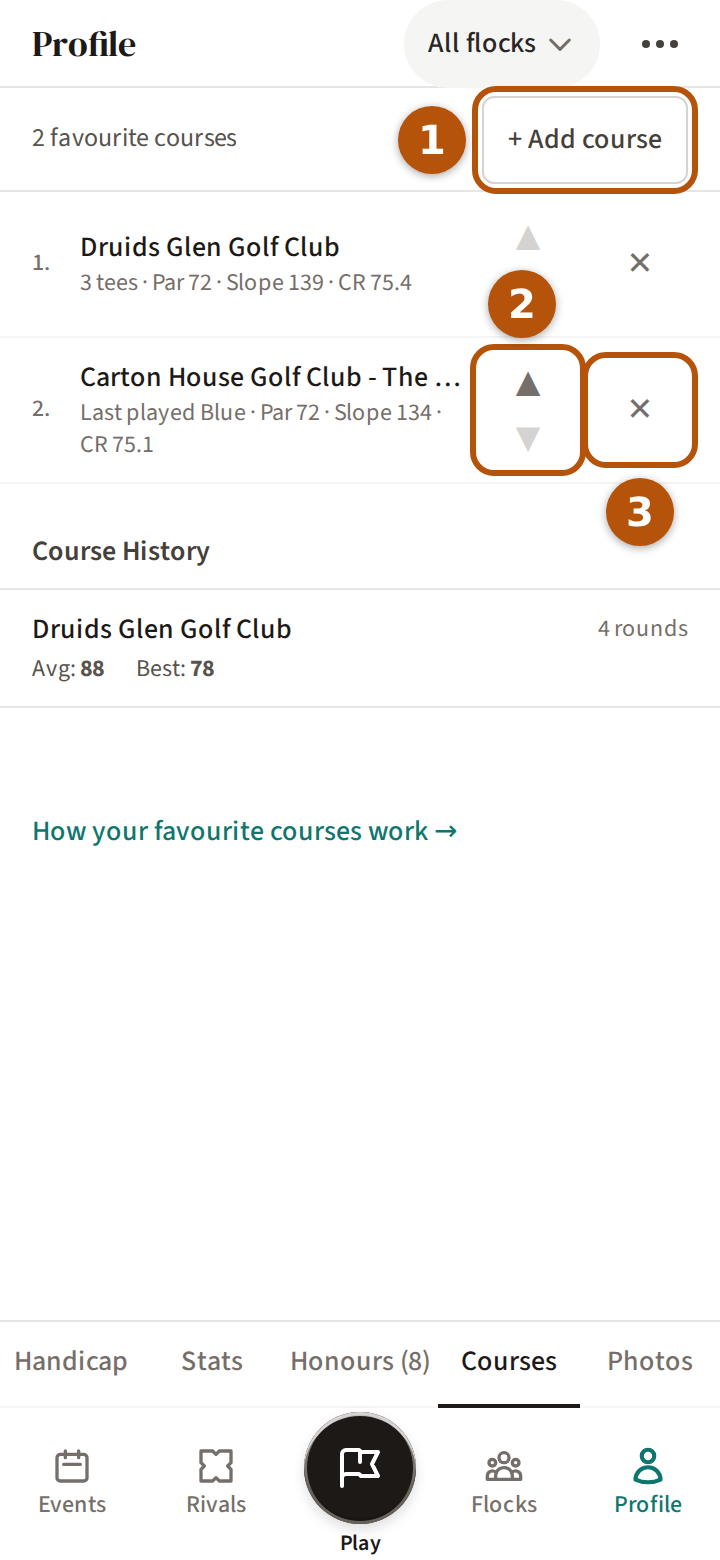
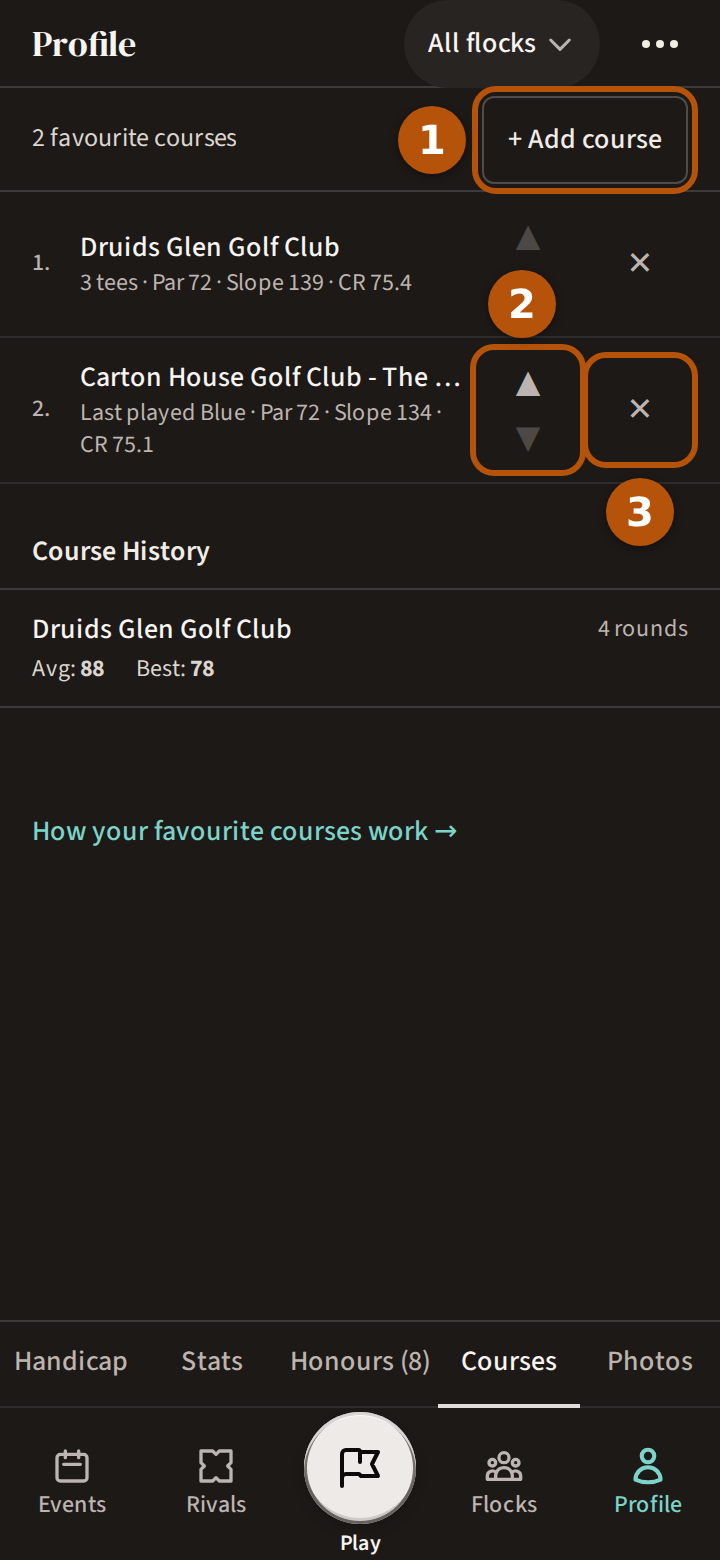
Press Profile on the bar, then Courses, one of your Profile's sections. Your favourites are listed in order, each with its par, slope and course rating — and, once you've played it on a roaming round, Last played and your tee. ① + Add course adds one: search for the club and press any of its tees. ② ▲ and ▼ move a course up or down the list — put the one you play most at the top (step 4). ③ ✕ takes a course off.
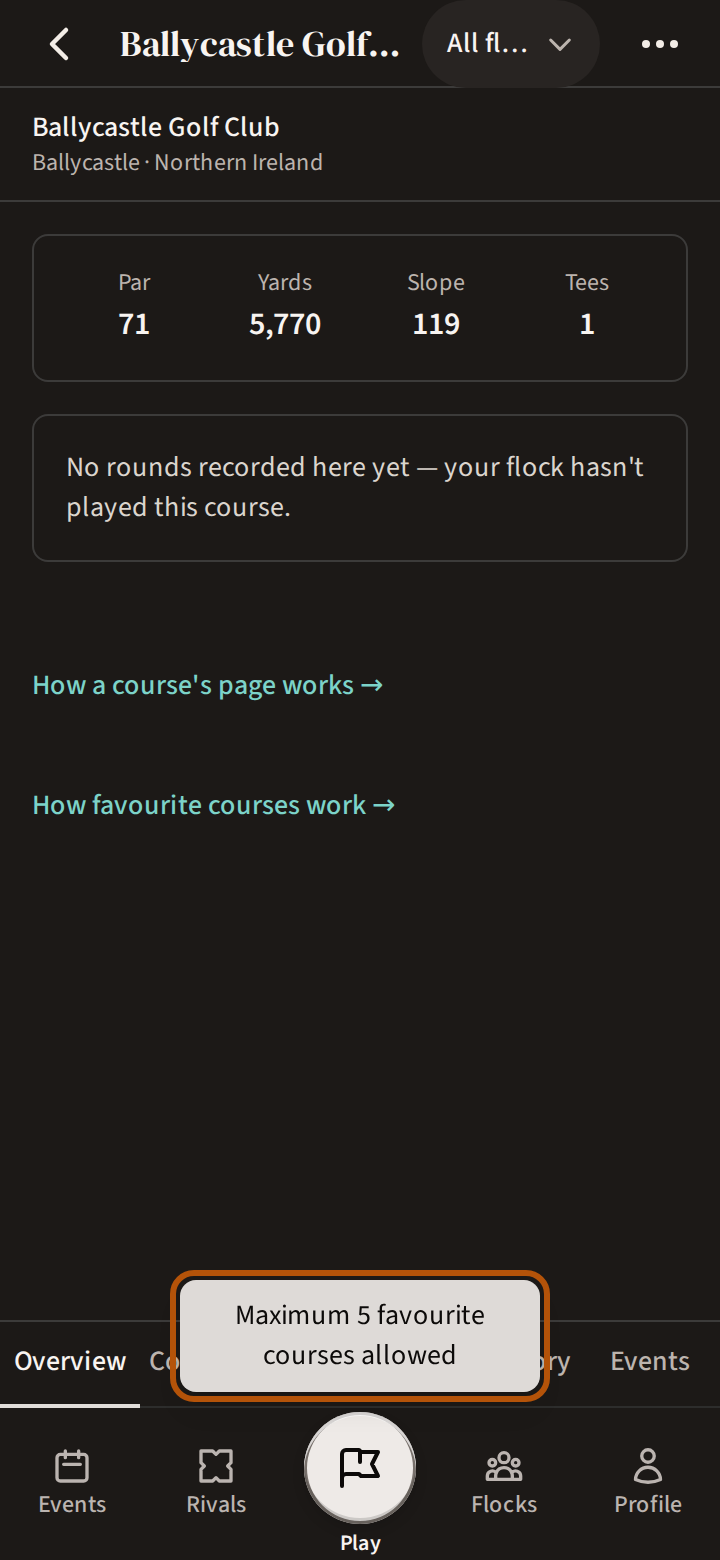
Five is the most you can keep. With five saved, + Add course leaves the list, and pressing Favourite on another course's page tells you five is the limit: take one off first.
4. Pick one when you set up a round
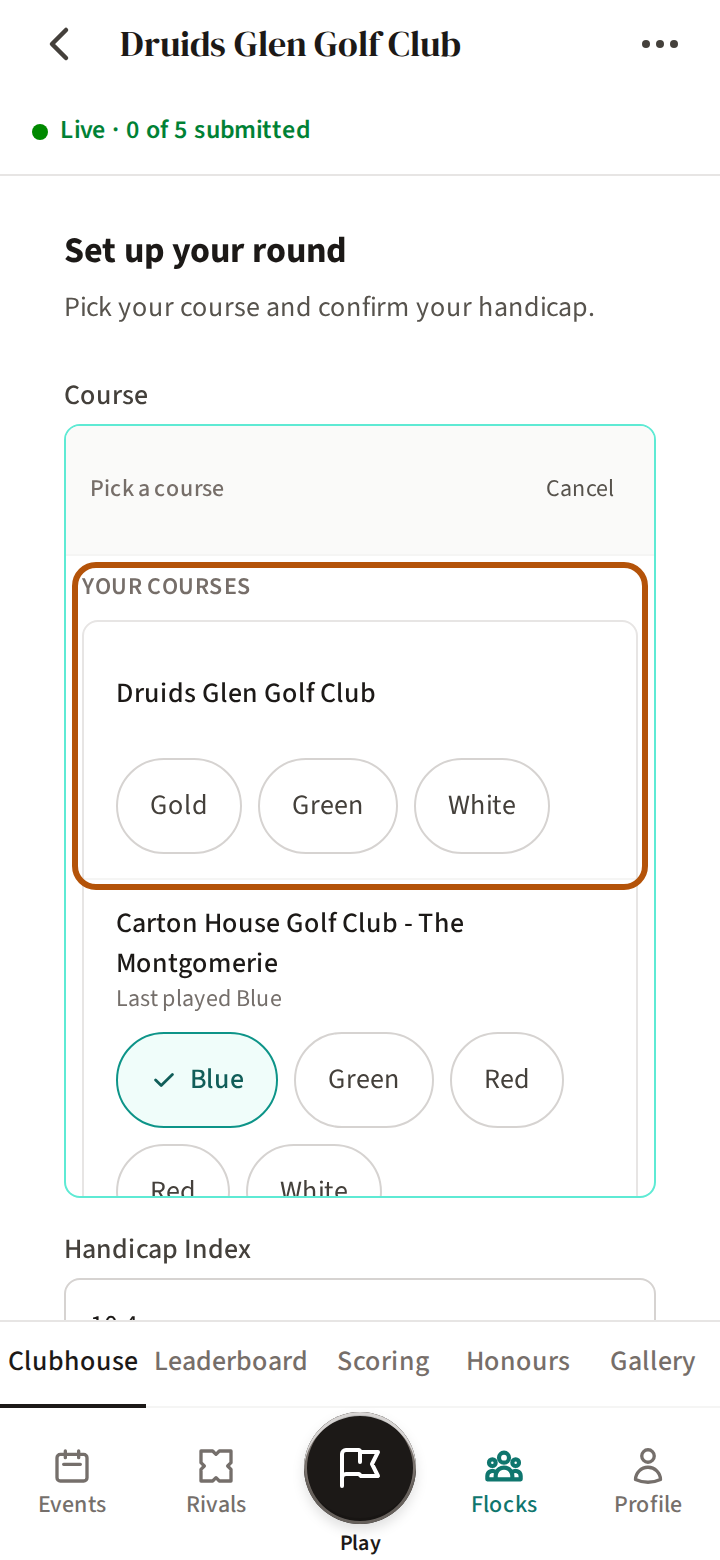
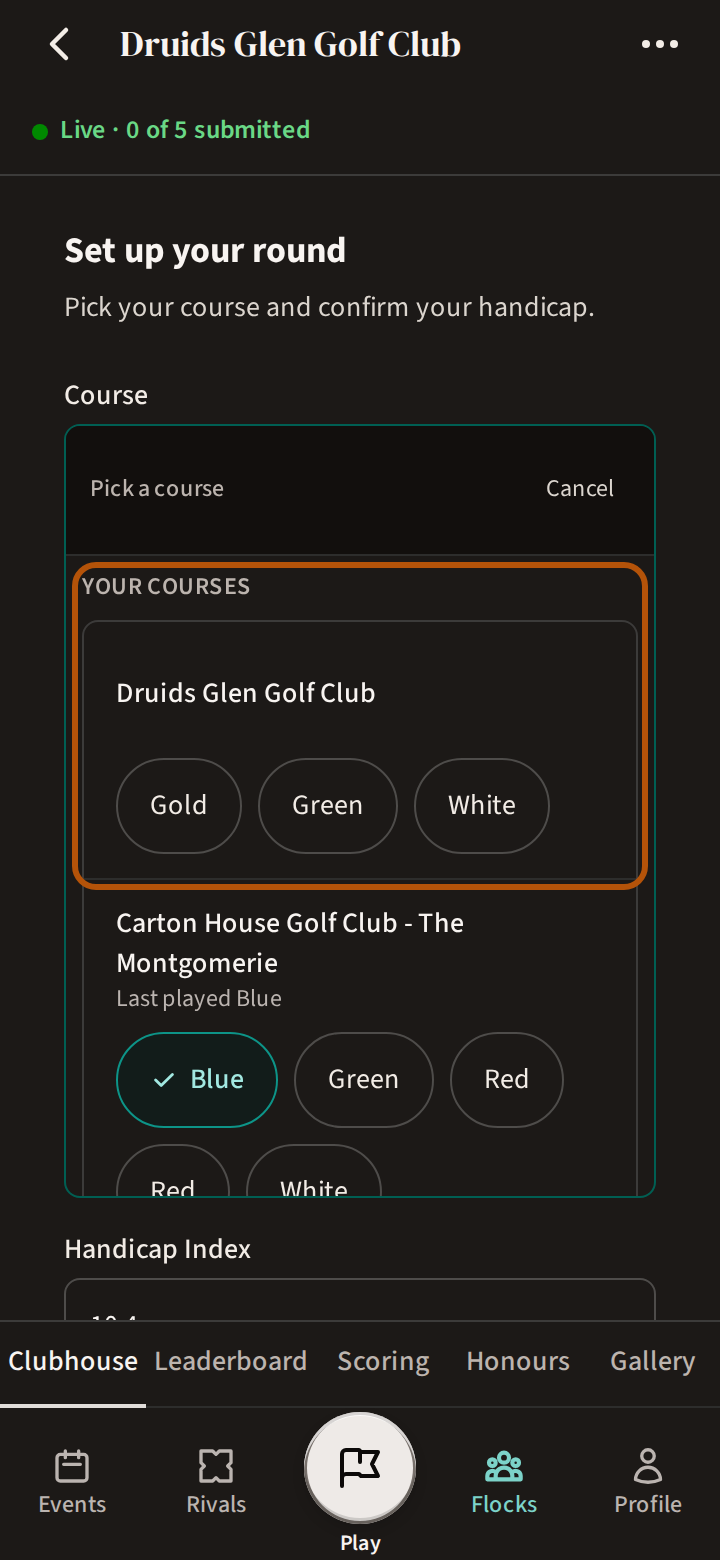
When you set up a roaming or solo round, Set up your round starts on the course Treád suggests from the rounds you've played with your flock (your group) — usually the last one. Not played with them yet? It starts on your first favourite instead, at the tee you last played there on a roaming round (or the first on its list). Playing somewhere else? Press Change course: your favourites are at the top, under Your courses, each with its tees beneath. The first two are shown; Show all lists the rest. Press the tee you're playing, check your Handicap Index, and confirm.
5. Your record, one press away
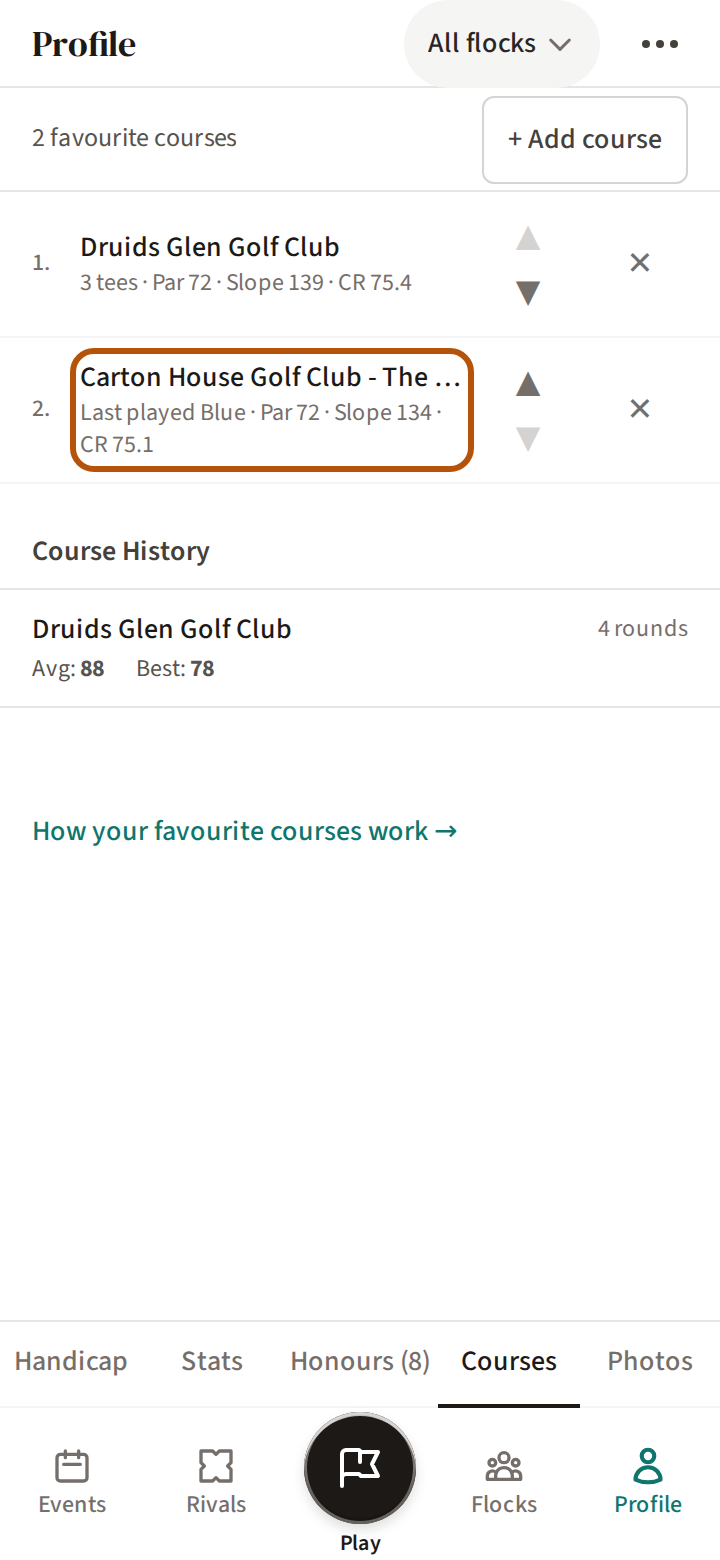
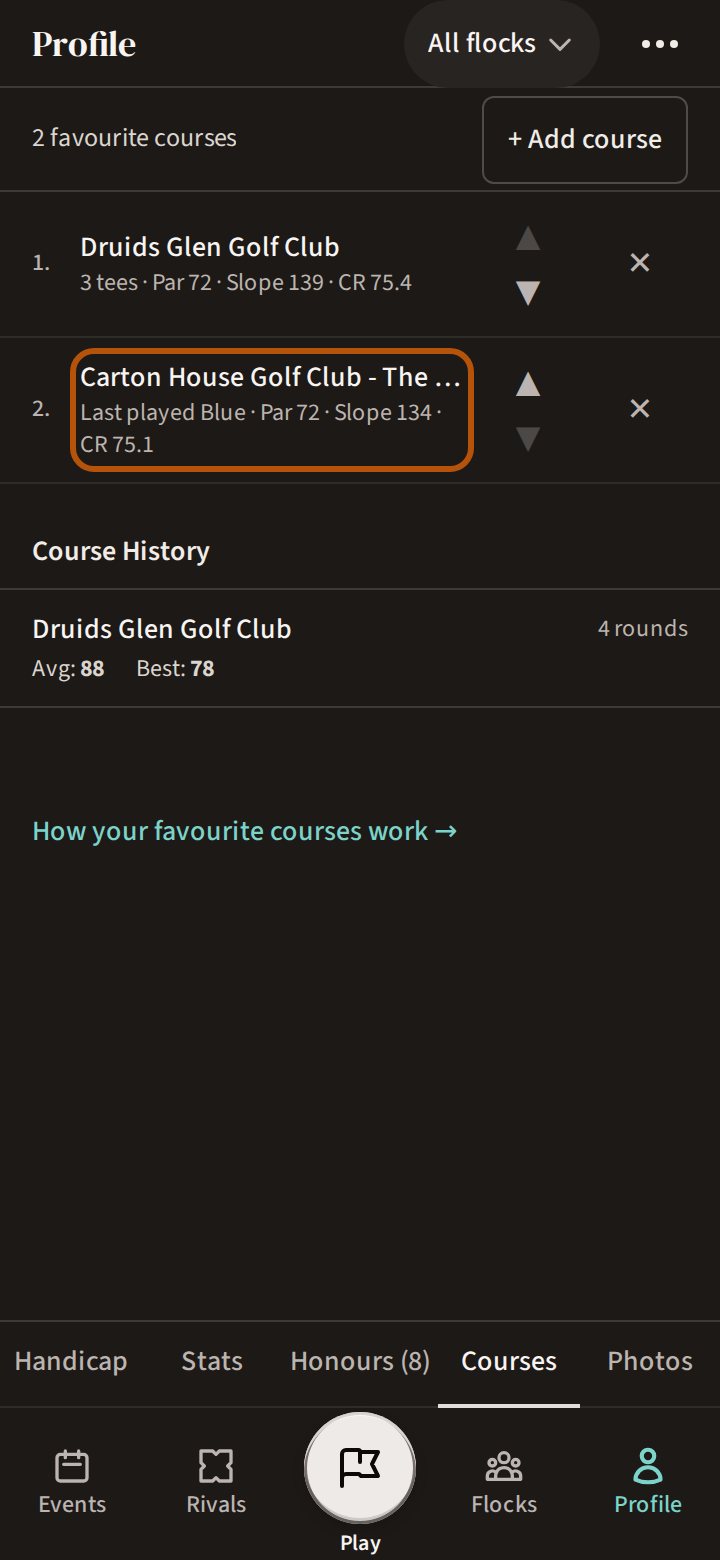
On your Profile's Courses, press a course's name to open its page — at your tee, where the list says Last played. Its Overview has Your record here — how many full rounds you've played there, your best gross, your best nett and your trend.
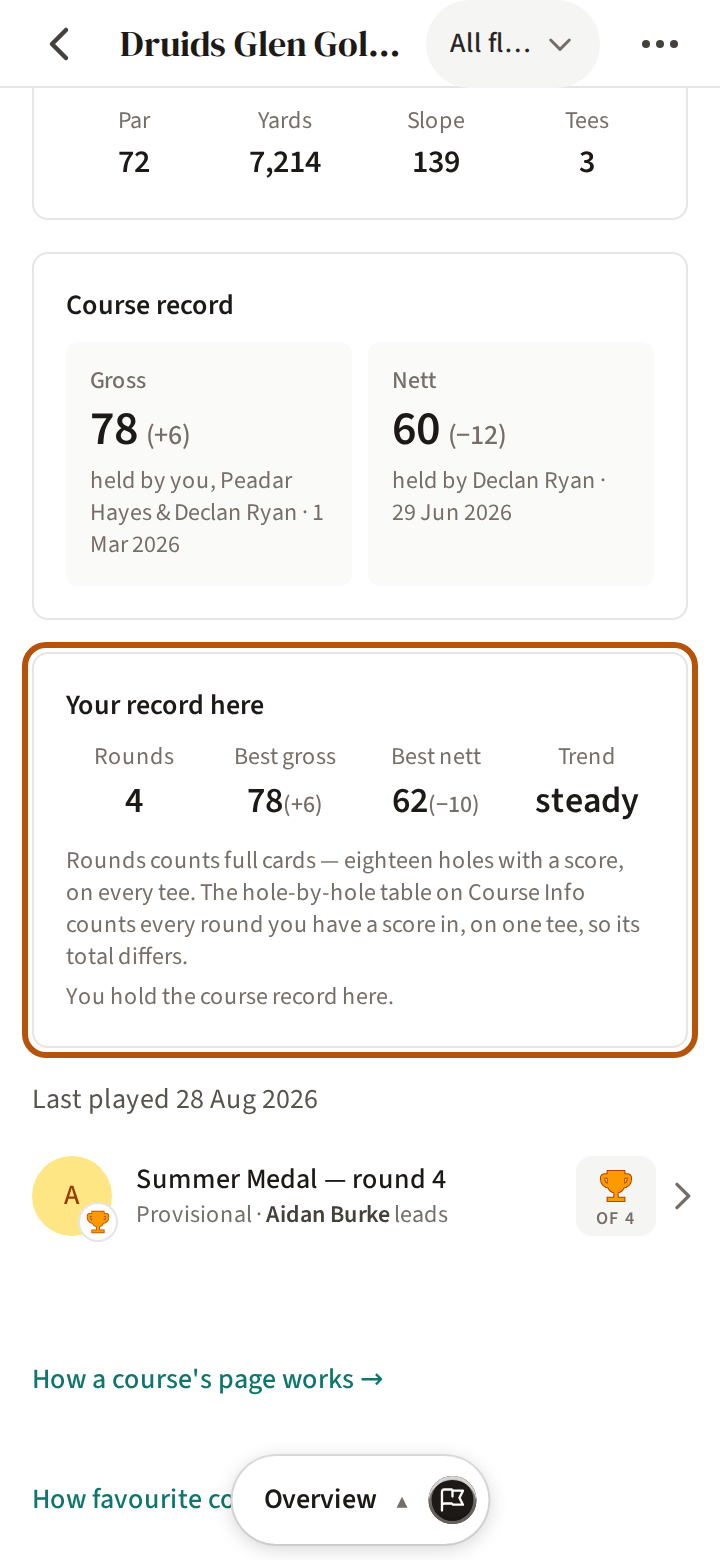
The page's other sections hold more: Course Info puts your own record on the scorecard, hole by hole, for that tee (Find the holes that lose you shots reads it with you), and My History holds every round you've played there.
Back on your Profile, Course History sits beneath your favourites: every course you've played, with your rounds, average and best gross. Press one to see its rounds. In more than one flock? Your record here and Course History count the rounds of the flock chosen in the picker, so choose All flocks to see them all.
Still stuck? Tell us and we will help.